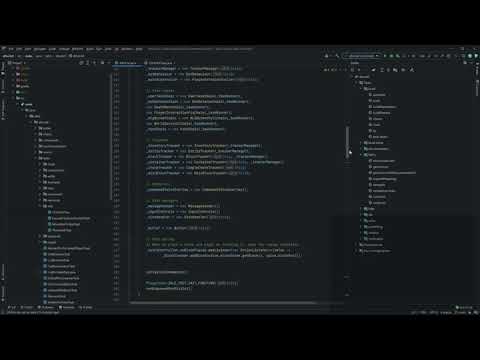
Clone project and import. I'd suggest using JetBrain's IntelliJ to import the project. Make sure you're using jdk 16 in your Project & Gradle Settings!
- Open Intellij
- Click
File > New > Project from Version Control...
- Copy + Paste the altoclef clone URL and Clone (find here: )

- Go to
File > Settings, searchGradleand make sure your Gradle JVM is set to a JDK that's version 16 (IntelliJ lets you download open source JDKs, any of those should be fine)
- Go to
File > Project Structure, then underProject Settings/Projectmake sure "Project SDK" is set to version 16
- On the right side of the screen open the gradle tab and navigate to
Tasks/fabric/runClient. ClickrunClient
If the gradle tab doesn't exist, try View > Tool Windows > Gradle
- Git Clone project
cdinto cloned local reposudo / doas chmod +x gradlew./gradlew buildor./gradlew runClient
Alto Clef uses a custom fork of baritone that gives you more control over how baritone works. If you wish to make edits to that fork you can do so locally if you follow these steps:
- Clone The baritone fork into the same directory containing
altoclef. For example, if you clonedaltoclefinto your desktop,baritoneshould be in your desktop as well. - Run
gradle buildwithin the fork you just cloned. You may open the folder in an IDE and run thebuildtask. - There should now be various
.jarfiles starting withbaritonein the following folder:baritone/build/libs - Now within
altoclef, pass-Paltoclef.developmentas a parameter when runninggradle build(In IntelliJ, go to the build dropdown ->Edit Configurations, then duplicate thealtoclef [build]configuration. In this duplicate, paste-Paltoclef.developmentinto the Arguments text field.) - When you build and pass
-Paltoclef.development, Alto Clef should now use the jar file inside of your custombaritonefork instead of pulling from online. This lets you rapidly test local changes to baritone.