Home
First we have to find out which policy set is the right one. It is important to understand that the policy sets of this solution differ only by two criteria: Are devices registered? What licensing is available?
However, every company is different and so is every conditional access concept. The policy sets should therefore be seen as a blueprint that can be further customized.
You can find the policy sets here, just take a quick look at the folder names to be familiar with them.
Even if you have decided on a policy set, this does not mean that it is already the perfect solution for your company. The following questions can help you to customize the policy set, many of the required alternatives are already available as policies in the policy repository. These questions do not necessarily have to be clarified before the first deployment, some of them will have to be addressed at the latest in the evaluation and roll-out phase.
- How should administrative access be protected in your company?
- Do we want to allow limited access from untrusted devices? The solutions policy sets allow access from untrusted devices with data loss prevention controls (session controls & app protection policies)
- Can trust in networks / IP addresses be completely eliminated?
- Can we block legacy authentication completely or do we have to limit it first?
- Which device platforms are used in our environment? (e.g. is there Linux usage)
The most important question will be where your company is in the maturity level for strong authentication, the blueprints are only at maturity level 1 or 2 of 4.
A second key part is your BYOD approach, the blueprints are using session controls and app protection policies for O365.
Fore more details and true deep-dive on the blueprint decisions you should take a look at the Conditional Access guidance
You can find more details about the zero trust maturity level in this Microsoft blog. The maturity level provides us with information about which signals we can include in a conditional access decision. When choosing a 'starter' set, however, this is primarily reduced to one question: Are your devices already registered in Azure AD?
You have rolled out Hybrid Azure AD Join or your devices are managed via Intune to receive device compliance? Then one of the three 'device trust' policy sets are right for you.
Your devices are not yet registered in Azure AD? Immediately start work on that! In the interim the 'network trust' policy sets can help you if you can name your companies internet breakouts.
There also is a 'bare minimum' policy set, I do not recommend it but it get's close to the deprecated baseline policies, even in my 'bare minimum' policy set you would have do think about your internet breakouts.
If you do not want to spend any time with conditional access but still want security, go enable security defaults.
Both the network trust and the device trust policy set are available in three variants depending on your licensing.
All users are licensed with Azure AD Premium P2? Go with the 'AADP2' version, it will target risk based policies to all users.
Only a subset of users are Azure AD Premium P2 licensed? Go with the 'AADP1 and AADP2' version, it will traget risk based policies to a dynamic AADP2 user group.
No Azure AD Premium P2? Go with the 'AADP1' version, it will not create any risk based policies.
All rules are created in report only mode, so if you choose a network trust policy set you could use the device trust policy set instead and only enable some of the policies. The device trust policy set includes all network trust policies. So while the rules are already in place they are deactivated and as soon as the devices are registered in Azure AD they can be activated, but this is a matter of taste. Do not deploy a policy set containing AADP2 if your tenant licensing level is only AADP1, it may fail.


- Download the Deploy-Policies.ps1 script
- Download your desired policy set
- Add a AAD app registration via App registration -> New registration: Define a name, Supported account types: "Accounts in this organizational directory only (Single tenant)", Redirect URI (optional): No additional configuration -> Register
- Under authentication add a platform configuration for 'Mobile and desktop applications' and only select the native client redirect URI (https://login.microsoftonline.com/common/oauth2/nativeclient)
- Under authentication enable the 'public client flows'
- Under API permissions add the following Microsoft Graph delegated permissions: Application.Read.All, Policy.Read.All, Policy.ReadWrite.ConditionalAccess, admin consent is not required.
- The script requires the AzureADPreview PowerShell module and is tested in Version 2.0.2.89, please note that the module does not yet support PowerShell 7, you will have to use PowerShell 5 or lower. A newer AzureADPreview module should work fine.
- The script uses device code flow authentication with the above created app registration for Microsoft Graph and a second interactive authentication with the AzureADPreview PowerShell module, together this will require the following permissions on your administrative account (least privilege):
- Conditional Access Administrator: Policy creation and updates
- User Administrator: Target and exclusion group creation
- Application Administrator: To give the application delegated permissions for Application.Read.All
- Run the Deploy-Policies.ps1 script e.g. .\Deploy-Policies.ps1 -Prefix "CA" -Ring "ALL" -ClientId "a4a0356b-69a5-4b85-9545-f64459010333" -TenantName "company.onmicrosoft.com" -PoliciesFolder "C:\Repos\ConditionalAccess\Policies" - DISCLAIMER: The policy sets are provided in report-only mode - Policies in report-only mode requiring compliant devices may prompt users on macOS, iOS, and Android to select a device certificate. You can either adjust the JSON templates to exclude the device platforms macOS, iOS and Android or adjust the JSON files to deploy the policies in disabled state to get a better understanding first.
For more details you can watch my YouTube video that walks you through the process. In the video I mention policies are deployed disabled, this has been updated to report-only after the video was taken.
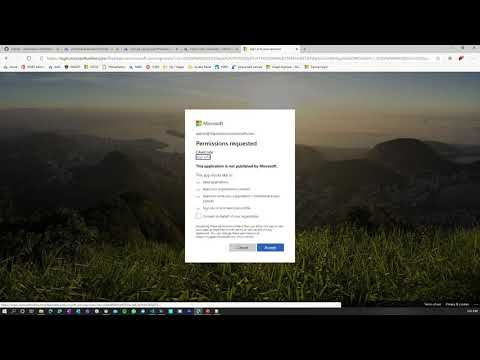
Note: The solution already supports updating existing policies based on a policy id in the JSON file.
- Add your emergency access account to the 'Exclusion_EmergencyAccessAccounts' group. If you do not have a emergency access account yet, create one.
- Add your Azure AD Connect Service Account to the 'Exclusion_SynchronizationServiceAccounts' group. Display name in AAD is 'On-Premises Directory Synchronization Service Account'
- Add your internet breakouts as trusted locations
- Enable the combined security information registration otherwise the policy to restrict MFA registration will not work.
- Ensure modern authentication is activated on Exchange Online via M365 Admin Portal or PowerShell
- Ensure modern authentication is activated on Skype for Business Online
- Consider re-certification of exclusions, e.g. you could create access reviews for your exclusion groups
- Define a strategy how your users will register for MFA
- If your policy set contains the O365 data protection policies, enable the app enforced restrictions on Exchange Online and SharePoint Online. Note, this will create two policies that are enabled for all users, you can delete them as your policy set already contains them.
- If your policy set contains the O365 data protection policies, create App Protection Policies
- Consider audit log alerts for a) Emergency access account usage b) Conditional access configuration changes c) Accounts added to conditional access exclusion. You could achieve this with Azure Sentinel or Azure Monitor. Example KQL queries can be found here.
- The admin protection currently covers Azure AD roles as well as the Azure Management application, you may want to extend this protection.
- This could mean to e.g. include AWS in the privileged systems applications.
- It could also mean that users are considered privileged users in other M365 RBAC systems. These other systems require you to list the accounts to be protected. As of now Conditional Access can only target Azure AD roles, which is only one of several M365 RBAC systems. To do this, the automation creates an administrator group which is protected by the M365 admin protection [100 - 103]. This group must be filled and maintained.:
- Exchange
- Intune
- Cloud App Security
- Security & Compliance Center
- Microsoft Defender Advanced Threat Protection
- Azure AD Entitlement Management
- Commerce
- Make sure your Intune compliance policy settings are set to "Mark devices with no compliance policy assigned as: Not Compliant.
- If you are using Intune compliance for your device trust make sure to create your compliance policies
- Convert users from per-user MFA to Conditional Access based MFA
- Enable password writeback for user risk policies
- Enable password hash sync if you want to benefit from the user risk policies / leaked credential detection
- If you already know service accounts that need to be excluded from the policies, you can add them to the permanent exclude groups created for each policy. At the same time you should ask yourself if the process can be optimized, e.g. changing the service account to a service principle e.g. with certificate based authentication or a managed identity for Azure resources. If you are not sure which service accounts have to be excluded, don't worry, they will be identified in the evaluation and roll-out phase described in the next section. However, here is a list of potential accounts:
- Azure Information Protection unified labeling scanner

I recommend to familiarize yourself with the rules in detail and to evaluate them first in report-only mode.
The process of a successful impact evaluation and rollout could look as follows:
- Deploy your desired policy set in report-only mode to all users. In Deploy-Policies.ps1 this is possible with the parameter $RingTargeted NOT set or set to FALSE. In this case the policies will be targeted to ALL USERS.
- Evaluate the impact of the policies using the Conditional Access Insights Workbook.
- Based on your evaluation you will find
- Policies you can enable immediately
- Policies you can enable for ALL USERS after minimal clarification / follow-ups with other teams
- Policies that will require testing and a ring based deployment method, e.g. IT first, KEYUSER next and finally the hole company.
- Lets imagine you did deploy a policy set with 24 policies and let's assume for 5 of these policies you will require a ring based rollout / testing. You can now use the ring-based deployment of this solution to deploy a second / third / X set of these 5 policies to bring the policies to your rings while keeping the initial 5 policies from your first deployment for report-only mode analysis.
If you use this solution to make changes to your policies, the JSON files serve as technical documentation that can be versioned and restored via source control.
In addition to this it can make sense to create an easy to read documentation, e.g. in form of an Excel sheet. Nicola Suter offers a script solution for this.
Daniel Chronlund also offers a documentation solution in his DCToolBox.
Fortigi offers a great Conditional Access PowerShell Module.