| title | description | sidebarTitle |
|---|---|---|
ComfyUI Flux.1 ControlNet Examples |
This guide will demonstrate workflow examples using Flux.1 ControlNet. |
Flux.1 ControlNet |


FLUX.1 Canny and Depth are two powerful models from the FLUX.1 Tools launched by Black Forest Labs. This toolkit is designed to add control and guidance capabilities to FLUX.1, enabling users to modify and recreate real or generated images.
FLUX.1-Depth-dev and FLUX.1-Canny-dev are both 12B parameter Rectified Flow Transformer models that can generate images based on text descriptions while maintaining the structural features of the input image. The Depth version maintains the spatial structure of the source image through depth map extraction techniques, while the Canny version uses edge detection techniques to preserve the structural features of the source image, allowing users to choose the appropriate control method based on different needs.
Both models have the following features:
- Top-tier output quality and detail representation
- Excellent prompt following ability while maintaining consistency with the original image
- Trained using guided distillation techniques for improved efficiency
- Open weights for the research community
- API interfaces (pro version) and open-source weights (dev version)
Additionally, Black Forest Labs also provides FLUX.1-Depth-dev-lora and FLUX.1-Canny-dev-lora adapter versions extracted from the complete models. These can be applied to the FLUX.1 [dev] base model to provide similar functionality with smaller file size, especially suitable for resource-constrained environments.
We will use the full version of FLUX.1-Canny-dev and FLUX.1-Depth-dev-lora to complete the workflow examples.
All workflow images's Metadata contains the corresponding model download information. You can load the workflows by: - Dragging them directly into ComfyUI - Or using the menu `Workflows` -> `Open(ctrl+o)`If you're not using the Desktop Version or some models can't be downloaded automatically, please refer to the manual installation sections to save the model files to the corresponding folder.
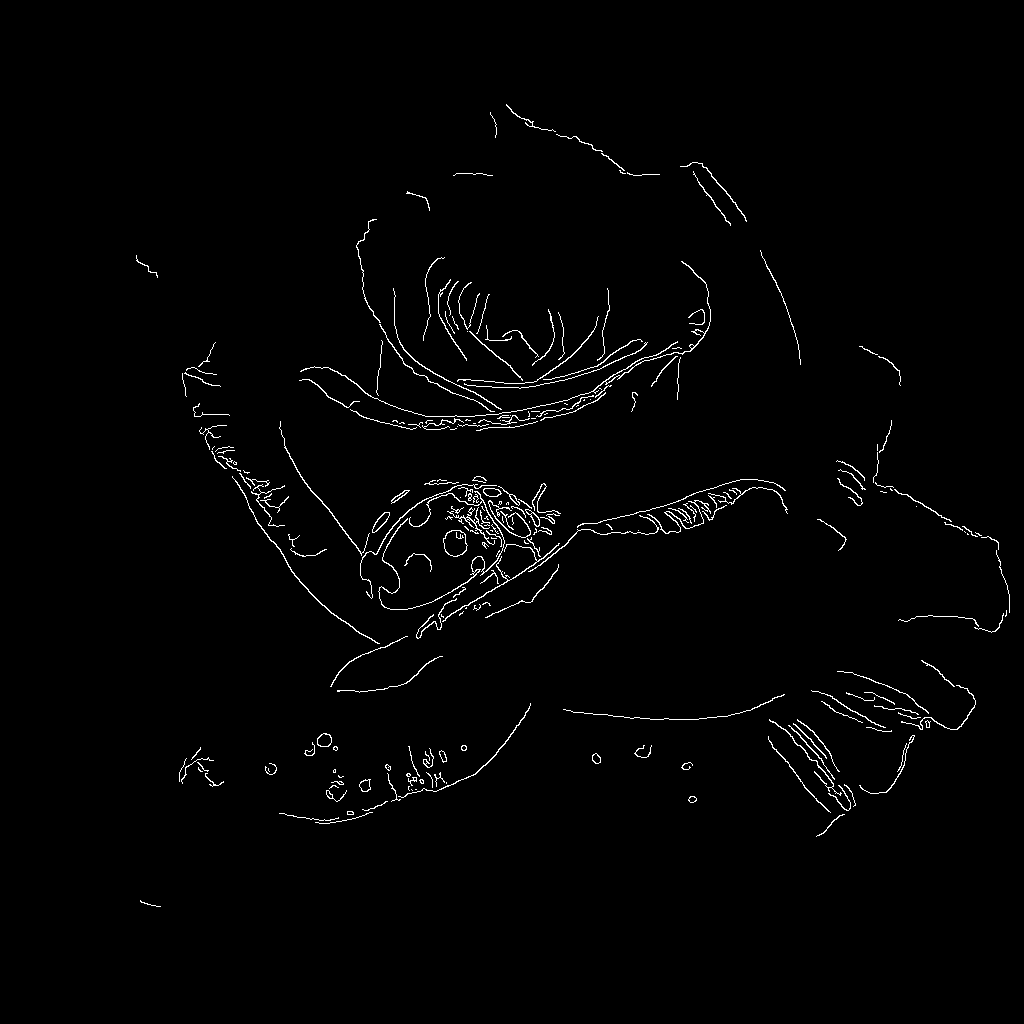
For image preprocessors, you can use the following custom nodes to complete image preprocessing. In this example, we will provide processed images as input.
<a className="prose" target='_blank' href="https://cloud.comfy.org/?template=flux_canny_model_example&utm_source=docs" style={{ display: 'inline-block', backgroundColor: '#28a745', color: '#ffffff', padding: '10px 20px', borderRadius: '8px', borderColor: "transparent", textDecoration: 'none', fontWeight: 'bold'}}> <p className="prose" style={{ margin: 0, fontSize: "0.8rem" }}>Run on Comfy Cloud
Please download the workflow image below and drag it into ComfyUI to load the workflow

Please download the image below, which we will use as the input image
Complete model list:
- clip_l.safetensors
- t5xxl_fp16.safetensors
- ae.safetensors
- flux1-canny-dev.safetensors (Please ensure you have agreed to the corresponding repo's terms)
File storage location:
ComfyUI/
├── models/
│   ├── text_encoders/
│   │   ├── clip_l.safetensors
│   │   └── t5xxl_fp16.safetensors
│   ├── vae/
│   │   └── ae.safetensors
│   └── diffusion_models/
│       └── flux1-canny-dev.safetensors

- Make sure
ae.safetensorsis loaded in theLoad VAEnode - Make sure
flux1-canny-dev.safetensorsis loaded in theLoad Diffusion Modelnode - Make sure the following models are loaded in the
DualCLIPLoadernode:- clip_name1: t5xxl_fp16.safetensors
- clip_name2: clip_l.safetensors
- Upload the provided input image in the
Load Imagenode - Click the
Queuebutton, or use the shortcutCtrl(cmd) + Enterto run the workflow
Try using the FLUX.1-Depth-dev model to complete the Depth version of the workflow
You can use the image below as input
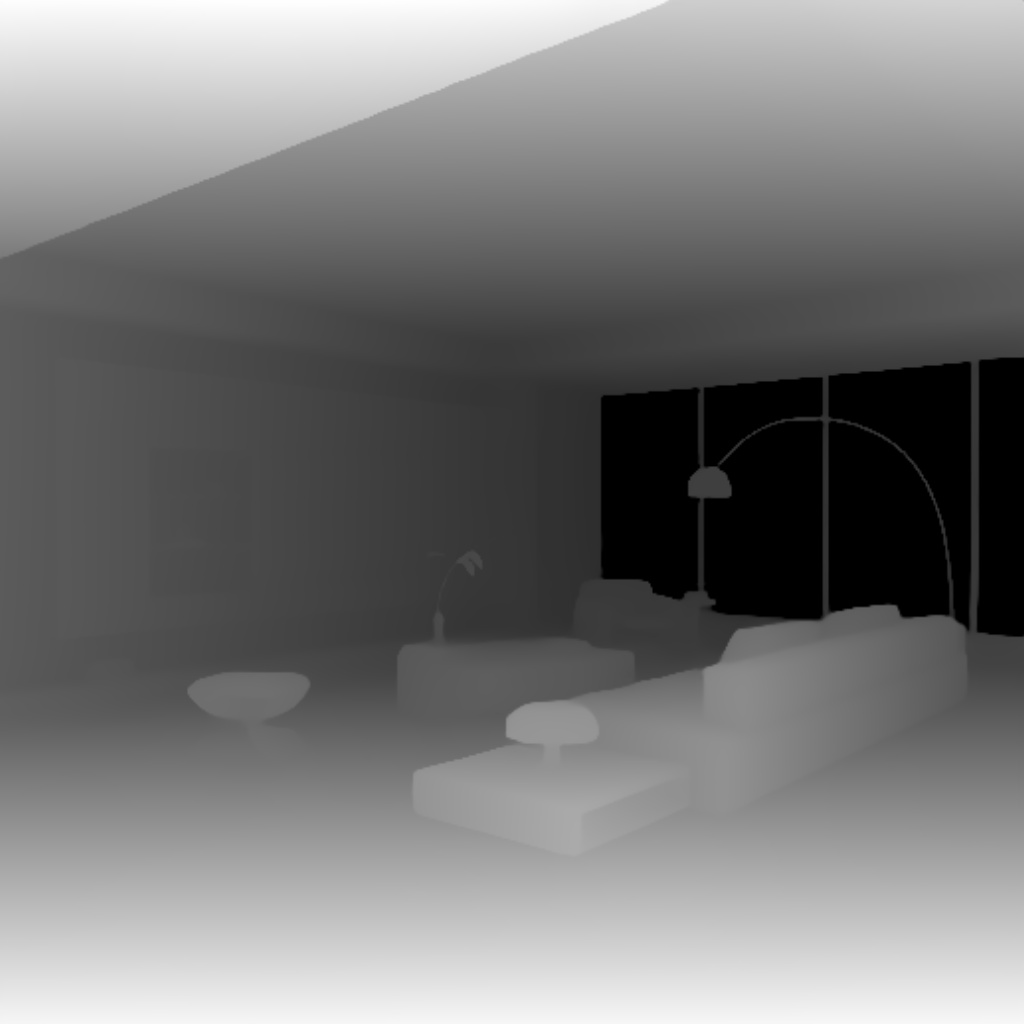
Or use the following custom nodes to complete image preprocessing:
<a className="prose" target='_blank' href="https://cloud.comfy.org/?template=flux_depth_lora_example&utm_source=docs" style={{ display: 'inline-block', backgroundColor: '#28a745', color: '#ffffff', padding: '10px 20px', borderRadius: '8px', borderColor: "transparent", textDecoration: 'none', fontWeight: 'bold'}}> <p className="prose" style={{ margin: 0, fontSize: "0.8rem" }}>Run on Comfy Cloud
The LoRA version workflow builds on the complete version by adding the LoRA model. Compared to the complete version of the Flux workflow, it adds nodes for loading and using the corresponding LoRA model.
Please download the workflow image below and drag it into ComfyUI to load the workflow

Please download the image below, which we will use as the input image

Complete model list:
- clip_l.safetensors
- t5xxl_fp16.safetensors
- ae.safetensors
- flux1-dev.safetensors
- flux1-depth-dev-lora.safetensors
File storage location:
ComfyUI/
├── models/
│   ├── text_encoders/
│   │   ├── clip_l.safetensors
│   │   └── t5xxl_fp16.safetensors
│   ├── vae/
│   │   └── ae.safetensors
│   ├── diffusion_models/
│   │   └── flux1-dev.safetensors
│   └── loras/
│       └── flux1-depth-dev-lora.safetensors

- Make sure
flux1-dev.safetensorsis loaded in theLoad Diffusion Modelnode - Make sure
flux1-depth-dev-lora.safetensorsis loaded in theLoraLoaderModelOnlynode - Make sure the following models are loaded in the
DualCLIPLoadernode:- clip_name1: t5xxl_fp16.safetensors
- clip_name2: clip_l.safetensors
- Upload the provided input image in the
Load Imagenode - Make sure
ae.safetensorsis loaded in theLoad VAEnode - Click the
Queuebutton, or use the shortcutCtrl(cmd) + Enterto run the workflow
Try using the FLUX.1-Canny-dev-lora model to complete the Canny version of the workflow
Use ComfyUI-Advanced-ControlNet or ComfyUI ControlNet aux to complete image preprocessing
XLab and InstantX + Shakker Labs have released Controlnets for Flux.
InstantX:
XLab: flux-controlnet-collections
Place these files in the ComfyUI/models/controlnet directory.
You can visit Flux Controlnet Example to get the corresponding workflow image, and use the image from here as the input image.