Get up and running with the FFT Multi-Language project in under 5 minutes using GitHub Codespaces!
- Go to the FFT repository on GitHub
- Click the green "Code" button
- Select the "Codespaces" tab
- Click "Create codespace on main" (or choose a different branch)

The container will build and configure automatically (first time: 3-5 minutes):
- ✅ Ubuntu 22.04 container with all language runtimes
- ✅ Python 3.12, Node.js 20, Java 17, C++, Rust installed
- ✅ TypeScript dependencies installed
- ✅ C++ and Rust projects pre-built
- ✅ VSCode extensions loaded
- ✅ Debug configurations ready
You'll see output in the terminal showing the setup progress.
Once the codespace opens:
- File Explorer (left sidebar): Browse all language implementations
- Terminal (bottom): Pre-configured with all tools available
- Extensions: All recommended extensions are installed
In the terminal, run:
./run_tests.shThis will execute tests for all 6 languages (Python, C++, Java, JavaScript, TypeScript, Rust).
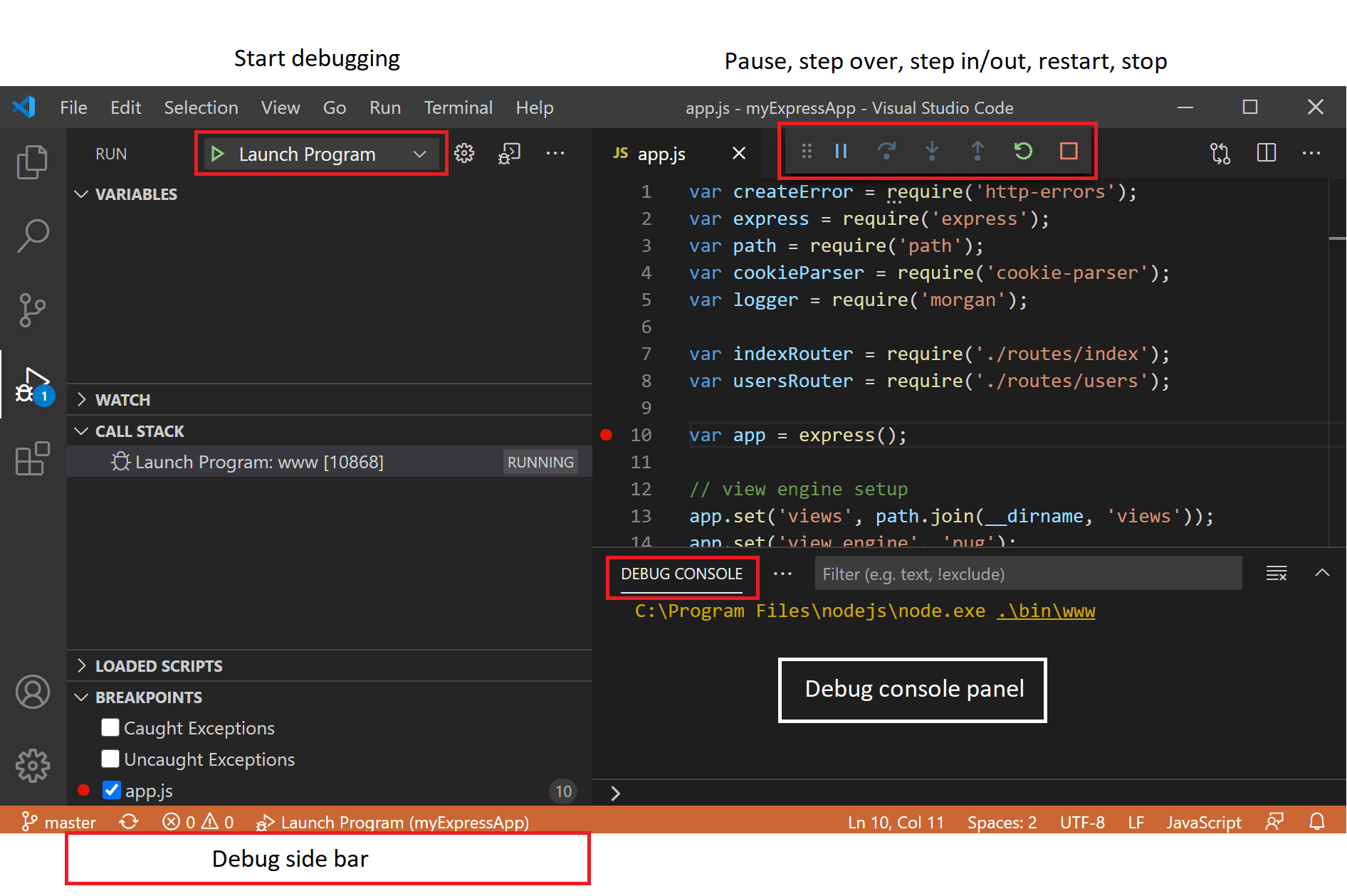
This is where the magic happens! One-click debugging for any language:
- Press
Ctrl+Shift+D(Windows/Linux) orCmd+Shift+D(Mac) - In the Debug panel, select a configuration from the dropdown:
- Python: FFT Main or Python: Run Tests
- C++: FFT Main or C++: Run Tests
- Java: FFT Main or Java: Run Tests
- JavaScript: FFT Main or JavaScript: Run Tests
- TypeScript: FFT Main or TypeScript: Run Tests
- Rust: FFT Main or Rust: Run Tests
- Press
F5or click the green▶️ play button - Set breakpoints by clicking left of line numbers
- Debug with full IntelliSense and variable inspection!
# Python
cd python && python3 test_fft.py

# C++
cd cpp && make && ./test_fft

# Java
cd java && javac FFT.java TestFFT.java && java -ea TestFFT

# JavaScript
cd javascript && node test_fft.js

# TypeScript
cd typescript && npm test

# Rust
cd rust && cargo test --releaseUse VS Code tasks:
- Press
Ctrl+Shift+P(orCmd+Shift+P) - Type "Tasks: Run Task"
- Select from:
- Build C++ FFT
- Build TypeScript
- Build Rust FFT
- Run All Tests
- Language-specific test tasks
Or press Ctrl+Shift+B for the build menu.
- Open any source file (e.g.,
python/fft.py) - Click left of the line number to add a red dot (breakpoint)
- Select the appropriate debug configuration
- Press
F5to start debugging - Execution will pause at your breakpoint!
While debugging:
- Variables panel: See all local variables
- Watch panel: Add expressions to monitor
- Call Stack: Navigate the execution stack
- Debug Console: Execute code in the current context
- Open
python/test_fft.py - Set a breakpoint on line 15 (inside the
test_correctness()function) - Open Debug panel (
Ctrl+Shift+D) - Select "Python: Run Tests"
- Press
F5 - Execution pauses at line 15
- Inspect the
signalvariable in the Variables panel - Step through with
F10(step over) orF11(step into)
pip install --user package-nameClick the Extensions icon (left sidebar) and search/install.
- User Settings: Settings that persist across all Codespaces
- Workspace Settings:
.vscode/settings.json(shared with team)
- DEVCONTAINER.md - Full devcontainer documentation
- README.md - Project overview
- GitHub Codespaces Docs
- Forward Ports: If you run a server, it auto-forwards (see Ports panel)
- Rebuild Container: If you change
.devcontainer/*, rebuild via Command Palette - Stop Codespace: When done, stop it to save compute time (Settings → Codespaces)
- Secrets: Store API keys in GitHub Settings → Codespaces → Secrets
- Check the Terminal for build logs
- Try: Command Palette → "Codespaces: Rebuild Container"
- Ensure it loaded: Check Extensions panel
- Try: Command Palette → "Developer: Reload Window"
- Verify the build succeeded (check Terminal)
- Ensure files are saved before debugging
- Check Debug Console for errors
# System packages (requires sudo)
sudo apt-get update && sudo apt-get install -y package-name

# Python packages
pip install --user package-name

# Node packages (global)
npm install -g package-nameYou now have a fully configured, cloud-based development environment with:
- ✅ All 6 programming languages ready to use
- ✅ One-click debugging for any language
- ✅ Consistent formatting and linting
- ✅ All tests passing
- ✅ No local setup required!
Happy coding! 🚀