- The Design System makes it easy for you to build applications that comply with the new Salesforce Lightning look and feel without reverse engineering the UI as custom CSS.
- the new Design System markup results in pages which have the Lightning look and feel without writing any CSS.
- The CSS is fully namespaced with the
slds-prefix and scoped with theslds-scopeclass to avoid CSS conflicts. - Modern versions of Chrome, Safari, and Firefox are fully tested. For Microsoft Internet Explorer (MSIE), the Design System supports only version 11 as well as Microsoft Edge. Users of earlier versions of MSIE might encounter issues such as missing icons.
-
CSS framework— Defines the UI components, such as page headers, labels, and form elements, a grid layout system, and a single-purpose helper classes, to assist with spacing, sizing, and other visual adjustments. -
Icons— Includes PNG and SVG (both individual and spritemap) versions of our action, custom, doctype, standard, and utility icons. -
Font— Salesforce Sans font -
Design Tokens— These design variables allow you to tailor aspects of the visual design to match your brand. Customizable variables include colors, fonts, spacing, and sizing.
Clarity— Eliminate ambiguity.Efficiency— Streamline and optimize workflows.Consistency— Create familiarity and strengthen intuition by applying the same solution to the same problem.Beauty— Demonstrate respect for people’s time and attention through thoughtful and elegant craftsmanship.
Visualforce pagesLightning pages and componentsMobile apps- accessing Salesforce through the Mobile SDK or another APIStandalone web apps- served by Heroku or a similar platform
- Setup | Visualforce Pages
<apex:page showHeader="false" standardStylesheets="false" sidebar="false" applyHtmlTag="false" applyBodyTag="false" docType="html-5.0">
<html xmlns="http://www.w3.org/2000/svg" xmlns:xlink="http://www.w3.org/1999/xlink" lang="en">
<head>
  <meta charset="utf-8" />
  <meta http-equiv="x-ua-compatible" content="ie=edge" />
  <title>Salesforce Lightning Design System Trailhead Module</title>
  <meta name="viewport" content="width=device-width, initial-scale=1" />
  <!-- Import the Design System style sheet -->
  <apex:slds />
</head>
<body>
  <!-- REQUIRED SLDS WRAPPER -->
  <div class="slds-scope">
    <!-- MASTHEAD -->
    <p class="slds-text-heading--label slds-m-bottom--small">
      Salesforce Lightning Design System Trailhead Module
    </p>
    <!-- / MASTHEAD -->
    <!-- PRIMARY CONTENT WRAPPER -->
    <div class="myapp">
      <!-- SECTION - BADGE COMPONENTS -->
      <section aria-labelledby="badges">
        <h2 id="badges" class="slds-text-heading--large slds-m-vertical--large">Badges</h2>
        <div>
          <span class="slds-badge">Badge</span>
          <span class="slds-badge slds-theme--inverse">Badge</span>
        </div>
      </section>
      <!-- / SECTION - BADGE COMPONENTS -->
    </div>
    <!-- / PRIMARY CONTENT WRAPPER -->
  </div>
  <!-- / REQUIRED SLDS WRAPPER -->
</body>
</html>
</apex:page>- Like all Visualforce pages, the outer wrapper for your markup is the
<apex:page>element. - On your html tag, be sure to include the
xmlns="http://www.w3.org/2000/svg" xmlns:xlink="http://www.w3.org/1999/xlink"attributes. This is important to enable support for the SVG icon sprite maps within Visualforce. - In our
<head>section, we’re importing the design system using<apex:slds />, which will load the CSS in the document. - Every time you use Design System markup in Visualforce, it should be placed inside an outer wrapper
<div>with theslds-scopescoping class. - Margins and paddings need to be explicitly defined in the classes (e.g.
slds-m-vertical--largeadds top and bottom padding)
- Our CSS uses a standard class naming convention called
Block-Element-Modifier syntax (BEM)to make the class names less ambiguous:- A
blockrepresents a high-level component (e.g. .car) - An
elementrepresents a descendant of a component (e.g..car__door) - A
modifierrepresents a particular state or variant of a block or element (e.g..car__door--red)
- A
- Example:
slds-button__icon--x-small
-
Similar to Bootstrap Grid System
-
a grid allows you to divide your page into rows and columns.
-
The Design System grid is based on
CSS Flexboxand provides a flexible, mobile-first, device-agnostic scaffolding system. -
Breakpoints
- Small - 480px
- Medium - 768px
- Large - 1024px respectively
-
Basic Example
<div class="slds-grid">
  <div class="slds-col">Column 1</div>
  <div class="slds-col">Column 2</div>
  <div class="slds-col">Column 3</div>
</div>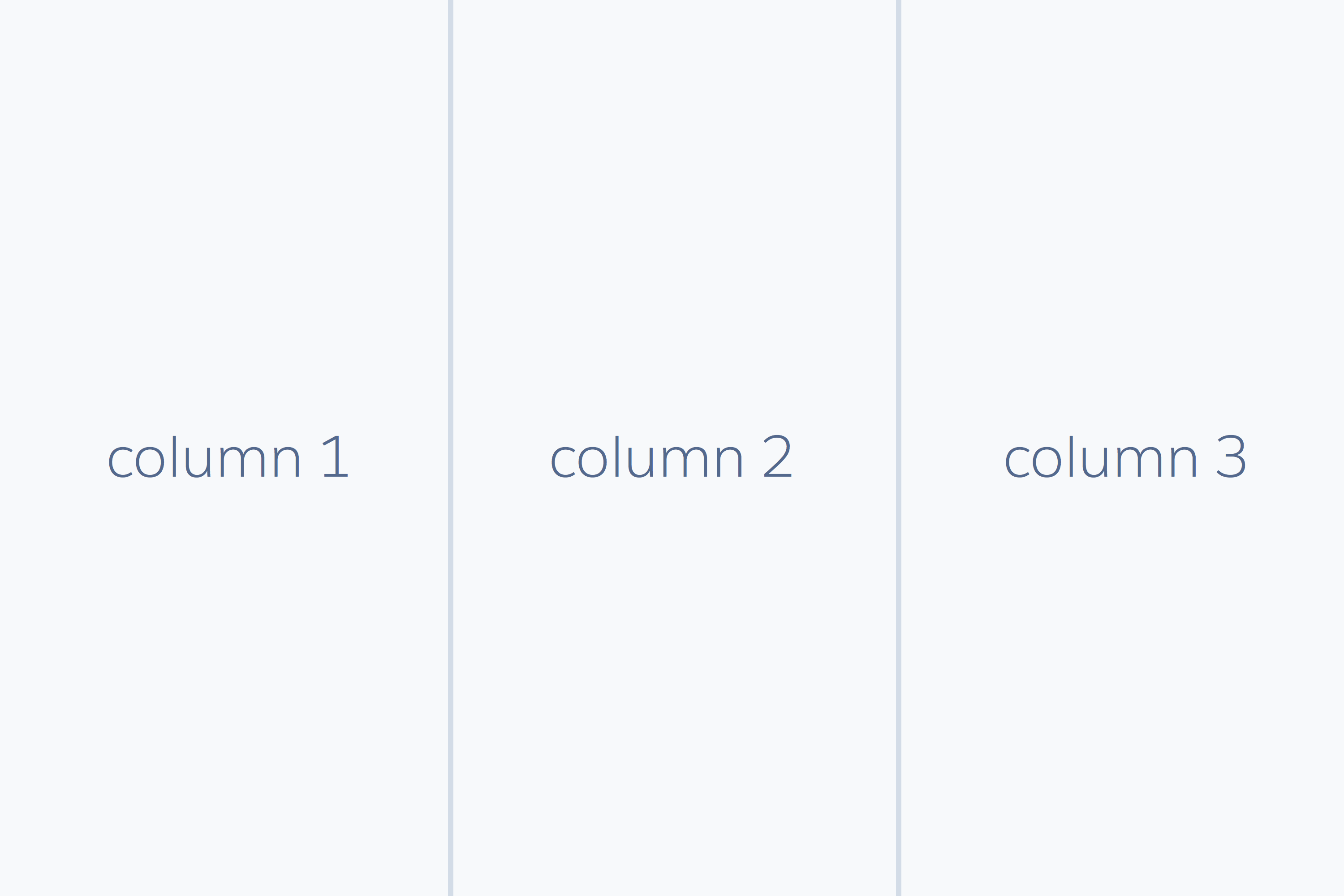
- Example with sizing helper classes
- rations can be of
2, 3, 4, 5, 6, or 12.
<!-- BASIC GRID EXAMPLE -->
<div class="slds-grid">
  <div class="slds-col slds-size--4-of-6">Column 1</div>
  <div class="slds-col slds-size--1-of-6">Column 2</div>
  <div class="slds-col slds-size--1-of-6">Column 3</div>
</div>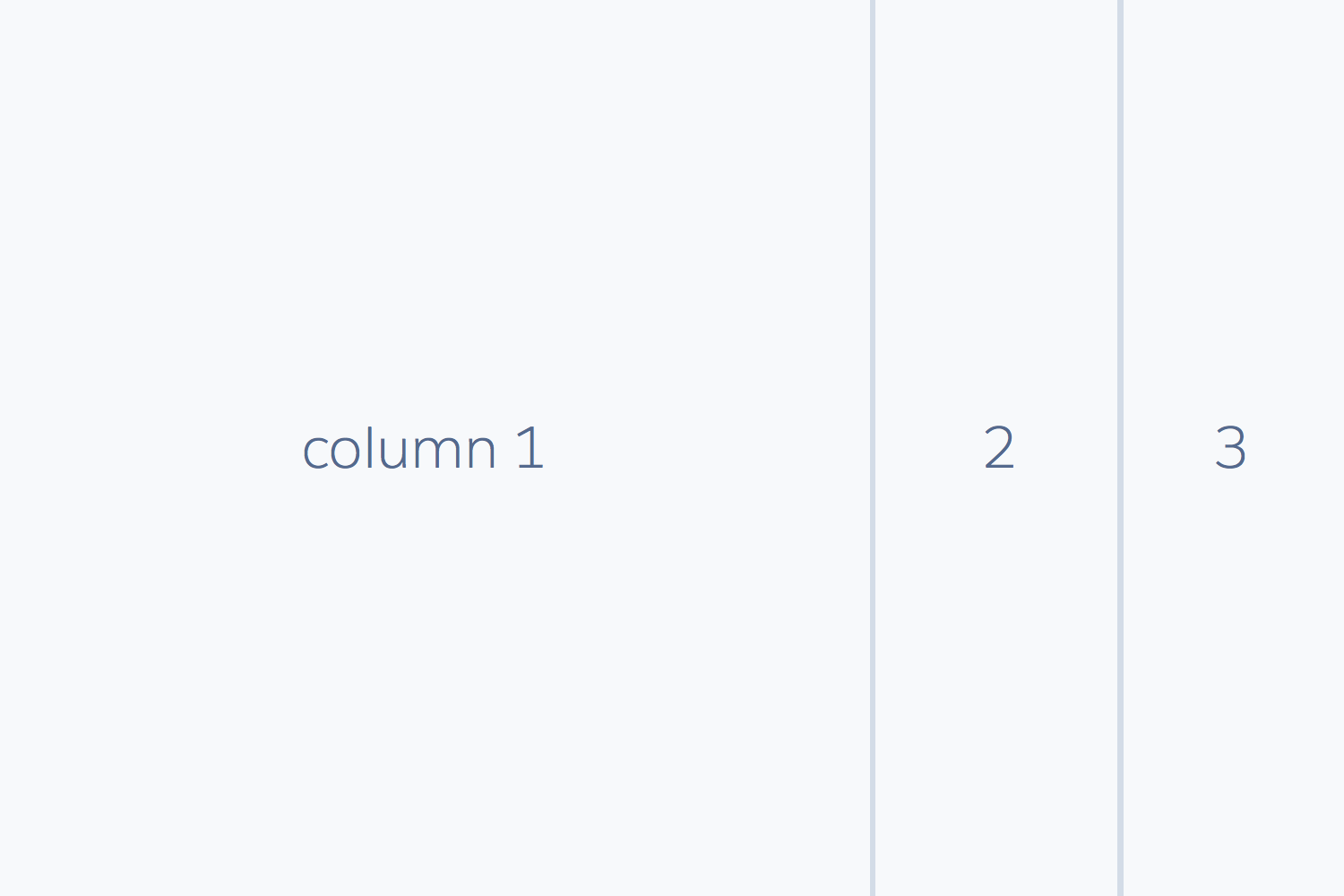
- Mobile first example
<!-- RESPONSIVE GRID EXAMPLE -->
<div class="slds-grid slds-wrap">
  <div class="slds-col slds-size--1-of-1 slds-small-size--1-of-2 slds-medium-size--3-of-4">A</div>
  <div class="slds-col slds-size--1-of-1 slds-small-size--1-of-2 slds-medium-size--1-of-4">B</div>
</div>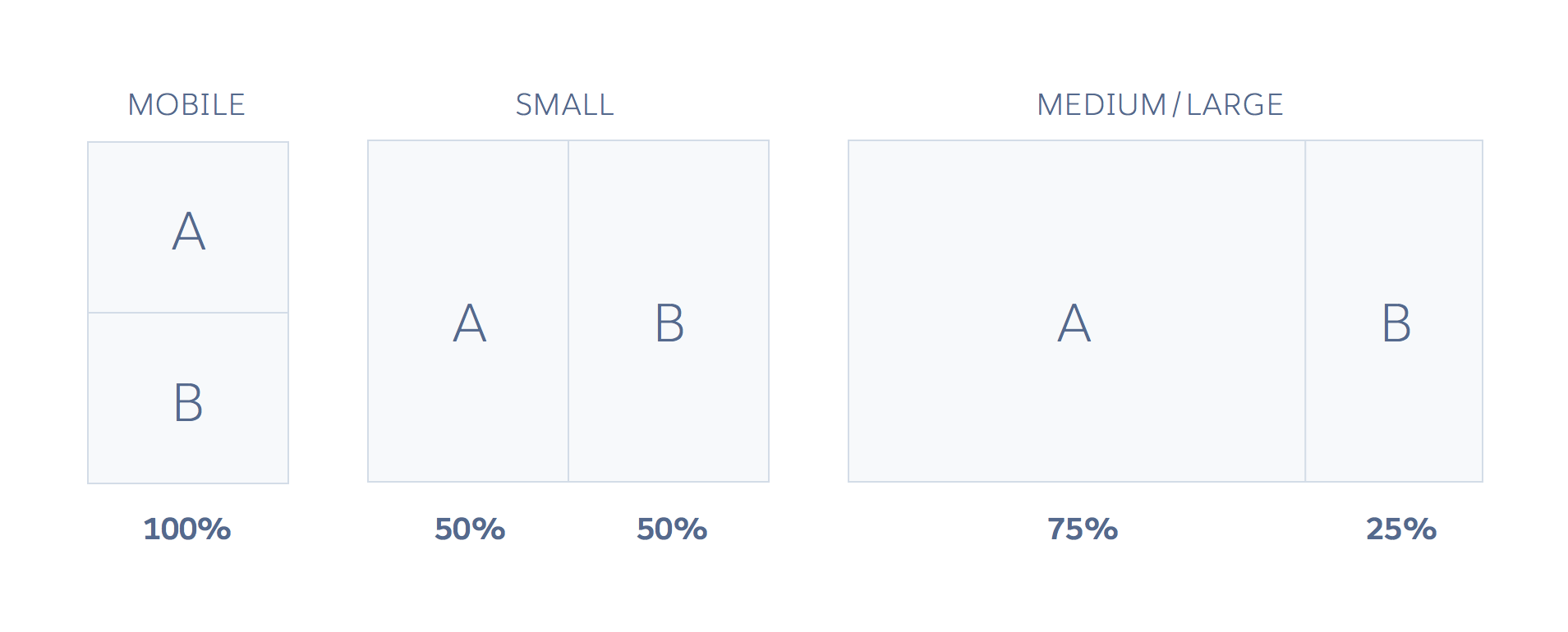
<apex:page showHeader="false" standardStylesheets="false" sidebar="false" applyHtmlTag="false" applyBodyTag="false" docType="html-5.0">
<html xmlns="http://www.w3.org/2000/svg" xmlns:xlink="http://www.w3.org/1999/xlink" lang="en">
<head>
  <meta charset="utf-8" />
  <meta http-equiv="x-ua-compatible" content="ie=edge" />
  <title>Salesforce Lightning Design System Trailhead Module</title>
  <meta name="viewport" content="width=device-width, initial-scale=1" />
  <!-- Import the Design System style sheet -->
  <apex:slds />
</head>
<body>
  <!-- REQUIRED SLDS WRAPPER -->
  <div class="slds-scope">
    <!-- MASTHEAD -->
    <p class="slds-text-heading--label slds-m-bottom--small">
      Salesforce Lightning Design System Trailhead Module
    </p>
    <!-- / MASTHEAD -->
    <!-- PAGE HEADER -->
    <div class="slds-page-header" role="banner">
      <div class="slds-grid">
        <div class="slds-col slds-has-flexi-truncate">
          <!-- HEADING AREA -->
          <p class="slds-text-title--caps slds-line-height--reset">Accounts</p>
          <h1 class="slds-page-header__title slds-truncate" title="My Accounts">My Accounts</h1>
          <!-- / HEADING AREA -->
        </div>
        <div class="slds-col slds-no-flex slds-grid slds-align-top">
          <button class="slds-button slds-button--neutral">New Account</button>
        </div>
      </div>
      <div class="slds-grid">
        <div class="slds-col slds-align-bottom slds-p-top--small">
          <p class="slds-text-body--small page-header__info">COUNT items</p>
        </div>
      </div>
    </div>
    <!-- / PAGE HEADER -->

    <!-- PRIMARY CONTENT WRAPPER -->
    <div class="myapp">
    </div>
    <!-- / PRIMARY CONTENT WRAPPER -->
    <!-- FOOTER -->
    <!-- / FOOTER -->
  </div>
  <!-- / REQUIRED SLDS WRAPPER -->
  <!-- JAVASCRIPT -->
  <!-- / JAVASCRIPT -->
</body>
</html>
</apex:page>slds-no-flexis one of the Design System layout utility classes, and prevents the column from automatically resizing by removing its flex property.slds-align-topis an alignment utility class which adjusts the vertical placement of the column contents so they align to the top of it.
<!-- PRIMARY CONTENT WRAPPER -->
<div class="myapp">
  <ul class="slds-list--dotted slds-m-top--large">
    <li>Account 1</li>
    <li>Account 2</li>
    <li>Account 3</li>
    <li>Account 4</li>
    <li>Account 5</li>
    <li>Account 6</li>
    <li>Account 7</li>
    <li>Account 8</li>
    <li>Account 9</li>
    <li>Account 10</li>
  </ul>
</div>
<!-- / PRIMARY CONTENT WRAPPER --><!-- FOOTER -->
<footer role="contentinfo" class="slds-p-around--large">
<!-- LAYOUT GRID -->
<div class="slds-grid slds-grid--align-spread">
<p class="slds-col">Salesforce Lightning Design System Example</p>
<p class="slds-col">© Your Name Here</p>
</div>
<!-- / LAYOUT GRID -->
</footer>
<!-- / FOOTER -->- The Data Table component is an enhanced version of a HTML table for displaying tabular data with the Lightning UI styling.
- A Data Table is created by applying the
slds-tableclass to a<table>tag. Use theslds-table--borderedclass to apply a border.
<table class="slds-table slds-table--bordered slds-table--cell-buffer slds-no-row-hover">
  <thead>
    <tr class="slds-text-heading--label">
      <th scope="col">Account ID</th>
      <th scope="col">Account name</th>
    </tr>
  </thead>
  <tbody>
    <tr>
      <th scope="row">123</th>
      <td>Account 1</td>
    </tr>
    <tr>
      <th scope="row">456</th>
      <td>Account 2</td>
    </tr>
  </tbody>
</table>-
the Design System doesn’t support built-in Visualforce components — e.g.
<apex:*>,<chatter:*>. -
It is recommend to use Remote Objects, JavaScript Remoting or the REST API to access.
-
Insert the following code between the
</head>and<body>tags:
</head>
<apex:remoteObjects>
  <apex:remoteObjectModel name="Account" fields="Id,Name,LastModifiedDate"/>
</apex:remoteObjects>
<body>- Replace the primary content
<!-- PRIMARY CONTENT WRAPPER -->
<div class="myapp">
  <!-- ACCOUNT LIST TABLE -->
  <div id="account-list" class="slds-p-vertical--medium"></div>
  <!-- / ACCOUNT LIST TABLE -->
</div>
<!-- / PRIMARY CONTENT WRAPPER -->- Add the following JavaScript code at the end of the file before the
</body>closing tag
<!-- JAVASCRIPT -->
<script>
  (function() {
    var account = new SObjectModel.Account();
    var outputDiv = document.getElementById('account-list');
    var updateOutputDiv = function() {
      account.retrieve(
        { orderby: [{ LastModifiedDate: 'DESC' }], limit: 10 },
        function(error, records) {
          if (error) {
            alert(error.message);
          } else {
            // create data table
            var dataTable = document.createElement('table');
            dataTable.className = 'slds-table slds-table--bordered slds-table--cell-buffer slds-no-row-hover';
            // add header row
            var tableHeader = dataTable.createTHead();
            var tableHeaderRow = tableHeader.insertRow();
            var tableHeaderRowCell1 = tableHeaderRow.insertCell(0);
            tableHeaderRowCell1.appendChild(document.createTextNode('Account name'));
            tableHeaderRowCell1.setAttribute('scope', 'col');
            tableHeaderRowCell1.setAttribute('class', 'slds-text-heading--label');
            var tableHeaderRowCell2 = tableHeaderRow.insertCell(1);
            tableHeaderRowCell2.appendChild(document.createTextNode('Account ID'));
            tableHeaderRowCell2.setAttribute('scope', 'col');
            tableHeaderRowCell2.setAttribute('class', 'slds-text-heading--label');
            // build table body
            var tableBody = dataTable.appendChild(document.createElement('tbody'))
            var dataRow, dataRowCell1, dataRowCell2, recordName, recordId;
            records.forEach(function(record) {
              dataRow = tableBody.insertRow();
              dataRowCell1 = dataRow.insertCell(0);
              recordName = document.createTextNode(record.get('Name'));
              dataRowCell1.appendChild(recordName);
              dataRowCell2 = dataRow.insertCell(1);
              recordId = document.createTextNode(record.get('Id'));
              dataRowCell2.appendChild(recordId);
            });
            if (outputDiv.firstChild) {
              // replace table if it already exists
              // see later in tutorial
              outputDiv.replaceChild(dataTable, outputDiv.firstChild);
            } else {
              outputDiv.appendChild(dataTable);
            }
          }
        }
      );
    }
    updateOutputDiv();
  })();
</script>
<!-- / JAVASCRIPT -->- Add the following code above the account-list
<!-- PRIMARY CONTENT WRAPPER -->
<div class="myapp">
  <!-- CREATE NEW ACCOUNT -->
  <div aria-labelledby="newaccountform">
    <!-- CREATE NEW ACCOUNT FORM -->
    <form class="slds-form--stacked" id="add-account-form">
      <!-- BOXED AREA -->
      <fieldset class="slds-box slds-theme--default slds-container--small">
        <legend id="newaccountform" class="slds-text-heading--medium slds-p-vertical--medium">Add a new account</legend>
        <div class="slds-form-element">
          <label class="slds-form-element__label" for="account-name">Name</label>
          <div class="slds-form-element__control">
            <input id="account-name" class="slds-input" type="text" placeholder="New account"/>
          </div>
        </div>
        <button class="slds-button slds-button--brand slds-m-top--medium" type="submit">Create Account</button>
      </fieldset>
      <!-- / BOXED AREA -->
    </form>
    <!-- CREATE NEW ACCOUNT FORM -->
  </div>
  <!-- / CREATE NEW ACCOUNT -->
</div>
<!-- / PRIMARY CONTENT WRAPPER -->- Add the following below the
updateOutputDiv()function
var accountForm = document.getElementById('add-account-form');
var accountNameField = document.getElementById('account-name');
var createAccount = function() {
  var account = new SObjectModel.Account();
  account.create({ Name: accountNameField.value }, function(error, records) {
    if (error) {
      alert(error.message);
    } else {
      updateOutputDiv();
      accountNameField.value = '';
    }
  });
}
accountForm.addEventListener('submit', function(e) {
  e.preventDefault();
  createAccount();
});<span class="slds-avatar slds-avatar--x-small">
<img src="/assets/images/avatar1.jpg" alt="meaningful text" />
</span>- A common pattern for including images in web apps is to include an image and text side by side.
<!-- HEADING AREA -->
<div class="slds-media slds-no-space slds-grow">
  <div class="slds-media__figure">
    <span class="slds-avatar slds-avatar--medium">
      <img src="{!URLFOR($Asset.SLDS, 'assets/icons/standard-sprite/svg/symbols.svg#user')}" alt="" />
    </span>
  </div>
  <div class="slds-media__body">
    <p class="slds-text-title--caps slds-line-height--reset">Accounts</p>
    <h1 class="slds-page-header__title slds-m-right--small slds-align-middle slds-truncate" title="My Accounts">My Accounts</h1>
  </div>
</div>
<!-- / HEADING AREA --><span class="slds-icon_container slds-icon-standard-account" title="description of icon when needed">
<svg aria-hidden="true" class="slds-icon">
<use xlink:href="{!URLFOR($Asset.SLDS, 'assets/icons/standard-sprite/svg/symbols.svg#account')}"></use>
</svg>
<span class="slds-assistive-text">Account Icon</span>
</span>- For MSIE, you need to include
svg4everybody.min.js.
  <apex:includeScript value="{!$Resource.REPLACE_WITH_NAME_OF_SVG4EVERYBODY_STATIC_RESOURCE}" />
  <script>
    svg4everybody();
  </script>
</head>- Replace
updateOutputDiv()function with:
var updateOutputDiv = function() {
  account.retrieve(
    { orderby: [{ LastModifiedDate: 'DESC' }], limit: 10 },
    function(error, records) {
      if (error) {
        alert(error.message);
      } else {
        // create data table
        var dataTable = document.createElement('table');
        dataTable.className = 'slds-table slds-table--bordered slds-table--cell-buffer slds-no-row-hover';
        // add header row
        var tableHeader = dataTable.createTHead();
        var tableHeaderRow = tableHeader.insertRow();
        var tableHeaderRowCellIcon = tableHeaderRow.insertCell(0);
        tableHeaderRowCellIcon.setAttribute('class', 'slds-cell-shrink');
        var tableHeaderRowCell1 = tableHeaderRow.insertCell(1);
        tableHeaderRowCell1.appendChild(document.createTextNode('Account name'));
        tableHeaderRowCell1.setAttribute('scope', 'col');
        tableHeaderRowCell1.setAttribute('class', 'slds-text-heading--label');
        var tableHeaderRowCell2 = tableHeaderRow.insertCell(2);
        tableHeaderRowCell2.appendChild(document.createTextNode('Account ID'));
        tableHeaderRowCell2.setAttribute('scope', 'col');
        tableHeaderRowCell2.setAttribute('class', 'slds-text-heading--label');

        // build table body
        var tableBody = dataTable.appendChild(document.createElement('tbody'))
        var dataRow, dataRowCell1, dataRowCell2, recordName, recordId;
        records.forEach(function(record) {
          dataRow = tableBody.insertRow();
          var sldsSpriteReference = document.createElementNS('http://www.w3.org/2000/svg', 'use');
          sldsSpriteReference.setAttributeNS('http://www.w3.org/1999/xlink', 'xlink:href', '{!URLFOR($Asset.SLDS, 'assets/icons/standard-sprite/svg/symbols.svg#account')}');
          var accountIcon = document.createElementNS('http://www.w3.org/2000/svg', 'svg');
          accountIcon.setAttributeNS('http://www.w3.org/2000/svg', 'aria-hidden', true);
          accountIcon.classList.add('slds-icon');
          accountIcon.appendChild(sldsSpriteReference);
          accountIconWrapper = document.createElement('span');
          accountIconWrapper.classList.add('slds-icon_container', 'slds-icon-standard-account');
          accountIconWrapper.appendChild(accountIcon);
          dataRowCellIcon = dataRow.insertCell(0);
          dataRowCellIcon.appendChild(accountIconWrapper);
          dataRowCell1 = dataRow.insertCell(1);
          recordName = document.createTextNode(record.get('Name'));
          dataRowCell1.appendChild(recordName);
          dataRowCell2 = dataRow.insertCell(2);
          recordId = document.createTextNode(record.get('Id'));
          dataRowCell2.appendChild(recordId);
        });
        if (outputDiv.firstChild) {
          // replace table if it already exists
          // see later in tutorial
          outputDiv.replaceChild(dataTable, outputDiv.firstChild);
        } else {
          outputDiv.appendChild(dataTable);
        }
      }
    }
  );
}<apex:page showHeader="false" standardStylesheets="false" sidebar="false" applyHtmlTag="false" applyBodyTag="false" docType="html-5.0">
<html xmlns="http://www.w3.org/2000/svg" xmlns:xlink="http://www.w3.org/1999/xlink" lang="en">
<head>
<meta charset="utf-8" />
<meta http-equiv="x-ua-compatible" content="ie=edge" />
<title>Salesforce Lightning Design System Trailhead Module</title>
<meta name="viewport" content="width=device-width, initial-scale=1" />
<!-- Import the Design System style sheet -->
<apex:slds />
</head>
<body>
<!-- REQUIRED SLDS WRAPPER -->
<div class="slds-scope">
<!-- MASTHEAD -->
<p class="slds-text-heading--label slds-m-bottom--small">Salesforce Lightning Design System Trailhead Module</p>
<!-- / MASTHEAD -->
<!-- PAGE HEADER -->
<!-- / PAGE HEADER -->
<!-- PRIMARY CONTENT WRAPPER -->
<div class="myapp">
</div>
<!-- / PRIMARY CONTENT WRAPPER -->
<!-- FOOTER -->
<footer role="contentinfo" class="slds-p-around--large">
<!-- LAYOUT GRID -->
<div class="slds-grid slds-grid--align-spread">
<p class="slds-col">Salesforce Lightning Design System Example</p>
<p class="slds-col">© Your Name Here</p>
</div>
<!-- / LAYOUT GRID -->
</footer>
<!-- / FOOTER -->
</div>
<!-- / REQUIRED SLDS WRAPPER -->
<!-- JAVASCRIPT -->
<!-- / JAVASCRIPT -->
</body>
</html>
</apex:page><!-- PAGE HEADER -->
<div class="slds-page-header">
<!-- PAGE HEADER TOP ROW -->
<div class="slds-grid">
<!-- PAGE HEADER / ROW 1 / COLUMN 1 -->
<div class="slds-col slds-has-flexi-truncate">
<!-- HEADING AREA -->
<!-- MEDIA OBJECT = FIGURE + BODY -->
<div class="slds-media slds-no-space slds-grow">
<div class="slds-media__figure">
<svg aria-hidden="true" class="slds-icon slds-icon-standard-user">
<use xlink:href="{!URLFOR($Asset.SLDS, 'assets/icons/standard-sprite/svg/symbols.svg#user')}"></use>
</svg>
</div>
<div class="slds-media__body">
<p class="slds-text-title--caps slds-line-height--reset">Account</p>
<h1 class="slds-page-header__title slds-m-right--small slds-align-middle slds-truncate" title="SLDS Inc.">SLDS Inc.</h1>
</div>
</div>
<!-- / MEDIA OBJECT -->
<!-- HEADING AREA -->
</div>
<!-- / PAGE HEADER / ROW 1 / COLUMN 1 -->
<!-- PAGE HEADER / ROW 1 / COLUMN 2 -->
<div class="slds-col slds-no-flex slds-grid slds-align-top">
<div class="slds-button-group" role="group">
<button class="slds-button slds-button--neutral">
Contact
</button>
<button class="slds-button slds-button--neutral">
More
</button>
</div>
</div>
<!-- / PAGE HEADER / ROW 1 / COLUMN 2 -->
</div>
<!-- / PAGE HEADER TOP ROW -->
<!-- PAGE HEADER DETAIL ROW -->
<!-- / PAGE HEADER DETAIL ROW -->
</div>
<!-- / PAGE HEADER --><!-- PAGE HEADER DETAIL ROW -->
<ul class="slds-grid slds-page-header__detail-row">
<!-- PAGE HEADER / ROW 2 / COLUMN 1 -->
<li class="slds-page-header__detail-block">
<p class="slds-text-title slds-truncate slds-m-bottom--xx-small" title="Field 1">Field 1</p>
<p class="slds-text-body--regular slds-truncate" title="Description that demonstrates truncation with a long text field">Description that demonstrates truncation with a long text field.</p>
</li>
<!-- PAGE HEADER / ROW 2 / COLUMN 2 -->
<li class="slds-page-header__detail-block">
<p class="slds-text-title slds-truncate slds-m-bottom--xx-small" title="Field2 (3)">Field 2 (3)
<button class="slds-button slds-button--icon" aria-haspopup="true" title="More Actions">
<svg class="slds-button__icon slds-button__icon--small" aria-hidden="true">
<use xlink:href="/assets/icons/utility-sprite/svg/symbols.svg#down"></use>
</svg>
<span class="slds-assistive-text">More Actions</span>
</button>
</p>
<p class="slds-text-body--regular">Multiple Values</p>
</li>
<!-- PAGE HEADER / ROW 2 / COLUMN 3 -->
<li class="slds-page-header__detail-block">
<p class="slds-text-title slds-truncate slds-m-bottom--xx-small" title="Field 3">Field 3</p><a href="javascript:void(0);">Hyperlink</a></li>
<!-- PAGE HEADER / ROW 2 / COLUMN 4 -->
<li class="slds-page-header__detail-block">
<p class="slds-text-title slds-truncate slds-m-bottom--xx-small" title="Field 4">Field 4</p>
<p>
<span title="Description (2-line truncation—must use JS to truncate).">Description (2-line truncat...</span>
</p>
</li>
</ul>
<!-- / PAGE HEADER DETAIL ROW --><!-- PRIMARY CONTENT WRAPPER -->
<div class="myapp">
<!-- RELATED LIST CARDS-->
<div class="slds-grid slds-m-top--large">
<!-- MAIN CARD -->
<div class="slds-col slds-col-rule--right slds-p-right--large slds-size--8-of-12">
left hand column related list
</div>
<!-- / MAIN CARD -->
<!-- NARROW CARD -->
<div class="slds-col slds-p-left--large slds-size--4-of-12">
right hand column related list
</div>
<!-- / NARROW CARD -->
</div>
<!-- / RELATED LIST CARDS -->
</div>
<!-- / PRIMARY CONTENT WRAPPER --><!-- MAIN CARD -->
<div class="slds-col slds-col-rule--right slds-p-right--large slds-size--8-of-12">
<article class="slds-card">
<div class="slds-card__header slds-grid">
<header class="slds-media slds-media--center slds-has-flexi-truncate">
<div class="slds-media__figure">
<svg aria-hidden="true" class="slds-icon slds-icon-standard-contact slds-icon--small">
<use xlink:href="{!URLFOR($Asset.SLDS, 'assets/icons/standard-sprite/svg/symbols.svg#contact')}"></use>
</svg>
</div>
<div class="slds-media__body slds-truncate">
<a href="javascript:void(0);" class="slds-text-link--reset">
<span class="slds-text-heading--small">Contacts</span>
</a>
</div>
</header>
</div>
<!-- CARD BODY = TABLE -->
<div class="slds-card__body slds-scrollable_x">
<table class="slds-table slds-table--bordered slds-no-row-hover slds-table--cell-buffer">
<thead>
<tr class="slds-text-heading--label">
<th class="slds-size--1-of-4" scope="col">Name</th>
<th class="slds-size--1-of-4" scope="col">Company</th>
<th class="slds-size--1-of-4" scope="col">Title</th>
<th class="slds-size--1-of-4" scope="col">Email</th>
<th scope="col"></th>
</tr>
</thead>
<tbody>
<tr class="slds-hint-parent">
<th class="slds-size--1-of-4" scope="row"><a href="javascript:void(0);">Adam Choi</a></th>
<td class="slds-size--1-of-4">Company One</td>
<td class="slds-size--1-of-4">Director of Operations</td>
<td class="slds-size--1-of-4">adam@company.com</td>
<td class="slds-cell-shrink">
<button class="slds-button slds-button--icon-border-filled slds-button--icon-x-small">
<svg aria-hidden="true" class="slds-button__icon slds-button__icon--hint slds-button__icon--small">
<use xlink:href="{!URLFOR($Asset.SLDS, 'assets/icons/utility-sprite/svg/symbols.svg#down')}"></use>
</svg>
<span class="slds-assistive-text">Show More</span>
</button>
</td>
</tr>
</tbody>
</table>
</div>
<!-- / CARD BODY = SECTION + TABLE -->
<div class="slds-card__footer">
<a href="javascript:void(0);">View All <span class="slds-assistive-text">contacts</span></a>
</div>
</article>
</div>
<!-- / MAIN CARD --><!-- NARROW CARD -->
<div class="slds-col slds-p-left--large slds-size--4-of-12">
<article class="slds-card slds-card--narrow">
<div class="slds-card__header slds-grid">
<header class="slds-media slds-media--center slds-has-flexi-truncate">
<div class="slds-media__figure">
<svg class="slds-icon slds-icon-standard-lead slds-icon--small" aria-hidden="true">
<use xlink:href="{!URLFOR($Asset.SLDS, 'assets/icons/standard-sprite/svg/symbols.svg#lead')}"></use>
</svg>
</div>
<div class="slds-media__body slds-truncate">
<h2 class="slds-text-heading--small">Team</h2>
</div>
</header>
</div>
<div class="slds-card__body">
<div class="slds-card__body--inner">
<div class="slds-tile">
<h3 class="slds-truncate" title="Anne Choi"><a href="javascript:void(0);">Anne Choi</a></h3>
<div class="slds-tile__detail slds-text-body--small">
<dl class="slds-list--horizontal slds-wrap">
<dt class="slds-item--label slds-text-color--weak slds-truncate" title="Email:">
Email:
</dt>
<dd class="slds-item--detail slds-truncate" title="achoi@burlingtion.com">
achoi@burlingtion.com
</dd>
</dl>
</div>
</div>
</div>
</div>
<div class="slds-card__footer">
<a href="javascript:void(0);">View All <span class="slds-assistive-text">team members</span></a>
</div>
</article>
</div>
<!-- / NARROW CARD -->