Screen API
This library is the primary renderer for Tamamo OS, utilizing a double-buffered technique to minimize GPU calls. The result is something many times faster than directly calling the native GPU, at the cost of higher RAM use (Around 20-40% of a T3.5 RAM stick).
The idea is the same as any other double-buffered drawing algorithm: there are two buffers, one to store the current screen state and another to store changes to be made. When an update call is made, the change buffer is collapsed onto the current state buffer, which is then grouped by background/foreground categories and rendered onto the screen, minimizing color change gpu calls.
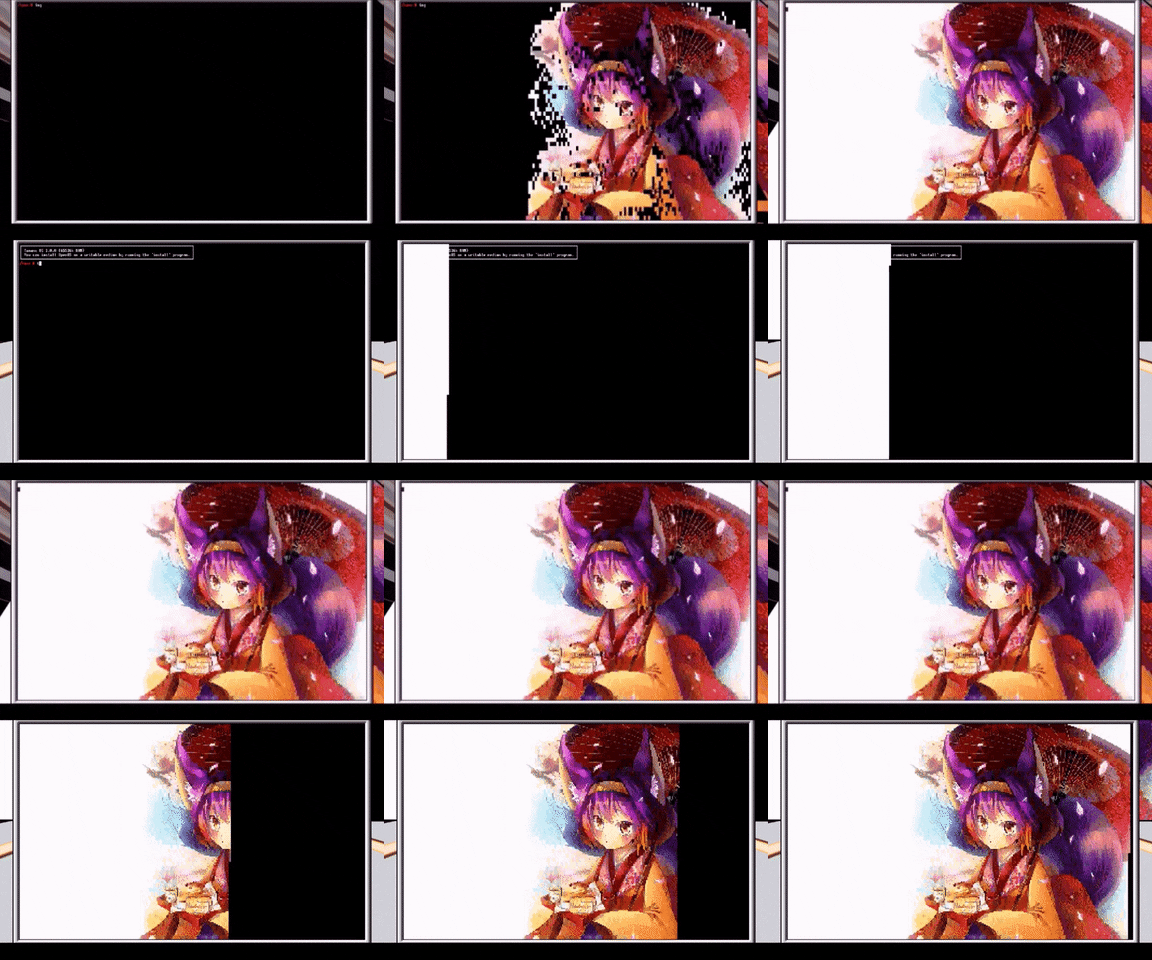
Furthermore, the screen lib comes with additional methods for basic drawing such as text and geometries, which can utilize color blending to mimic transparency.
- Main Methods
- Rendering Methods
- Basic Drawing
-
Higher level drawing
- screen.drawRectangle
- screen.drawRectangleOutline
- screen.drawBrailleRectangle
- screen.drawBrailleRectangleOutline
- screen.drawThinRectangleOutline
- screen.drawText
- screen.drawEllipse
- screen.drawEllipseOutline
- screeen.drawBrailleEllipse
- screeen.drawBrailleEllipseOutline
- screen.drawLine
- screen.drawBrailleLine
- Auxiliary Methods
- Example
Sets the screen resolution and buffer size to the given size, clearing the buffer by filling it with black and the whitespace symbol.
Returns the current screen resolution / buffer size in characters. There's also screen.getWidth() and screen.getHeight() for individual components of size.
Binds GPU to given screen component address. Buffer will be filled with black and whitespace symbol. If reset is true buffer will be resized to the current new screen resolution.
Defines the rectangle region of the screen that can be drawn in. Once set, rendering done outside of this region will be ignored. If the useCurrent flag is true, then it will take the intersection of the current drawing bound with the new one as the new drawing bound, otherwise it will override any previous drawing bounds.
Calling setDrawingBound() with no arguments sets the drawing bound to (1, 1) to (bufferWidth, bufferHeight), which is the default limit.
If any of the numbers are non-integer they will be rounded down. Coordinates cannot exceed screen bounds, and will be automatically rounded to nearest valid screen bound if they do. Code will throw an error if (x1, y1) is not the top-left corner of the rectangle defined, or if the area bounded is 0.
Returns the current drawing bound.
Sets the current drawing bound to (1, 1) to (bufferWidth, bufferHeight). Functionally identical to calling setDrawingBound() with no arguments.
Resets the GPU palette to the default OC gray colors.
Switch the gpu proxy to given argument. Buffer will be filled with black whitespace symbols.
Returns current GPU component proxy.
Draw a rectangle across the entire screen with color and optional alpha value.
Quick "raw" set that respects drawing bounds. This method does not do type checking of any kind, use with caution! To specify a palette index instead of a direct color, make the number negative. For example, fgColor = -1 would mean the palette index 0 (First palette color).
Collapses the change buffer onto the current buffer and renders everything changes to the screen. If the optional force argument is enabled it will redraw the entire current buffer from scratch.
Sets the current background color used for set and fill, works the same way as gpu.setBackground. Returns previous background color, and if it's a palette index.
Sets the current foreground color used for set and fill, works the same way as gpu.setForeground. Returns previous foreground color, and if it's a palette index.
Gets the current background color used for set and fill, works the same way as gpu.getBackground. Returns the current background color, and if it's a palette index.
Gts the current foreground color used for set and fill, works the same way as gpu.getForeground. Returns the current foreground color, and if it's a palette index.
Writes a string to the screen with current background and foreground. All characters (including line breaks) will be displayed in a single row or column depending on if vertical is true. Returns true if buffer was updated, false if not. This method does not call update().
Note: returns true even if string is only partially written to buffer
Displaces a rectangular region of the screen defined by x, y, w and h (where x and y are the top left corner of a rectangle) by tx and ty. Returns true if buffer was updated, false if not.
Important: This method calls update() and will flush any changes made to the screen. This is due to the fact that it uses GPUCopy internally to maximize speed when copy() is needed. However, it will still respect any drawing bounds you have set.
Fills a rectangle with the specified character. The fill character must be a string of length one, i.e. a single character. Returns true if buffer was updated, false if not. This method does not call update()
These methods use the current background color; use screen.setBackground() to set the color used to draw. Note that screen.setBackground is seperate from gpu.setBackground. In the methods that allow specifying a custom symbol, the current screen foreground color (not GPU foreground!) will also be applied to non-space symbols.
Also as OpenComputer characters are twice as tall as they are wide, the height and y positions (and other corresponding variables) will "appear" twice their actual values. For example, a circle of radius five when drawn will appear to be an ellipse.
screen.drawRectangle(int x, int y, int w, int h, *float alpha [0.0; 1.0], *string symbol): boolean success
Draws a rectangle, with optional alpha (default 1) and a symbol (default: " ").
screen.drawRectangleOutline(int x, int y, int w, int h, *float alpha [0.0; 1.0], *string symbol): boolean success
Draws a rectangle, but only the outer edge (interior is empty). This is done with optional alpha (default 1) and a symbol (default: " ").
screen.drawBrailleRectangle(float x, float y, float w, float h, *float alpha [0.0; 1.0]): boolean success
Draws a rectangle with braille characters, allowing sub-char precision. x values are accurate to the nearest 0.5, and y values are accurate to the nearest 0.25 (So for example I could do screen.drawBrailleRectangle(1.5, 2.25, 2.5, 1.75)). Alpha is optional (default: 1).
screen.drawBrailleRectangleOutline(float x, float y, float w, float h, *float alpha [0.0; 1.0]): boolean success
Draws a rectangle outline with braille characters, allowing sub-char precision. x values are accurate to the nearest 0.5, and y values are accurate to the nearest 0.25 (So for example I could do screen.drawBrailleRectangleOutline(1.5, 2.25, 2.5, 1.75)). Alpha is optional default: 1). The drawn rectangle has a thickness of 1 braille dot.
screen.drawThinRectangleOutline(int x, int y, int w, int h, *float alpha [0.0; 1.0]): boolean success
Draws a rectangle outline with box drawing characters. This creates a rectangle outline that's thinner than the braille outline, but does not support sub-char precision. Alpha is optional (default: 1).
screen.drawText(int x, int y, string string, *float alpha [0.0; 1.0], *boolean blendBg): boolean success
Draw text at specified location. All text will be on one row, newlines and such will be rendered as special characters. If blendBg is enabled (default: true) then the text will "camouflage" itself against whatever background is behind it, otherwise it will function identically to screen.set and use the current screen background color. Alpha is optional (default: 1).
screen.drawEllipse(int x, int y, int a, int b, *float alpha [0.0; 1.0], *string symbol): boolean success
Draws an ellipse centered at x, y with semi-axii of lengths a and b (along the x and y direction respectively). You can optionally specify an alpha (default 1) and a symbol (default: " ").
screen.drawEllipseOutline(int x, int y, int a, int b, *float alpha [0.0; 1.0], *string symbol): boolean success
Draws a hollow ellipse centered at x, y with semi-axii of lengths a and b (along the x and y direction respectively). You can optionally specify an alpha (default 1) and a symbol (default: " ").
screeen.drawBrailleEllipse(float x, float y, float a, float b, , *float alpha [0.0; 1.0]): boolean success
Draws an ellipse using braille characters, allowing sub-char precision. x values are accurate to the nearest 0.5, and y values are accurate to the nearest 0.25. The ellipse is centered at x, y with semi-axii of lengths a and b (along the x and y direction respectively). You can optionally specify an alpha (default 1).
screeen.drawBrailleEllipseOutline(float x, float y, float a, float b, , *float alpha [0.0; 1.0]): boolean success
Draws an ellipse outline using braille characters, allowing sub-char precision. x values are accurate to the nearest 0.5, and y values are accurate to the nearest 0.25. The ellipse is centered at x, y with semi-axii of lengths a and b (along the x and y direction respectively). You can optionally specify an alpha (default 1). The drawn ellipse has a thickness of 1 braille dot.
screen.drawLine(int x1, int y1, int x2, int y2, *float alpha [0.0; 1.0], *string symbol): boolean success
Draws a line from (x1, y1) to (x2, y2). You can optionally specify an alpha (default 1) and a symbol (default: " ").
screen.drawBrailleLine(float x1, float y1, float x2, float y2, *float alpha [0.0; 1.0]): boolean success
Draws a line from (x1, y1) to (x2, y2) using braille characters and an optional alpha (default: 1). x coordinates are accurate to the nearest 0.5, and y coordinates are accurate to the nearest 0.25. The line has a thickness of 1 braille dot.
These methods are mostly used internally and will not be useful, but in case you need to use it in your program they are listed here.
Clears the current screen buffer with black and whitespace symbols. Also resets any drawing bounds set. If either w or h are not specified w and h will be set to the current GPU resolution. Note this method does not change GPU resolution or actually fill the screen, it only re-creates the buffer.
Returns the background, foreground and symbol at a location. By default palette colors are normalized into a hex number rather than a palette index.
Converts screen x,y coordinates into a buffer index. For example, if the buffer had a width of 10 and a height of 5, a coordinate of (1, 2) would have an index of 11, being the 11th character reading left to right, top down.
Inverse of getIndex, converts a buffer index into screen coordinates from (1, 1) to (bufferWidth, bufferHeight)
Get the buffers representing what is currently on the screen. Each buffer is 1-dimensional, coordinates can be converted to a table index with screen.getIndex.
Get the buffers representing changes to be applied in the next update() call. Each buffer is 1-dimensional, coordinates can be converted to a table index with screen.getIndex.
Directly update the change buffers at a index. Does not do drawing bound checking.
Get the data of the current buffer at the given index.