Grading and Student Progress
Attendance records, grades, and other progress indicators can be found in Canvas. Each data point has a specific use.
Remember that Canvas is the source of truth in regards to the student's status in the class.
- Attendance record
- Manually entered by TFs
- Counts toward final grade for student
- Graded Assignments
- Manually scored and entered by TFs
- Counts toward final grade for student
- Concept Checks
- Auto-graded
- Does NOT count toward final grade for student
Student work is stored in github repositories.
- Exercise Solutions: These are at home practice and are reviewed but NOT graded.
- Studio Solutions: In class practice that is reviewed but NOT graded.
- Graded Assignment Solutions: At home work that is graded.
The solutions repositories on gitlab.com contain solutions for graded assignments, studios, and some of the exercises. Ask a LaunchCode staff member to add you to the repository.
To record attendance in Canvas, find the attendance assignment for the class you are monitoring.
Note in some versions of this course, the attendance assignment will be a quiz that is filled out by the student and automatically recorded.
Graded assignment scores are recorded in Canvas.
- Review the student's work
- Work will be in Github
- A live demo may also be required depending on assignment instructions
- Enter grade in Canvas
- If the code meets the requirements, then mark the assignment complete in Canvas
- More about feedback in the feedback section
- Go to the Grades section in Canvas.
- You can search for a certain student or view the students by group.
- Find the column for the assignment you are grading.
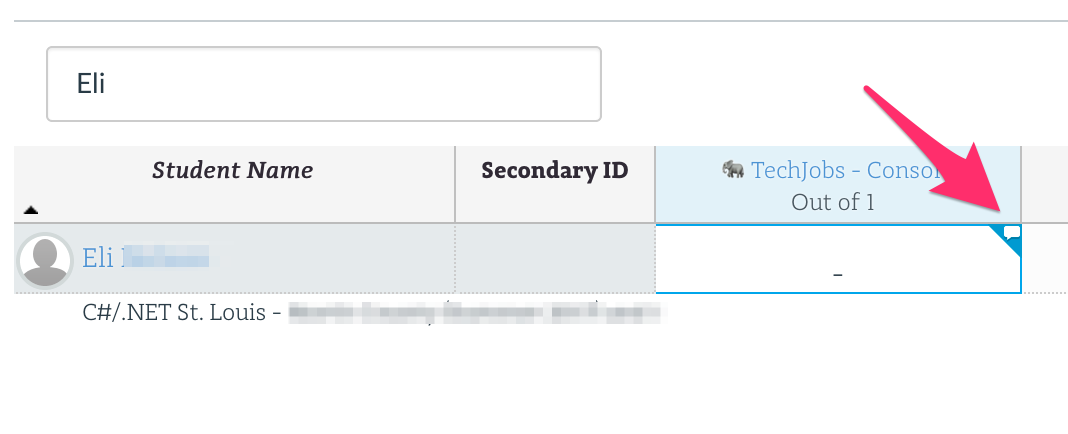
- Hover over the table cell until a blue corner appears.
- Click on the blue corner to open the grading form.
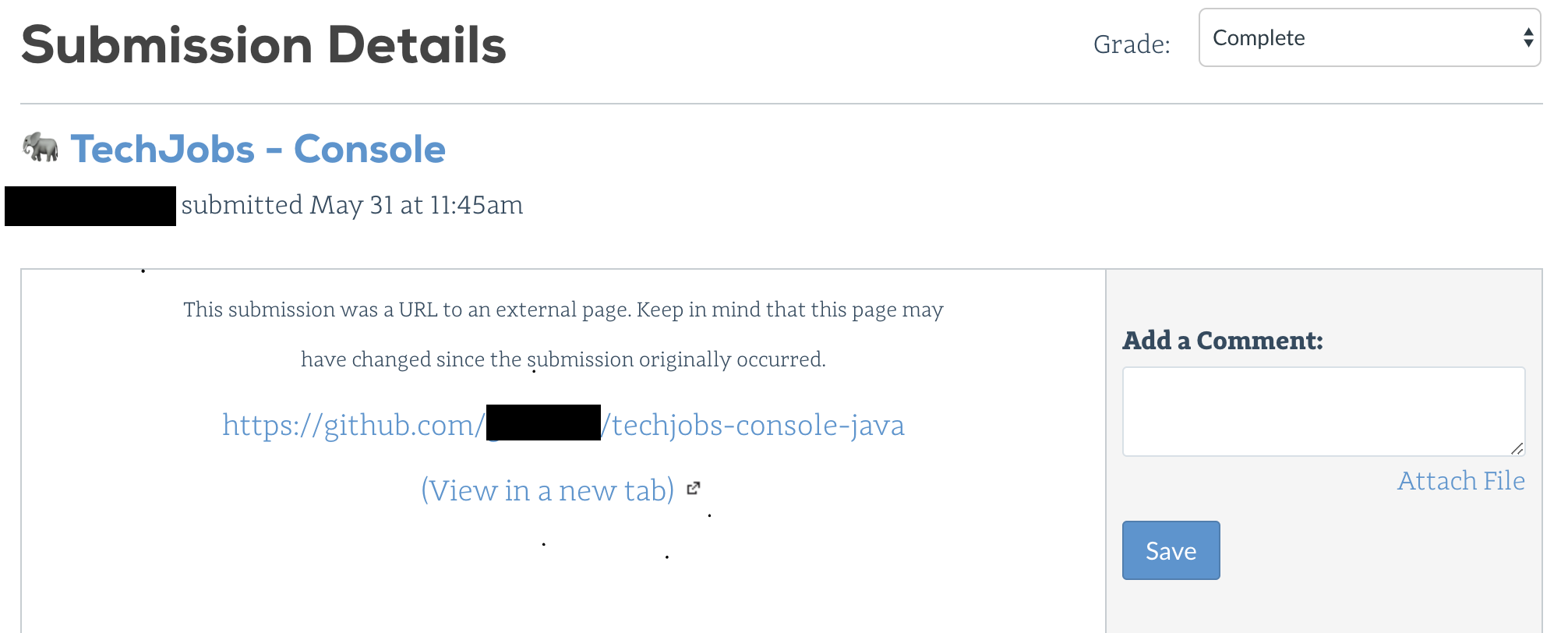
- Enter the grade and comments.
- Submit the grade
The student's work and data in Canvas can be used to gauge how well the student is doing. However, you should also use in person check-ins to get a full picture of how a student is doing.
- Attendance Record
- If a student doesn't come to class, then they will likely struggle.
- Concept Checks
- These are quizzes in Canvas assigned as prep work.
- If students consistently get these incorrect, then they are NOT understanding the reading material.
- Exercises
- These are practice problems in repl.it classroom assigned as prep work.
- Check repl.it classroom to see if students are attempting these and if they are having success.
- NOTE: There is a way to give feedback in repl.it classroom
- Graded Assignments
- This is where students put multiple concepts together to solve a larger problem.
- Students often struggle getting started and then combining all the required concepts.
- Student work can be seen in repl.it classroom.
Repl.it classroom provides an overview of work submitted by the student. NOTE: This list contains a combination of exercises, studios, and graded assignments.
Steps to see student overview:
- Login to repl.it.
- Go to the classroom dashboard in repl.it classroom.
- Scroll down to Student Overview and click the heading to expand it.
- Use browser search to find students: Command+F for Mac, Ctrl+F for Windows.
- Hover over assignment number column heading to see assignment name.
- Too see a student submission click on the icon in the student row and assignment column.
- You can also click on a student's name to see only that student's submissions.
Example of student overview section

Click for full size screen shot of student overview
Clicking on a title from the Assignments menu brings up the list of students and their progress on that task. You can use the Submissions dropdown menu to filter the students by status (Complete, No Progress, Awaiting Help, etc.).
Remember: When exiting Student Overview, be extra careful not to edit the assignment you were viewing.
Feedback on student work is a great time to highlight things the student did well and also inform students of bad programming practices. Be positive, empathetic, and reassuring when talking to the student about their code. There are multiple ways to give feedback.
Reviewing student code in class is a great way to give instant feedback. DO NOT code a solution for the student. Be clear about what they did right. Ask questions about their code. Inform student of best practices and give hints about solutions.
Feedback can be given for graded assignments on the grading form. See section on Canvas grading for how to open grading form.
You can access a feedback section when looking at a student's submission in repl.it classroom. Type in your comments there when reviewing exercises and studios or evaluating the graded assignments.
NOTE: You do NOT have to click send back for the student to see the feedback. Only use send back when there is a clear need for the student to update their code.
