
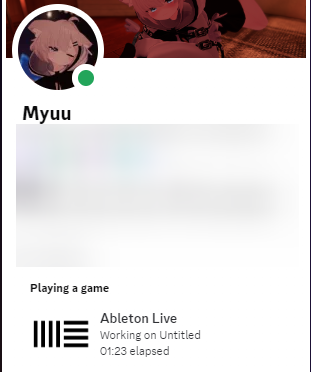
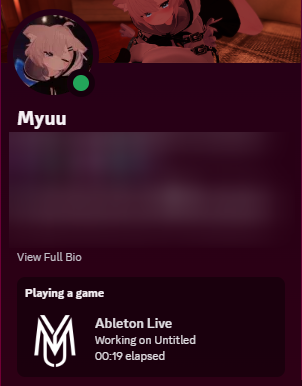
A Discord Rich Presence app for several DAWs like FL Studio and Ableton.
 |
 |
|---|
- Make sure you have the latest .NET Desktop Runtime installed. You can download it here, through the official Microsoft website
- Download the latest release from the Releases tab.
- You can download either the installer or portable version; and the steps for both are listed below
- Run the executable to create initial configuration files. The software will continue to run in the background.
- Close the software by running the executable again. You can change the config to your liking.
- Upon running the software, if it has detected a DAW that is currently supported, your Discord presence should be updated automatically.
Note: The installer will not show a completion screen and will close immediately after installation. This is a known issue we are currently working on.
- Run "DAWPresence-(VERSION)-installer.msi", and make sure you say Yes to any admin privileges the installer asks for
- Once the installer finishes, you should have shortcuts to DAWPresence in both the Start Menu and Desktop
- If you'd like to remove DAWPresence, you can do so at any time in Add/Remove Programs
- Installing will also unregister the startup entry for DAWPresence, so you don't need to worry about that
- By default, it installs in
C:\Program Files\DAWPresence - You can run the application manually from
DAWPresence\DAWPresence.exe
- Once the .zip is downloaded, extract it, and run
DAWPresence.exe - You're done :D
-
Although completely optional (there's a portable version), it allows for easy installs/uninstalls of DAWPresence.
-
The application will only use about 10-15 megabytes of RAM at any given time. :D
-
The tray icon shows up in the bottom-right corner of Windows (the system tray), and right-clicking allows you to access options, like exiting, restarting, or opening the config. Left-clicking may also show your current status or bring up a menu (depending on your version)
-
Right-click the tray icon, and check the
Open on Startupoption. This will automatically register DAWPresence to launch with Windows. -
Right-click the tray icon and select
Exit. You can also run the executable again to close it.
WiX can be a bit finicky. To get started:
- Install HeatWave. This provides support for WiX v4, although you can really use any tool that supports WiX v4 (other than the WiX toolset extension, as that only provides support for v3)
- Build the
Installerproject, which should buildAppbefore-hand
If you want to add a new DAW or want a maintainer to, you can do so by following the steps below:
- Fork the repository on GitHub
- Clone your fork locally
- Create a new branch in the format
{username}/{DAWname}-support - Create a new class in the
App/_DAWsfolder that inherits fromDaw - Provide required values, such as the process name, window title, and the DAW name
- To create a portable build for testing, run the following command from the
Appdirectory:The output will be indotnet publish -c Release -p:PublishSingleFile=true -p:SelfContained=false -o ./publishApp/publish/ - Push the branch to your fork
- Open a pull request from your fork's branch to the main repository's
masterbranch - A maintainer will review the pull request and provide feedback
- Once the pull request is approved, it will be merged into the main branch
Don't worry about the ApplicationId, one of the maintainers will provide those for you
- Create a new issue with the
DAW REQUESTlabel - Provide the name of the DAW and any additional information that might be useful (such as window title when no project is loaded, and when a project is loaded)
- A maintainer will create a new branch and add the DAW to the project for you
- You can then test the new DAW support and provide feedback
- Once the DAW is working as expected, the branch will be merged into the main branch
Some people might want a custom image on the rich presence. To bump the project a bit, I am making this exclusive to people that have starred this repository. For those that have, please contact myuuiii on Discord for more information.
An example is shown below:
# How often to update Discord Rich Presence (hh:mm:ss)
UpdateInterval: 00:00:03
# Offset to subtract from elapsed time (hh:mm:ss)
Offset: 00:00:00
# Text to show when no project is open
IdleText: Not working on a project
# Prefix for the project name
WorkingPrefixText: 'Working on '
# Enable custom image for Discord Rich Presence
UseCustomImage: true
# Your custom image key (contact myuuiii on Discord if eligible)
CustomImageKey: myuuiii
# Disable pop-up notifications
DisablePopup: false
# Keep DAW presence after opening plugin windows
EnablePersistence: false
# Reset elapsed time when switching projects
ResetElapsedOnProjectSwitch: false
# Enable secret mode to hide project details
SecretMode: false
# Text to show when secret mode is enabled
SecretModeText: Working on a secret projectSpecial thanks to everyone who has contributed to DAWPresence, including code, ideas, testing, and feedback!
- myuuiii - Creator & main developer
- Simoxus - Helped with tray icon, better config loading, creating the wix installer and so much more.
- Intancote - Added FL Studio Mobile
- Ahontt - Fixed Cubase 15 detection
- Alixti - Added secret project to hide project details
- ferdmusic - Added support for Nuendo 13
If you have contributed and would like to be mentioned here, feel free to open a pull request!!