Make sure that you're in the root of your temporary project from task 1 using pwd
If you're not, then use cd to move there.
pwd
cd ~/Documents/my_temporary_project
Particularly if you're on windows it's worth making sure that pwd evaluates to what you want.
We'll go through it line by line, the first line is called an shebang, don't ask me why and it serves to say what interpreter to run for this file, Like python, shell script is an interpreted language.
#!/usr/bin/env bashUsing nano, or a text editor of your choice, open a file called test.sh and put two lines in it:
#!/usr/bin/env bash
echo "Hello World!"
Now there are two ways to run this, you either run bash as an interpreter the way you would python, like this:
$ bash test.sh
Hello World!
Or you can run the command directly but it requires a one off change to the metadata of the file chmod +x test.sh adds a special flag to the file saying that it's executeable.
$ chmod +x test.sh
$ ./test.sh
Hello World!
You only have to run chmod +x once for each new script.
Now let's start another script that prints the size of each txt file in the working directory. Call it filesizes.sh. In principle you could type this all out into the command line itself, but it gets hard to type out a multiline command without making a mistake!
We will use something called a wilcard (or glob pattern). A wildcard is a string which the command line interpreter will expand into a list of files matching the pattern.
They're easiest to understand by example:
*.py # all files ending in .py
*word* # all files that contain 'word'
word* # all files that start with 'word'
You can do much more complex patterns but we'll leave it at that for now. You can give a wildcard to any command that accepts multiple arguments for instance cat:
cat *.py # outputs all the files in the pwd ending in *.py to the terminalIn python a for loop might look like:
for f in ['for.txt', 'bar.txt', 'pie.txt']:
    print(f)
print("This happens outside the loop")
In bash the closest equivalent looks this:
#!/usr/bin/env bash
for f in *.txt
do
    echo $f
done
echo "This happens outside the loop"
For loops in bash are enclosed by these do and done tags, indentation doesn't mean anything in bash but I've added it here to guide the eye. The for file in *.txt does two things, first it says that we want to loop over every file that matches the wildcard *.txt and second that inside the loop we will refer to the file by the name f. Note that when we actually want the value of a variable in bash we must write $f or ${f}.
Bash has some strange behaviours sometimes. For instance if you run the above in a directory where there are no txt files, it will print '*.txt' which is probably not what you would want, but hey, we all make mistakes.
Next we want to run the python script that we made in task 1 inside our bash script. We previously used:
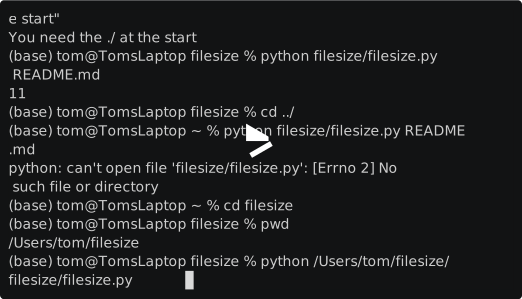
python filesize/filesize.py README.mdbut because filesize/filesize.py is a relative path, this only works in one place in the filesystem. To fix this we can manually tack on the absolute part of the path given by pwd. For me this looks like:
$ pwd
/Users/tom/filesize
$ python filesize/filesize.py README.md #only works when I'm right here
11
$ cd ../ #go up one level
$ pwd
/Users/tom/
$ echo "some text" > test.txt
$ python /Users/tom/filesize/filesize/filesize.py test.txt #this works anywhere!
Just a note, comments only work in scripts, not in the terminal, so if you copy and paste these commands into the terminal you have to remove the part after and including the #.
Make a subdirectory called tests and fill it with some random txt files:
$ pwd
/Users/tom/filesize
$ mkdir tests
$ cd tests
$ echo "some text" > test1.txt
$ echo "some thing else" > test2.txt
$ echo "further words" > test3.txtNow I want you to put these things together to make a script called filesizes.sh that when run, prints the size of each txt file in the current folder. You'll need to combine the for loop and the python script with an absolute path.
When you're done you should be able to do this:
$ cd tests
$ /Users/tom/filesize/filesizes.sh
6
7
10
And this should work in any directory that contains txt files. If you get stuck, you can see a solution here