During BIOS boot-up or when using unsupported video signals (e.g., out‑of‑range horizontal scan rates), CRT can experience hard stress on its deflection circuitry. In some older or lower-quality CRT displays, this may result in:
- Overheated or saturated flyback transformer, horizontal deflection coil, or driver transistor
- Potential component burnout (deflection ICs, coils, capacitors)
➡️ To minimize risk:
- Keep the CRT powered off or switched to another input during BIOS/boot sequences
- Avoid feeding non-CRT-safe signals until Batocera has properly initialized safe modelines via Switchres
New in v42: You’re no longer locked to the connector used during installation.
The installer now lets you choose the CRT output port (including ports that appear “disconnected”).
You can also change the port later by rerunning the script and selecting a different output.
- You may install while using any temporary display (or SSH).
During setup, simply pick the port that will drive your CRT (e.g.,VGA-1,DVI-I-1,DP-1via DAC). - The script writes a clean
10-monitor.conffor your chosen connector and backs up any old one.
If a10-monitor.confalready exists, it’s backed up and removed, then you’re prompted to reboot to avoid stale configs. - Later port changes are supported: rerun the script, select another output, and the config will be updated safely.
- Analog-capable outputs for CRT: VGA, DVI-I.
- DisplayPort → requires a proper DP-to-VGA DAC; recommended on supported AMD dGPUs/APUs and NVIDIA nouveau.
- HDMI / DVI-D are digital-only (cannot natively output 15 kHz analog). They are fine as a temporary install/SSH screen, but not for the final CRT signal.
NVIDIA proprietary driver: custom modes are more restricted. v42 still lets you choose the port, but results can vary depending on that driver’s limitations.
- Make sure you actually selected the correct port in the script (the one your CRT is plugged into).
- If you changed adapters/cables, rerun the script and pick the new port.
- An EDID/dummy plug on VGA, DVI-I, or DP can make detection smoother (not required, just helpful).
- Best: Use SSH from another computer and run the installer.
- When prompted, select the port that will drive your CRT.
- If you ever move the cable to a different connector, just rerun the script and select the new port—no full reinstall needed.
Remember:
- Digital-only outputs (HDMI, DVI-D) can’t directly feed a CRT.
- Analog outputs (VGA, DVI-I) or DP with a proper DAC are the right path for CRT.
It’s still recommended to install the script via SSH, as it’s the quickest and most convenient method, provided the PC is connected to the same network.
You don’t need a second PC for this—your mobile phone or laptop can be used with an SSH client.
Examples of SSH clients for iOS devices:
- Blink Shell
- Termius
- a-Shell
- WebSSH
Examples of SSH clients for Android:
- ConnectBot
- JuiceSSH
- Termius
- Termux
- Run the CRT Script
- Choose the correct input
- Select a correct monitor profile for your CRT
- Set resolution to 640x480/768x576
(No official theme support for 320x240 at this point) - Set monitor rotation to "None", NORMAL (0°)
(Horizontal setup = Normal) - Press Enter and skip ADVANCED CONFIGURATION for all 4 options
(If you don't know what they mean) - Default resolution for GunCon2 calibration is
320x240@60Hz
Latest version: v42
You can install the script using either of the commands below.
🟰 They are functionally identical — just different URLs pointing to the same script.
-
Option 1 – bit.ly (short link):
-
Press copy here 👇 and paste into you SSH client
bash <(curl -Ls https://bit.ly/batocera-crt-script | sed 's/\r$//') -
Option 2 – Pastebin (direct link):
-
Press copy here 👇 and paste into you SSH client
bash <(curl -s https://pastebin.com/raw/iC21J0W6 | sed 's/\r$//') -
Optional: Scan QR Code from your phone to open the script link:
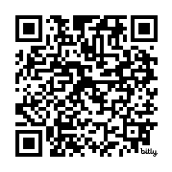
🛠️ This command chain downloads the latest version, extracts its contents, moves the folder, sets script permissions, preserves backups (if any), and finally executes the script.
📌 Don't forget: After installing the CRT Script, check the
🔗 Post-Installation Steps
to complete your setup.
If you're using an AMD R9 380 or similar card that doesn’t initially detect analog outputs:
-
Run the script once using one of the commands above.
- This will re-enable analog output functionality (e.g., DVI-I/VGA).
- You’ll be asked to reboot your system after the patch is applied.
-
After reboot, rerun the script again to continue with full CRT setup:
/userdata/system/Batocera-CRT-Script/Batocera_ALLINONE/./Batocera-CRT-Script-v42.sh
✅ After this, you can begin setting up your CRT resolutions, display modes, and video profiles normally.
📌 Don't forget: After installing the CRT Script, check the
🔗 Post-Installation Steps
to complete your setup.
Use this if installing via wired or wireless network manually.
Before running the script:
- Connect the correct output on your GPU to the correct cable.
- Ensure your CRT is either off or on a different AV channel during setup.
-
Press the Code button on GitHub and choose Download ZIP
-
Extract
Batocera-CRT-Script-main.zipinto a temporary folder on your PC -
Access Batocera over your network:
📎 Batocera Network File Transfer Guide -
Drag and drop the
systemfolder into/userdata
(Via SMB, you're already in/userdata) -
Connect via SSH:
📎 Batocera SSH Guide -
In SSH terminal, run the following:
cd /userdata/system/Batocera-CRT-Script/Batocera_ALLINONE
chmod 755 Batocera-CRT-Script-v42.sh
./Batocera-CRT-Script-v42.sh
You'll be greeted with a welcome message.
Press Enter and follow the onscreen instructions.
Once the installation completes, follow these steps carefully to avoid potential overlay issues and signal damage to your CRT:
After installation finishes, Press Enter to Reboot the system.
This ensures Batocera saves the changes properly.
Failing to do this may cause script installation errors due to the overlay not committing changes correctly.
Once the system has rebooted correctly, continue with the setup.
⚠️ Important for CRT users:
Avoid having your CRT powered on or set to the same input during BIOS/post boot, especially if you're using a 15kHz-only CRT. The default output sends unsafe 31kHz signals during early BIOS/post boot.
Once your system is rebooted with the CRT Script installed, you must do the following:
-
Go to:
MAIN MENU → SYSTEM SETTINGS → HARDWARE -
Set these values:
-
VIDEO OUTPUT:
Set this to the correct connected output. There should only be one listed. -
VIDEO MODE:
Set this based on your chosen profile:
-
| Output Resolution | Recommended Video Mode Setting |
|---|---|
| 640×480 | Boot_480i 1.0:0:0 15KHz 60Hz |
| 768×576 | Boot_576i 1.0:0:0 15KHz 50Hz |
| Output Resolution | Recommended Video Mode Setting |
|---|---|
| 640×480 | Boot_480i 1.0:0:0 31KHz 60Hz |
📝 All profiles will have a
Boot_prefix in the list.
📝 Make sure the Boot_ entry you select matches the exact resolution you picked during installation.