3.x Plugins Developer Guide
NOTE: This is an early preview of the Plugins and the behavior might change at anytime. Documentation Status is WIP. Fluent Search supports writing plugins in C# and make Custom UI Controls using cross-platform .NET UI framework called AvaloniaUI.
- .NET 5.0 - Download
- Basic C# Knowledge.
- Rider / Visual Studio / Visual Studio Code / any C# IDE.
- Blast NuGet Packages: nuget.org, the package version aligns with Fluent Search version.
- Fluent Search Version >= 0.9.86.0 Download
Fluent Search uses Search Applications to search through many resources. In this guide, we will write a Search Application that converts numbers to Hex/Binary format.
You can find an Up-to-Date code of the example below on the GitHub.
Open PowerShell in any directory & type in:
dotnet new classlib -n "NumberConverter.Fluent.Plugin"
NOTE: The Plugin DLL has to end with the suffix Fluent.Plugin.dll, if not Fluent Search will not try to load it.
Go to NumberConversionSearchApp directory and edit the NumberConversionSearchApp.csproj to: (Change the Assembly Version whenever you want to give an update to the Plugin)
<Project Sdk="Microsoft.NET.Sdk">

  <PropertyGroup>
    <TargetFramework>net5.0-windows10.0.19041</TargetFramework>
    <AssemblyVersion>1.0.0.0</AssemblyVersion>
  </PropertyGroup>

</Project>
In the PowerShell, run the following commands:
-
cd NumberConverter.Fluent.Plugin -
dotnet add package Blast.API --prerelease -
dotnet restore
You will need to add the following files to the NumberConverter.Fluent.Plugin directory.
Each Search Application in Fluent Search returns ISearchResult object that contains all the relevant information of the search result. (The left side of Fluent Search). Add a new file called NumberConversionSearchResult.cs with the following code:
using System.Collections.Generic;
using Blast.Core.Interfaces;
using Blast.Core.Objects;
using Blast.Core.Results;

namespace NumberConverter.Fluent.Plugin
{
    public sealed class NumberConversionSearchResult : SearchResultBase
    {
        public NumberConversionSearchResult(int number, string searchAppName, string convertedNumber, string resultName, string searchedText,
            string resultType, double score, IList<ISearchOperation> supportedOperations, ICollection<SearchTag> tags,
            ProcessInfo processInfo = null) : base(searchAppName,
            resultName, searchedText, resultType, score,
            supportedOperations, tags, processInfo)
        {
            Number = number;
            ConvertedNumber = convertedNumber;

            // You can add Machine Learning features to improve search predictions
            MlFeatures = new Dictionary<string, string>
            {
                ["ConvertedNumber"] = ConvertedNumber
            };
        }

        public int Number { get; }

        public string ConvertedNumber { get; set; }

        protected override void OnSelectedSearchResultChanged()
        {

        }
    }
}
The Blast.API gives the pre-implemented SearchResultBase so you won't need to implement ISearchResult.
All search results contain a list of ISearchOperation (The right side of Fluent Search). The user can select any operation to trigger it. Add a new file called NumberConversionSearchOperation.cs with the following code:
using Blast.Core.Results;

namespace NumberConverter.Fluent.Plugin
{
    public enum ConversionType
    {
        Any,
        Hex,
        Binary
    }

    public class ConversionSearchOperation : SearchOperationBase
    {
        public ConversionType ConversionType { get; }

        public static ConversionSearchOperation HexConversionSearchOperation { get; } =
            new ConversionSearchOperation(ConversionType.Hex);

        public static ConversionSearchOperation BinaryConversionSearchOperation { get; } =
            new ConversionSearchOperation(ConversionType.Binary);

        public ConversionSearchOperation(ConversionType conversionType) : base($"Convert more {conversionType} in web",
            $"Opens a {conversionType} conversion website", "\uE8EF")
        {
            ConversionType = conversionType;
        }
    }
}
This is a basic implementation of the two supported operations - Hex / Binary. We used static code to not create the same object each time.
You must add a search application, which is a class that implements ISearchApplication. Add a new file called NumberConversionSearchApp.cs with the following code:
using System;
using System.Collections.Generic;
using System.Runtime.CompilerServices;
using System.Threading;
using System.Threading.Tasks;
using Blast.API.Core.Processes;
using Blast.API.Processes;
using Blast.Core;
using Blast.Core.Interfaces;
using Blast.Core.Objects;
using Blast.Core.Results;

namespace NumberConverter.Fluent.Plugin
{
    public class NumberConversionSearchApp : ISearchApplication
    {
        private const string SearchAppName = "NumberConvertor";
        private readonly List<SearchTag> _searchTags;
        private readonly SearchApplicationInfo _applicationInfo;
        private readonly List<ISearchOperation> _supportedOperations;

        public NumberConversionSearchApp()
        {
            // For Icon Glyphs, visit: https://docs.microsoft.com/en-us/windows/uwp/design/style/segoe-ui-symbol-font
            _searchTags = new List<SearchTag>
            {
                new SearchTag
                    {Name = ConversionType.Hex.ToString(), IconGlyph = "\uE8EF", Description = "Convert to hex"},
                new SearchTag
                    {Name = ConversionType.Binary.ToString(), IconGlyph = "\uE8EF", Description = "Convert to binary"}
            };

            _supportedOperations = new List<ISearchOperation>
            {
                ConversionSearchOperation.HexConversionSearchOperation,
                ConversionSearchOperation.BinaryConversionSearchOperation
            };

            _applicationInfo = new SearchApplicationInfo(SearchAppName,
                "This apps converts hex to decimal", _supportedOperations)
            {
                MinimumSearchLength = 1,
                IsProcessSearchEnabled = false,
                IsProcessSearchOffline = false,
                ApplicationIconGlyph = "\uE8EF",
                SearchAllTime = ApplicationSearchTime.Fast,
                DefaultSearchTags = _searchTags
            };
        }

        public ValueTask LoadSearchApplicationAsync()
        {
            // This is used if you need to load anything asynchronously on Fluent Search startup
            return ValueTask.CompletedTask;
        }

        public SearchApplicationInfo GetApplicationInfo()
        {
            return _applicationInfo;
        }

        public async IAsyncEnumerable<ISearchResult> SearchAsync(SearchRequest searchRequest,
            [EnumeratorCancellation] CancellationToken cancellationToken)
        {
            if (cancellationToken.IsCancellationRequested || searchRequest.SearchType == SearchType.SearchProcess)
                yield break;
            string searchedTag = searchRequest.SearchedTag;
            string searchedText = searchRequest.SearchedText;
            ConversionType conversionType = ConversionType.Any;

            // Check that the search tag is something this app can handle
            if (!string.IsNullOrWhiteSpace(searchedTag))
            {
                if (!searchedTag.Equals(SearchAppName, StringComparison.OrdinalIgnoreCase) &&
                    !Enum.TryParse(searchedTag, true, out conversionType))
                    yield break;
            }

            if (!int.TryParse(searchedText, out int number))
                yield break;

            if (conversionType == ConversionType.Any || conversionType == ConversionType.Hex)
            {
                string convertedNumber = number.ToString("X");
                yield return new NumberConversionSearchResult(number, SearchAppName, convertedNumber,
                    $"Hex {searchedText} is {convertedNumber}", searchedText, "Hex", 2,
                    _supportedOperations, _searchTags);
            }

            if (conversionType == ConversionType.Any || conversionType == ConversionType.Binary)
            {
                string convertedNumber = Convert.ToString(number, 2);
                yield return new NumberConversionSearchResult(number, SearchAppName, convertedNumber,
                    $"Binary {searchedText} is {convertedNumber}", searchedText, "Binary", 2,
                    _supportedOperations, _searchTags);
            }
        }

        public ValueTask<ISearchResult> GetSearchResultForId(object searchObjectId)
        {
            // This is used to calculate a search result after Fluent Search has been restarted.
            // This is only used by the custom search tag feature and is optional to implement.
            return new ValueTask<ISearchResult>();
        }

        public ValueTask<IHandleResult> HandleSearchResult(ISearchResult searchResult)
        {
            if (!(searchResult is NumberConversionSearchResult numberConversionSearchResult))
            {
                throw new InvalidCastException(nameof(NumberConversionSearchResult));
            }

            if (!(numberConversionSearchResult.SelectedOperation is ConversionSearchOperation conversionSearchOperation)
            )
            {
                throw new InvalidCastException(nameof(ConversionSearchOperation));
            }

            // Get Fluent Search process manager instance
            IProcessManager managerInstance = ProcessUtils.GetManagerInstance();
            switch (conversionSearchOperation.ConversionType)
            {
                case ConversionType.Hex:
                    managerInstance.StartNewProcess(
                        $"https://www.hexadecimaldictionary.com/hexadecimal/{numberConversionSearchResult.Number:X}");
                    break;
                case ConversionType.Binary:
                    managerInstance.StartNewProcess(
                        $"https://www.binary-code.org/binary/16bit/{Convert.ToString(numberConversionSearchResult.Number, 2)}");
                    break;
                default:
                    throw new ArgumentOutOfRangeException();
            }

            return new ValueTask<IHandleResult>(new HandleResult(true, false));
        }
    }
}
This Search Application converts the searched text to hex/binary based on the searched tag.
For example, if you receive input as following:
Searched Text - "10" & Searched Tag - ""
The results will be "Hex 10 is A" and "Binary 10 is 1010".
And for Searched Text - "10" & Searched Tag - "hex"
The results will be only "Hex 10 is A".
Firstly, you should compile your Plugin for release.
In the PowerShell you opened earlier run the following command:
dotnet publish -c Release -r win10-x64
or if you have any dependencies, run the below command:
dotnet publish -c Release -r win10-x64 --self-contained=true
Now, copy all the files (you can copy only your DLLs, in this case it's NumberConversionSearchApp.dll) from {YourDir}\NumberConversionSearchApp\bin\Release\net5.0-windows10.0.19041\win10-x64\publish to:
-
If installed through Microsoft Store -
C:\Users\{Your_User_Name}\AppData\Local\Packages\21814BlastApps.BlastSearch_pdn8zwjh47aq4\LocalCache\Roaming\Blast\FluentSearchPlugins\NumberConversionSearchApp\ -
If installed through sideload -
C:\Users\{Your_User_Name}\AppData\Local\Packages\FluentSearch.SideLoad_4139t8dvwn2ka\LocalCache\Roaming\Blast\FluentSearchPlugins\NumberConversionSearchApp\ -
If installed through EXE -
C:\Users\{Your_User_Name}\AppData\Roaming\Blast\FluentSearchPlugins\NumberConversionSearchApp\
You will need to create these directories manually.
In addition, you will need to add a file called pluginsInfo.json to your plugin directory, with the following information:
{
  "IsEnabled": true,
  "InstalledVersion": "1.0.0.0",
  "Name": "NumberConverter",
  "DisplayName": "Number Converter",
  "Description": "Use hex/binary tags to convert numbers",
  "PublisherName": "Blast Apps",
  "Version": "1.0.0.0",
  "URL": "https://github.com/adirh3/NumberConverter.Fluent.Plugin/",
  "IconGlyph": "\uE8EF"
}
You can find Icon Glyphs at HERE.
Restart Fluent Search and check if your Search Application is working!
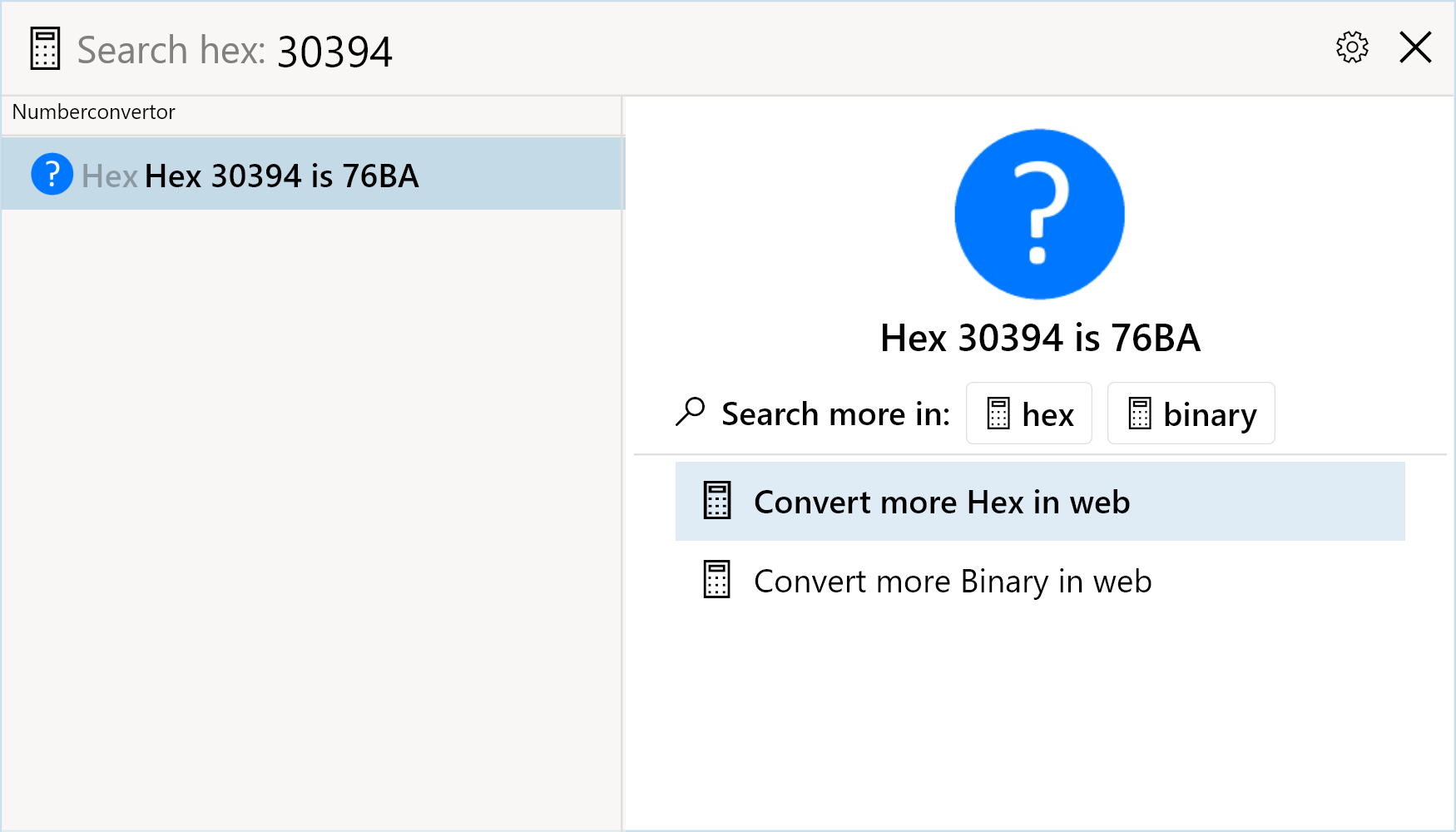
If you're using JetBrains Rider, then you can debug your Search Application right within the Fluent Search itself! Make sure you're on the latest DLLs.
- Launch Fluent Search.
- Open your project in Rider IDE, and choose some breakpoints.
- Press
Ctrl + Alt + P, select the Fluent Search process from the list. - Now open Fluent Search, and try to use your plugin, it should hit the breakpoint.
- You can also evaluate expressions during debugging by pressing
Shift + F9and type your statements.
The following tips are not just related to Plugins, but are related to C# in general:
- Avoid using
try catchblocks as catching and throwing exceptions might affect the FS Performance. - Avoid using
HttpResponseMessage.EnsureSuccessStatusCode, same as above, throwing exceptions might affect performance. You should just check the status code property and if it's not success then don't return a result. - Try creating an
HttpClientevery time you do a request like this -using var httpClient = new HttpClient();theusingpart means "Release the resources used by the client when this method finished executing". - Use
+operator for string concatenations instead ofStringBuilderas there is no practical performance difference if there are not too many strings. - If you're making multiple network calls in a
for-eachloop, you can try look intoParallelForEachAsyncmethod instead. But do remember that, Parallel Programming may not always be faster but you can try nevertheless. - Use
System.Text.Jsonfor JSON Parsing. - Reduce
asyncoverheads whenever possible by usingContinueWithinstead ofasync await. - Prefer
Channelinstead ofBag. - Don't pass
cancellationTokentoContinueWith(_=> channel.Writer.Complete()because you don't want the Channel to stay open because the search was cancelled. - Don't check
task.Resultimmediately, check firsttask.IsCompletedSuccessfullyand only if it is, then getResult. - Pass the cancellation token to
ReadAllAsync()if you have it in your code. - You can use
UiUtilities.UiDispatcher.Post(() => {})to alter UI Elements of your Search Result and also to show UI Dialogs likeMessageBox,SaveFileDialogetc. But it is bad for Performance and use only when it is essential for your plugin. - You can use
sampleText.SearchDistance(searchedText)method to find a score and provide it toResultScore. It is a built-in method inBlast.API - Make your JSON class
internaland change all property names to be in theUpperUpperconvention. Then you will need to make the JSON serialization case in-sensitive in GetFromJsonAsync by addingnew JsonSerializerOptions(){PropertyNameCaseInsensitive = true}after the URL parameter. - In the
SearchAsyncmethod, check thatsearchedTag.Equals(WikiSearchTagName, StringComparison.OrdinalIgnoreCase). - If your plugin needs to have a Text Copy operation, then you can use the
new CopySearchOperation("Copy Text")which is a built-in operation thatBlast.APIprovides.
It is always recommended to format your code every time you make a change to make it much readable for other devs. You can use following tools to format your code:
- JetBrains Rider has great code formatter built-in. You can press
Ctrl + Alt + Enterto format a single file. You can also useCode Cleanupfrom theMenu > Codeto clean and format all the files in one go. - Visual Studio + JetBrains ReSharper Extension (Paid) gives the similar code formatting as JetBrains Rider.
- You can also try free extensions like CodeMaid & Roslynator 2019.
In NumberConversionSearchResult.cs file, you have declared and passing several values to the ISearchResult which is nothing but NumberConversionSearchResult. You can find some of the values that can be passed here:
-
ResultName- This is the text that will appear in the Right side of the Fluent Search. -
DisplayedName- This is the text of the Search Result on the Left Side of the Fluent Search. -
SearchedText- User typed text. -
ResultType- Mention the type of the Result. It will be displayed in the Search Result on the Left Side. -
Score- Give adouble, FS will sort the results basing on this score. You can also usesampleText.SearchDistance(searchedText)to generate a score by finding the distance between the result and the user searched text. -
Tags- Search tag that is being used currently. -
SupportedOperations- Give a list of supported operations, you can provide different operations for different results as you wish. -
IconGlyph- Display Icon Glyph. If a Preview Image is available, then that image will be displayed instead of Icon Glyph. -
PreviewImage- ProvideBitmapImageResultwhich accepts aBitmapor aStream. IfPreviewImageisnull, thenIconGlyphis shown. -
SearchObjectId- Pass in a Class Object or a Unique String ID that can help you to recreate the result for custom tags feature. It will be used inGetSearchResultForIdmethod. -
public override string Context => AnyValue;- Pass in a website url or any text, it will be used by FS for context aware results/features. -
UseIconGlyph- Force useIconGlypheven ifPreviewImageis available. -
AdditionalInformation- Show Additional Information underneath theDisplayedNamein the Left Side of FS. -
MlFeatures- Used for Machine Learning purposes.
Please note that this list is non-exhaustive. You can find more values that can be passed into the ISearchResult by right-clicking on the SearchResultBase and choose Go to Declaration or Usages if your IDE supports it.
You can take a look at source code of following Plugins and get started with the Plugins development for Fluent Search:
If the Search Application does not load, please check for error logs in the plugin directory, in this case:
..\FluentSearchPlugins\NumberConversionSearchApp
Usually, a plugin will fail to load when one or more of its dependencies are missing, so make sure you copy all the relevant DLLs to the plugin directory.
For help, please send a mail to support@fluentsearch.net