| title | description |
|---|---|
编辑元素 |
解释如何修改一个元素或者进行更多的操作 |
WIP
这篇文章将会解释如何修改一个元素或者对其进行更多的操作。
This page uses terms such as Source Operations and Drawing Objects. For more details, please refer to this document.
How to identify in the UI
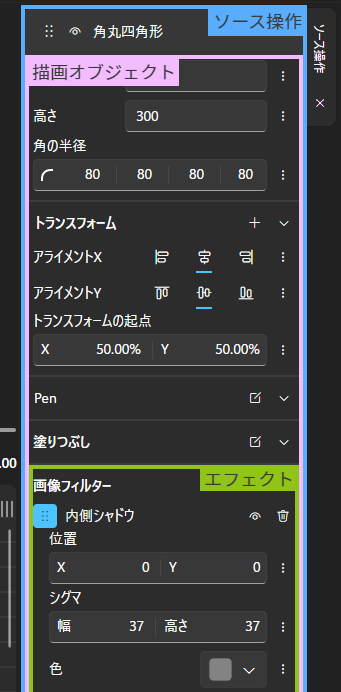
First, select the element you want to add an effect to on the timeline. The properties of the selected element will be displayed in the Source Operations tab on the right side.
To add an effect directly to a drawing object, click the + button in Filter Effects and choose the effect you want to add.
Alternatively, you can drag and drop the effect you want to add from the library to Filter Effects.
Dragging and dropping elsewhere will add the effect as a source operation.
Using transformations, you can express movement, rotation, scaling, distortion, and more.
To set a transformation directly on a drawing object, click the + button in Transform and choose the type of transformation you want to add.
For the move transformation only, you can move it with the mouse from the preview screen. However, move transformations added as effects (or source operations) cannot be moved with the mouse.
You can edit the start time and duration of elements by dragging them with the mouse on the timeline.
To simplify editing in Beutl, elements will snap to the timing of other layers during dragging. To temporarily disable this feature, hold down the Alt key while dragging. This feature cannot be permanently disabled in the settings.
You can split elements by right-clicking the element you want to split on the timeline and clicking the split button in the menu. You can also use the Ctrl + K shortcut to split the selected element at the current frame.

In Beutl, you can change the color and name of elements. These can be changed from the right-click menu.
You can change the name by pressing the F2 key or double-clicking the element.