| layout | databricks |
|---|---|
| page_title | Provider: Databricks |
| sidebar_current | docs-databricks-index |
| description | Terraform provider for the Databricks Lakehouse platform |
Use the Databricks Terraform provider to interact with almost all of Databricks resources. If you're new to Databricks, please follow guide to create a workspace on Azure, AWS or GCP and then this workspace management tutorial. Take advantage of Terraform Modules to make your code simpler and reuse existing modules for Databricks resources. Changelog is available on GitHub.
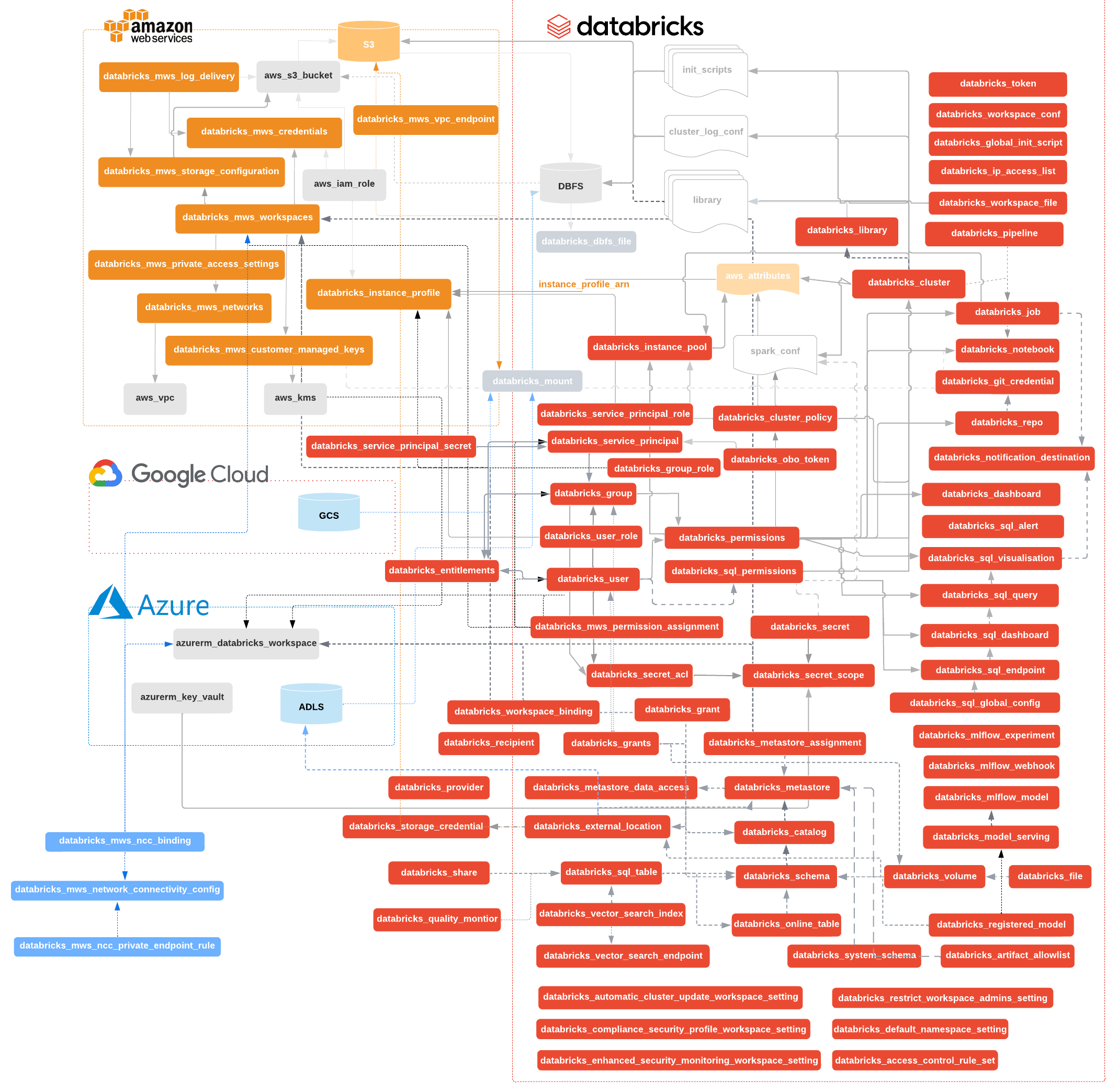
Compute resources
- Deploy databricks_cluster on selected databricks_node_type
- Schedule automated databricks_job
- Control cost and data access with databricks_cluster_policy
- Speedup job & cluster startup with databricks_instance_pool
- Customize clusters with databricks_global_init_script
- Manage few databricks_notebook, and even list them
- Manage databricks_repo
Storage
- Create Unity Catalog volumes to manage non-tabular data through databricks_volume resource
- Manage JAR, Wheel libraries and other non-tabular files through databricks_file resource
- Configure storage access with databricks_external_location resource (requires databricks_storage_credential)
Security
- Organize databricks_user into databricks_group through databricks_group_member, also reading metadata
- Create databricks_service_principal with databricks_obo_token to enable even more restricted access control.
- Create databricks_service_principal with databricks_service_principal_secret to authenticate with the service principal OAuth tokens (Only for AWS deployments)
- Manage data access with databricks_instance_profile, which can be assigned through databricks_group_instance_profile and databricks_user_instance_profile
- Control which networks can access workspace with databricks_ip_access_list
- Generically manage databricks_permissions
- Manage Unity Catalog permissions with databricks_grant
- Keep sensitive elements like passwords in databricks_secret, grouped into databricks_secret_scope and controlled by databricks_secret_acl
- Create workspaces in your VPC with DBFS using cross-account IAM roles, having your notebooks encrypted with CMK.
- Use predefined AWS IAM Policy Templates: databricks_aws_assume_role_policy, databricks_aws_crossaccount_policy, databricks_aws_bucket_policy
- Configure billing and audit databricks_mws_log_delivery
Databricks SQL
- Create databricks_sql_endpoint controlled by databricks_permissions.
- Manage queries and their visualizations.
- Manage dashboards and their widgets.
- Provide global configuration for all SQL warehouses
Machine Learning
- Create models in Unity Catalog.
- Create MLflow experiments.
- Create models in the workspace model registry.
- Create model serving endpoints.
provider "databricks" {
}

data "databricks_current_user" "me" {}
data "databricks_spark_version" "latest" {}
data "databricks_node_type" "smallest" {
  local_disk = true
}

resource "databricks_notebook" "this" {
  path     = "${data.databricks_current_user.me.home}/Terraform"
  language = "PYTHON"
  content_base64 = base64encode(<<-EOT
    # created from ${abspath(path.module)}
    display(spark.range(10))
    EOT
  )
}

resource "databricks_job" "this" {
  name = "Terraform Demo (${data.databricks_current_user.me.alphanumeric})"

  task {
    task_key = "task1"

    notebook_task {
      notebook_path = databricks_notebook.this.path
    }

    new_cluster {
      num_workers   = 1
      spark_version = data.databricks_spark_version.latest.id
      node_type_id  = data.databricks_node_type.smallest.id
    }
  }
}

output "notebook_url" {
  value = databricks_notebook.this.url
}

output "job_url" {
  value = databricks_job.this.url
}Most provider arguments can be configured either directly in the provider "databricks" block or by setting an environment variable, listed for each argument below.
The provider block supports the following arguments:
host- (optional, environment variableDATABRICKS_HOST) The host of the Databricks account or workspace. Seehostargument for more information.account_id- (required for account-level operations, environment variableDATABRICKS_ACCOUNT_ID) Account ID found in the top right corner of Accounts Console. Note: do NOT set this variable when using a workspace-level provider. If set, you may see...invalid Databricks Account configurationerrors.azure_workspace_resource_id- (optional, environment variableDATABRICKS_AZURE_RESOURCE_ID)idattribute of azurerm_databricks_workspace resource. Combination of subscription id, resource group name, and workspace name. Required when authenticating using Azure MSI.
The following arguments control the provider authentication:
profile- (optional, environment variableDATABRICKS_CONFIG_PROFILE) Connection profile specified within ~/.databrickscfg. Please check connection profiles section for more details. If unspecified, theDEFAULTprofile is used.client_id- (optional, environment variableDATABRICKS_CLIENT_ID) Theapplication_idof the Service Principal.client_secret- (optional, environment variableDATABRICKS_CLIENT_SECRET) Secret of the service principal.token- (optional, environment variableDATABRICKS_TOKEN) The API token to authenticate into the workspace.config_file- (optional, environment variableDATABRICKS_CONFIG_FILE) Location of the Databricks CLI credentials file created bydatabricks configure --tokencommand (~/.databrickscfg by default). Check Databricks CLI documentation for more details. The provider uses configuration file credentials when you don't specify host/token/azure attributes. This field defaults to~/.databrickscfg.azure_client_id- (optional, environment variableARM_CLIENT_ID) This is the Azure Enterprise Application (Service principal) client id. This service principal requires contributor access to your Azure Databricks deployment.azure_tenant_id- (optional, environment variableARM_TENANT_ID) This is the Azure Active Directory Tenant id in which the Enterprise Application (Service Principal) resides.azure_environment- (optional, environment variableARM_ENVIRONMENT) This is the Azure Environment which defaults to thepubliccloud. Other options aregerman,chinaandusgovernment.azure_use_msi- (optional, environment variableARM_USE_MSI) Use Azure Managed Service Identity authentication.google_credentials- (optional, environment variableGOOGLE_CREDENTIALS) A GCP Service Account Credentials JSON or the path to the file containing these credentials.google_service_account- (optional, environment variableDATABRICKS_GOOGLE_SERVICE_ACCOUNT) The Google Cloud Platform (GCP) service account e-mail used for impersonation. Default Application Credentials must be configured, and the principal must be able to impersonate this service account.auth_type- (optional, environment variableDATABRICKS_AUTH_TYPE) enforce specific auth type to be used in very rare cases, where a single Terraform state manages Databricks workspaces on more than one cloud andmore than one authorization method configurederror is a false positive. Valid values arepat,basic(deprecated),oauth-m2m,databricks-cli,azure-client-secret,azure-msi,azure-cli,github-oidc-azure,env-oidc,file-oidc,github-oidc,google-credentials, andgoogle-id.
-> Note If you experience technical difficulties with rolling out resources in this example, please make sure that environment variables don't conflict with other provider block attributes. When in doubt, please run TF_LOG=DEBUG terraform apply to enable debug mode through the TF_LOG environment variable. Look specifically for Explicit and implicit attributes lines, that should indicate authentication attributes used.
The provider supports additional configuration parameters not related to authentication. They could be used when debugging problems, or do an additional tuning of provider's behavior:
http_timeout_seconds- (optional) the amount of time Terraform waits for a response from Databricks REST API. Default is 60.rate_limit- (optional, environment variableDATABRICKS_RATE_LIMIT) defines maximum number of requests per second made to Databricks REST API by Terraform. Default is 15.debug_truncate_bytes- (optional, environment variableDATABRICKS_DEBUG_TRUNCATE_BYTES) Applicable only whenTF_LOG=DEBUGis set. Truncate JSON fields in HTTP requests and responses above this limit. Default is 96.debug_headers- (optional, environment variableDATABRICKS_DEBUG_HEADERS) Applicable only whenTF_LOG=DEBUGis set. Debug HTTP headers of requests made by the provider. Default is false. We recommend turning this flag on only under exceptional circumstances, when troubleshooting authentication issues. Turning this flag on will log firstdebug_truncate_bytesof any HTTP header value in cleartext.skip_verify- skips SSL certificate verification for HTTP calls. Use at your own risk. Default is false (don't skip verification).
!> Warning Sensitive credentials are printed to the log when debug_headers is true. Use it for troubleshooting purposes only.
The host argument configures the endpoint that the Terraform Provider for Databricks interacts with. This must be configured according to the following table:
| Environment | host |
|---|---|
| Databricks Account on AWS | https://accounts.cloud.databricks.com |
| Databricks Account on AWS GovCloud | https://accounts.cloud.databricks.us |
| Databricks Account on AWS GovCloud DOD | https://accounts-dod.cloud.databricks.mil |
| Azure Databricks Account | https://accounts.azuredatabricks.net |
| Azure Databricks Account (US Gov) | https://accounts.azuredatabricks.us |
| Azure Databricks Account (China) | https://accounts.azuredatabricks.cn |
| Databricks Account on GCP | https://accounts.gcp.databricks.com |
| Databricks Workspace (any cloud) | https://<workspace hostname> |
There are currently a number of supported methods to authenticate into the Databricks platform to create resources:
- (recommended for CI/CD) OpenID Connect
- (recommended for local development) Databricks CLI
- AWS, Azure and GCP via Databricks-managed Service Principals
- GCP via Google Cloud CLI
- Azure Active Directory Tokens via Azure CLI, Azure-managed Service Principals, or Managed Service Identities
- PAT Tokens
!> Warning Please be aware that hard coding any credentials in plain text is not something that is recommended. We strongly recommend using a Terraform backend that supports encryption. Please use environment variables, ~/.databrickscfg file, encrypted .tfvars files or secret store of your choice (Hashicorp Vault, AWS Secrets Manager, AWS Param Store, Azure Key Vault)
The arguments host and client_id are used for the authentication which maps to the github-oidc authentication type.
These can be declared in the provider block or set in the environment variables DATABRICKS_HOST and DATABRICKS_CLIENT_ID respectively. Example:
Workspace level provider:
provider "databricks" {
  alias     = "workspace"
  auth_type = "github-oidc"
  host      = var.workspace_host
  client_id = var.client_id
}
Configure the account-level provider as follows. Make sure to configure the account host as described above.
provider "databricks" {
  alias      = "account"
  auth_type  = "github-oidc"
  host       = var.account_host
  client_id  = var.client_id
  account_id = var.account_id
}The provider can authenticate using the Databricks CLI. After logging in with the databricks auth login command to your account or workspace, you only need to specify the name of the profile in your provider configuration. Terraform will automatically read and reuse the cached OAuth token to interact with the Databricks REST API. See the user-to-machine authentication guide for more details.
You can specify a CLI connection profile through profile parameter or DATABRICKS_CONFIG_PROFILE environment variable:
provider "databricks" {
  profile = "ML_WORKSPACE"
}
You can specify non-standard location of configuration file through config_file parameter or DATABRICKS_CONFIG_FILE environment variable:
provider "databricks" {
  config_file = "/opt/databricks/cli-config"
}You can use the client_id + client_secret attributes to authenticate with a Databricks-managed service principal at both the account and workspace levels in all supported clouds. The client_id is the application_id of the Service Principal and client_secret is its secret. You can generate the secret from Databricks Accounts Console (see instruction) or by using the Terraform resource databricks_service_principal_secret.
provider "databricks" {
  host          = "https://abc-cdef-ghi.cloud.databricks.com"
  client_id     = var.client_id
  client_secret = var.client_secret
}
To create resources at both the account and workspace levels, you can create two providers as shown below:
provider "databricks" {
  alias         = "accounts"
  host          = "<account host>" # see `host` argument above for guidance
  client_id     = var.client_id
  client_secret = var.client_secret
  account_id    = "00000000-0000-0000-0000-000000000000"
}

provider "databricks" {
  alias         = "workspace"
  host          = var.workspace_host
  client_id     = var.client_id
  client_secret = var.client_secret
}
Next, you can specify the corresponding provider when creating the resource. For example, you can use the workspace provider to create a workspace group
resource "databricks_group" "cluster_admin" {
  provider                   = databricks.workspace
  display_name               = "cluster_admin"
  allow_cluster_create       = true
  allow_instance_pool_create = false
}~> Databricks strongly recommends using OAuth instead of PATs for user account client authentication and authorization due to the improved security OAuth has
You can use host and token parameters to supply credentials to the workspace. When environment variables are preferred, then you can specify DATABRICKS_HOST and DATABRICKS_TOKEN instead. Environment variables are the second most recommended way of configuring this provider.
provider "databricks" {
  host  = "https://<workspace hostname>"
  token = "dapitokenhere"
}Workload Identity Federation can be used to authenticate Databricks from automated workflows. This is done through the tokens issued by the automation environment. For more details on environment variables regarding the specific environments, please see: https://docs.databricks.com/aws/en/dev-tools/auth/oauth-federation-provider.
To create resources at both the account and workspace levels, you can create two providers as shown below:
Workspace level provider:
provider "databricks" {
  alias     = "workspace"
  auth_type = "env-oidc"
  host      = var.workspace_host
  client_id = var.client_id
}
Account level provider:
provider "databricks" {
  alias      = "account"
  auth_type  = "env-oidc"
  host       = var.account_host
  client_id  = var.client_id
  account_id = var.account_id
}
Note: auth_type for Github Actions would be "github-oidc". For more details, please see the document linked above.
The below Azure authentication options are supported at both the account and workspace levels. The provider works with Azure CLI authentication to facilitate local development workflows, though for automated scenarios, managed identity or service principal auth is recommended (and specification of azure_use_msi, azure_client_id, azure_client_secret and azure_tenant_id parameters).
Since v0.3.8, it's possible to leverage Azure Managed Service Identity authentication, which is using the same environment variables as azurerm provider. Both SystemAssigned and UserAssigned identities work, as long as they have Contributor role on subscription level and created the workspace resource, or directly added to workspace through databricks_service_principal.
provider "databricks" {
  host                        = data.azurerm_databricks_workspace.this.workspace_url
  azure_workspace_resource_id = azurerm_databricks_workspace.this.id

  # ARM_USE_MSI environment variable is recommended
  azure_use_msi = true
}provider "azurerm" {
client_id = var.client_id
tenant_id = var.tenant_id
subscription_id = var.subscription_id
use_oidc = true
}
resource "azurerm_databricks_workspace" "this" {
location = "centralus"
name = "my-workspace-name"
resource_group_name = var.resource_group
sku = "premium"
}
provider "databricks" {
host = azurerm_databricks_workspace.this.workspace_url
auth_type = "github-oidc-azure"
azure_workspace_resource_id = azurerm_databricks_workspace.this.id
azure_client_id = var.client_id
azure_tenant_id = var.tenant_id
}
resource "databricks_user" "my-user" {
user_name = "test-user@databricks.com"
}Follow the Configuring OpenID Connect in Azure. You can then use the Azure service principal to authenticate in databricks.
There are ARM_* environment variables provide a way to share authentication configuration using the databricks provider alongside the azurerm provider.
When a workspace is created using a service principal account, that service principal account is automatically added to the workspace as a member of the admins group. To add a new service principal account to an existing workspace, create a databricks_service_principal.
It's possible to use Azure CLI authentication, where the provider would rely on access token cached by az login command so that local development scenarios are possible. Technically, the provider will call az account get-access-token each time before an access token is about to expire.
provider "azurerm" {
  features {}
}

resource "azurerm_databricks_workspace" "this" {
  location            = "centralus"
  name                = "my-workspace-name"
  resource_group_name = var.resource_group
  sku                 = "premium"
}

provider "databricks" {
  host = azurerm_databricks_workspace.this.workspace_url
}

resource "databricks_user" "my-user" {
  user_name    = "test-user@databricks.com"
  display_name = "Test User"
}provider "azurerm" {
client_id = var.client_id
client_secret = var.client_secret
tenant_id = var.tenant_id
subscription_id = var.subscription_id
}
resource "azurerm_databricks_workspace" "this" {
location = "centralus"
name = "my-workspace-name"
resource_group_name = var.resource_group
sku = "premium"
}
provider "databricks" {
host = azurerm_databricks_workspace.this.workspace_url
azure_workspace_resource_id = azurerm_databricks_workspace.this.id
azure_client_id = var.client_id
azure_client_secret = var.client_secret
azure_tenant_id = var.tenant_id
}
resource "databricks_user" "my-user" {
user_name = "test-user@databricks.com"
}There are ARM_* environment variables provide a way to share authentication configuration using the databricks provider alongside the azurerm provider.
When a workspace is created using a service principal account, that service principal account is automatically added to the workspace as a member of the admins group. To add a new service principal account to an existing workspace, create a databricks_service_principal.
The provider works with Google Cloud CLI authentication to facilitate local development workflows. For automated scenarios, a service principal auth is necessary using google_service_account parameter with impersonation and Application Default Credentials. Alternatively, you could provide the service account key directly by passing it to google_credentials parameter (or GOOGLE_CREDENTIALS environment variable)
Except for metastore, metastore assignment and storage credential objects, Unity Catalog APIs are accessible via workspace-level APIs. This design may change in the future.
If you are configuring a new Databricks account for the first time, please create at least one workspace with an identity (user or service principal) that you intend to use for Unity Catalog rollout. You can then configure the provider using that identity and workspace to provision the required Unity Catalog resources.
When performing a single Terraform apply to update both the owner and other fields for Unity Catalog resources, the process first updates the owner, followed by the other fields using the new owner's permissions. If your principal is not the owner (specifically, the newly updated owner), you will not have the authority to modify those fields. In cases where you wish to change the owner to another individual and also update other fields, we recommend initially updating the fields using your principal, which should have owner permissions, and then updating the owner in a separate step.
For example, with the following zero-argument configuration:
provider "databricks" {}- Provider will check all the supported environment variables and set values of relevant arguments.
- In case any conflicting arguments are present, the plan will end with an error.
- Will check for the presence of
host+tokenpair, continue trying otherwise. - Will check for Azure workspace ID,
azure_client_secret+azure_client_id+azure_tenant_idpresence, continue trying otherwise. - Will check for availability of Azure MSI, if enabled via
azure_use_msi, continue trying otherwise. - Will check for Azure workspace ID presence, and if
AZ CLIreturns an access token, continue trying otherwise. - Will check for the
~/.databrickscfgfile in the home directory, will fail otherwise. - Will check for
profilepresence and try picking from that file will fail otherwise.
Please check Default Authentication Flow from Databricks SDK for Go in case you need more details.
In case of the problems using Databricks Terraform provider follow the steps outlined in the troubleshooting guide.
To make Databricks Terraform Provider generally available, we've moved it from https://github.com/databrickslabs to https://github.com/databricks. We've worked closely with the Terraform Registry team at Hashicorp to ensure a smooth migration. Existing terraform deployments continue to work as expected without any action from your side. We ask you to replace databrickslabs/databricks with databricks/databricks in all your .tf files.
You should have .terraform.lock.hcl file in your state directory that is checked into source control. terraform init will give you the following warning.
Warning: Additional provider information from registry

The remote registry returned warnings for registry.terraform.io/databrickslabs/databricks:
- For users on Terraform 0.13 or greater, this provider has moved to databricks/databricks. Please update your source in required_providers.
After you replace databrickslabs/databricks with databricks/databricks in the required_providers block, the warning will disappear. Do a global "search and replace" in *.tf files. Alternatively you can run python3 -c "$(curl -Ls https://dbricks.co/updtfns)" from the command-line, that would do all the boring work for you.
If you didn't check-in .terraform.lock.hcl to the source code version control, you may see Failed to install provider error. Please follow the simple steps described in the troubleshooting guide.