Debugger
With Bash Editor V2.0.0 a bash script debugger is included.
There is a YouTube Video available showing the debugger in action.

Open Window→Preferences and type debug into search field. Select then debug settings of bash editor:
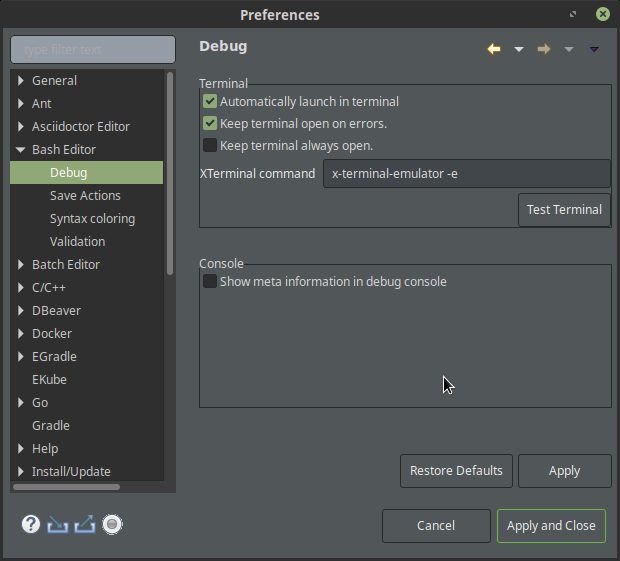
When enabled a debug session will automatically open a terminal and starts the bash script to debug. When disabled only the remote debug session will be started and you have to start the bashscript by your own and include the remote script part in top line.
When an error occurres the terminal will be kept open, exit code 0 will close the terminal automatically when debug session ends.
|
Tip
|
You have to use set -e inside your code to have correct exit codes…
|
With this option enabled, the terminal will always be open, no matter which exit code returned.
|
Tip
|
This is only editable for Linux and Mac, for Windows this is not used. |
Per default x-terminal-emulator -e will be used to open a terminal and execute a given string.
You can test if your preference changes are working by pressing the Test Terminal button.
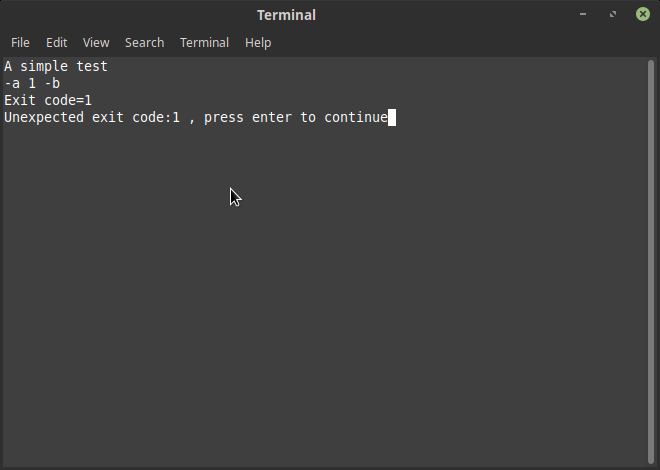
There is not much to do. Please refer to OS specific blocks below.
When you are working with Gnome or Mate desktop environment it will work out of the box.
If your are using another Desktop Environment (e.g. KDE) you will have to change x-terminal-emulator -e in preferences to an option where terminal will execute a given shell script string. (Or you isntall and setup the x-terminal-emulator alternative package so it uses gnome or mate shell).
Try out your preferences working with Test Terminal button.
You have to install a bash variant, e.g. GIT for Windows includes a full working bash. Bash editor will simply use cmd.exe and bash to bring up a terminal visualization on debug time. So you need at least
access to cmd.exe and have a bash installation inside PATH.
It should work - currently I have no possibility to test it. Please see Linux block before and the XTerminal command. There should be a terminal command for apple which could be entered there.
Please enable Keep terminal always open option in preferences. Having this option enabled you will always see the terminal output.
If there is still no output,please test your terminal works by using Test Terminal button in preferences.
|
Caution
|
There is currently a bug in V2.0.0 for Windows preventing debug execution. It will be fixed in 2.0.1 see https://github.com/de-jcup/eclipse-bash-editor/issues/139 for details |
-
Debugger will temporary add a special remote connection script by adding a include line at top of debugged script.
-
Eclipse will do a remote connection to the remote connection script and start debug session.
-
Temporary code will be automatically removed when debug session ends
Thanks to Alex Kosinsky and his previous work on basheclipse. The idea used there to enable debugging of bash scripts in Eclipse by using bash function trace outputs was also reused in Bash-Editor. Without this inspiration the debugger would have never been integrated.