Editing page properties
For editing page properties, press Edit Page Properties in side menu. Here you can change main page information, such as title, URL, image, category, tags, custom CSS, custom JavaScript, layout and other:
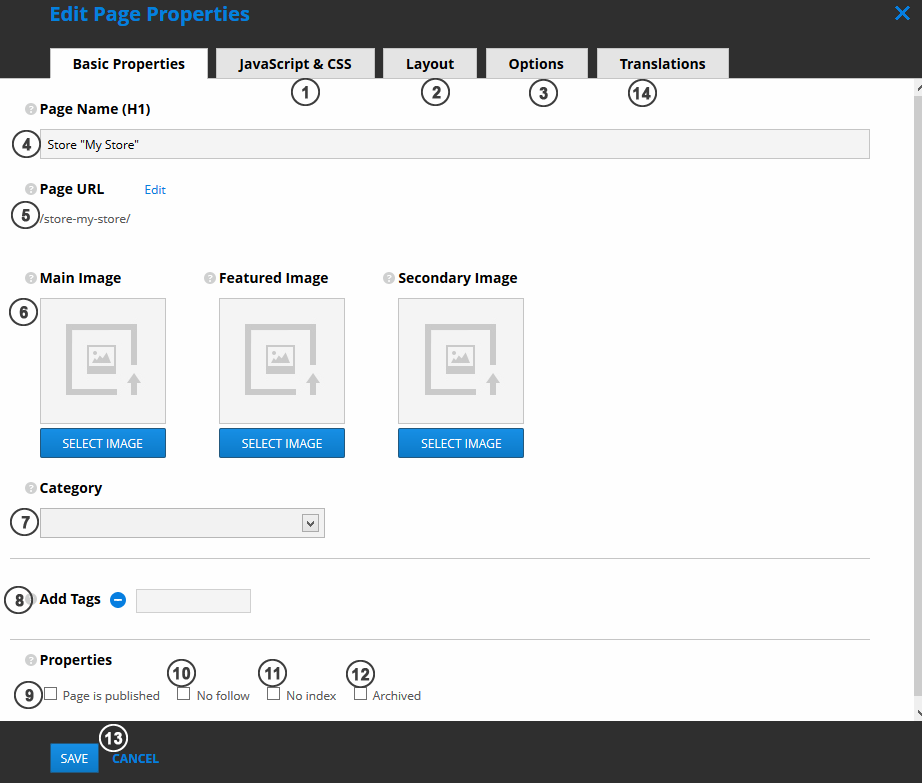
- JavaScript & CSS. Add custom page CSS and custom page JavaScript in the second tab.
- Layout. Select layout from existing layouts list (they can be managed in Site Settings -> Layouts) in the third tab.
- Options tab. Manage page options, which are pre-filled from page template. How to manage page options, can be found here.
- Page name. Page title, describing the page.
-
Page URL. Can be edited by pressing
Editlink. NOTE: cannot contain spaces and special symbols: \ # ? - Featured image. Can be shown as thumbnail, describing a page.
- Category. Choose page category, which best describes your page. Categories can be managed in Site Settings -> Categories.
- Tags. Add / remove tags, to provide accurate and detailed data on your page.
- Page is published. If unchecked, page will be unpublished (visible only to authenticated users, depending on access security).
- No follow. If checked, instructs some search engines that a hyperlink should not influence the link target's ranking in the search engine's index.
- No index. If checked, automated internet bots avoid indexing a web page.
- Archived. If checked, page by default will not be visible in the list of pages (can be shown by changing filtering criteria).
- Save / Cancel buttons. Cancel closes form without saving and without any confirmation.
-
Translations. Manage page translations to other languages. Tab is avialable only if cms.config attribute
enableMultilanguagesis set to true. Read more about managing multilingual pages.
If access control is enabled, on the bottom of the form's first tab appears controls for managing access security. User can manage users and / or roles, which can access page. If access level is set to deny, users cannot view the current page. If access level set to read only, page will be opened in read only mode: all edit forms can be viewed, but not saved.
NOTE: If trying to save page with no one user/role, which have Read&Edit access level, exception occurs.
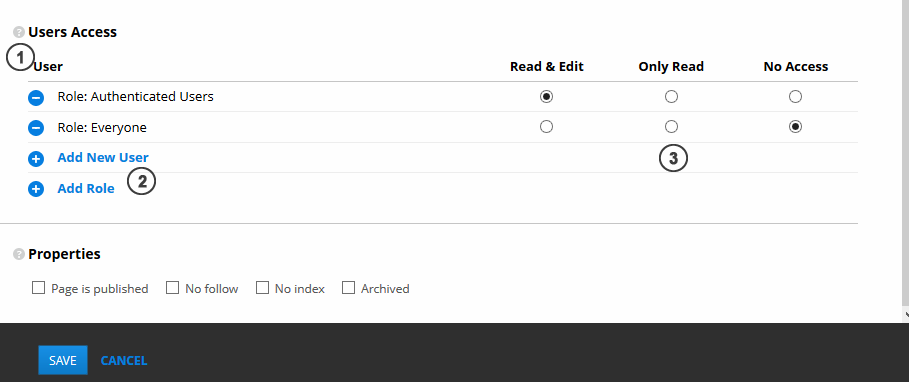
- User access control section
- By clicking one on the links, input field appears and user name or role name can be entered.
-
Read&Edit,Only ReadorNo accessaccess level can be assigned to users/roles.