Media Manager
Store and organize files and images on your website with Better CMS’ user-friendly Media Manager. To access the Media Manager, click “Site settings” on the side menu and then click “Media Manager.” View all of your folders at once in list view or gallery view by toggling between the icons at the top of the window. From here, you can use the controls to add, delete, or rename a folder and easily upload your images and files. Click “File Name” to sort the folders by file name, or click “File Type” to sort the folders by file type. To upload a new image or file, you can browse and upload from your computer, or simply drag and drop the file into the Media Manager. The Media Manager can also be accessed from the WYSIWYG editor to add images or files directly to a webpage or blog post.
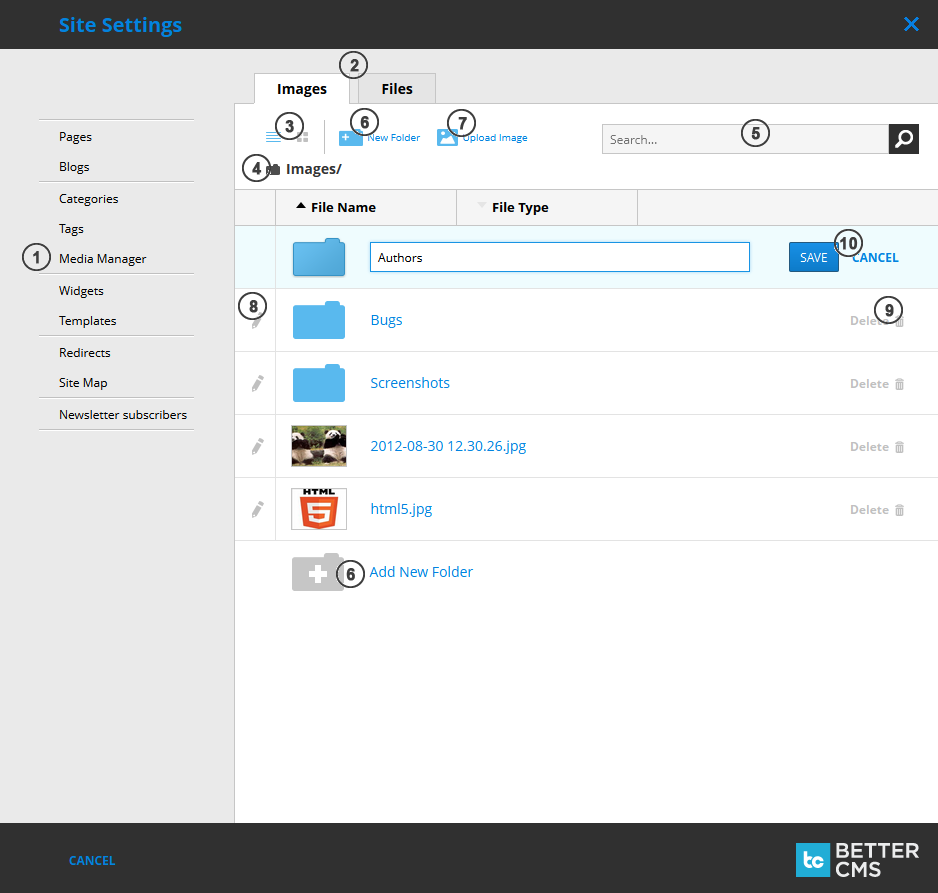
- Media Manager menu item (located in the middle of Site Settings menu).
- Tabs to toggle between the images and files lists.
- Buttons to toggle list view or gallery view.
- Show the current location within the folders you are in.
- Search field for images and / or folders.
- Button tho create a new folder.
- Button for image upload.
- Edit buttons for folder renaming or image editing.
- Button for deleting the folder or images.
- Buttons to save or cancel changes made for image or folder name.
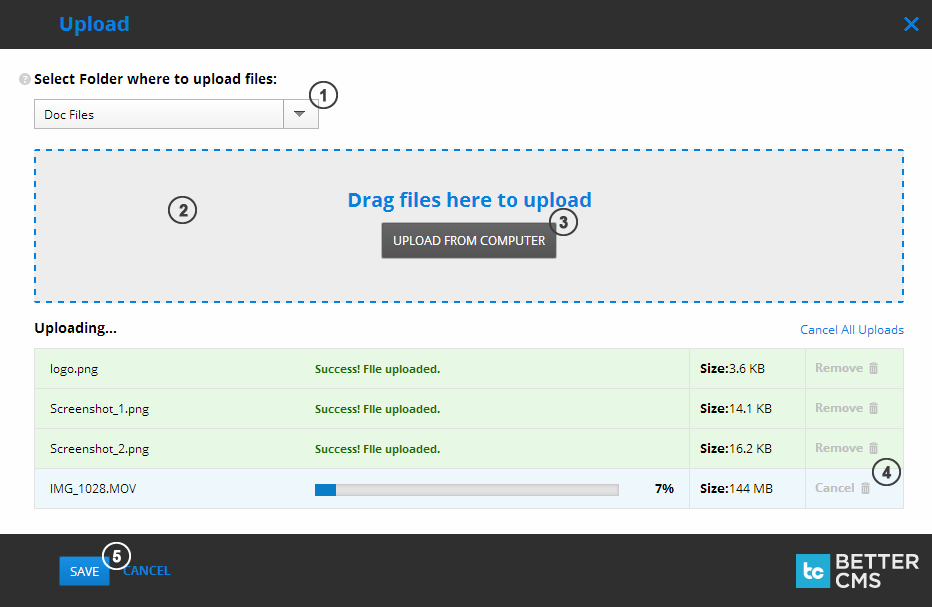
- Folder selection for uploaded files storage.
- Area to drag files you want to upload.
- Button to select files to upload from your computer.
- You can cancel uploading or delete uploaded file.
- Button to save or cancel file upload.
Note: Each time image is resized / cropped, new version of image is stored in file storage. It means, that when image.jpg will be added to content, it will have reference to e.g. image_5.jpg and it will never change. If later image will be cropped or resized, image_5.jpg will be kept on server and new version, e.g.image_8.jpg will be created.