User Interface Explained
Better CMS has an intuitive user interface designed to help you make updates to your website content and SEO settings quickly and efficiently. When you first login to Better CMS, you will see a menu on the left side of your screen. This side menu contains all of the controls you’ll need to make changes to your website.
Better CMS features on-page editing. This enables a user to edit content on a web page and see exactly what it will look like when the page is live. All of the tools you will need to make changes to your website are located in the side menu, which can be stuck to the left or right side of your screen.
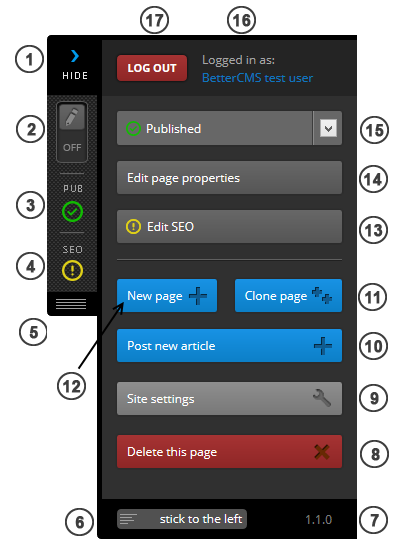
- Show / hide side menu
- Enable / disable content editing.
- Indicates, if page is published.
- Indicates, if page has SEO information entered.
- Move side menu to the left / right or up / down.
- Stick side menu to the left / right of the screen.
- Better CMS version number.
- Delete opened page, add redirection URL.
- Open Better CMS site settings: widgets, layouts, media manager, etc.
- Create new blog post, enter title, HTML content, choose an image, assign to category, add tags.
- Clone page, change page title and URL.
- Add new page, enter page title, URL, choose page template.
- Edit page SEO information.
- View and edit page properties information.
- Publish / unpublish page.
- Logged in user name.
- Logout button.