To convert scenes in your project to a new version, you need to update the plugin (by replacing the contents of addons/dreadpon.spatial_gardener) and start up your project.
NOTE: plugin does not handle conversion between Godot 3.x and Godot 4.0. However, during demo project conversion Godot's automatic scene converter actually handled all data conversion correctly and all plants' data was retained. You might be lucky as well. If not, check out Good ol' JSON for a more manual approach to conversion. If conversion between Godot 4.x versions ever becomes relevant, this document will be updated.
Steps:
- Plugin will automatically discover potential candidates for a conversion and show a popup, asking for confirmation.
 ]
]- NOTE: in case it didn't, make sure your plugin is enabled and project setting
dreadpons_spatial_gardener/plugin/scan_for_outdated_scenesis set totrue. Then relaunch your project. If this didn't help, refer to Alternative conversion.
- By default, conversion will create backups of your scenes with the
.backupextension.- This can be disabled with
Create backup duplicatescheckbox.
- This can be disabled with
- Spatial Gardener will check for outdated scenes on each start up of your project.
- This can be disabled (to speed up the loading process) with
Don't ask me againcheckbox.
- This can be disabled (to speed up the loading process) with
- Select the scenes you'd like to convert and press
Convertbutton.- The editor will freeze for a while: the best way to keep track of your progress is by launching the editor from console (or by running
Godot_v***-stable_win64_console.cmdincluded in the official download). - The process takes about 1-10 minutes per scene, depending on it's size.
- The editor will freeze for a while: the best way to keep track of your progress is by launching the editor from console (or by running
- You will receive a popup once conversion is done.
- Make sure to move backups elsewhere before committing to source control.
- If it failed, you will probably see errors in your console.
- Before opening an Issue on GitHub, try consulting the Alternative conversion, Good ol' JSON or Dealing with failed conversions.
This method can be helpful if automatic scanning failed to recognize a scene in need of conversion. If actual errors occured, try fixing the conversion by consulting the Good ol' JSON or Dealing with failed conversions.
Steps:
- Make sure the plugin is updated to the most recent version
- Copy your scenes to
addons/dreadpon.spatial_gardener/scene_converter/input_scenesfolder.- Make sure they have a plain text scene file format (
.tscn). - The scene converter automatically makes backups of your scenes. But you should make your own, in case anything goes wrong.
- Make sure they have a plain text scene file format (
- Editor might scream that there are resources missing. This is expected.
- You might see a message that some plugin scripts are missing. Ignore, since some things did get removed in a plugin.
- That's why you should not open these scenes for now.
- Open the scene found at
addons/dreadpon.spatial_gardener/scene_converter/scene_converter.tscn. - Launch it (F6 by default): it will start the conversion process.
- The process takes about 1-10 minutes per scene, depending on it's size.
- If any errors occured, you'll be notified in the console.
- The editor will freeze for a while: the best way to keep track of your progress is by launching the editor from console (or by running
Godot_v***-stable_win64_console.cmdincluded in the official download).
- The editor will freeze for a while: the best way to keep track of your progress is by launching the editor from console (or by running
- If conversion was successful, grab your converted scenes from
addons/dreadpon.spatial_gardener/scene_converter/output_scenesfolder and move them to their intended places. - You should be able to launch your converted scenes now.
- Optionally, you might have to relaunch the project and re_enable the plugin.
- Make sure to move backups elsewhere before committing to source control.
If you got this far, you should probably open an issue on GitHub.
New to Spatial Gardener v.1.1.1 is the ability to export plant placement data as JSON.
Steps for v.1.1.1 - v.1.2.0:
- First, backup all the scenes you're planning to convert.
- Download the Spatial Gardener v.1.1.1 if you were using one of the versions before it. It is compatible with scenes made in these previous versions, and is made purely for enabling JSON exporting. All subsequent versions have breaking changes compared to pre v1.1.1.
- Open the scene you'd like to convert.
- For each
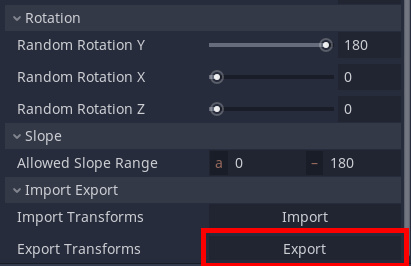
Gardenerand each plant in this scene, go to plant settings, scroll to the bottom and pressExport Transforms(Export Plant Datain v.1.3.0 and up). - Select the folder, set file name and press
Save.- You should probably export outside of your project directory.
- At this point you should have a bunch of individual JSON files. E.g. if you have 2 Gardeners in your scene, 3 plants each, you would have 6 JSON files.
- For v.1.3.0 and up you can bundle plants together by exporting the entire
Greenhouse(so you would have only 2 JSON files).
- Upgrade Spatial Gardener to the version, when NEXT storage specification change occured
- Storage v.1: plugin v.1.0.0 - v.1.1.1
- Storage v.2: plugin v.1.2.0 only
- Open your scenes. The editor will scream errors, that's fine.
- Clear your
Gardeners by deleting them or theArboristnodes. - Save and re-open the scene. Recreate the
Gardeners in case you deleted them. - For each
Gardenerand each plant in the scene, go to plant settings, scroll to the bottom and pressImport Transforms(Import Plant Datain v.1.3.0 and up). - Select the files you exported previously and click
Open. - Once you do that for every file, your scene should have your plants in the same positions.
- Repeat steps 6-12 until you end up at the most recent plugin version.
- You might need to
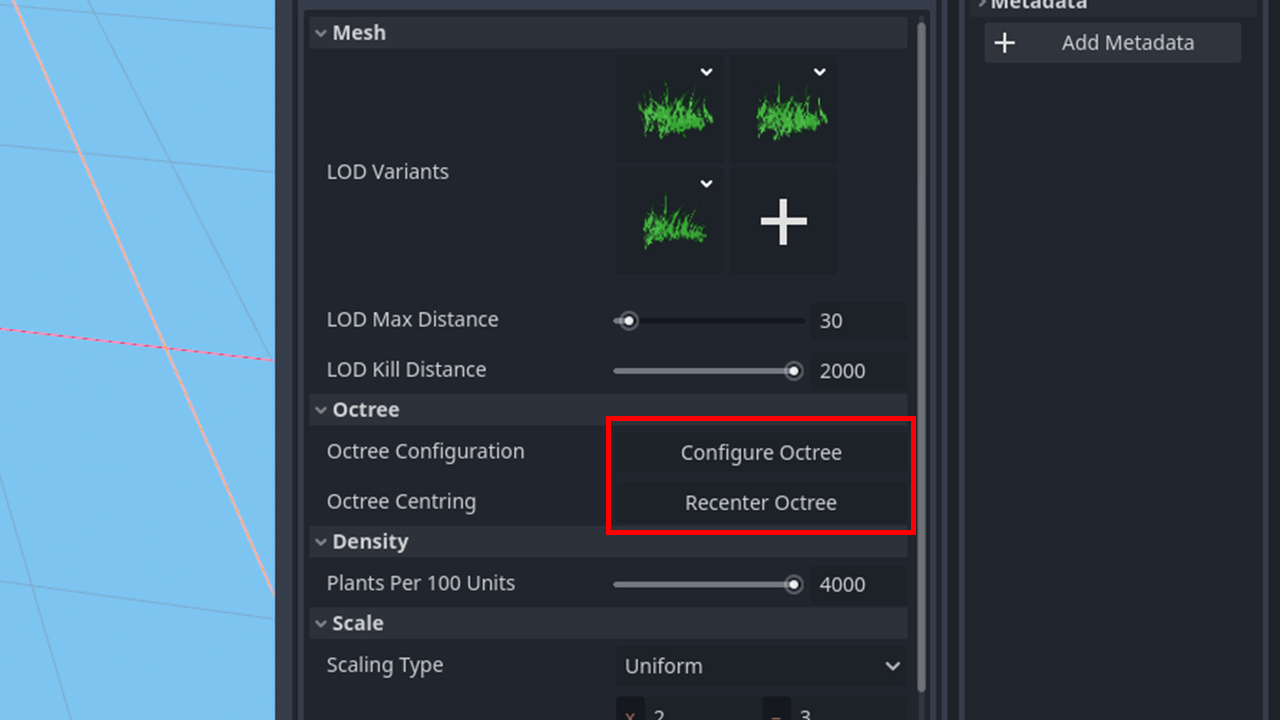
RebuildandRecenteryour octrees after converting, because Octree data will be inevitably lost.


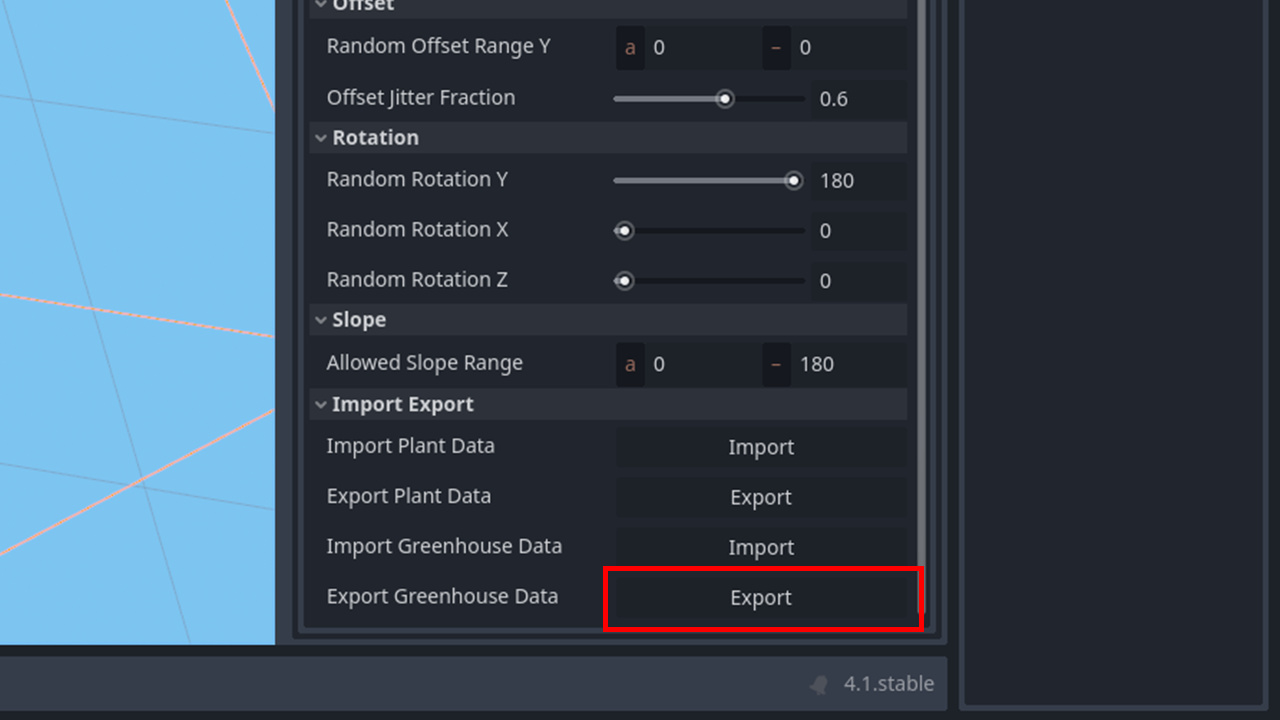
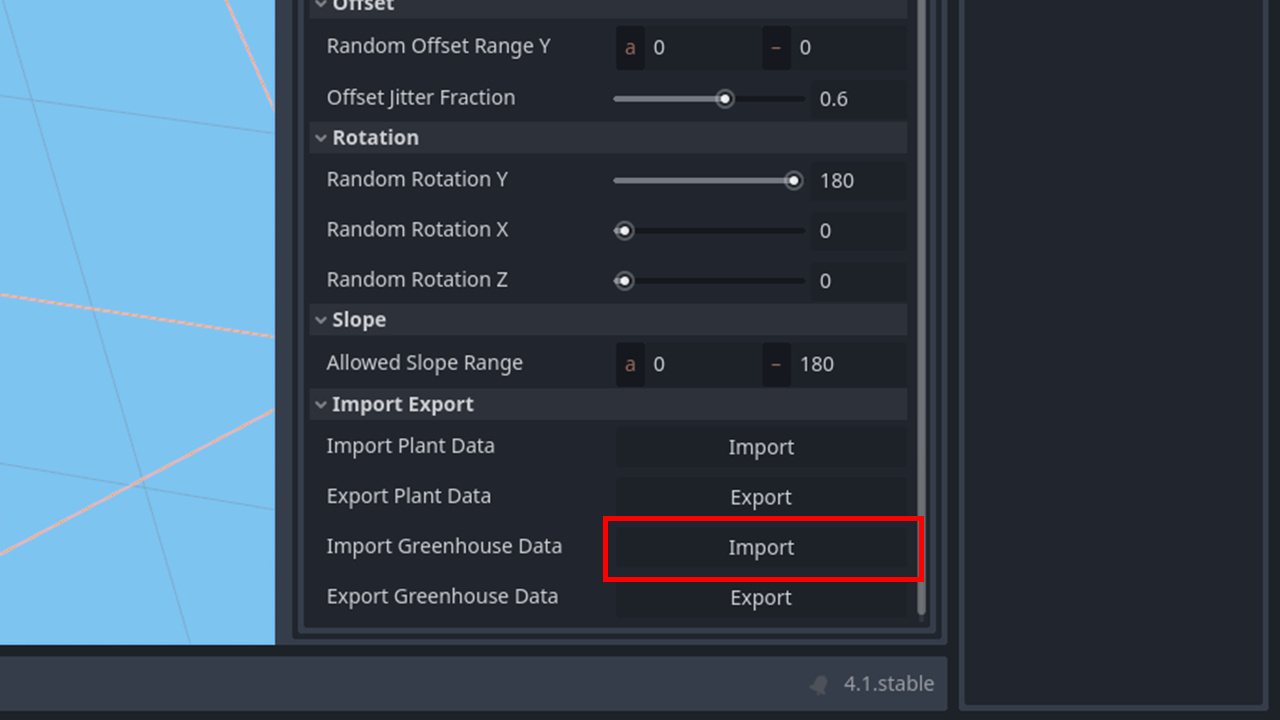
New in Spatial Gardener fot Godot 4.x (v.1.3.0 and up) is the ability to Export/Import entire Greenhouses (resources, used to describe plant data) and their respective plant transforms. This allows to have only one JSON file per Gardener:
- Make sure you don't update to an incompatible plugin version yet
- Backup all the scenes you're planning to convert.
- Open the scene you'd like to convert.
- For each
Gardenerselect any plant, go to plant settings and scroll to the bottom and pressExport Greenhouse Data. - Select the folder, set file name and press
Save.- You should probably export outside of your project directory.
- At this point you should have a bunch of individual JSON files. E.g. if you have 2 Gardeners in your scene, 3 plants each, you would have 2 JSON files.
- Upgrade Spatial Gardener to next version, when NEXT storage specification change occured
- Storage v.3: plugin v.1.3.0 - v.1.3.3
- Storage v.4: plugin v.1.4.0 - now
- Open your scenes. The editor will scream errors, that's fine.
- Clear your
Gardeners by deleting them or theArboristnodes. (not needed for v.1.4.0 and up) - Save and re-open the scene. Recreate the
Gardeners in case you deleted them. - For each
Gardeneradd at least one "dummy" plant, go to plant settings and scroll to the bottom and pressImport Greenhouse Data. - Select the files you exported previously and click
Open. - Once you do that for every file, your scene should have your plant data carried over from a previous version + all plant positions you painted.
- Repeat steps 6-12 until you end up at the most recent plugin version.
- You might need to
RebuildandRecenteryour octrees after converting, because Octree data will be inevitably lost.
If this fails too, proceed to the last resort: Dealing with failed conversions.
First thing you should do is inspect the console. If you have enough experience with Godot, you might be able to troubleshoot yourself. In case Godot crashes, it's logs can be found at user:// directory.
C:\Users\<user name>\AppData\Roaming\Godot\app_userdata\<project name>\logson Windows by default
If you changed your logging settings somehow, scene converter also stores converter-specific logs at user://sg_tscn_conversion_<timestamp>.txt (but they will lack the verbosity of editor logs).
C:\Users\<user name>\AppData\Roaming\Godot\app_userdata\<project name>\sg_tscn_conversion_<timestamp>.txton Windows by default
If that's not enough, you might want to try and convert manually (or at least fix the mistakes that converter made).
For that you'll need to understand which data is converted and how.
-
First we have the parser.
- It goes over the entire
.tscnfile and finds individual "tokens" that represent functional units of the scene file. They include property names, property values, bracket symbols, strings, numbers and more. - It then converts these tokens into individual
Dictionariesthat represent separateNodesorResources. - It's a "quick and dirty" parser, and thus can give flawed results. This is the weakest link in the conversion process.
- It goes over the entire
-
Then we have the versioned converters.
- They go over said
Dictionariesand convert the data to fit a particular storage version of the plugin.
- They go over said
-
And finally, the scene is reassembled once again from the adapted
Dictionaries.
You might want to compare two scene files: before conversion and after. Perhaps there is some data unrelated to Spatial Gardener that is missing or corrupted? I recommend using a VSCode's built-in comparison tool for that.
You can then manually patch the missing/corrupted data.
If the damage is too big, try Godot's Save branch as scene on the original, unconverted scene. By saving some parts of it to separate files, you reduce the complexity that the converter has to work with. You can even go as far as saving the Gardener node itself to a separate scene, so it's the only thing present at all! This should greatly simplify parser's task.
In case it's not working, you might want to understand how the data itself is converted.
This is gonna get code-ey. Let's compare how two versions store their data (click to enlarge).
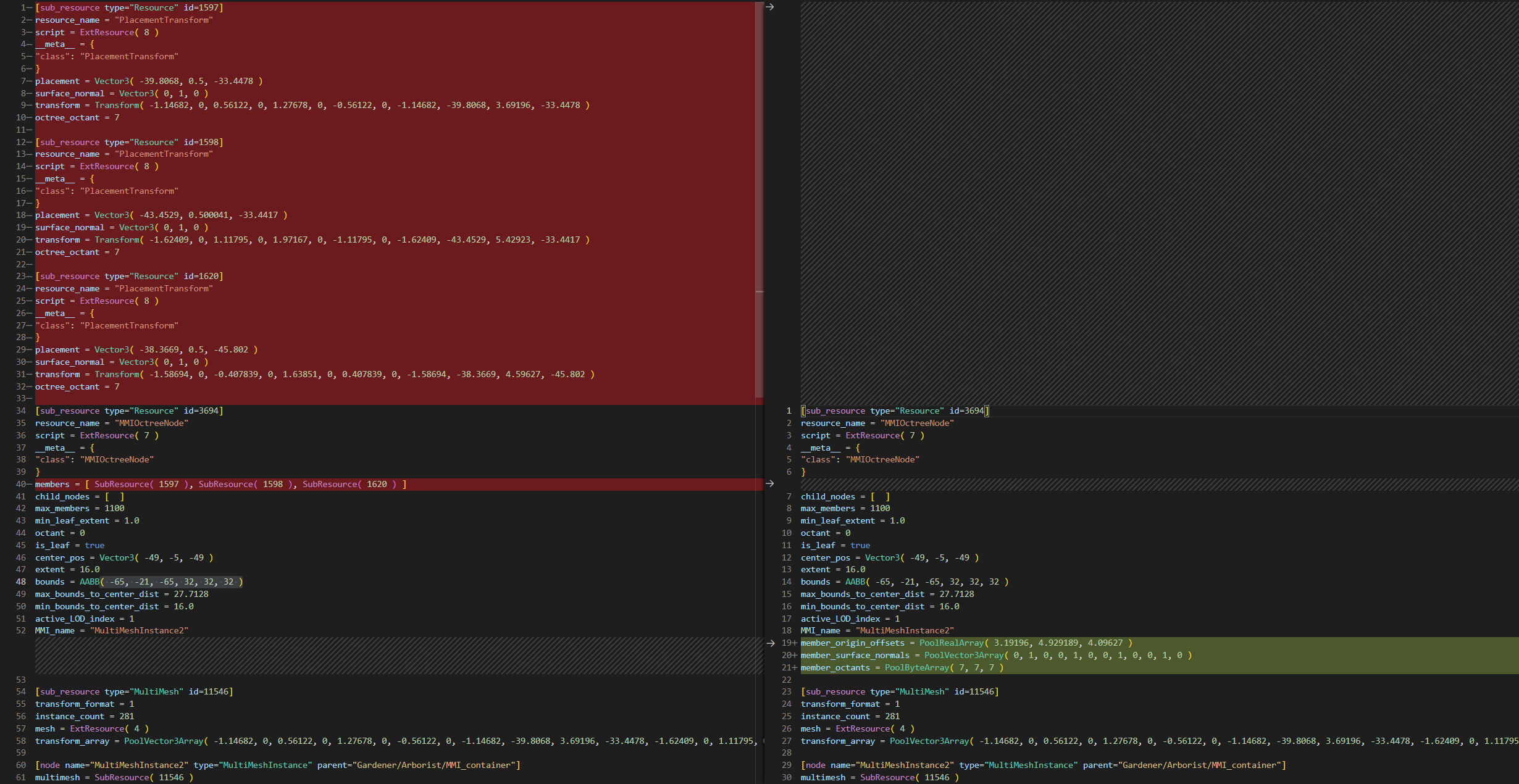
v.1 on the left, v.2 on the right
Before, each plant's position was stored in a specialized object called PlacementTransform. Storing the info even for 3 plants took a huge amount of space (huge chunk in red on the left).
Then, PlacementTransforms were referenced in a members variable of each owning OctreeNode (lone red line on the left).
Each PlacementTransform had 4 variables:
placement- the initial position of a plant calculated during painting.surface_normal- the normal vector of the surface on which plant resides.transform- the actual final transform of a plant. NOTE: theorigincan be different than theplacementvalue, due to vertical offset that can be present on each plant (defined in the plant settings panel).octree_octant- which part of the big cube the plant resides in. (In case you know what Octrees are: octant is one of the 8 possible sub-nodes an Octree Node can have)
Several things changed with the new version:
- Storage was changed from dedicated objects (
PlacementTransforms) to more lightweight Pool Arrays (green chunk on the right). - Separate
transformstorage was removed entirely. Since Spatial Gardener uses multimeshes to render plants, all transform values were stored onMultiMeshobjects anyway, which resulted in duplicated data. - Since plants could only be offset on the vertical axis, there was no need to store separate
PlacementTransform.placement. We could take the plantsTransformand simply store an offset fromTransform.originalong thesurface_normalvector.
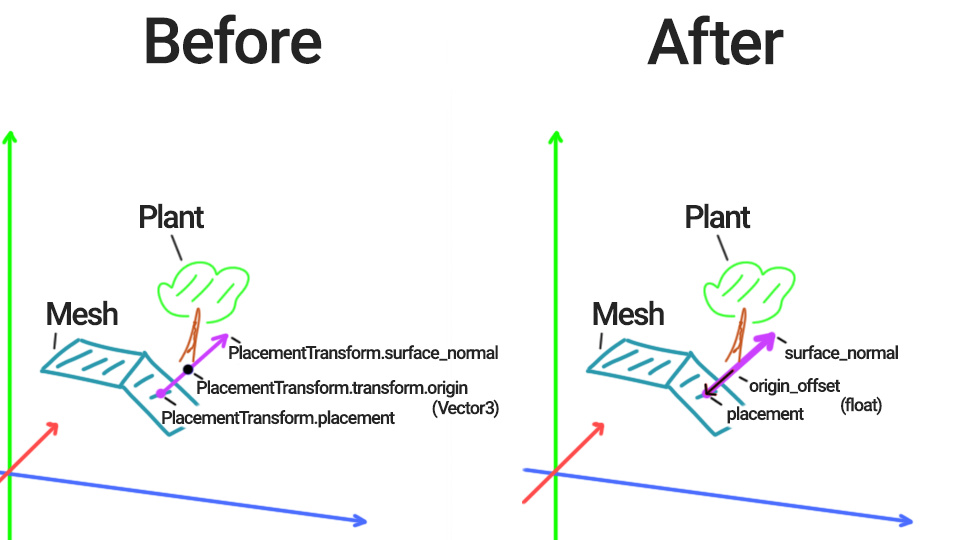
If you wish to manually transfer each plant, you'll need to do the following:
- For every
OctreeNodein the scene, add three members:member_origin_offsets,member_surface_normalsandmember_octants. - Find the node, referenced in
OctreeNode.MMI_name. It should have a long arrayMultiMesh.transform_array. - Go over each
SubResourcereference in theOctreeNode.membersproperty:- Add individual floats for
PlacementTransform.surface_normaltoOctreeNode.member_surface_normals. - Add integers for
PlacementTransform.octree_octanttoOctreeNode.member_octants. - Find the corresponding transform for this plant in
MultiMesh.transform_array.Transformtype consists of 12 floats, with last 3 representing aTransform.originlocation in 3D space. For the first plant in the comparison above, that would be... -39.8068, 3.69196, -33.4478, .... - Use the expression below to calculate origin offset:
var difference = MultiMesh.transform_array[plant_index].origin - Transform.origin var origin_offset = PlacementTransform.surface_normal.dot(difference.normalized()) * difference.length() - Add
origin_offsettoOctreeNode.member_octants.
- NOTE: it's important to preserve the original order!
- Add individual floats for
- Delete the
OctreeNode.membersproperty. - Delete all the processed
PlacementTransformresources. - You should be good to go.
Again, it's a good idea to open on issue on GitHub if you got this far.
This is where a change from Godot 3.x to Godot 4.x occured. The storage didn't actually change, but due to Godot's own compatability breaking changes/renames, two formats cannot be used interchangeably.
Read previous paragraph to get an idea of how the storage works (and account for Godot 4.x renames).
This is where I realised the smartass approach from before did not account for a desire to have Spawned Node3Ds without any Meshes. This is a valid use case in v.1.4.0 and up, so I was forced to revert back to storing entire PlacementTransforms with their owning OctreeNodes.
However, this would have reverted scene sizes back to bloated. Instead, it was decided to not store created MultiMeshInstance3Ds and instantiated Spawned Node3Ds on disk at all and instead recreate them procedurally on scene load.
This does not really impact loading times much since Godot has to initialize these nodes either way.
So, the storage change basically boils down to:
- Parsing scenes to find all
MultiMeshandMultiMeshInstance3Dobjects referenced byOctreeNodes - Gathering
Transform3Ddata from them - Erasing
member_origin_offsets,member_surface_normals,member_octantsandMMI_nameproperties fromOctreeNodes - Constructing
PlacementTransformarrays from them and assigning the result tomember_placeformsvariable of theOctreeNodes - Erasing
MultiMesh,MultiMeshInstance3Dand anySpawned Node3Dobjects from the scene file - Changing
Arboristobject type from Node to Resource and moving it right after all theOctreeManagers (since it becomes a resource, it needs to appear earlier in the scene file in order for Godot's parser to work correctly)
Reconstructing PlacementTransforms

Changing Arborists's type and erasing MultiMeshes
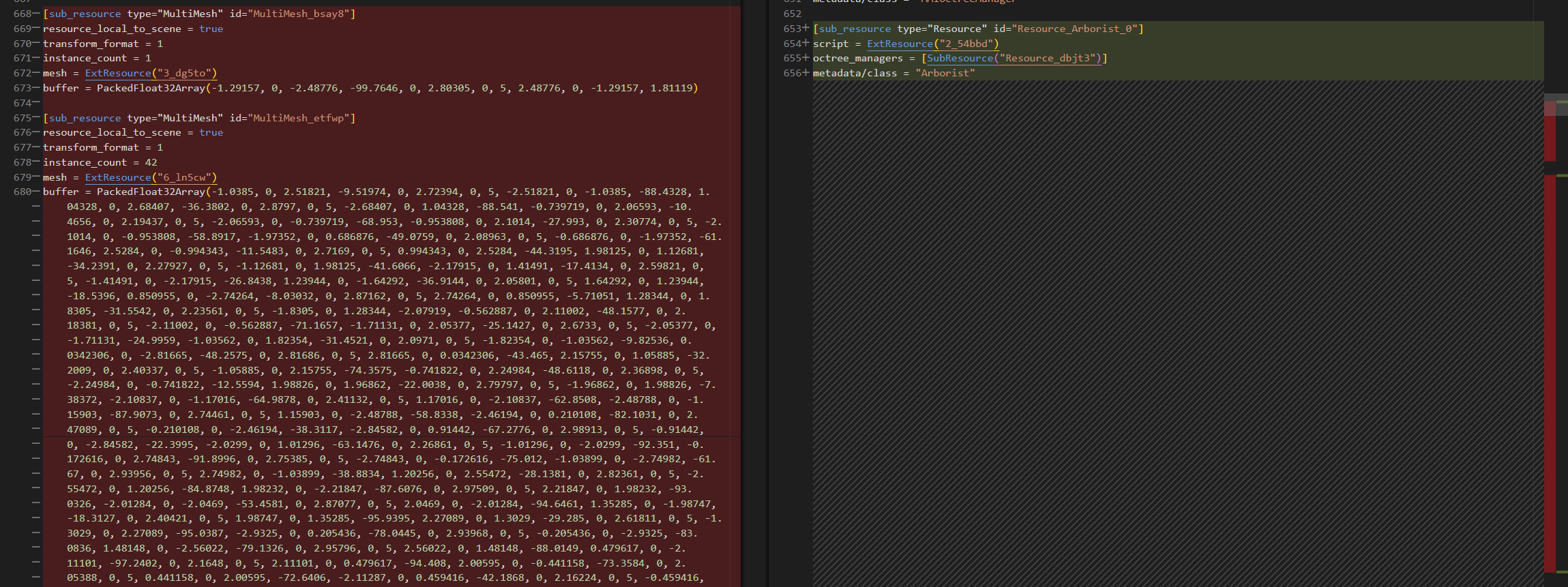
Erasing other leftover nodes
