| mapped_pages | |||||
|---|---|---|---|---|---|
| description | Organize and arrange dashboard panels using collapsible sections, resizing, positioning, and duplication to improve readability and performance. | ||||
| applies_to |
|
||||
| products |
|
Customize your dashboard layout by arranging panels into logical groups and adjusting their size and position. When panels are well organized, your dashboard becomes easier to read, loads faster, and helps viewers locate important information more quickly.
To organize dashboard panels, you need the All privilege for the Dashboard feature in {{product.kibana}}.
stack: ga 9.1
serverless: ga
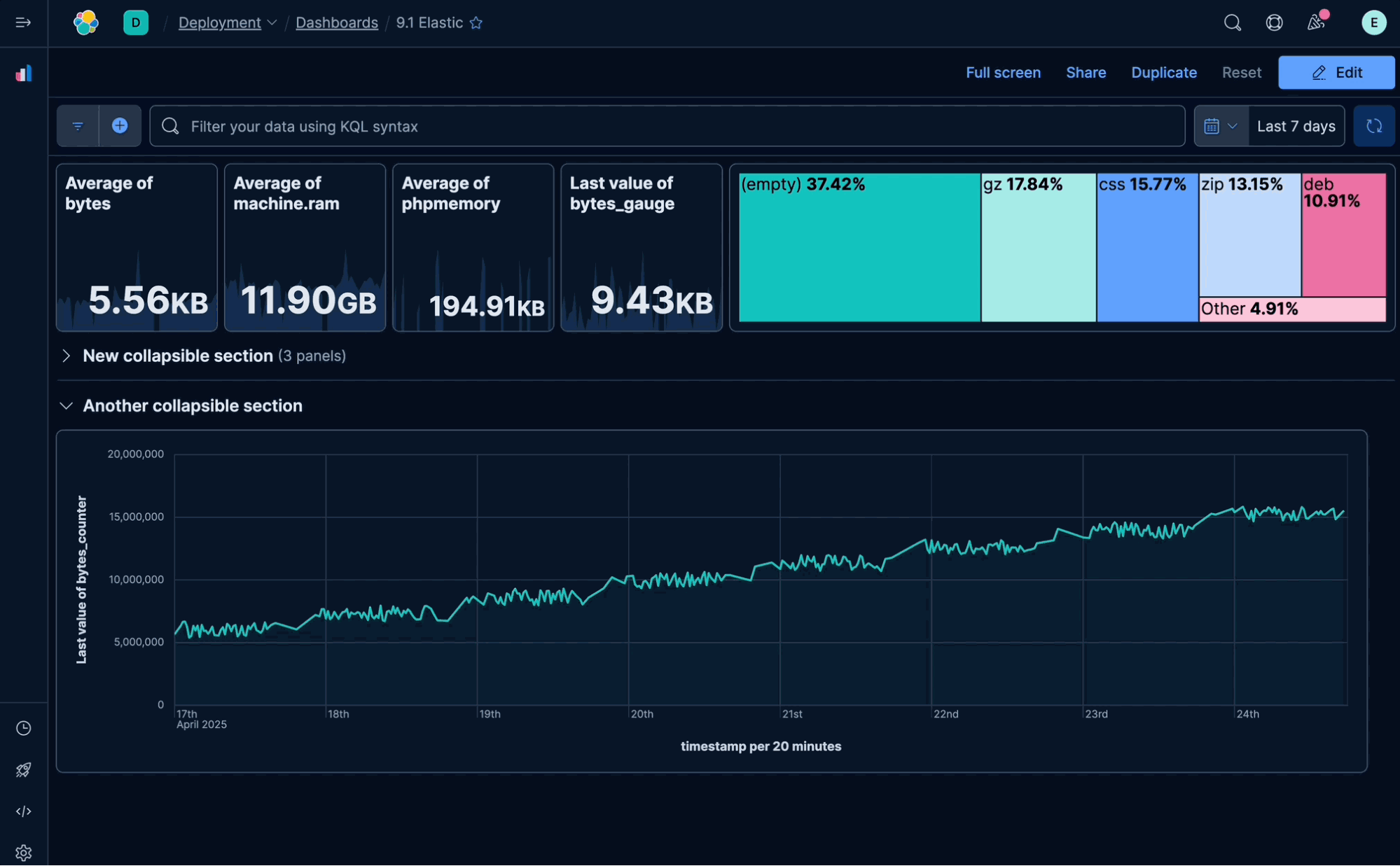
Organize your dashboard panels into collapsible sections to improve readability and navigation, especially for dashboards with many panels. Collapsible sections also help dashboards load faster by only loading the content from expanded sections.
To add a collapsible section:
- Open the dashboard and make sure that you are in Edit mode.
- Add a new panel and select Collapsible section. The collapsible section is added at the end of the dashboard.
- Optionally, edit the label of the section.
- Drag and drop any panels you want into the section. :::{tip} The section must be expanded in order to place panels into it. :::
- Like any other panel, you can drag and drop the collapsible section to a different position in the dashboard.
- Save the dashboard.
Users viewing the dashboard will find the section in the same state as when you saved the dashboard. If you saved it with the section collapsed, then it will also be collapsed by default for users.
Compare the data in your panels side-by-side, organize panels by priority, resize the panels so they all appear immediately on the dashboard, and more.
In the toolbar, click Edit, then use the following options:
-
To move, hover over the panel, click and hold
 and drag to the new location. Your screen scrolls automatically when you drag above or below the visible parts of the dashboard.
 -
To resize, click and hold the bottom right corner of the panel and drag to the new dimensions.
-
To maximize to full screen, open the panel menu and click Maximize.
::::{tip} If you share a dashboard while viewing a full screen panel, the generated link will directly open the same panel in full screen mode. ::::

stack: ga 9.1
serverless: ga
To move a panel:
- Using
Tab, browse to the {icon}movepanel action and pressEnterorSpaceto lock the action. - Use
Arrowkeys to move the panel to the new location. - Press
EnterorSpaceagain to release the panel. - Save the dashboard.
To resize a panel:
- Using
Tab, browse to the {icon}scalepanel action and pressEnterorSpaceto lock the action. - Use
Arrowkeys to resize the panel to the new dimensions. - Press
EnterorSpaceagain to release the panel. - Save the dashboard.
:::{tip}
While moving or resizing a panel, you can cancel the action at any time by pressing Escape.
:::
To duplicate a panel and its configured functionality, use the clone and copy panel options. Cloned and copied panels replicate all of the functionality from the original panel, including renaming, editing, and cloning.
Duplicated panels appear next to the original panel, and move the other panels to provide a space on the dashboard.
- In the toolbar, click Edit.
- Open the panel menu and select Duplicate.
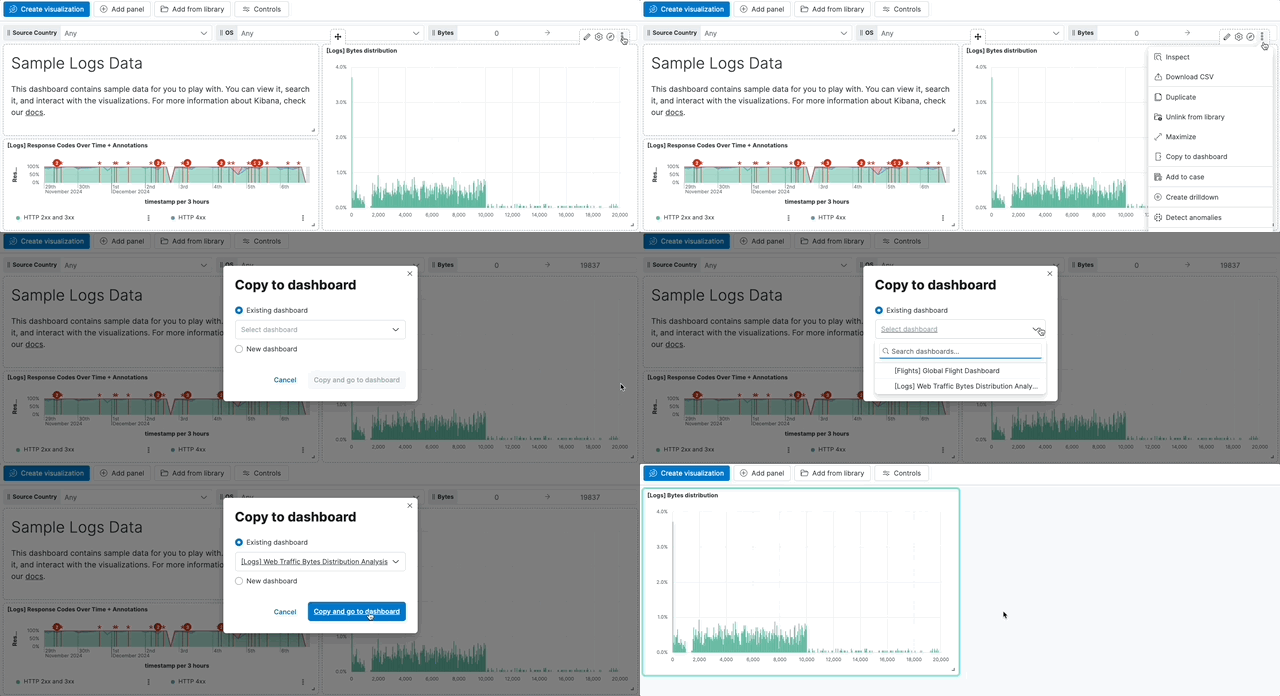
Copy panels from one dashboard to another dashboard.
-
Open the panel menu and select Copy to dashboard.
-
On the Copy to dashboard window, select the dashboard, then click Copy and go to dashboard.