windows
Docker-machine runs the default Docker with TLS enabled. To be able to connect to the Docker Remote API, we need to install the certificates used by Docker in Chrome.
- Use
docker-machine config defaultto find out where are the certificates we need to import in Chrome and the url to connect. In the screenshot below, the connection url ishttps://192.168.99.100:2376and the certificates are located inC:\\Users\\borre\\.docker\\machine\\machines\\default

- Before installing, we need to package the certificate as
.pfx:
    cd C:\\Users\\borre\\.docker\\machine\\machines\\default
    cat cert.pem ca.pem >> clientcertchain.pem
    openssl pkcs12 -inkey key.pem -in clientcertchain.pem -export -out import.pfx
-
To import the certificate in Chrome go to Settings/Show Advanced Settings/Manage Certificates:
- Import the Docker CA as a "Trusted Root Certification Authorities"
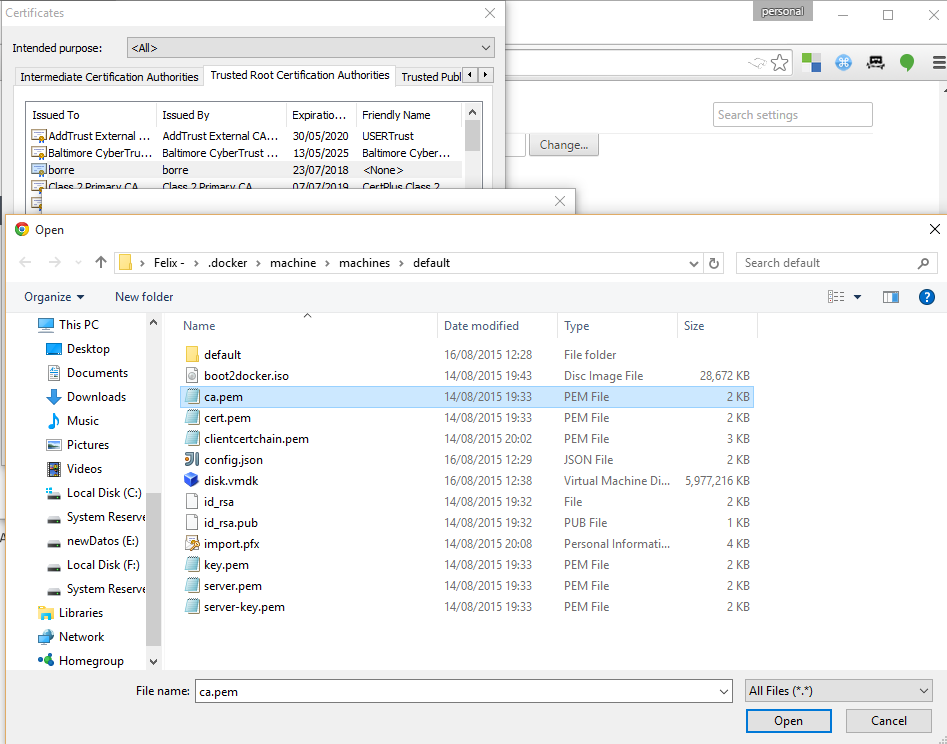
- Import the
import.pfxas a Personal certificate.
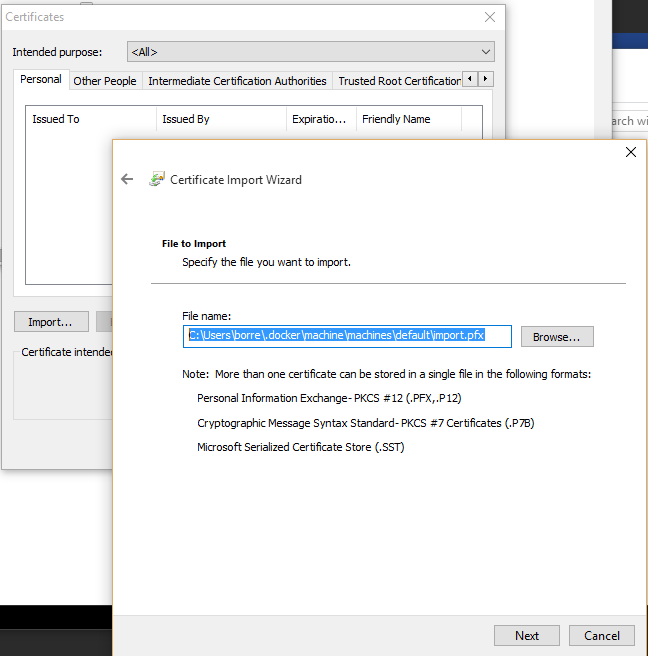
After installing, we need to restart Chrome (make sure all Chrome instances were closed). After that you should be able to connect to your docker remote api, try: https://192.168.99.100:2376/_ping
The easiest way to connect to Docker Remote API is by disabling TLS. To do so, you need to:
- Log into the boot2docker virtual machine:
boot2docker ssh
- Add
export DOCKER_TLS=noto the file/var/lib/boot2docker/profile(may not exist)
echo "export DOCKER_TLS=no" | sudo tee /var/lib/boot2docker/profile
- Restart boot2docker
boot2docker down
boot2docker up
- Open your browser and verify you can connect to http://192.168.59.103:2375/_ping Try to reconnect!
More info about how to disable TLS: https://github.com/boot2docker/boot2docker/blob/master/README.md#tls-support