Running Fixinator on Jenkins
There are many ways to configure Jenkins to run Fixinator to scan your ColdFusion / CFML code for security vulnerabilities. In this guide we will use a Jenkins Pipeline with a Jenkinsfile in the SCM.
🎥 Watch Running Fixinator on Jenkins on YouTube
This step is not necessary if you are running the Fixinator Enterprise Edition to run the scan locally
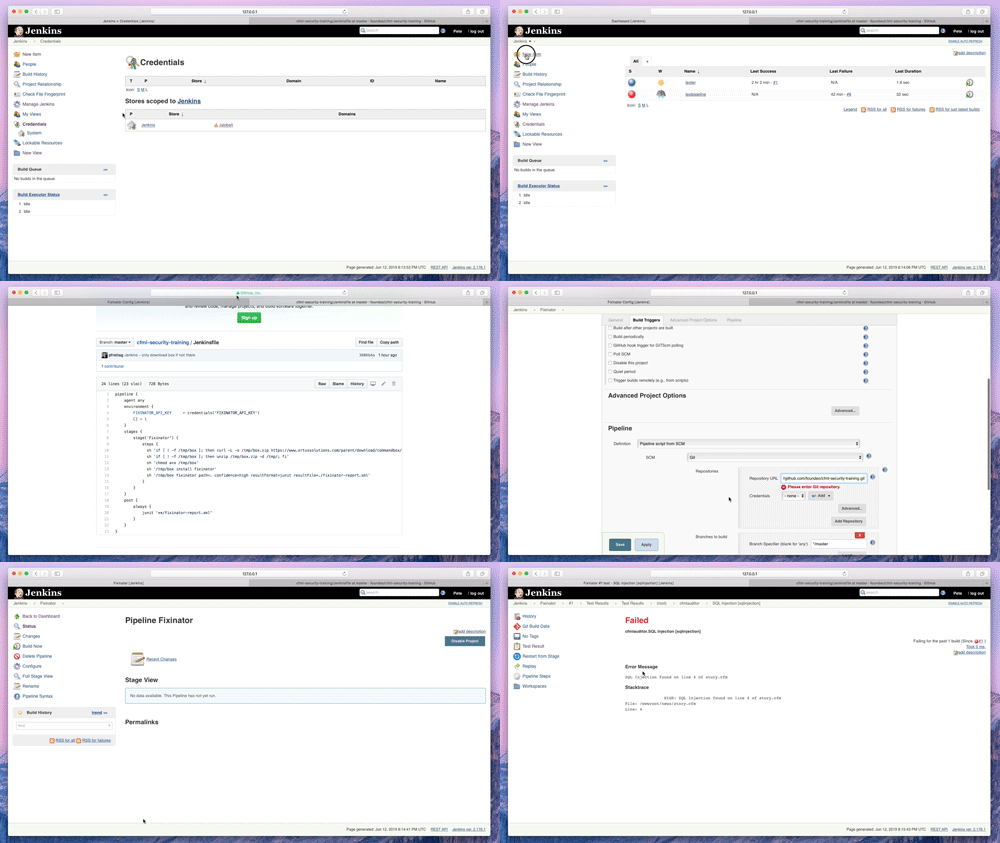
Jenkins allows us to store the fixinator API key in a secure manner using its credential store. This prevents they key from being accidentally output in the build logs, and generally protects it as a secret.
- In the main Jenkins menu click on Credentials
- Next click on the Jenkins (global) scope
- Click Add Credentials from the left menu
- Under Kind select Secret text
- Under Secret paste in your Fixinator API Key
- Under ID enter
FIXINATOR_API_KEY - Enter a description and click OK
In the next step we will configure Jenkins to look for a file called Jenkinsfile in the root of your source code repository. This Jenkinsfile is designed to run on a linux / unix based executor, if you are running on a windows based executor you will need to change the sh lines to bat lines.
Create a file called Jenkinsfile in the root of your source code repository with the following:
pipeline {
    agent any
    environment {
        FIXINATOR_API_KEY     = credentials('FIXINATOR_API_KEY')
        CI = 1
    }
    stages {
        stage('Fixinator') {
            steps {
              sh 'if [ ! -f /tmp/box ]; then curl -L -o /tmp/box.zip https://www.ortussolutions.com/parent/download/commandbox/type/bin; fi'
              sh 'if [ ! -f /tmp/box ]; then unzip /tmp/box.zip -d /tmp/; fi'
              sh 'chmod a+x /tmp/box'
              sh '/tmp/box install fixinator'
              sh '/tmp/box fixinator path=. confidence=high resultFormat=junit resultFile=./fixinator-report.xml'
            }
        }
    }
    post {
        always {
            junit '**/fixinator-report.xml'
        }
    }
}
If you already have an existing pipeline you can use the following to merge into your existing pipeline, otherwise you can follow these steps to create a new pipeline.
- From the main Jenkins menu select New Item
- Enter a Name, and select Pipeline as the type
- Click on the Pipeline tab
- Under Definition select Pipeline script from SCM
- Enter your Git or Subversion repository details
- Under Script file make sure it says Jenkinsfile
- Click Save
You should now have a working pipeline that executes Fixinator on your source code. Click the Build Now button to test it out.
At this point you probably don't want to have to click Build Now every time you want your pipeline to run, you can set it up to run every time time code is committed, or on a scheduled basis.
If you want to run the enterprise edition to scan your code fully on your own servers, your Jenkinsfile may look like this:
pipeline {
    agent any
    environment {
        FIXINATOR_API_KEY     = enterprise
        CI = 1
        FIXINATOR_API_URL = http://127.0.0.1:48443/scan/
    }
    stages {
        stage('Fixinator') {
            steps {
              sh 'if [ ! -f /tmp/box ]; then curl -L -o /tmp/box.zip https://www.ortussolutions.com/parent/download/commandbox/type/bin; fi'
              sh 'if [ ! -f /tmp/box ]; then unzip /tmp/box.zip -d /tmp/; fi'
              sh 'chmod a+x /tmp/box'
              sh 'if [ ! -f /tmp/fixinator-enterprise.zip ]; then curl -L -o /tmp/fixinator-enterprise.zip https://your-server.example.com/fixinator-enterprise.zip; fi'
              sh 'if [ ! -f /tmp/fixinator-enterprise/]; mkdir /tmp/fixinator-enterprise/ ;fi'
              sh 'if [ ! -f /tmp/fixinator-enterprise/version.txt ]; then unzip /tmp/fixinator-enterprise.zip -d /tmp/fixinator-enterprise/; fi
              sh 'cd /tmp/fixinator-enterprise/app/'
              sh '/tmp/box server start port=48443'
              sh 'cd $WORKSPACE'
              sh '/tmp/box install fixinator'
              sh '/tmp/box fixinator path=. confidence=high resultFormat=junit resultFile=./fixinator-report.xml'
              sh 'cd /tmp/fixinator-enterprise/app/'
              sh '/tmp/box server stop'
            }
        }
    }
    post {
        always {
            junit '**/fixinator-report.xml'
        }
    }
}