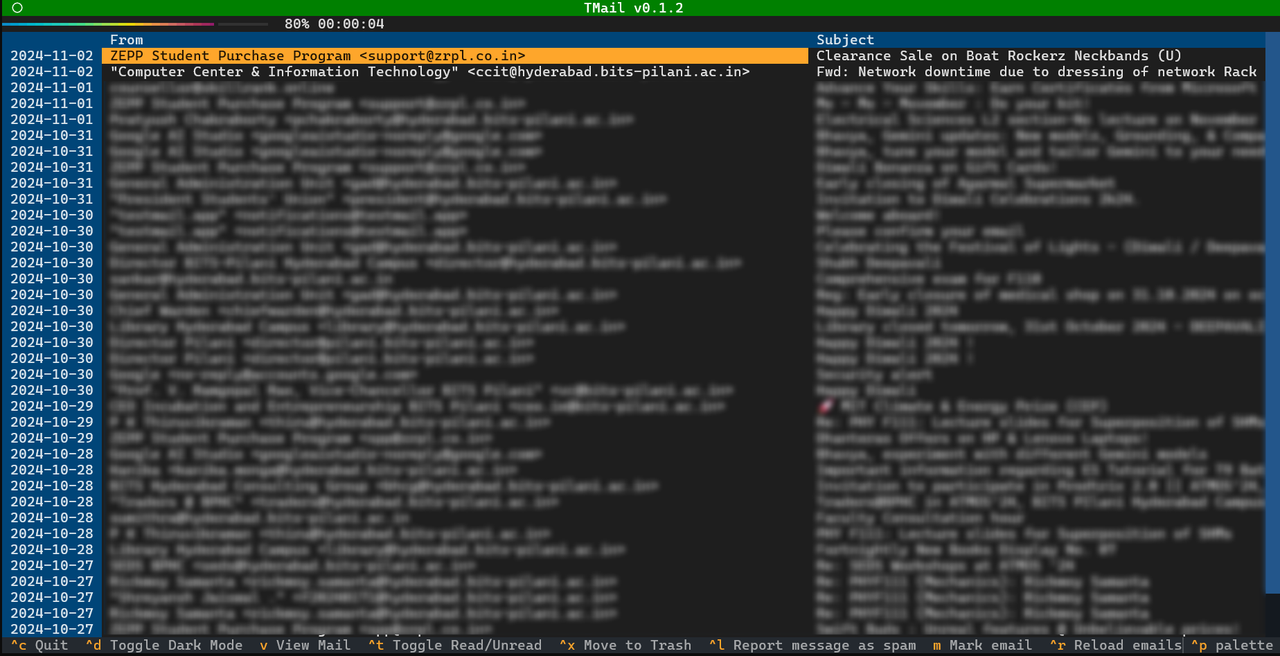
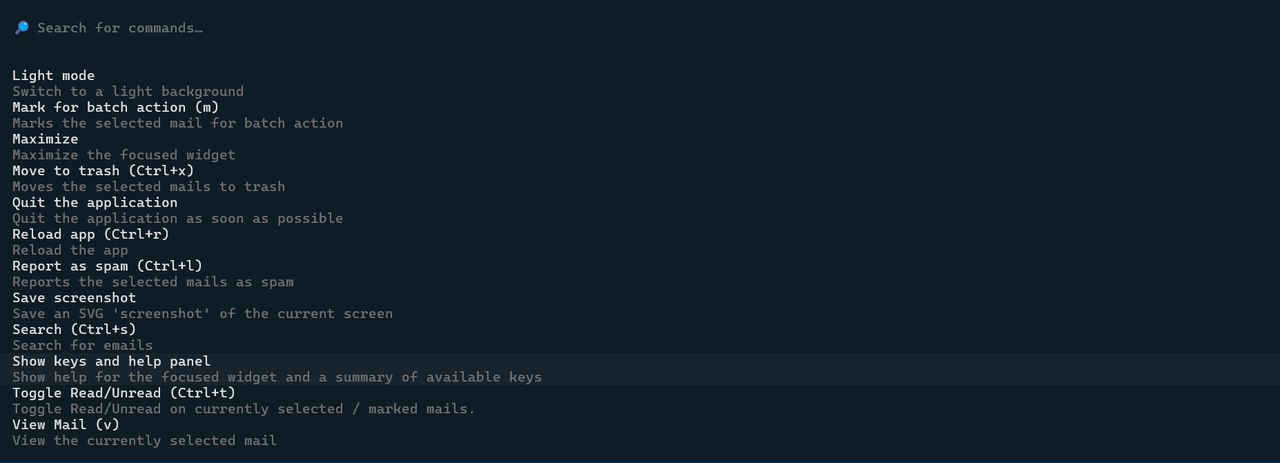
A powerful command line-based email client designed for efficient email management directly from your terminal. This client enables users to view emails, mark them as read or unread, report spam, delete emails, and perform batch operations. Additionally, it offers an email summarization feature using Gemini 1.5 Flash for quick insights into your inbox.
- View Emails: Display your emails in a clean and organized format.
- Mark as Read/Unread: Easily toggle the read status of individual or multiple emails.
- Report Spam: Quickly mark emails as spam to filter unwanted messages.
- Delete Emails: Remove unwanted emails individually or in batch.
- Batch Operations: Execute actions like marking as read/unread, reporting spam, or deleting multiple emails at once.
- Email Summarization: Leverage Gemini 1.5 Flash to generate concise summaries of email texts for quick understanding.
- Download All attachments: Download all the attachments present in an email.
- Search for emails: Search for emails by date,read/unread status,attachments and many more options.
- Clone the repository :
git clone https://github.com/gmbcode/TMail.git
cd TMail\
-
Install the dependencies (preferably in a virtual environment)
pip install -r requirements.txt -
Go to Google Cloud Console and create a new project
-
Enable Gmail API and go to OAuth Consent Screen and set up your app name and other parameters as required
-
In the required scopes add the scope
https://mail.google.com/ -
Download the credentials and store them in a file named
credentials.jsonin the T1 directory -
Go to Google AI Studio and get Gemini API key
-
Store your Gemini API Key in an
.envfile stored in the T1 directory in the following format
GEMINI_API_KEY=YOUR_GEMINI_API_KEY
Run main.py without arguments and sign in to your email.
Note
Make sure your email is added as one of the test emails in your OAuth Consent screen before logging into the app
Note
It is recommended to run the app on a Terminal that supports displaying rich text eg : Windows Terminal
Main UI