This service is intended to reduce the amount of code service teams need to write, maintain and later remove for managing a list of allowed users (for example, as part of a private beta rollout). It allows you to maintain the list of allowed identifiers for services you are responsible for. Specifically you can:
- Add values to an allow list
- Remove values from an allow list
- Clear an allow list
- Check if a value is in an allow list
These actions can all be performed for multiple allow lists for a single service, by providing a "feature" argument that acts as a name for an allow list.
It is used in combination with user-allow-list, which is responsible for storing the list of allowed identifiers that services can check against. The readme for user allow list provides a more complete description of what is and isn't supported, along with integration instructions.
Access to the service is via the admin-frontend-proxy, using the URL route /administer-user-allow-list after the admin URL the desired environment. You will be required to login using LDAP as this identifies which services you can update identifier lists for.
For security and traceability purposes, any changes to an identifier list are audited including who made those changes.
When you log in using your LDAP credentials, you will be presented with a list of services. For example:
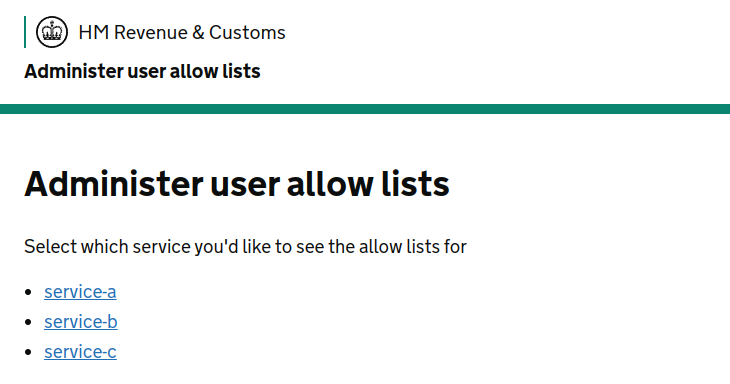
This list is populated based upon teams you are a member of according to the User Management Portal. If you believe you are missing services, check your team membership there first.
Selecting a service will provide you with a summary screen, which provides details of any features that identifiers have been added for. For example:
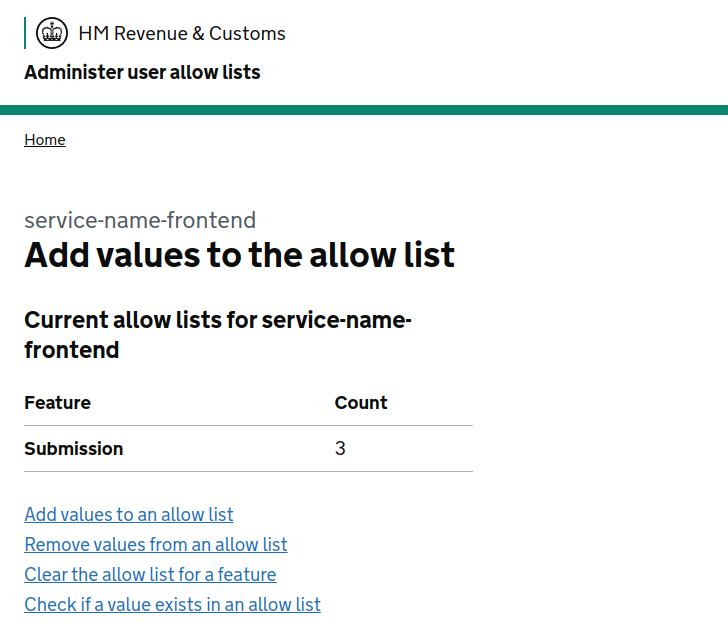
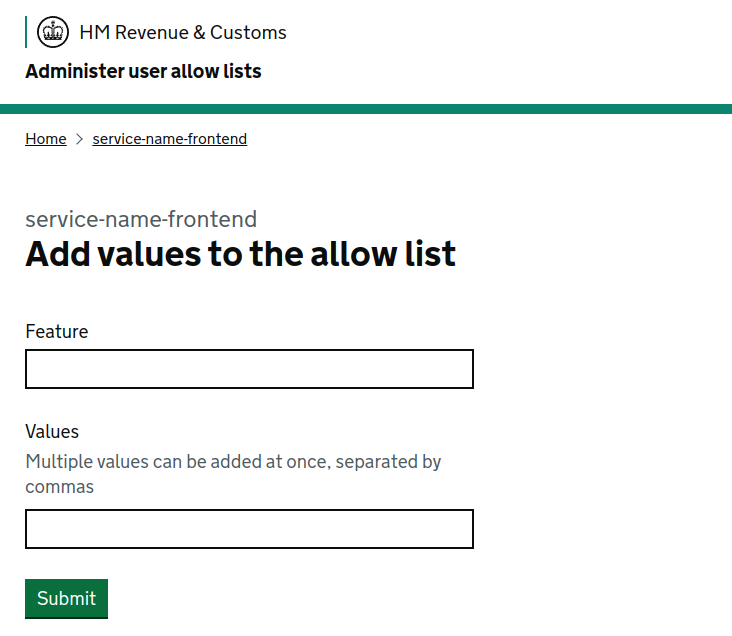
Using the "Add values to an allow list" option, you can add one or more identifier value for a given feature (separating multiple values with commas):
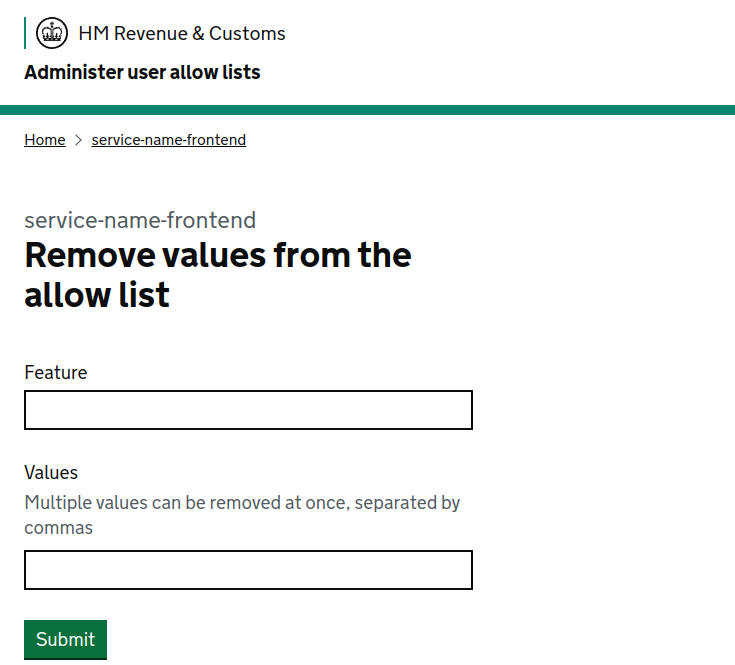
Using the "Remove values from an allow list" option, you can remove one or more identifier values for a given feature (separating multiple values with commas):
Using the "Clear the allow list for a feature" option, you can remove all identifier values for a given feature at once, even if you don't know the values:

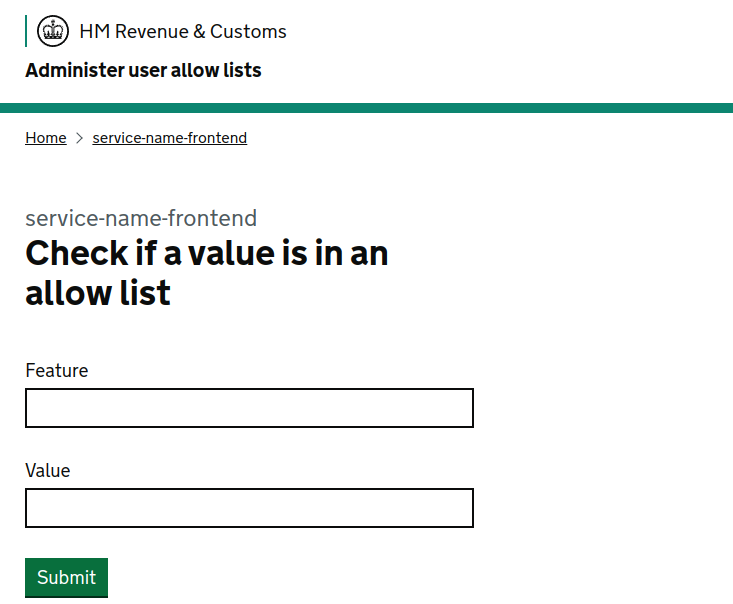
Using the "Check if a value exists in an allow list" option, you can check if a single identifier value is present for a given feature:
This code is open source software licensed under the Apache 2.0 License.