It is recommended to run Field-TM on a Linux-based machine.
This includes MacOS, but some tools must be substituted.
For Windows users, the easiest option is to use Windows Subsystem for Linux
Before you can install and use this application, you will need to have the following software installed and configured on your system:
If running Debian/Ubuntu, the install script below does this for you.
Git to clone the Field-TM repository.
Docker to run Field-TM inside containers.
Docker Compose for easy orchestration of the Field-TM services.
This is Docker Compose V2, the official Docker CLI plugin.
i.e.
docker composecommands, notdocker-compose(the old tool).
On a Linux-based machine with bash installed, run the script:
Note: it is best to run this script as a user other than root.
However, if you run as root, a user svcftm will be created for you.
curl -L https://get.field.hotosm.org -o install.sh
bash install.sh

# Then follow the promptsIf more details are required, check out the dev docs
Clone the repository to your local machine using the following command:
git clone https://github.com/hotosm/field-tm.git

# If you wish to deploy for production, change to the main branch
git checkout mainThese steps are essential to run and test your code!
The Field-TM uses OAuth with OSM to authenticate users.
To properly configure your Field-TM project, you will need to create keys for OSM.
-
Login to OSM (If you do not have an account yet, click the signup button at the top navigation bar to create one).
Click the drop down arrow on the top right of the navigation bar and select My Settings.
-
Register your Field-TM instance to OAuth 2 applications.
Put your login redirect url as
http://127.0.0.1:7051/osmauthif running locally, or for production replace with https://{YOUR_DOMAIN}/osmauthNote:
127.0.0.1is required for debugging instead oflocalhostdue to OSM restrictions.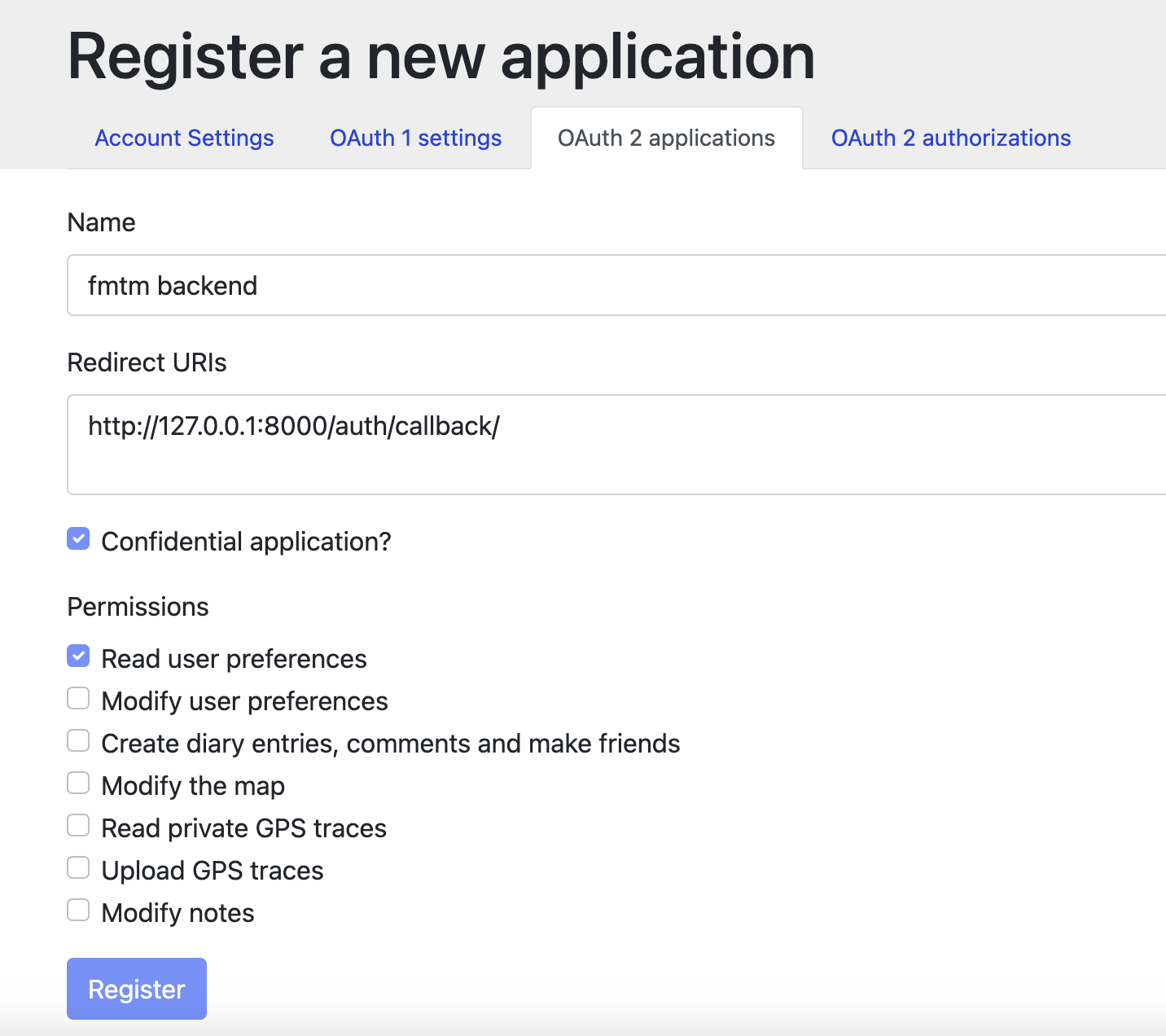
-
Add required permissions:
- 'Read user preferences' (
read_prefs) - 'Send private messages to other users' (
send_messages)
- 'Read user preferences' (
-
Now save your Client ID and Client Secret for the next step.
Environmental variables are used throughout this project.
To get started, create .env file in the top level dir,
a sample is located at .env.example.
This can be created interactively by running:
just config generate-dotenvNote: If extra cors origins are required for testing, the variable
EXTRA_CORS_ORIGINSis a set of comma separated strings, e.g.: http://field.localhost:7050,http://some.other.domain
just start prodThe Field-TM uses ODK Central to store ODK data.
- By default, the docker setup includes a Central server.
- The credentials should have been provided in your
.envfile to automatically create a user. - To create a user manually:
docker compose exec central odk-cmd --email YOUREMAIL@ADDRESSHERE.com user-create
docker-compose exec central odk-cmd --email YOUREMAIL@ADDRESSHERE.com user-promote
Note: Alternatively, you may use an external Central server and user.
-
There is an optional configuration for application monitoring via OpenTelemetry.
-
To enable this set in your
.envfile:# For OpenObserve MONITORING="openobserve" # For Sentry MONITORING="sentry"
-
Check the
.env.examplefor additional required parameters. -
Everything should be configured for you to see endpoint calls in the selected web dashboard, providing full error tracebacks and stats.
Once you have deployed, you will need to check that you can properly authenticate.
-
Navigate to the app (e.g.
http://field.localhost:7050) -
Click the 'Sign In' button and follow the popup prompts.
-
If successful, you should see your username in the header.
-
If you see an error instead, double check your credentials and redirect URL in the openstreetmap.org settings.
- During deploy, place your
favicon.svgin the root of the repo. - Run the deployment script, and the favicon + generated PNG version will be used in the web app automatically.
That's it, you have successfully set up Field-TM!!