Home
Welcome to the Powershell PowerUp wiki!
- This PowerShell project is compatible with PowerShell v2 and higher.
- PowerShell PowerUp extends your existing command line with tons of new cmdlets and modules.
- It's 100% customizable and runs without dependencies.
By default the install script installs these features:
The PowerShell ISE uses a different profile script. With this feature enabled the installation script creates a second profile script for the PowerShell ISE with the same features as the normal profile script.
To use PowerShell function like a library in other programming languages just install this feature and add your functions scripts to the functions folder $PSfunctions.Path.
This features logs the PowerShell prompt output for every session into the log folder $PSlogs.Path.
The path to the session log file is stored in $PSlogs.SessionFile.
Based on the PowerShell PowerUp config files definitions you can add these features:
Would you like to use git from your PowerShell command line or another executable. The first and last thing you'll need is a system variable entry of the executable path.
Installation
To enable this feature add this code to the profile installaton config file:
<SystemVariable Value="%ProgramFiles(x86)%\Git\bin" Name="Path" Target="Machine"></SystemVariable>
Or
<SystemVariable Value="$home" Name="Path" Target="Machine"></SystemVariable>
Or
<SystemVariable Value="\apps\Git\cmd" Name="Path" Target="Machine"></SystemVariable>
Adds a section to the profile script to customize your PowerShell Profile script.
Installation
To enable this feature update the status attribute to Enabled
<Feature Name="Custom PowerShell Profile script" Status="Enabled"></Feature>
Adds a section to the profile script to customize your PowerShell Profile ISE script. Requires the feature:
Installation
To enable this feature update the status attribute to Enabled
<Feature Name="Custom PowerShell Profile ISE script" Status="Enabled"></Feature>
Installation
To enable this feature update the status attribute to Enabled
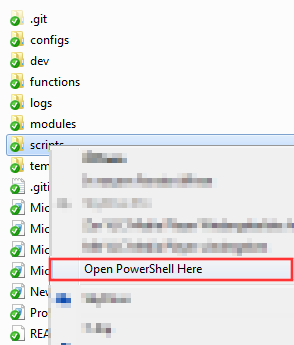
<Feature Name="Enable Open Powershell here" Status="Enabled"></Feature>
Every time you start a new prompt a nice quote will be shown.
Installation
To enable this feature update the status attribute to Enabled
<Feature Name="Get Quote Of The Day" Status="Enabled"></Feature>
This feature will add a sheduled windows task and if required the latest git client. In a daily schedule the repository will be updated from the github repository.
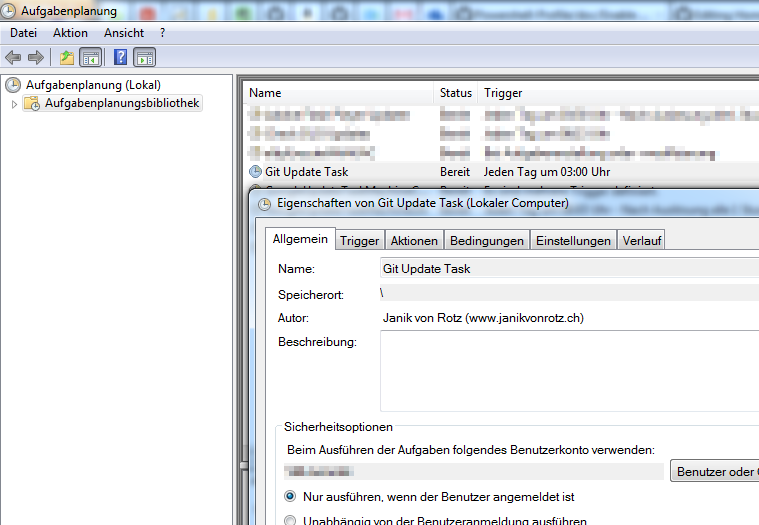
Also possible from the command line Update-PowerShellProfile.
Installation
To enable this feature update the status attribute to Enabled
<Feature Name="Git Update" Status="Enabled"></Feature>
Clean up the log folder by a daily task or everytime a PowerShell prompt opens.
Also possible from the command line Delete-ObsoleteLogFiles.
Installation
To enable this feature update the status attribute to Enabled
<Feature Name="Log File Retention" Days="x" MaxFilesToKeep="x" Run="asDailyJob,withProfileScript" Status="Enabled"></Feature>
Options
Every option can be combined or stand alone.
- Days: Older log files than x Days will be deleted.
- MaxFilesToKeep: Older log files than x Days will be deleted.
-
Run: Add
asDailyJobto run the clean up as windows job and/or addwithProfileScriptto run the clean up every time a PowerShell prompt starts.
In case you don't know there's a possibility to manage your windows server with PowerShell. Checkout the Multi Remote Management feature for more inforamtion. Anyway to enable for other clients to connection you host with PowerShell Remoting you'll have to add this feature.
To enable this feature update the status attribute to Enabled
<Feature Name="Powershell Remoting" Status="Enabled"></Feature>
You'll get a bunch of new functions to manage your service installation.
These functions are part of Jeffrey Paarhuis project: Client-side SharePoint PowerShell. I've imported the functions of this project and updated the naming concept and metadata.
In order to use these commands you have to install the Managed .NET Client-Side Object Model (CSOM) of SharePoint 2013. Run the command Install-PPApp "SharePoint Server 2013 Client Components SDK" to install this app.
By adding scripts and configuration files to the config folder you can make use of this features:
Use your PowerShell installation as an remote management software.
Supported protocols:
- rdp = Remote Deskopt Protocol (Microsoft Remote Desktop Connections)
- rps = Remote Powershell Session (PowerShell Remoting)
- http = Hypertext Transfer Protocol (default browser)
- https = Secure Hypertext Transfer Protocol (default browser)
- ssh = Secure Shell (Putty)
- scp = Secure Copy (WinSCP)
- ftp = File Transfer Protocol (WinSCP)
- sftp = Secutre File Transfer Protocol (WinSCP)
- vmware = custom WMware protocols (VMware PowerCLI)
Installation
Add remote configuration file to the config folder $PSconfigs.Path:
Run Copy-Item $(Get-Childitem -Filter $PSconfigs.Remote.Filter $PStemplates.Path -Recurse).Fullname $PSconfigs.Path
Rename EXAMPLE.remote.config.xml to [SOMETHING].remote.config.xml
Edit [SOMETHING].remote.config.xml
Options
- Key: A short and unique name to identify the remote device
- Name: IP or Hostname
- User (optional): [Domain]\[Username] or [Username]@[Domain]
- Description (optional): Add comments or a short description for the device
- Protocol (optional): Use this modification if the default port doesn't match.
- Name: Protocolname
- Port: Set new port number
- SnapIns (optional): will be loaded when connecting with rps
- PrivatKey (optional): Path to your private key file (PowerShell variables allowed)
Commands
-
Get-RemoteConnectionalias: grc -
Connect-PSSalias: crps -
Connect-RDPalias: crdp -
Connect-Httpalias: chttp -
Connect-SSHalias: cssh -
Connect-SCPalias: cscp -
Connect-FTPalias: cftp -
Connect-VSpherealias: cvs -
Connect-VMalias: cvm
Connect-Http alias: chttp
To force a connection with https instead with the default http, add this code to the selected servers in the remote configuration file:
<Protocol Name="https" Port=""></Protocol>
If the server isn't configured in the configuration file, add the parameter [-Secure]:
Connect-HTTPSession 192.168.90.2 -Secure
Package Manger allows you to integrate custom application installers in order to distribute them on you server.
Compared to other package managers this one doesn't depend on a online web service. The install definitions are stored in the lib hub.
Commands
Add task config files from the template folder to the config folder and run the update command. The defined task will be automatically added to the windows task scheduler.
Commands
##Windows Event Log
- Report to the windows event log.
- Create and update a custom event log.
Installation
Copy and alter an eventlog config file from the template folder to the config folder. The update command will create or update your custom eventlog based on the configuration files in the config folder.
**Commands
The installation and the installed profile script using the project folders and the related PowerShell global variables from the Microsoft.PowerShell_profile.config.ps1 file.
You can merge multiple configuration types in one configuration file as long they're not part of standalone configuration files or distribute the the configurations into multiple files in multiple directoryies.
To load configurations you have several possibilities:
Load the configuration files with predefined filters:
Get-ChildItem -Path $PSconfigs.Path -Filter $PSconfigs.Mail.Filter -Recurse | %{[xml]$(get-content $_.FullName)}
Load the configuration type from several configuration files
Get-ChildItem -Path $PSconfigs.Path -Filter $PSconfigs.File.Filter -Recurse | %{[xml]$(get-content $_.FullName)} | %{$_.Content.Feature}
Load the app configurations from the lib folder:
Get-ChildItem -Path $PSlib.Path -Filter $PSconfigs.App.Filter -Recurse | %{[xml]$(get-content $_.FullName)}
Or use the Get-PPConfiguration function
The configuration files for the different configuration types are stored in the template folder. Each folder represent a configuration file type.
This is the root configuration file type.
Filename: $PSconfigs.File.Filter
XMLNameSpace1: Content
This configuration type is stored in the lib folder.
Filename: $PSconfigs.App.Filter
Datafile: $PSconfigs.App.Datafile
XMLNameSpace1: Content.App
XMLNameSpace2: Content.PackageManager
Filename: $PSconfigs.EventLog.Filter
XMLNameSpace1: Content.Eventlog
Filename: $PSconfigs.Mail.Filter
XMLNameSpace1: Content.Mail
Filename: $PSconfigs.Profile.Filter
XMLNameSpace1: Content.Feature
XMLNameSpace2: Content.SystemVariable
Filename: $PSconfigs.Script.Filter
XMLNameSpace1: Content.Script
Filename: $PSconfigs.Server.Filter
XMLNameSpace1: Content.Server
Filename: $PSconfigs.TrueCryptContainer.Filter
XMLNameSpace1: Content.TrueCryptContainer
Filename: $PSconfigs.User.Filter
XMLNameSpace1: Content.User
These files aren't merge able with other configuratio files, also they were created by an function or a third party pogramm.
Filename: $PSconfigs.credential.Filter
Use the Export-PSCredential command to create this configuration file.
Filename: $PSconfigs.Task.Filter
Use the export function from the windows job console or copy a template from the template folder.
The PowerShell Profile task configuration files are extended with an additional description field to store the job name of the task.
These fils are used to save configurations for PowerShell PowerUp modules
Filename: $PSconfigs.App.DataFile
These files are temporary data files used by the PowerShell PowerUp modules.
Filename: $PSconfigs.ScriptShortcut.DataFile
Filename: $PSconfigs.TrueCryptContainer.DataFile
The heart of PowerShell PowerUp are the following folders, based on these folders you'll find a global variable containing the path to the folder and further useful stuff.
-
Variable:
$PSapps- Application variables used by PowerShell PowerUp
-
Variable:
$PSconfigsand folder: configs- Add the PowerShell PowerUp config files to this folder.
- There aren't any definitions for the folder structure.
-
Variable:
$PSfunctionsand folder: functions- Add the PowerShell function scripts to this folder
- There aren't any definitions for the folder structure.
-
Variable:
$PSlogsand folder: logs- If transcription is enabled, logs will be stored in this folder.
-
Variable:
$PSbinand folder: bin- This folder will be added to the system path environment variable.
- This folder contains links to binaries mostly used by the package installer.
-
Variable:
$PSliband folder: lib- This folder contains dlls and modules used by PowerShell PowerUp.
- This is the repository for the PowerShell PowerUp Package Manager.
-
Variable:
$PSscriptsand folder: scripts- Store your scripts here.
-
templates
$PStemplates- This folder contains the templates for the PowerShell PowerUp config files.