Custom API: LLM (local or Cloud), Deepl(web), LibreTranslate, Yandex #112

Description

Hello, @killkimno!
I would like to express my sincere gratitude for the MORT Translate program. It is an incredibly useful and versatile tool for translating games in overlay mode. Thank you for your contribution!
I apologize if my formatting does not comply with GitHub standards, as I am not a programmer and have not previously used this resource for similar requests. I am pasting all the information as text for ease of reading.
You can do whatever you want with the instructions or files; I don't need them.
=============================================================================
Performance Comparison and Custom Translators
I tested the default (built-in) MORT translators and three custom solutions that I configured. I believe these configurations may be useful to the community, and I am happy to share them.
Comparative Test Results
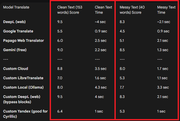
The table below shows the quality score and translation speed for two types of text:
Important Note about Gemini
Gemini (free) showed excellent results in terms of quality and speed. However, due to its strict request limit (about 10), it is unfortunately unsuitable for continuous use in MORT.
Now let's move on to the instructions for setting up three custom translators.
Links for convenience
1 Custom Cloud Setup - below
2 Custom LibreTranslate Setup - #112 (comment)
3 Custom Local Ollama Setup - #112 (comment)
4 Custom Deepl (web) Setup (Recommended) - #112 (comment)
5 Custom Yandex Setup - #112 (comment)
=============================================================================
1 Custom Cloud Setup
Setup Steps in MORT
Follow these steps to set up the Custom Cloud API in MORT:
- Open MORT and select Custom API from the list of translators.
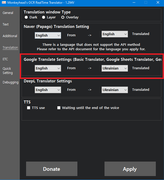
- Go to the Translation section and find Google Basic settings. This section is responsible for defining the source and target languages for your custom API.
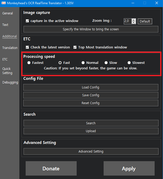
- Go to the Additional section and set it to Fast (this will help Mort not lose text when receiving it).
- Go to the Additional section, then to Advanced Settings.
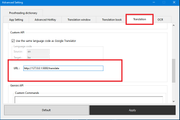
Scroll down to the Translation subheading and scroll to the very bottom.
Be sure to enter the following URL in the host field:
http://127.0.0.1:5000/translate
Important note: Use strictly 127.0.0.1 instead of localhost. Using localhost can add a delay of ~2 seconds to each request, which will critically affect the translation speed.
4) Don't forget to click Apply everywhere!
This completes the configuration of the MORT program.
=============================================================================
Custom Cloud
Obtaining an API key for Custom Cloud
To work with Custom Cloud, you will need an API key from the relevant service.
- Registration: Go to the website and register (using your email or Google account):
https://id.io.net/ - Creating a Key: Go to the link below and click the “Create Key” button:
https://id.io.net/ai/api-keys
Name: You can enter any name for the key.
Expiration date: Be sure to select the maximum expiration date (for example, 180 days) so that you don't have to repeat this procedure often. - Saving the Key (Critically Important!):
Immediately copy the API key you received and save it in a secure location.
Warning: The full key is only displayed once! If you lose it or fail to save it, you will have to create a new key in your profile settings.
=============================================================================
Configuring the Cloud Script (Cloud API Server)
Installing Python
- Download Python: Follow the link and download the installer (python-3.10.11-amd64.exe):
https://www.python.org/downloads/
or quick download
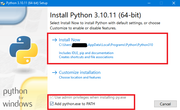
https://www.python.org/ftp/python/3.10.11/python-3.10.11-amd64.exe - Installation (Critically Important!): When installing, be sure to check the box Add python.exe to PATH. Leave all other settings at their default values.
- Installing Libraries:
Open the console (press Win + R and type cmd).
Paste the following command
python.exe -m pip install --upgrade pip && python -m pip install flask requests
and press Enter. Wait for the installation to complete, then close the console:
(This command will update the pip installer and install the necessary flask and requests libraries for the script to work.) - Download the Script: Get the script file itself ( Start Translation Cloud or Local.py).
https://drive.google.com/drive/folders/1bUH4qvCLydyQqOsyi243_KuH6tXMlaau?usp=drive_link - Preliminary Launch: Launch the downloaded script (double-click on it) (Start Translation Cloud or Local.py). If Python was installed correctly, a console window should open. This confirms that the script is working. Close it.
- Open the Start Translation Cloud or Local.py file via the context menu (Right click -> Open with -> Notepad or another editor).
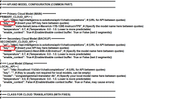
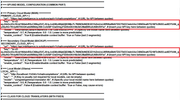
Find the place in the code where you need to insert your key. The script provides space for two cloud models (one main and one backup).
Insert the API key you received between the quotation marks “”, without spaces.
Example of key insertion:
Saving: Be sure to save your changes to the file (Ctrl+S).
=============================================================================
Launch and Operation (MORT + Script)
Launch Procedure
- Launch the Script: Double-click on the script file (Start Translation Cloud or Local.py). A console should open. Do not close this window while you are using MORT! and do not click inside this window.
- Launch MORT: Launch MORT as usual and configure it for the game.
Done: MORT will now send requests to your locally running server (127.0.0.1:5000), which in turn uses the cloud API. - Additional Information about the Script and Tokens
- Automatic Model Switching (Primary/Backup):
The script uses two cloud models (primary and backup) to ensure uninterrupted operation.
You always use the primary model. If it runs out of tokens, the script will automatically switch you to the backup model.
There will be a 1-second delay when switching (only for the first request). There will be no further delays.
The script will periodically check whether the main model's limits have been restored and will automatically switch you back at the first opportunity. - Translation Context:
The script implements context for cloud models. You can leave this feature enabled or disabled at your discretion. - API Token Limits:
In API (request) mode, each cloud model provides 500,000 tokens, which are refreshed every 24 hours.
This volume is sufficient to send more than 1,000 requests with texts of 153 words each (plus instructions/prompts).
Thus, one model should be enough for a whole day of active use. However, if the limit for one model is exhausted, the script activates a second model, which will also provide 500,000 tokens.
Limits are updated every 24 hours. (There are 12 models available, but only the most suitable ones were selected for maximum speed and quality).
All available AI
Qwen:
Intel/Qwen3-Coder-480B-A35B-Instruct-int4-mixed-ar (9 out of 10 from Gemini), 20-40 seconds (sometimes drops out)
Qwen/Qwen3-235B-A22B-Thinking-2507 (0 out of 10 from Gemini),Think
Qwen/Qwen3-Next-80B-A3B-Instruct (9.3 out of 10 from Gemini) 4-5 sec
Qwen/Qwen2.5-VL-32B-Instruct (5.3 out of 10 from Gemini) 5.5-6.8 sec
Llama:
meta-llama/Llama-3.3-70B-Instruct (8.7 out of 10 from Gemini) 7.5-8.5 sec
meta-llama/Llama-3.2-90B-Vision-Instruct (9.3 out of 10 from Gemini) 9.5-15 sec
meta-llama/Llama-4-Maverick-17B-128E-Instruct-FP8 (9.2 out of 10 from Gemini), 3.2-4 sec
OpenAI:
openai/gpt-oss-120b (9.5 out of 10 from Gemini), 4-8 sec
openai/gpt-oss-20b (8.5 out of 10 from Gemini), 3-8 sec
Mistral:
mistralai/Mistral-Large-Instruct-2411 (5.9 out of 10 from Gemini) 15-16 sec (not compatible with temp 0.7, needs to be lower)
mistralai/Mistral-Nemo-Instruct-2407 (5.5 out of 10 from Gemini) 5-6.5 sec (not compatible with temp 0.7, needs to be lower)
mistralai/Devstral-Small-2505 (8.5 out of 10 from gemini) 7.5-8sec (not compatible with temp 0.7, needs to be lower)
mistralai/Magistral-Small-2506 (1.7 out of 10 from gemini) 9.5-10.5 sec (not compatible with 0.7 temp, needs to be lower)
Others:
swiss-ai/Apertus-70B-Instruct-2509 (9.2 out of 10 from Gemini) 7.5-10 seconds
deepseek-ai/DeepSeek-R1-0528 (9.5 out of 10 from Gemini), 60-80 seconds think
LLM360/K2-Think (3 out of 10 from Gemini) 8-50 sec think , (not compatible with temp 0.7, needs to be lower)
Possible useful links on IO Intelligence:
- AI Models (Catalog and Chat for testing):
https://ai.io.net/ai/models - Status of models and services:
https://status.io.net/ - Documentation and API Reference:
https://docs.io.net/reference/get-started-with-io-intelligence-api
Below, I will add more API methods.