Create Stock
After you create your sources, you can create stock. Stock provides a virtual aggregated amount of inventory for your sources connected to sales channels.
- Sales channels currently include websites out-of-the-box. You can extend sales channels to include custom options like B2B customers groups and store views.
- Each sales channel can only have a single stock assigned to it. A single stock can be assigned to multiple websites.
- When you assign new stock to a sales channel, any pre-existing stock in that sales channel becomes unassigned.
With a multisite configuration, you can tailor the stocks as needed, such as geography, size of warehouse, and so on. The following are a few examples of source priority:
- For a German website, you may prioritize sources as Germany to England to France with the United States as the lowest priority. These orders fulfill through Europe with a fall-back option of the US.
- For orders originating in New York, you may prioritize warehouses in New York to Florida to Texas. For all other orders in the US, you may have the Texas warehouse as highest priority to Florida to New York.
For new installations, you start with a Default Stock. We recommend creating new stock as needed for your sales channels and sources. When you add a new website, MSI automatically creates a new stock. Review and manage your stocks for the new site when you create it.
The following diagram helps define how a Stock works in relation to Sources and Sales Channels for a Bicycle Shop merchant.
 |
|---|
| Relation of Sources and Sales Channels to Stocks |
The example tracks the inventory of Sample Product 1 at three Sources with a configured Notify for Quantity Below through the Assigned Sources. For example, the Warehouse source has an available quantity of 50 with a notify threshold of 10, giving a source salable quantity of 40.
The merchant has four Sales Channels including an eBay Marketplace and three websites (Germany, Netherlands, and the UK). The stores have an Only X Left threshold of 5 configured.
Note: The Salable Quantity displayed on the product page deducts all thresholds for at a glance aggregated totals.
The merchant creates three Stocks. Only one Sales Channel can be associated with one Stock. As all Sales Channels are websites, they can assign multiple websites to a stock, but not to more than one stock: two websites (DE and NL) to one stock and individual stocks for the marketplace (eBAY) and other website (UK).
Each stock collects all quantities from each assigned source and deducts the Notify for Quantity Below and Only X Left amounts to aggregate the Salable Quantity. For example, Bicycle Shop UK Stock accesses inventory from all three sources. The salable amount per source is 40, 15, and 5 for a total of 60. The Only X Left for all stores is 5. To determine the final salable amount for Sample Product 1 through the UK webstore, the total has the threshold of 5 deducted for a final amount of 55. Customers can add up to 55 of the product to their carts, completing purchases. MSI algorithms manage reservations across the sources for later shipment.
-
On the Admin sidebar, tap Stores. Then under Settings, choose Manage Stocks.
-
In the upper-right corner, tap Add New Stock.
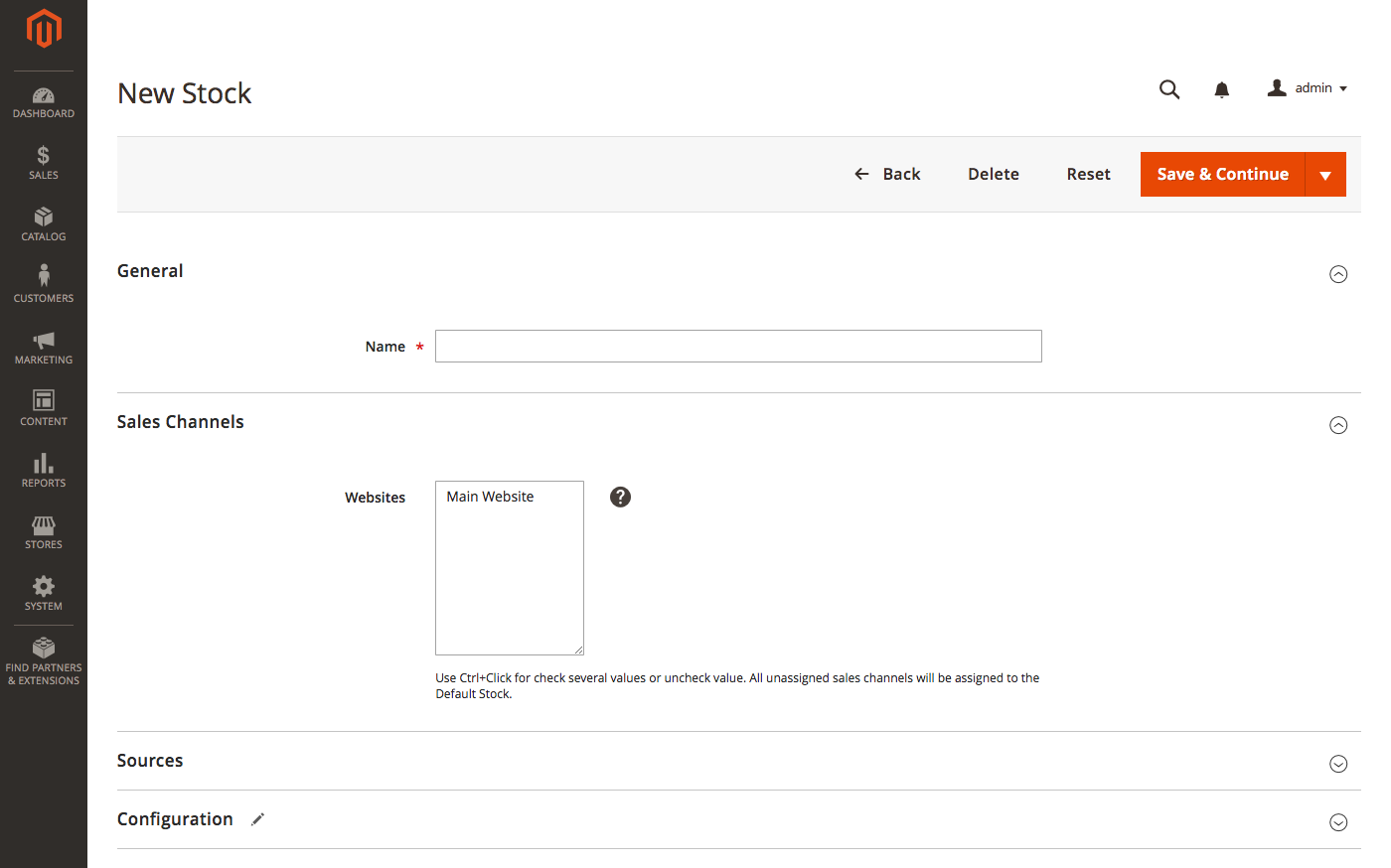 |
|---|
| New Stock Page |
-
(Required) Enter a unique Name for the stock.
-
In Sales Channels, assign the stock to one or more listed sales channels. Out-of-the-box, it lists all Magento websites. You can select multiple websites.
Important: If you select a website or sales channel assigned to another stock, it will be unassigned from that stock to this one.
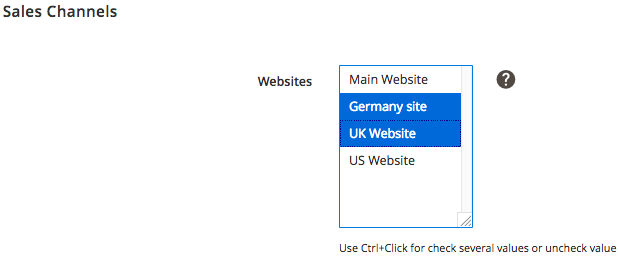 |
|---|
| Assign Sales Channel |
-
In Sources, click Assign Sources to add a source to this stock.
-
On the Assign Sources page, click the checkboxes for the sources you want to apply to the new stock. Click Done to add.
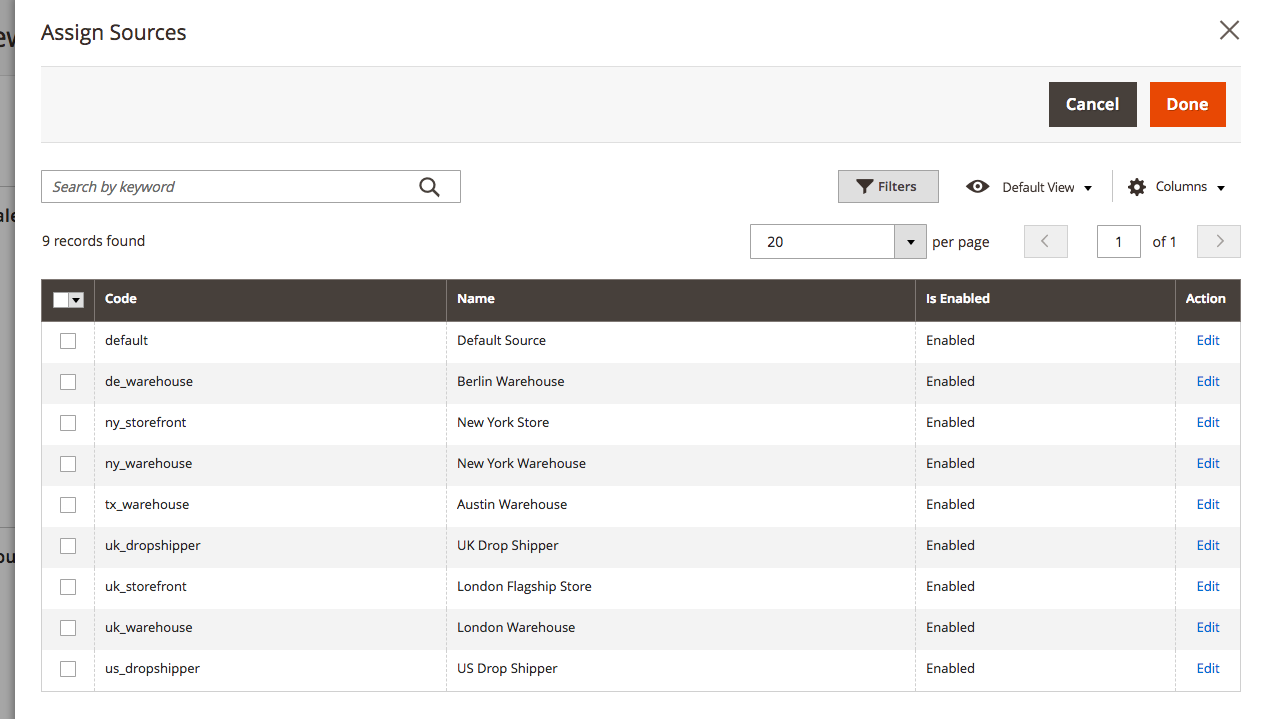 |
|---|
| Assign Sources |
-
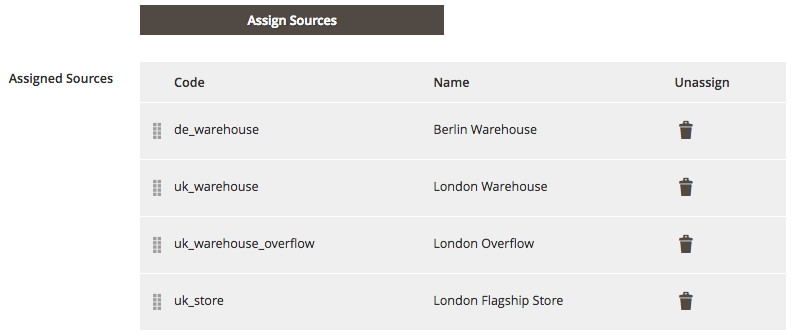
Set the prioritization of the sources in the Assigned Sources grid. The topmost source has top priority for inventory and fulfillment. Drag-and-drop to modify the source priority. This priority is used by the Source Selection by Priority Algorithm uses.
-
When done, tap Save & Continue or Save & Close to return to the Manage Stock page.
After adding sources to the stock, arrange those sources from top to bottom in priority for fulfilling orders. The Source Selection Algorithm (SSA) uses this priority from add to cart through the order shipment and management. You can assign enabled and disabled sources to your stocks. If disabled, the source is skipped by the SSA when managing inventory and orders.
Note: The configured sources priority on stocks does not influence the Assigned Sources configured when editing your products.
The following images detail assigning and prioritizing sources for stock associated with a UK website. For this stock, the merchant added the sources for Default Source, London Overflow, and London.
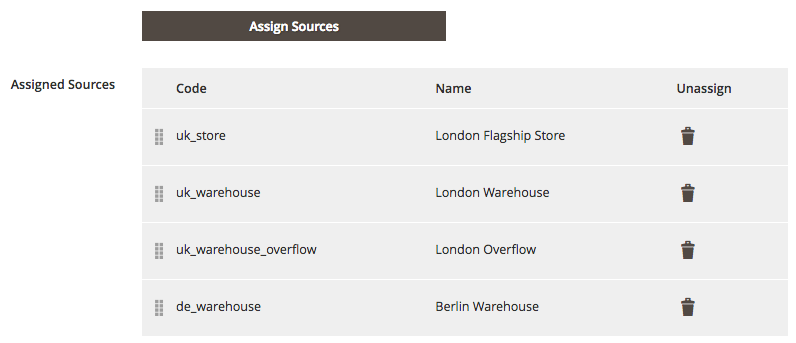 |
|---|
| Initial Sources Added to the Stock |
To move a source up or down, click the drag handle on the left and drag the source's rectangle. For this stock, the merchant wants to fulfill orders using the London > London Overflow > Default Source sources in that order. As needed, the temp location for overflow in London may be enabled or disabled as needed.
 |
|---|
| Updated Source Priority for the Stock |