MSI Import and Export Product Data
For catalogs with a large amount of products, you may want to use the Export and Import features of Magento. These features allow you to export strictly MSI information for inventory and sources by SKU for mass updates.
MSI expands by allowing you to export and import products across all sources or by source. For example, you can export products for a source in Germany without affecting product information for sources in France, England, or the US.
- CSV file contents
- Export all source product data
- Export specific source product data
- Import product updates
For information on basic Magento Import-Export functionality, see the Magento User Guide.
The export-import file include the following information according to source:
-
source_code- The code for sources in Magento. You will see a row for each source and SKU. -
sku- The SKU for the product in Magento. The SKU must match a product in your store to properly update MSI data. -
status- 0 for Out of Stock. 1 for In Stock. This value must be 1 to purchase stock from this source. -
quantity- The total amount of inventory available for this SKU and source.
Use this option to quickly update multiple products and assigned sources to update and correct any inaccuracies in inventory records rather than one at a time through the application interface. For a base file, export first and update as needed.
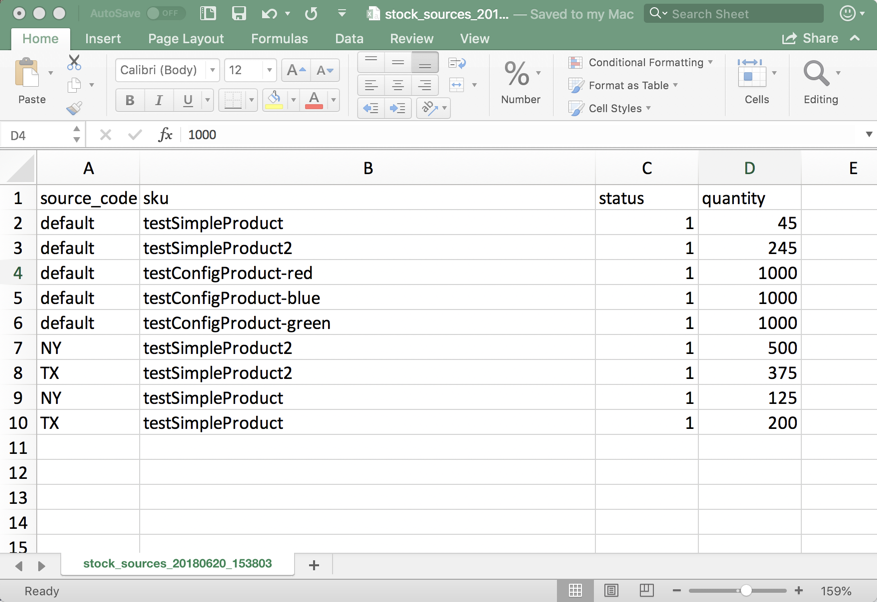 |
|---|
| Import-Export Data |
To export product data for all sources:
-
On the Admin sidebar, tap System. Under Data Transfer, choose Export.
-
From the Entity Type drop-down menu, select Stock Sources. The export only extracts data for products with a SKU.
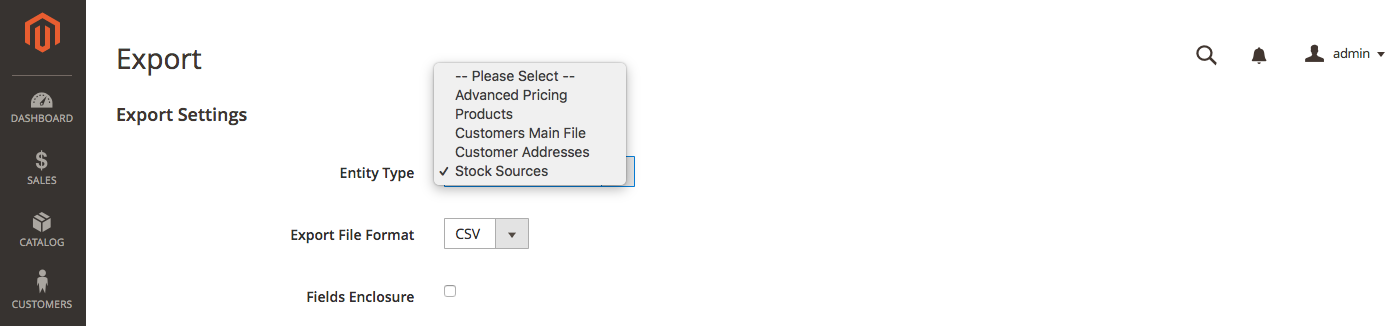
Export Stock Sources -
To filter the exported products for a specific source, scroll to the Entity Attributes. For source_code, enter the code for the source in the filter field.
-
Tap Continue. The file generates and downloads to open and edit.
You can export product data for a specific source to update inventory amounts and import changes without affecting any other sources actively supporting sales.
-
On the Admin sidebar, tap System. Under Data Transfer, choose Export.
-
From the Entity Type drop-down menu, select Stock Sources. The export only extracts data for products with a SKU.
-
Scroll to the Entity Attributes.
-
For source_code, enter the code for the source in the filter field. You can find this code through the Source page. Do not select the Exclude checkbox as this option restricts all source data from exporting.

Filter Sources -
Tap Continue. The file generates and downloads to open and edit.
After updating inventory amounts and product data, import the file back into Magento.
This option fully imports all data from the CSV file. You can further modify source and quantities when the importing.
-
On the Admin sidebar, tap System. Under Data Transfer, choose Import.
-
From the Entity Type drop-down menu, select Stock Sources.
-
Select configurations for the Import Behavior.
-
Select the .csv file to import.
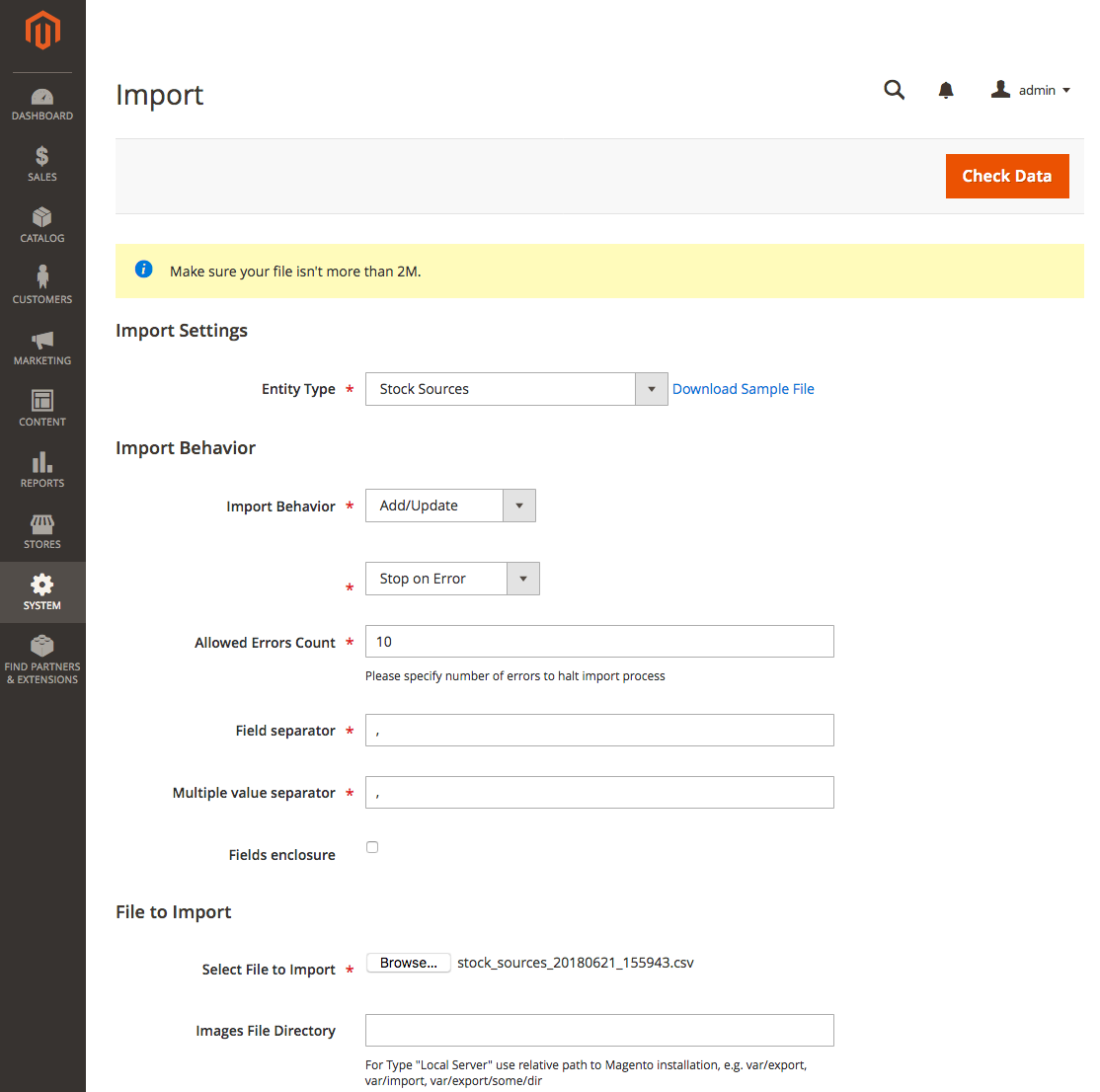
Import Page -
Tap Check Data and complete the import.