MSI features and processes
Note: This page is in progress and will detail MSI features and workflow.
Multi Source Inventory introduces new features to Magento to better support multiple sources, sales channels, and sources to clearly track available and salable quantities. This information details the important concepts, features, and process for MSI.
 |
|---|
| Multi Source Inventory management in Magento |
A high-level look at the process:
- A customer shops in a sales channel, like a website.
- Products add to the cart. MSI verifies the total available inventory for added products across all sources.
- Reservations generate and set aside inventory quantities as products are purchased. Actual inventories are not deducted yet.
- Single orders generate into Magento for single and multiaddress orders (many single orders per address).
- When invoicing and shipping the product, you verify the inventory and recommendations for shipment. Fulfill the order by shipping from one or more sources, using MSI recommendations or overriding to send partial amounts, and so on.
- Reservations deduct from the product inventory at invoicing and shipment, updating inventory quantities for all affected sources.
Sources are the physical locations where product inventory is managed and shipped for order fulfillment, or where services are available. These locations can include warehouses, brick-and-mortar stores, distribution centers, and drop shippers. You allocate inventory quantities to these sources, and MSI automatically aggregates the total salable products for your stocks. You may have multiple sources in different geographic locations by country and continent, locations in a city, based on the type of inventory, even services.
A source can have priority in the scope of stock in one warehouse, but not necessarily in all warehouses as the source can be re-used in different stocks. The number of stocks and sources adds to the complexity for determining the best warehouse or store to fulfill an order.
For example, you may have a limited number of products available from your brick-and-mortar locations with an extensive inventory in your warehouses, and services in key locations with limited availability.
You start with a Default Source you can update but not disable. This source is used by Single Source Merchants and for product migration. You always need a default source.
The following diagram helps define the Sources for a Bicycle Shop merchant, available to stocks and accessible by the SSA.
 |
|---|
| Sources with Products in MSI |
The example tracks the quantities, thresholds, and calculated salable quantities for a sample product across multiple locations. These include two stores, a warehouse, and a distribution center.
- The sources are assigned to the products through the catalog.
- Quantities are tracked per source.
- All sources use the default Notify for Quantity Below amount of 5. The UK Distribution center overrides the notification amount through the source with a setting of 20.
These sources can be assigned to stocks, all quantities available to the SSA for aggregating salable quantities per sales channel.
Stock represents a virtual, aggregated inventory of products for sources of your sales channels (currently these are websites). Depending on your site configuration, the stock may be assigned to one or more sales channels. Each sales channel can only have a single stock assigned to it, and a single stock can be assigned to multiple websites. Through the stock, you can modify the prioritization of sources used as orders come through a website.
You start with a Default Stock you can update but not disable. This stock is used by Single Source Merchants and for product migration. You always need a default stock.
Sales Channels represent entities selling your inventory. MSI includes Magento store websites out-of-the-box and supports extensions for additional channels (for example, B2B customers groups and store views). Sales Channels can only be associated to one Stock. In the case of website sales channels, you can have multiple websites associated to the same stock.
The following diagram helps define how a Stock works in relation to Sources and Sales Channels for a Bicycle Shop merchant.
 |
|---|
| Relation of Sources and Sales Channels to Stocks |
The example tracks the inventory of Sample Product 1 in MSI. The merchant has four Sales Channels including an eBay Marketplace and three websites (Germany, Netherlands, and the UK). The stores have an Only X Left threshold of 5 configured. The merchant creates three Stocks with assigned Sales Channel websites: two websites (DE and NL) to one stock and individual stocks for the marketplace (eBAY) and other website (UK).
For example, Bicycle Shop UK Stock accesses inventory from all three sources. MSI aggregates totals and handles inventory reservations through the stock:
- For the UK Stock, the salable amount per source is 40, 15, and 5 for a total of 60 after deducting the Notify for Quantity Below per product source.
- The Only X Left for all stores is 5.
- To determine the final salable quantity for Sample Product 1 through the UK webstore, the total has the threshold of 5 deducted for a final amount of 55.
As a result, customers can purchase up to 55 of the product from UK stock. As products add to carts, reservations track through purchase and deduct inventory at shipment from specified source linked to the stock.
With multiple source locations, global customers, and carriers with various shipping options and fees, knowing your actual available inventory and finding the best shipment option can be difficult. MSI uses the Source Selection Algorithm (SSA) to do the work for you from tracking inventory salable quantities across all sources to calculating and making recommendations for shipments.
Track Inventory: Using stocks and sources, the SSA checks the sales channel of incoming product requests and determines available inventory:
- Calculates the total virtual salable quantity for a sales channel through stocks
- Deducts threshold quantities from salable quantity to protect against overselling and support concurrent checkout
- Reserves inventory quantities at checkout, deducting from in-stock inventory at order processing and shipment
- Supports backorders with enhanced options for negative thresholds
Manage Shipments: The algorithm helps when you process and ship orders. You can run the algorithm to get recommendations on the best sources for shipping the product or override the selections to:
- Ship partial shipments, sending only a few products from specific locations and completing the full order at a later date.
- Ship the entire order from one source.
- Break the shipments across multiple sources in different amounts to keep a balanced stock across all warehouses and stores.
SSA is able extensible for third party support and custom algorithms for recommending cost effective shipments.
Note: SSA functions differently for Virtual and Downloadable products, which may not incur shipping costs. In these cases, the system runs the algorithm implicitly when it creates invoices, and always uses the suggested results. You cannot adjust these results for Virtual and Downloadable products.
MSI comes with the SSA Priority algorithm out-of-the-box. The algorithm primarily recommends product deductions per source when invoicing and shipping the order.
This algorithm considers the configured priority set at the stock level when fulfilling orders:
- Works through the list of sources in order from top to bottom
- If the source has a virtual aggregated available stock, it recommends deductions and shipments from that source first.
- Continues down the list until the order shipment is filled.
- Skips disabled sources if found in the list
MSI supports custom development and extensions to add alternative algorithms to prioritize sources. For example, you can have one priority algorithm based upon geography and another based upon expense of stock or a customer attribute. When the cost of stock changes, your implementation can easily change algorithms to ensure the lowest cost.
The Concurrent Checkout feature tracks and reserves sales, preventing sales from overselling stock, but only when each source is assigned to one stock. As products are added to cart and checkout completes, MSI enters a reservation against the aggregated product quantity. This protects the inventory through to shipment, ensuring customers correctly receive their ordered products. Reservations clear when the order is invoiced (deducting quantities) or an order is cancelled before invoice and shipment.
This feature, reservations, and the entire process is transparent to customers. They see information on stock quantities as normal through the product page and notifications through checkout.
If you assign each source to only one stock, then you will never run into the situation where you could potentially oversell inventory when multiple users are checking out at the same time. In rare cases, you potentially have issues with overselling when you assign one or more sources to more than one stock. The situation may occur when customers compete for the last remaining stock of a product.
Instead of immediately deducting or adding product inventory quantities, reservations hold inventory updates until order shipment or product refunds. Reservations work entirely in the backend to automatically update inventory totals. Understanding these holds is helpful for MSI processes.
Reservations place holds on inventory quantities for the entire shopping process: adding products to cart, completing checkout, and managing refunds. For available inventory and stock, reservations enter against the aggregated inventory at the stock level. The reservations remain in place, counting against the salable quantity without deducting from the actual inventory quantity.
The reservations are at the stock level, counting against quantities until the order is invoiced and shipped. When shipping the order, you can use the SSA recommendation or override to manually override the deductions per source. The reservations automatically deducts from the product quantity for the selected source(s).
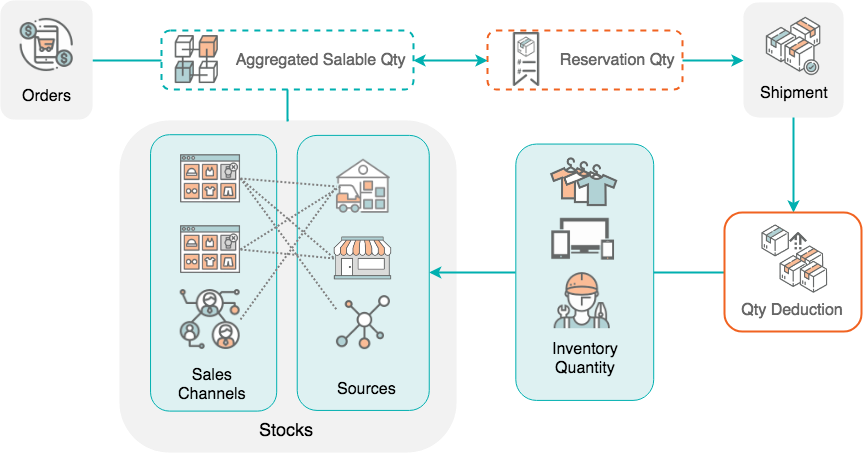
The following diagram helps define the process of reservations during an order and through to shipment.
 |
|---|
| Reservations for an Order |
In the example, a customer adds a product to a cart. Magento checks for available salable quantities for the products for that sales channel through the stock. If enough total inventory is available, a reservation saves that quantity temporarily for the order, deducting it from the salable quantity.
 |
|---|
| Reservations and Salable Quantity |
As the order is invoiced, you determine the sources and inventory quantities to deduct and ship. The shipment continues from those sources, sent to the customer. The quantities automatically deduct from the source inventory quantity.
If you send partial shipments, each shipment deducts that amount from your product quantity. Any remaining reservations remain in place until they are also shipped at a later time. This keeps your salable amount current.
If a customer cancels their order prior to shipment, a new reservation is entered to return the inventory amount to the source. The reservations effectively cancel each other out, not deducting the quantity from any sources. Other customers can actively purchase those product quantities through the associated stocks and sales channels.
If a customer refunds and returns a shipped order, you normally enter a credit memo to handle the returns. You can also enter a credit memo to restore the inventory quantity. The credit memo generates a reservation for the refunded products and quantities back to the source that originally shipped the product.
When the return is processed, the reservation converts into added inventory quantities.