For Confluence Plugin, Mattermost server v5.19+ is required. Confluence Server version 7.x+ is supported. Confluence Data Center is not certified.
To get started, a plugin that is installed on the Mattermost Server is needed to receive messages from the Confluence server. The notifications route it to the correct channel based on subscriptions that are configured.
- Go to the releases page of this GitHub repositiory, and download the latest release for your Mattermost Server.
- Upload this file in the Mattermost System Console > Plugins > Management page to install the plugin.
- Configure the Plugin from System Console > Plugins > Confluence.
Now, you'll need to configure your Confluence server to communicate with the plugin on the Mattermost Server. The instructions are different for Cloud vs Server/Data Center.
To get started, type in /confluence install server in a Mattermost chat window.
-
Provide the Confluence base URL in the first step of the installation
-
Select No in the Confluence server version greater than or equal to 9 question in second step of the flow manager
-
Download the Mattermost for Confluence OBR file from the "Releases" tab in the Mattermost-Confluence plugin repository. Each release has a .JAR and an .OBR file. Download it to your local computer. You will upload it to your Confluence server later in this process
-
Log in as an Administrator on Confluence to configure the plugin
-
Create a new app in your Confluence Server by going to Settings > Apps > Manage Apps. For older versions of Confluence, go to Administration > Applications > Add-ons > Manage add-ons
-
Choose Settings at the bottom of the page, enable development mode, and apply the changes. Development mode allows you to install apps from outside of the Atlassian Marketplace
-
Press Upload app

-
Upload the OBR file you downloaded earlier
-
Once the app is installed, press Configure to open the configuration page
-
In the Webhook URL field, enter the URL that is displayed after you typed
/confluence install server- it is unique to your server. You'll need to copy/paste it from Mattermost into the From this URL field in Confluence -
Press Save to finish the setup
-
Go to Settings > Apps > Manage Apps
-
Choose Settings at the bottom of the page, enable development mode, and apply the change. Development mode allows you to install apps from outside of the Atlassian Marketplace

-
Once installed, you will see the "Installed and ready to go!" message in Confluence
-
You can now go to Mattermost and type
/confluence subscribein the channel you want to get notified by Confluence
To get started, type in /confluence install server in a Mattermost chat window.
-
Provide the Confluence base URL in the first step of the installation
-
Select No in the Confluence server version greater than or equal to 9 question in installation
-
Log in as an Administrator on Confluence to configure the plugin
-
Create a new application link in your Confluence server by going to Settings > Applications > Application Links
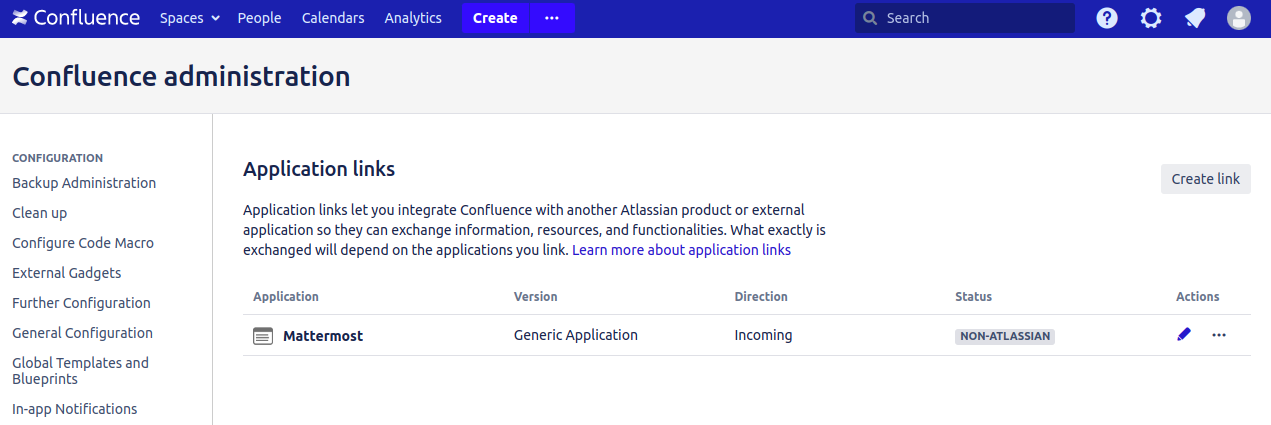
-
Select Create link
-
On the Create Link screen, select External Application and Incoming as
Application typeandDirectionrespectively. Select Continue -
On the Link Applications screen, set the values as given in third step of the installation
-
Provide the ClientID and Client Secret in the modal visible at fourth step of the installation
-
Connect your account using the link provided in the fifth step of the installation
-
Create a webhook by following the instructions provided in the sixth step of the installation
-
Once installed, you will see the "You successfully installed Confluence." message in Confluence
-
You can now go to Mattermost and type
/confluence subscribein the channel you want to get notified by Confluence
To get started, type in /confluence install cloud in a Mattermost chat window.
-
Log in as an Administrator on Confluence.
-
Go to Settings > Apps > Manage Apps.
-
Choose Settings at the bottom of the page, enable development mode, and apply the change. Development mode allows you to install apps from outside of the Atlassian Marketplace.

-
Press Upload App button.

-
In From this URL, enter the URL that is displayed after you typed
/confluence install cloud- it is unique to your server. You'll need to copy/paste it from Mattermost into the From this URL field in Confluence. -
Once installed, you will see the "Installed and ready to go!" message in Confluence.
-
You can now go to Mattermost and type
/confluence subscribein the channel you want to get notified by Confluence.