Whats New Document
Azure Toolkit support log streaming for app services now, you could get the live log with log streaming in explorer with simple click.

- Support log streaming for webapp
- Support open portal Live Metrics Stream for linux function app
- Validate Azure dependencies version before deploying
- Tag log line with log source(azuretool, livy, driver.stderr) for Spark batch job logs and interactive session logs
- Remove version of Azure Spring Cloud dependencies when it is not necessary
- #4179 Fix NPE caused job submission failure issue
- #4204 Deploy Azure Spring Cloud App dialog default value is apply
- #4231 Cannot use Auth file for spring cloud authentication
We are proud to announce the support for Azure Spring Cloud in Azure Toolkit, you could have full Azure Spring Cloud experience in IntelliJ Toolkit, which cludes resolve project dependencies, create/deploy and troubleshooting spring cloud apps.
You may refer this tutorial for Azure specific dependencies, to simplify the steps to configure dependencies, this plugin provides the dependency management for you. Open the pom.xml file in Intellij, right click on the editor, select Add Azure Spring Cloud dependency menu, wait a few minutes for the dependency resolving, it will update your pom.xml file with the compatible latest version mentioned in this tutorial

1. Before deploy to Azure, you need to sign-in with your azure account, and choose the subscription as you want, see this *[tutorial](https://docs.microsoft.com/en-us/azure/java/intellij/azure-toolkit-for-intellij-create-hello-world-web-app)* to get more details of sign-in your account.
-
Right click your project in IntelliJ Project explorer, select Azure -> Deploy to Azure Spring Cloud

-
Select the right subscription and cluster you want, and then select Create app... and input an unique name like
gs-spring-boot-azurefor the app.
-
Start the deploy by clicking Run Button. The plugin will run mvn package on the project first and then create the new app and deploy the jar generated by package step.

- Add Azure Spring Cloud support in Azure Toolkits
- Manage Azure Spring Cloud project dependencies
- Manage Azure Spring Cloud apps in Azure Explorer
- Create/Delete/Start/Stop/Restart
- Assign/un-assign public endpoint
- Update environment variables
- Update JVM options
- View app properties
- Deploying apps from current project
- Monitoring and troubleshooting apps
- Getting public url
- Getting test endpoint
- Instance status(shown in app properties view)
- Support trigger function with timer trigger
- Support log streaming for Windows functions
- #4157 Can't trigger function/admin http function when click 'Trigger Function' button
- #4160 Nothing shown in function run mark
- #4179 Fixed NPE caused Spark job submission failure in 201EAP
- #4213 Unhandled error when creating function app
- #4215 App settings not loaded when openning the deploy wizard
We are proud to announce the support for Azure Functions in Azure Toolkit, you could have full Azure Function experience in IntelliJ Toolkit, which cludes create Function projects, running function locally and deploy your function to Azure.
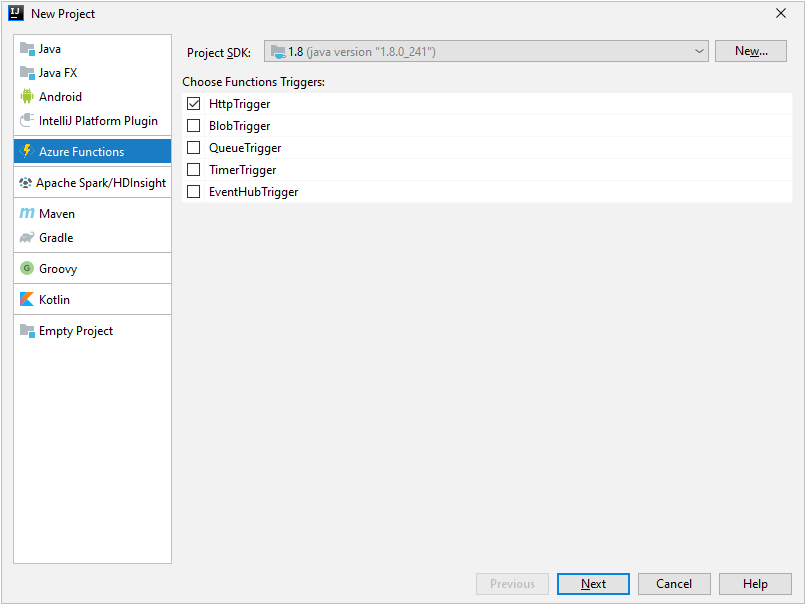
Azure Toolkit provides Function creation wizard for you to create Function projects, simply open the wizard by File -> New -> Project... and select Azure Functions. Toolkit will help you create the project as well as the triggers, both maven and gradle are supported.
Azure Toolkit could help you running your function project locally, this requires Azure Function Core Tools installed in your machine, you may get the core tools according to this document.
-
Right click your project in IntelliJ Project explorer, select Azure -> Run Function

-
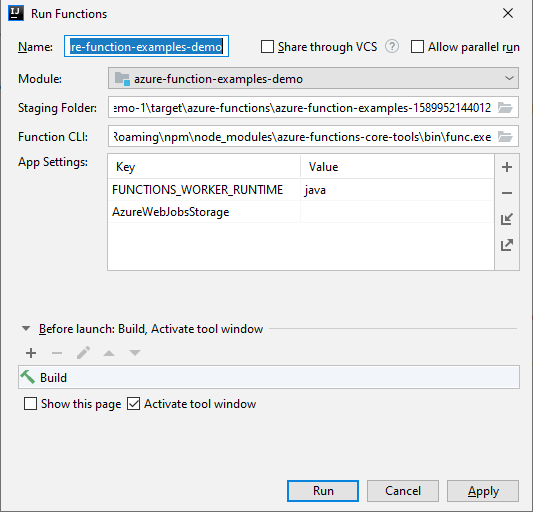
Select target module in Run Functions dialog, you may also change app setting values here.
-
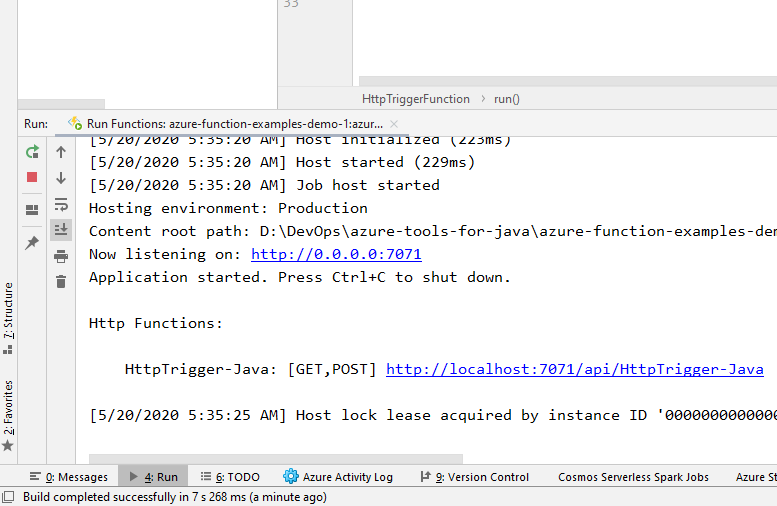
Click Run button, Toolkit will help you build the project and running it locally with function core tools, you may get the function core tools output in the console below.
-
Before deploy to Azure, you need to sign-in with your azure account, and choose the subscription as you want, see this tutorial to get more details of sign-in your account.
-
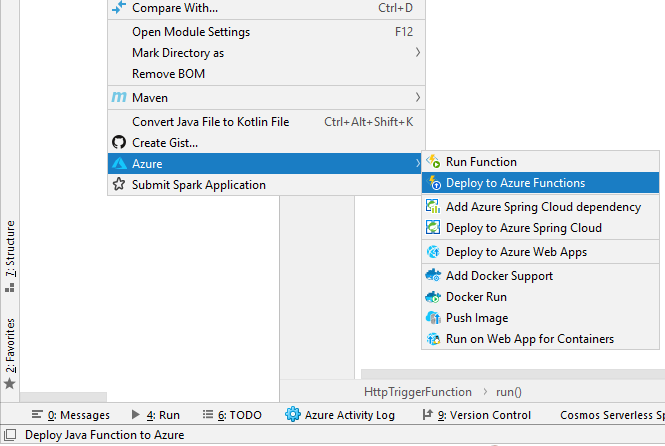
Right click your project in IntelliJ Project explorer, select Azure -> Deploy to Azure Functions
-
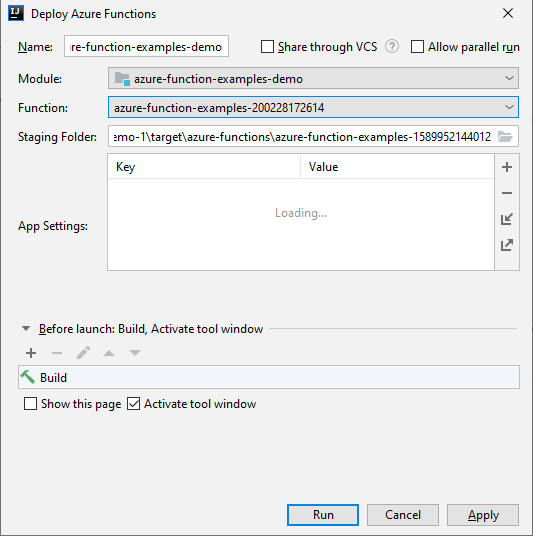
Select your project module and target function in the Deploy dialog, you may also create a new Function by Select Create Function App... in Function dropdown.
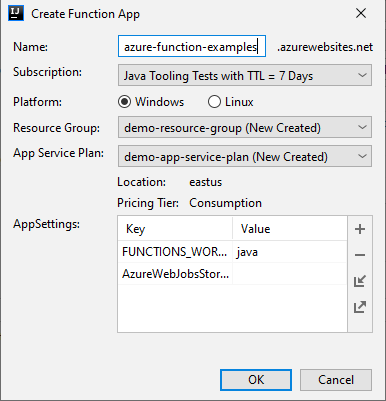
Below is the function creation dialog, you may create a new function app as well as resource group and app service plan.
-
Click Run to deploy your proejct to Azure, you may get the progress in the console below.
- Add Azure Function support in Azure Toolkits
- Scaffold functions project
- Create new functions class by trigger type
- Local run/debug functions
- Create/deploy Function apps on Azure
- List/view existing Function apps on Azure
- Stop/start/restart Function apps on Azure
- Trigger azure functions
- Support project artifact dependencies in Spark interactive console
- Add more debug log when creating Spark Livy interactive console
- Enable Spark on Synapse feature by default
You may get the full change log here