user readme sample
This guide details the construction of the layout shown below. I highly recommend you read the manual included in the application zip file for further details.
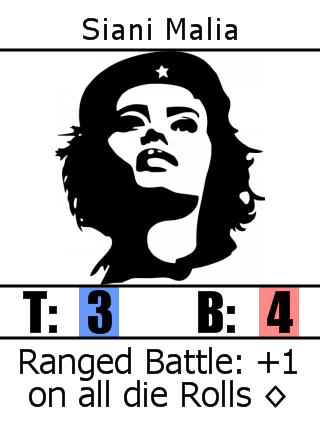
The above image was generated by the following input data row from a CSV:
| Count | Name | image | skill1 | skill1value | skill2 | skill2value | ability | | --- | --- | ---- | ---- | ---- | ---- | ---- | ---- | ---- | | 1 | Siani Malia | che.png | T | 3 | B | 4 | Ranged Battle: +1 on all die Rolls @[opt] |
Each Element can be scaled and moved to whatever position needed. You can also adjust a number of other settings to make the Element render as desired. You will find the details of each type used in the sample layout below. I do skip over the position, scale, and some other minor settings of the Elements (very basic functionality in the application).

This is probably the simplest of all the Elements. It has a type of Graphic It has the following Definition: @[image] (translated result is che.png)
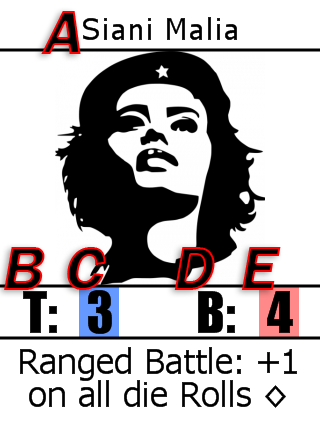
| Id in picture above | Definition | Notes |
|---|---|---|
| A | @[name] | |
| B | @[skill1]: | Note that the : character is always appended so the data reference does not have to contain it |
| C | @[skill1value] | |
| D | @[skill2]: | Note that the : character is always appended so the data reference does not have to contain it |
| E | @[skill2value] |
For reference here is the CSV row again:
| Count | Name | image | skill1 | skill1value | skill2 | skill2value | ability | | --- | --- | ---- | ---- | ---- | ---- | ---- | ---- | ---- | | 1 | Siani Malia | che.png | T | 3 | B | 4 | Ranged Battle: +1 on all die Rolls @[opt] |
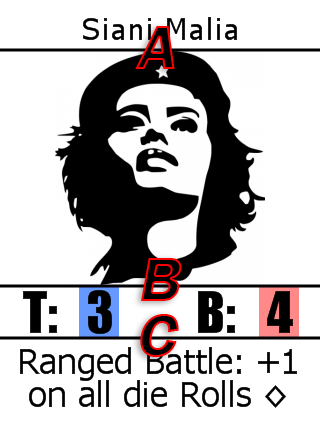
These dividers are Elements with the type set to Shape.
There Definition is #rect;0;-;-#
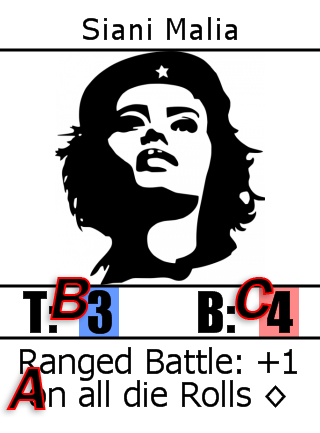
These are a bit of a special case, which is great for a sample! This involves some very advanced functionality so it may seem extremely bizarre! FormattedText allows you to use tags to markup your text to adjust it mid-definition.
| Id in picture above | Definition | Notes |
|---|---|---|
| A | @[ability] | |
| B | @[skillbgc,@[skill1]]<spc=5> | See Skill Background below |
| C | @[skillbgc,@[skill2]]<spc=5> | See Skill Background below |
For reference here is the CSV row again:
| Count | Name | image | skill1 | skill1value | skill2 | skill2value | ability | | --- | --- | ---- | ---- | ---- | ---- | ---- | ---- | ---- | | 1 | Siani Malia | che.png | T | 3 | B | 4 | Ranged Battle: +1 on all die Rolls @[opt] |
Wait a second... where and what are the values for @[opt] @[skillbgc] ??
These values are defined in a project wide defines reference. This allows a single define to be used across Layouts in a Project. If you need to change something very common you can do it in one place. This also helps to cut down on clutter.
Here are the defines used in the creation of the Layout.
| Define | Value |
|---|---|
| opt | (diamond character) |
| skillbcolor | 0xff8888 |
| skilltcolor | 0x6699ff |
| skilllcolor | 0x88ff88 |
| skillbgc | <bgc=#(switch;{1};B;@[skillbcolor];L;@[skilllcolor];T;@[skilltcolor];#default;0xffffff)#> |
What in the world... is @[skillbgc,@[skill1]] even doing??
This is an example of a reference using parameters. In this case skillbgc is looked up and the value of @[skill1] is used to
replace all instances of {1} in the string. The resulting logic determines what color to use in the bgc markup.
A good question is "why is the background not just a Shape element?" The reason is that to do so would require an override value,
which unfortunately is static. I want the background color to be based on the skill1 or skill2 reference column, a dynamic value.