Design: Flow testing
This is a work in progress.
Node-RED project already provides the tools for testing:
This design note focuses on realizing flow testing.
Basic requirements of this tool are as follows.
- Node-RED user can test flows without programming.
- Node-RED uesr can see the test results on the editor.
- It should test the original flow as is. If it tests a copied flow of the original one, sync problem will happen.
- Node-RED user does regression testing for the existing flows when updating Node-RED or services that connect with Node-RED.
- Node-RED automatically runs a test on Travis CI when pull request was posted.
There are two new nodes called test-in node and test-out node. Test-in node sends a mock message on behalf of the actual input node such as http-in node. Test-out node receives a message on behalf of the actual output node such as http-response node. One test case consists of exactly one test-in node and one test-out node. One test case can cross tabs.
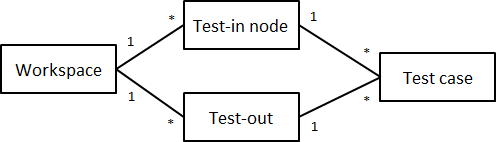
The requirements of test node are as follows.
- Do nothing when it is NOT in a testing mode.
- Appear only in a testing mode.
- Substitute input node and output node in a testing mode. (named as
shadowing)
Test-in node specifies one or more test cases so that one test-in node can run multiple test cases.
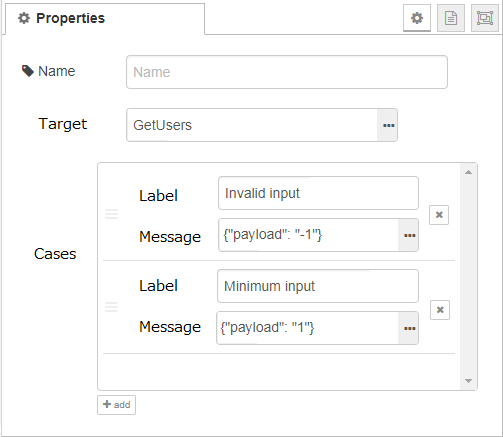
- Target
- Specifies a target node to be substituted by a test-in node.
- When you click the link on the right, all nodes except for test nodes will be shown.
- Cases
- Specifies test cases. You can add a test case by clicking
addbutton. - Each test case has
LabelandMessageproperties.
- Specifies test cases. You can add a test case by clicking
- Label
- Describes the name of the test case.
- Message
- Describes the properties of a message.
- Although it would be nice to specify each message property on GUI, simply specifying JSON data is a good starting point for the first version.
Test-out node verifies whether the received message is exactly the expected value or not.
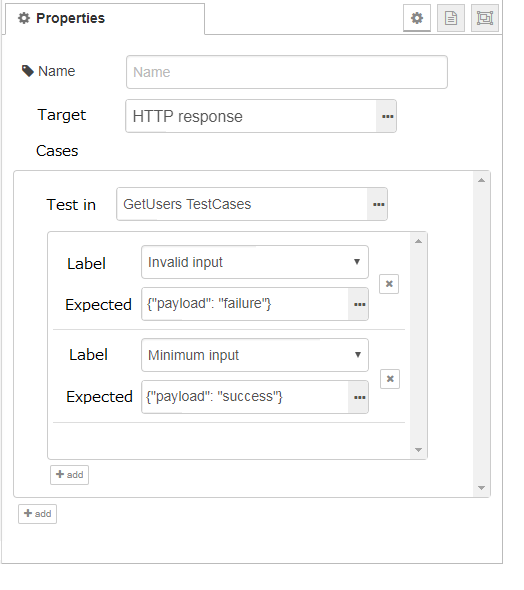
- Cases
- Specifies one or more test-in nodes. In each test-in node, one or more test cases can be specified.
- Test in
- Specifies a test-in node corresponding to this test-out node.
- When you click the link on the right, all test-in nodes will be shown.
- Label
- Selects a label that the specific test-out node has.
- When you click the list, show all labels in the test-in node.
- Expected
- Describes the expected property value of a message.
- In the case that the test-out node receives a message without specifying the case here, the test will result in failure.
As described in test node section, Node-RED needs to change the mode from production to testing, and vice versa.
Assume that the following flow is a testing target.

To test the above flow, change a mode to testing mode, and add test-in node and test-out node.
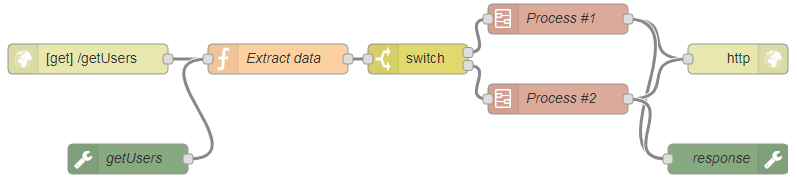
To express the substitution with testing nodes, there are several design options.
- Surround substituted nodes by a dotted line.
- Connect a wire between substituted node and test in/out node (when clicked).
A user can see only the original flow without test nodes if Node-RED provides the functionality switching a mode. This may not be necessary at the first version. There are several candidates where to place an interface to switch the mode.
-
Viewtab in User Settings. -
Testtab on the sidebar. - Menu
- Somewhere on the editor view.
As a user basically does not switch the mode often, Option 1 and 2 would be better than option 3 and 4.
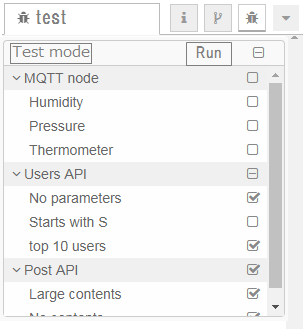
User can do the following actions on test sidebar.
- Choose test cases to run.
- Click
Runbutton to start testing. - See the result of each test case.
Need to consider how to store the information of test nodes. There are two options. Option 1 is to store into flow.json. Option 2 is to create a new file test.json.
- Option 1 (flow.json)
- Easy to share flow data including test data.
- Data will get larger even if a user does not need to run a test.
- Option 2 (test.json)
- Can divide production code and test code.
- Need a function for storage API to load a new file.
Needs additional discussion about which test driver should be used. If it is possible to show test results on the sidebar using Mocha, using Mocha would be good. Otherwise, we may need to implement test driver by ourselves.