这个是用来进行http接口压测的, 官网地址:https://github.com/tsliwowicz/go-wrk
使用
go-wrk -d 500 http://localhost:8080/hellogo get github.com/uber/go-torch官网下载地址:https://www.activestate.com/products/perl/downloads/
注意:安装时记得把添加到环境变量PATH选项勾上
git clone https://github.com/brendangregg/FlameGraph.git注意:将此文件夹加入到PATH环境变量中
生成SVG 图,能够更好地看到函数调用 CPU 占用情况
官网下载地址:https://graphviz.gitlab.io/_pages/Download/Download_windows.html
安装好之后,添加其 bin文件到PATH环境变量中
# MacOS
brew install graphviz

# Ubuntu
sudo apt-get install graphviz

# Centos
yum install graphviz检查是否安装成功
dot -version开启性能分析只需要导入下面这个包即可
import _ "net/http/pprof"代码见文章末尾附录
- 启动
main.go - 开始压测
go-wrk -d 500 http://localhost:8080/hello浏览器打开:http://localhost:8080/debug/pprof/
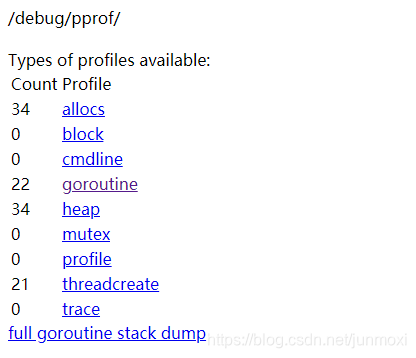
allocs: 内存分配情况block: 导致阻塞同步的堆栈跟踪cmdline: 当前程序激活的命令行goroutine: 当前运行的goroutineheap: 存活对象的内存分配情况mutex: 互斥锁的竞争持有者的堆栈跟踪profile: 默认进行 30s 的 CPU Profilingthreadcreate: 操作系统线程跟踪trace: 当前程序执行情况full goroutine stack dump: 所有goroutine栈输出
粗略查看,以goroutine为例,参数有debug=1 与 debug = 2
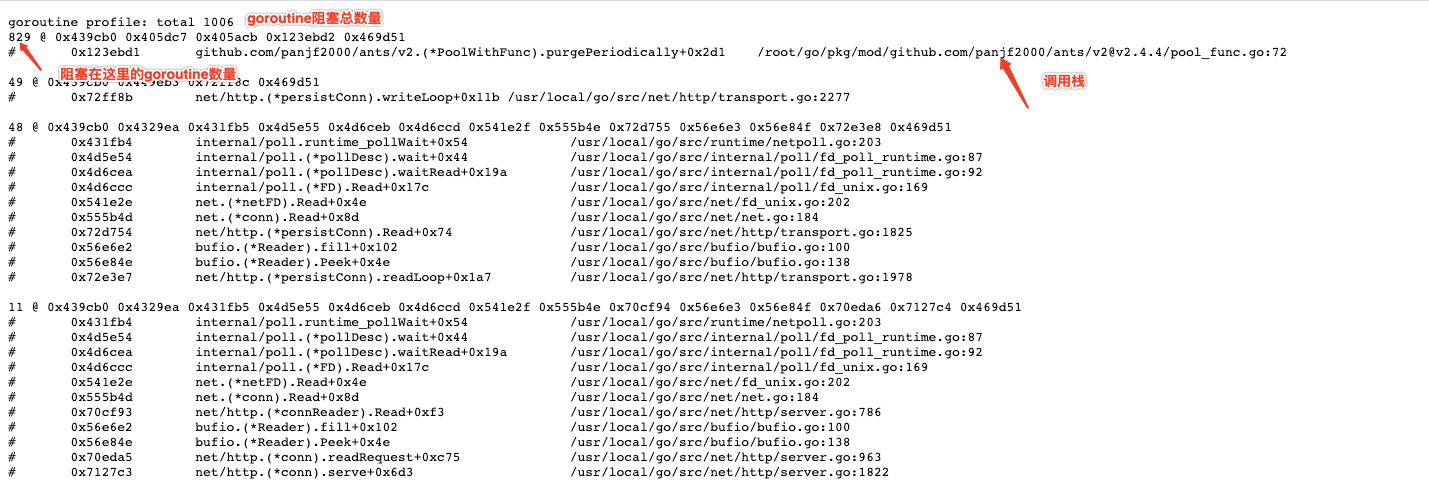
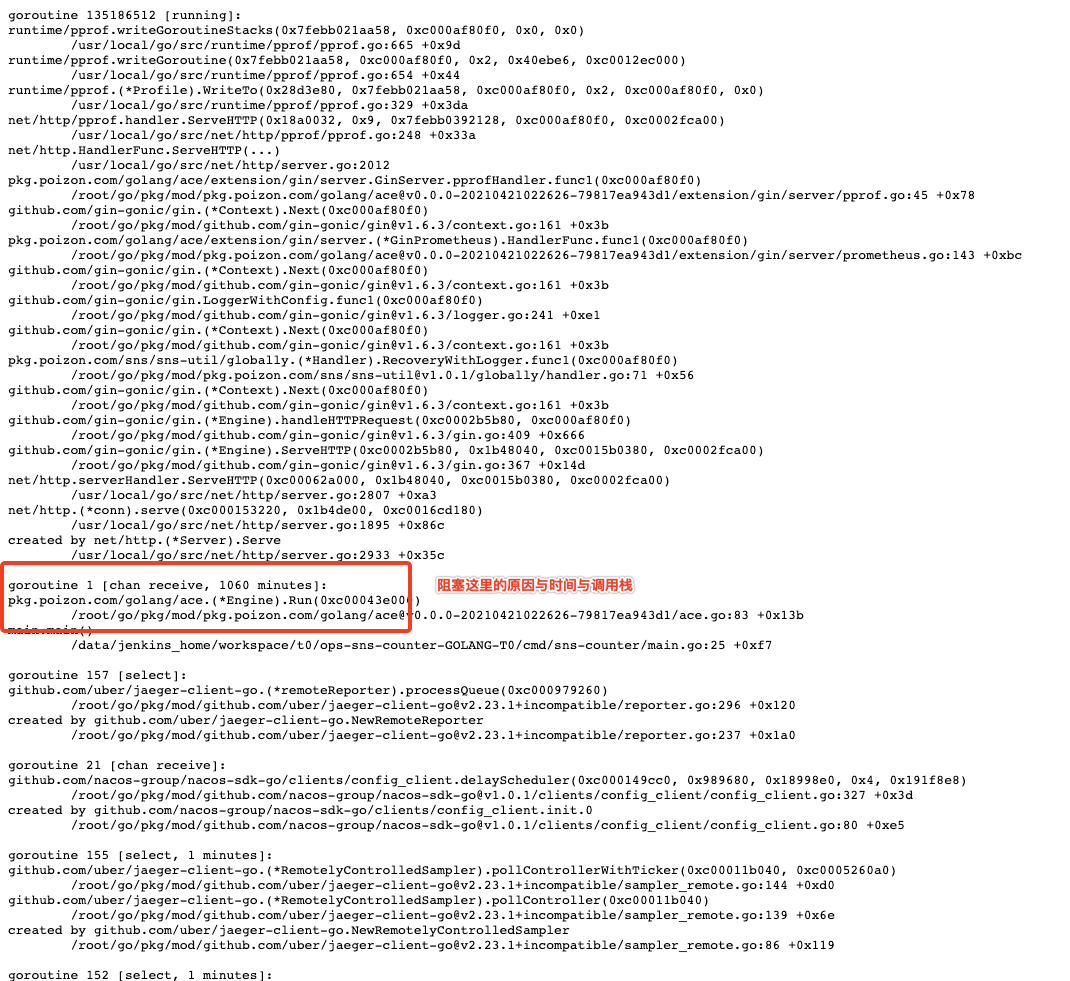
下面命令会打开一个交互页面
go tool pprof --seconds 5 http://localhost:8080/debug/pprof/profile常用命令
top nn不写默认显示10个占用CPU时间最多的函数top -cum将数据累计查看各个函数CPU占用tree树形结构查看goroutine情况。list 方法名查看方法名里面具体调用耗时时长。web生成SVG函数调用图(需安装graphviz)exit退出分析
打开pprof可视化页面,与上面 可交互页面中web命令效果一样
go tool pprof -http=:8080 http://localhost:8080/debug/pprof/profile?seconds=60
其他参数
-inuse_space: 分析程序常驻内存的占用情况-alloc_objects:分析内存的临时分配情况
go tool pprof -inuse_space http://localhost:8080/debug/pprof/heap

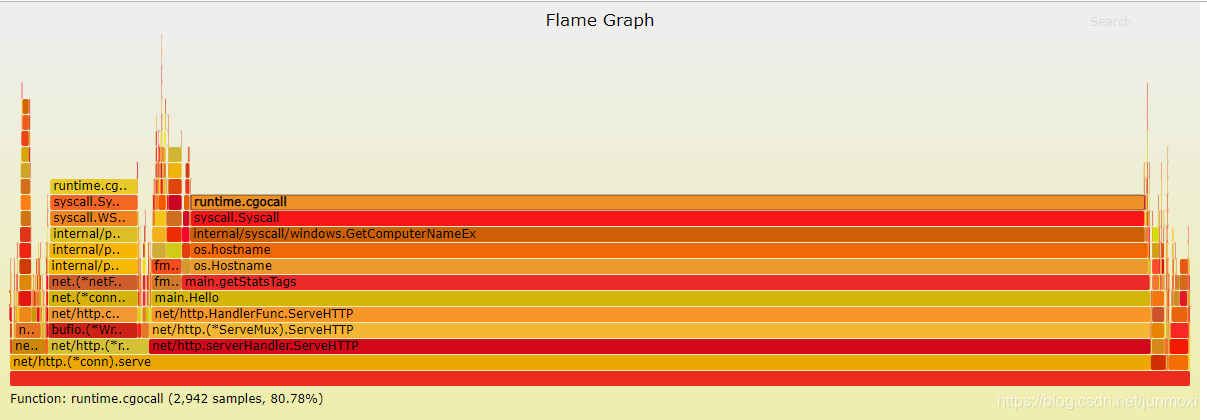
go tool pprof -alloc_space http://localhost:8080/debug/pprof/heap进行 5 秒钟的 CPU 性能采样并生成火焰图
go-torch --seconds 5 http://localhost:8080/debug/pprof/profile命令执行完会在该目录下生成一个torch.svg文件,可用浏览器打开查看火焰图
curl http://localhost:8080/debug/pprof/trace?seconds=30 > trace.out

go tool trace trace.out上面会打开一个Web页面,我们点击View trace可以看到整个链路追踪页面。
按W可以将时间线放大,S 将时间线缩小
Goroutine analysis查看每个方法的Goroutine数量Network blocking profile查看IO阻塞情况Synchronization blocking profile查看系统同步阻塞情况Syscall blocking profile查看系统调用阻塞情况Scheduler latency profile查看系统调度阻塞情况
如果只想针对某个方法进行分析可以在方法内第一行加上下面代码
f, err := os.Create("trace.out")
if err != nil {
    panic(err)
}
defer f.Close()

err = trace.Start(f)
if err != nil {
    panic(err)
}
defer trace.Stop()
常用解释
| 名称 | 含义 |
|---|---|
| Execution Time | 执行时间 |
| Network Wait Time | 网络等待时间 |
| Sync Block Time | 同步阻塞时间 |
| Blocking Syscall Time | 调用阻塞时间 |
| Scheduler Wait Time | 调度等待时间 |
| GC Sweeping | GC 清扫 |
| GC Pause | GC 暂停 |
下文以
goroutine为列,想比较 内存的话,可把url后缀改成heap
打第一个时间点
go tool pprof http://localhost:8080/debug/pprof/goroutine等待一会,再打第二个时间点
go tool pprof http://localhost:8080/debug/pprof/goroutine会生成两个采样文件 pprof.goroutine.001.pb.gz pprof.goroutine.002.pb.gz
对比分析
go tool pprof -base pprof.goroutine.001.pb.gz pprof.goroutine.002.pb.gz会和之前一样出现一个命令行交互界面,不同的是这个里面的信息是两者的差异比较。我们通过
top查看两者差异goroutine最大之处是在哪里,然后通过traces查看栈调用信息, 也可以通过list 方法名查看某个方法具体哪一行出了问题
1.生成 pprof.cpu文件
go test -bench . -benchmem -cpuprofile pprof.cpu2.分析pprof.cpu文件
go tool pprof pprof.cpu3.使用ab压测
ab -n 200 -c 20 -p data.txt http://localhost:8082/hello -n一共请求多少次-c每次请求多少个