| title | summary |
|---|---|
Image Search Example |
Build an image search application using multimodal embeddings for both text-to-image and image-to-image search. |
This example shows how to build an image search app by combining TiDB vector search capabilities with multimodal embedding models.
With just a few lines of code, you can create a search system that understands both text and images.
- Text-to-image search: Find pet photos by describing what you want in natural language, such as "fluffy orange cat"
- Image-to-image search: Upload a photo to find visually similar pets by breed, color, pose, and more
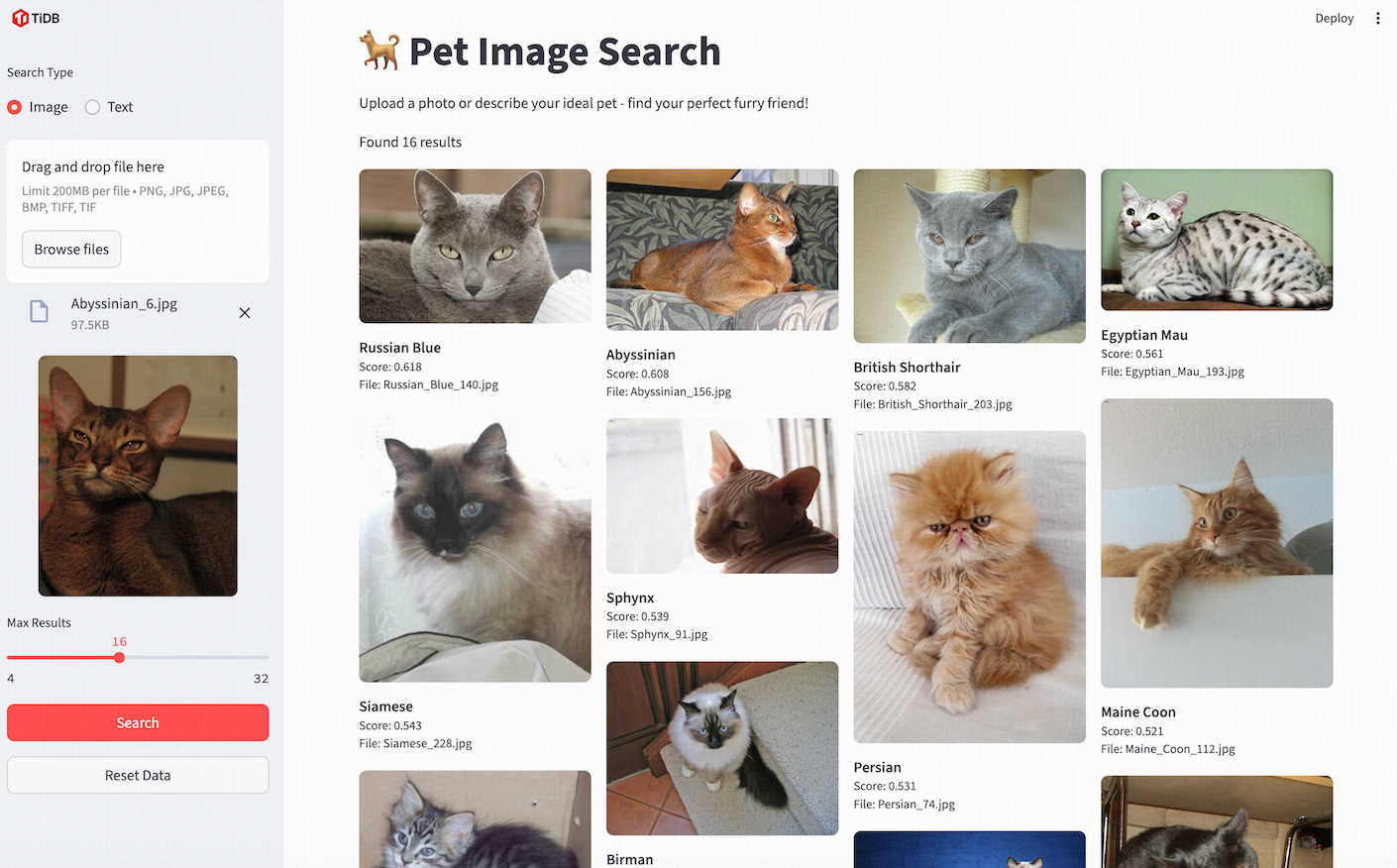
Pet image search via multimodal embeddings
Before you begin, ensure you have the following:
- Python (>=3.10): Install Python 3.10 or a later version.
- A TiDB Cloud Starter cluster: You can create a free TiDB cluster on TiDB Cloud.
- Jina AI API key: You can get a free API key from Jina AI Embeddings.
pytidb is the official Python SDK for TiDB, designed to help developers build AI applications efficiently.
git clone https://github.com/pingcap/pytidb.git
cd pytidb/examples/image_search/python -m venv .venv
source .venv/bin/activate # Windows: .venv\Scripts\activate
pip install -r reqs.txt- In the TiDB Cloud console, navigate to the Clusters page, and then click the name of your target cluster to go to its overview page.
- Click Connect in the upper-right corner. A connection dialog is displayed, with connection parameters listed.
- Set environment variables according to the connection parameters as follows:
cat > .env <<EOF
TIDB_HOST={gateway-region}.prod.aws.tidbcloud.com
TIDB_PORT=4000
TIDB_USERNAME={prefix}.root
TIDB_PASSWORD={password}
TIDB_DATABASE=test

JINA_AI_API_KEY={your-jina-ai-api-key}
EOFThis demo uses the Oxford Pets dataset to load pet images into the database for search.
For Linux/MacOS:
# Download the dataset
curl -L -o oxford_pets.tar.gz "https://thor.robots.ox.ac.uk/~vgg/data/pets/images.tar.gz"

# Extract the dataset
mkdir -p oxford_pets
tar -xzf oxford_pets.tar.gz -C oxford_petsstreamlit run app.pyOpen your browser and visit http://localhost:8501.
In the sample app, you can click the Load Sample Data button to load some sample data to the database.
Or if you want to load all the data in the Oxford Pets dataset, click the Load All Data button.
- Select the Search type in the sidebar.
- Input a text description of the pet you're looking for, or upload a photo of a dog or cat.
- Click the Search button.
- Source Code: View on GitHub