jj (Jujutsu VCS) integrations for Neovim
Install the plugin using your favourite plugin manager:
-- Using vim.pack (Neovim 0.12+)
vim.pack.add{'https://github.com/sivansh11/jj'}

-- Using packer.nvim
use {'sivansh11/jj'}

-- Using lazy.nvim
{
  'sivansh11/jj',
  config = function()
    require('jj').setup()
  end
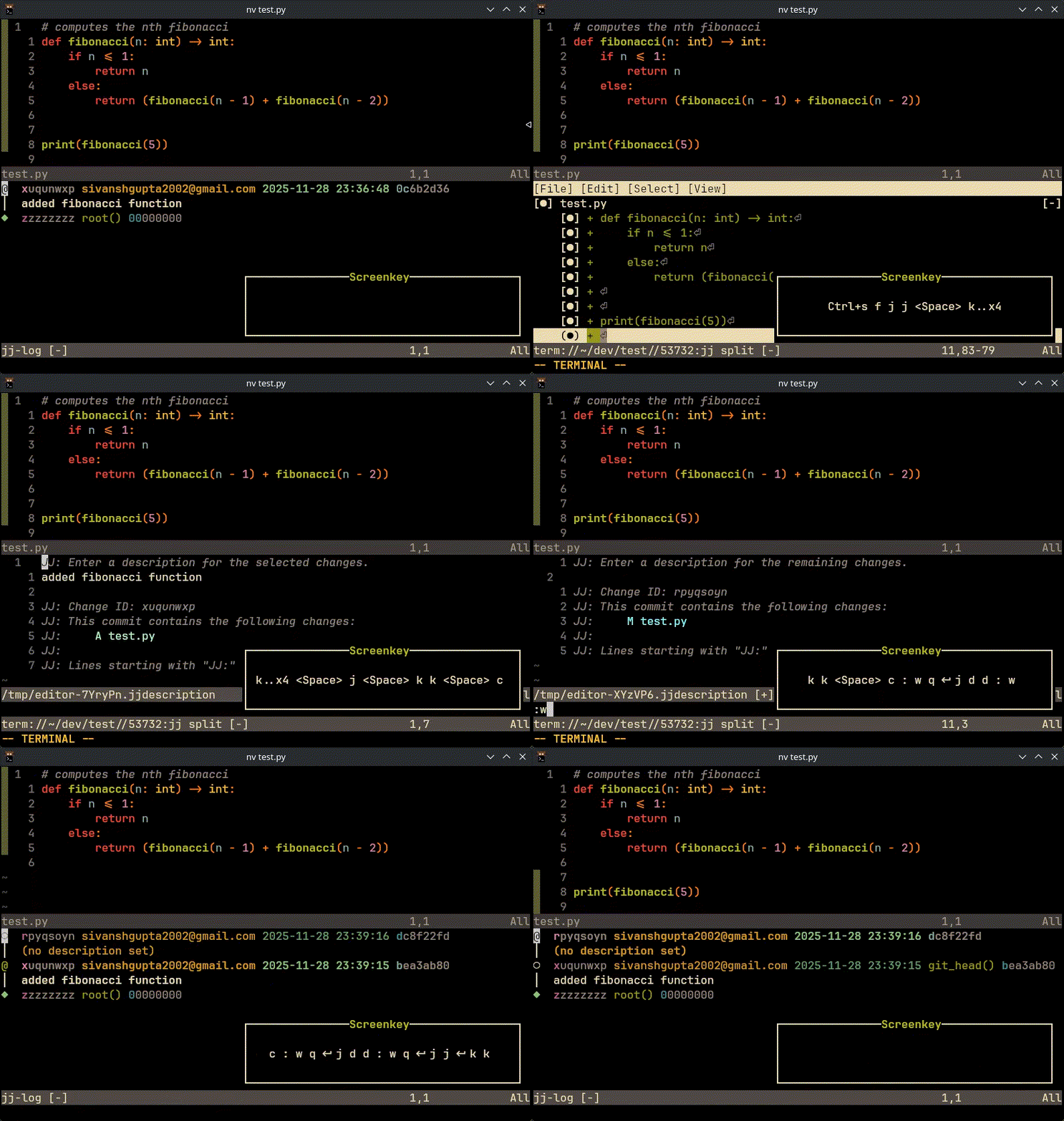
}Run :J to open the jj panel
Run :Jsplit to open the jj split panel
Run :Jresolve to open the jj resolve panel
Enter- Edit the selected changes- Squash@into the selected changen- Create new change from selected changeu- UndoCtrl+r- Redod- Describe the selected changer- Set custom revsetb- Bookmark operationsa- Abandon changem- Rebase changep- Push changef- Fetch changeCtrl+s- Split changed(in visual line mode) - Diff between start and end changes (Note: requires vscode-diff plugin)n(in visual line mode) - New over start and end changesqorEsc- Close the panel
Enter- Open file
- If a change is immutable, you can force operations by pressing
Shiftwith the key:Shift+Enter- Edit immutable changeShift+S- Squash into immutable changeShift+D- Describe immutable changeShift+A- Abandon immutable change- Note: this is not an exhaustible list, if you ever get a notification that the change is immutable try it with Shift
- Note:
Ctrl+Shift+smight not work on some terminals, check if your terminal properly emmits s with ctrl and shift modifiers
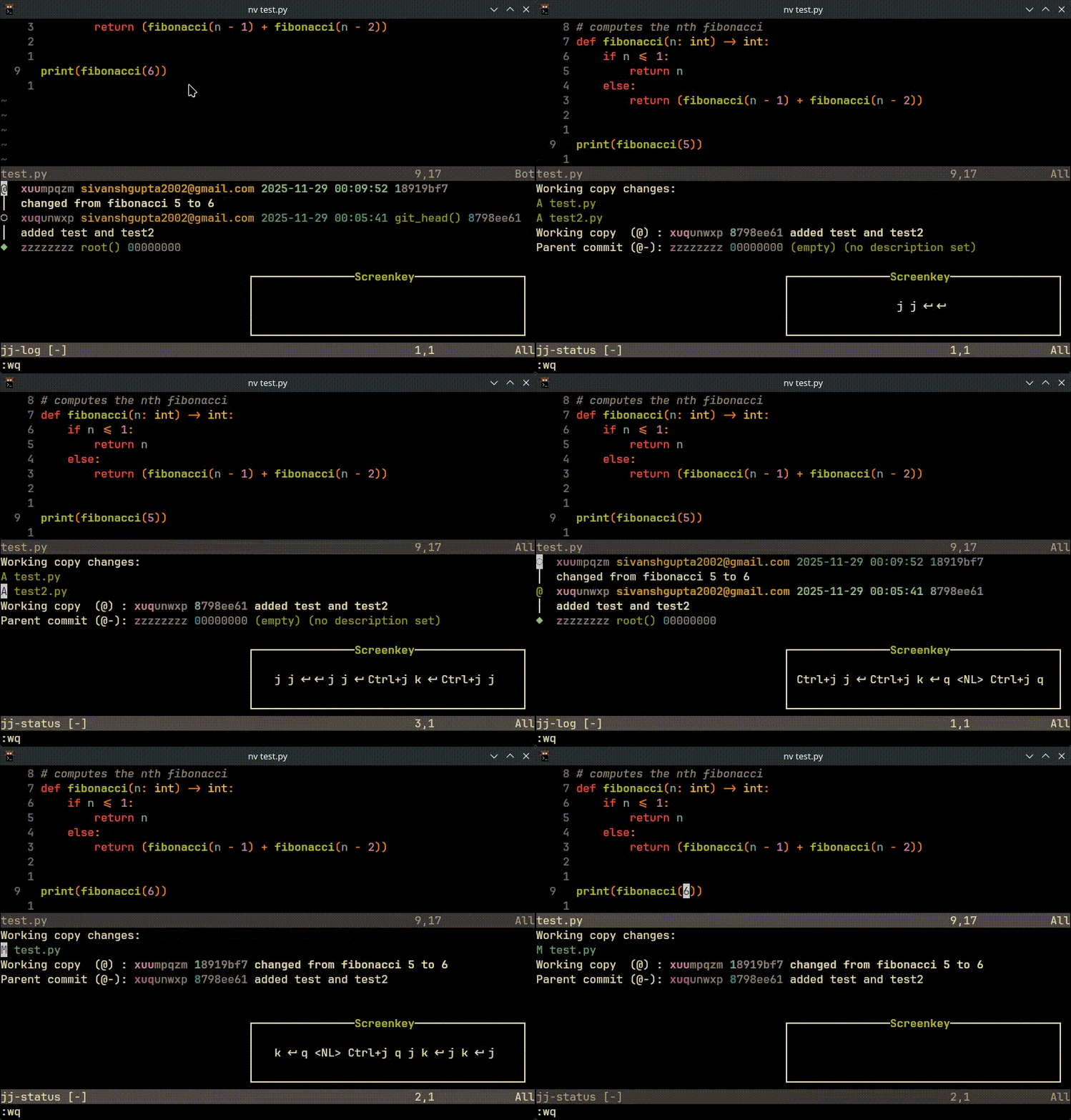
- In status view, press
Enteron a file to open it
- Interactive jj log viewer with syntax highlighting
- Change editing, squashing, and describing
- Change creation from existing changes
- Undo/redo operations
- Status viewing with file navigation
- Bookmark management (create, set)
- Custom revset support
- Support for immutable changes with force operations
- If your bookmark selection panel or the revset/bookmark name input box appears visually inconsistent, you need to check that your chosen plugin provides overrides for the vim.ui.input and vim.ui.select functions.
!!! WARNING: This Section is in progress !!!
- :J to open jj log
- enter on change to edit
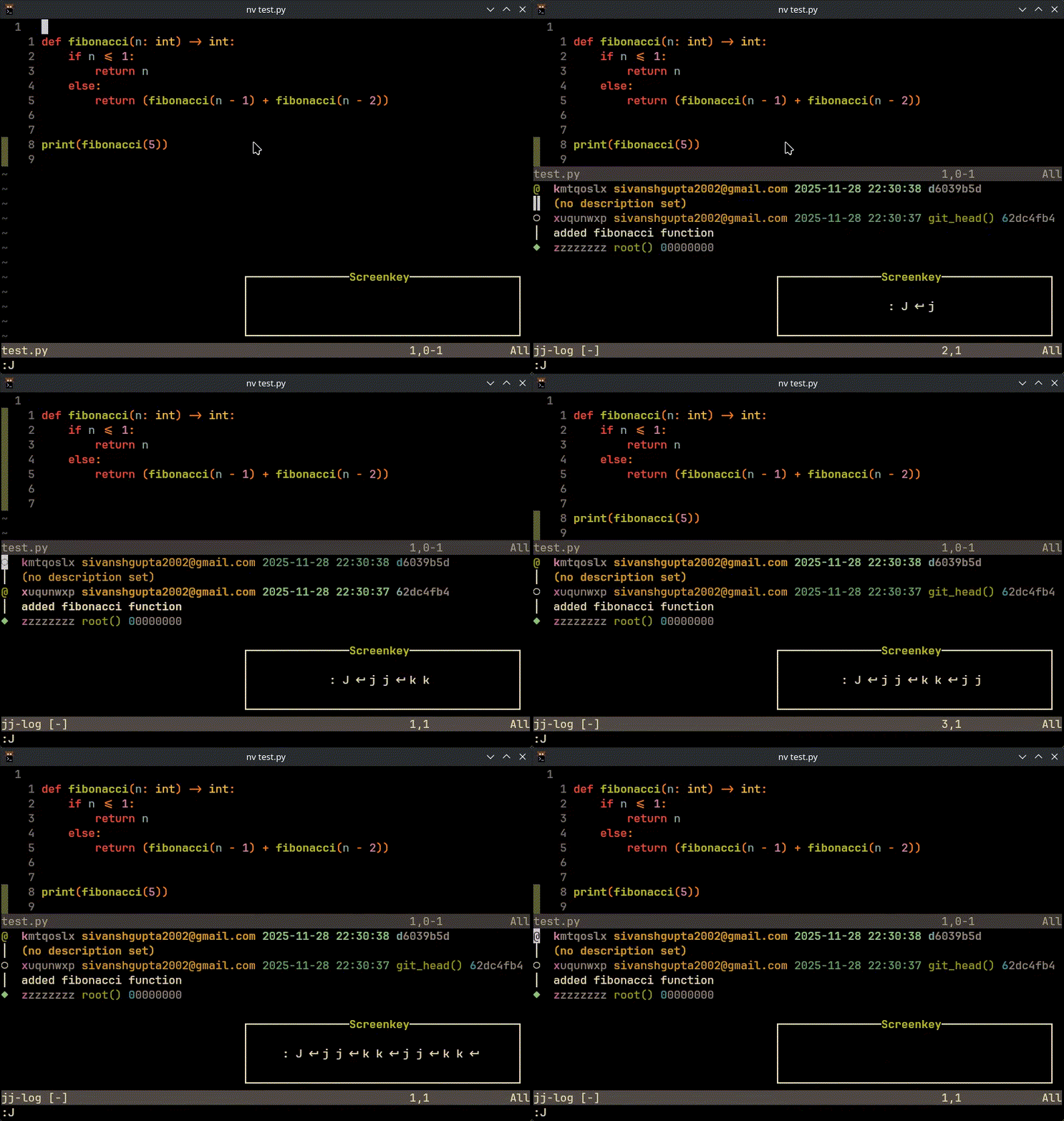
- Note: if you press enter on @ change it will show status
- in the status window, pressing enter on file will open that file
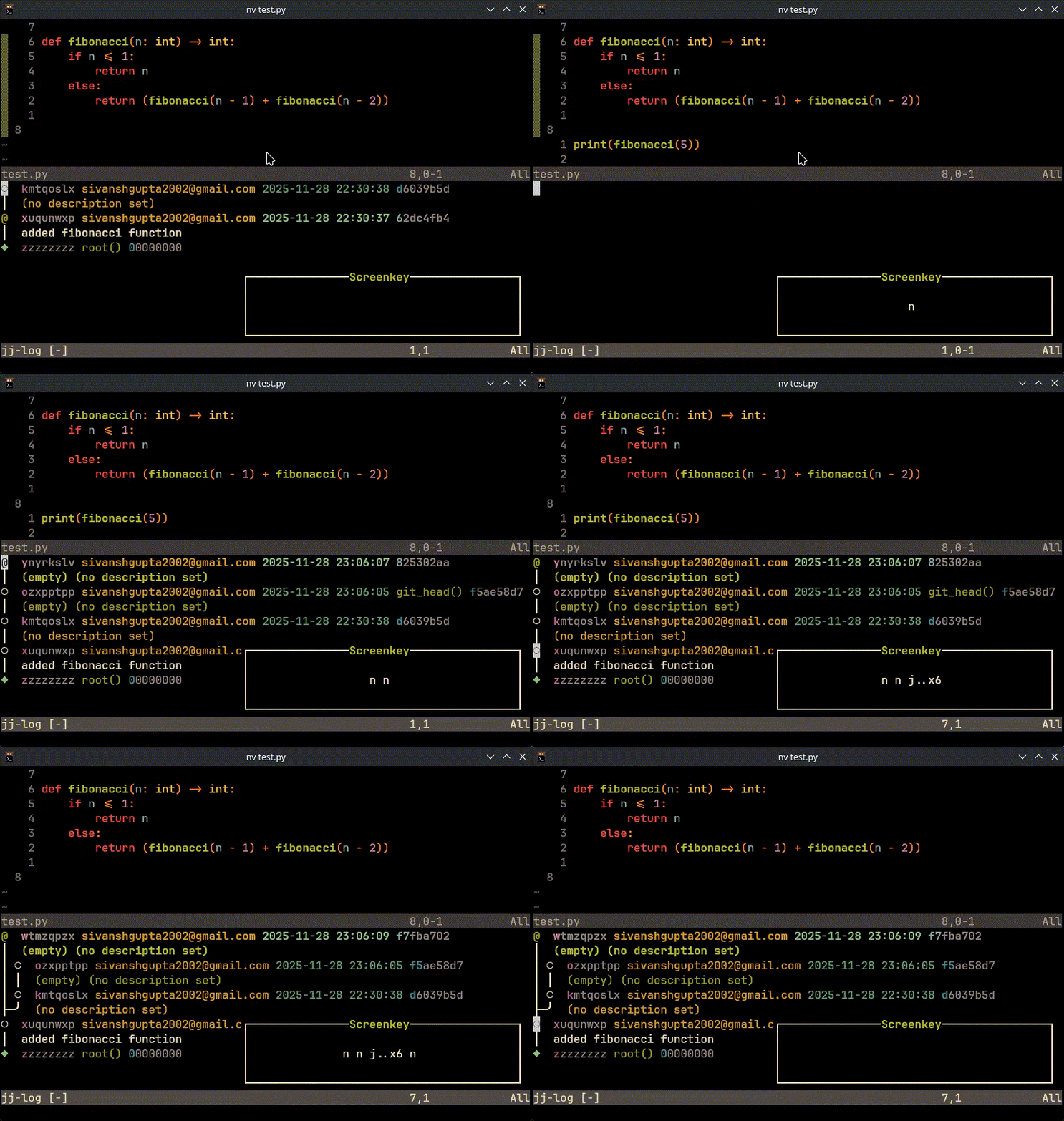
- n to create a new change
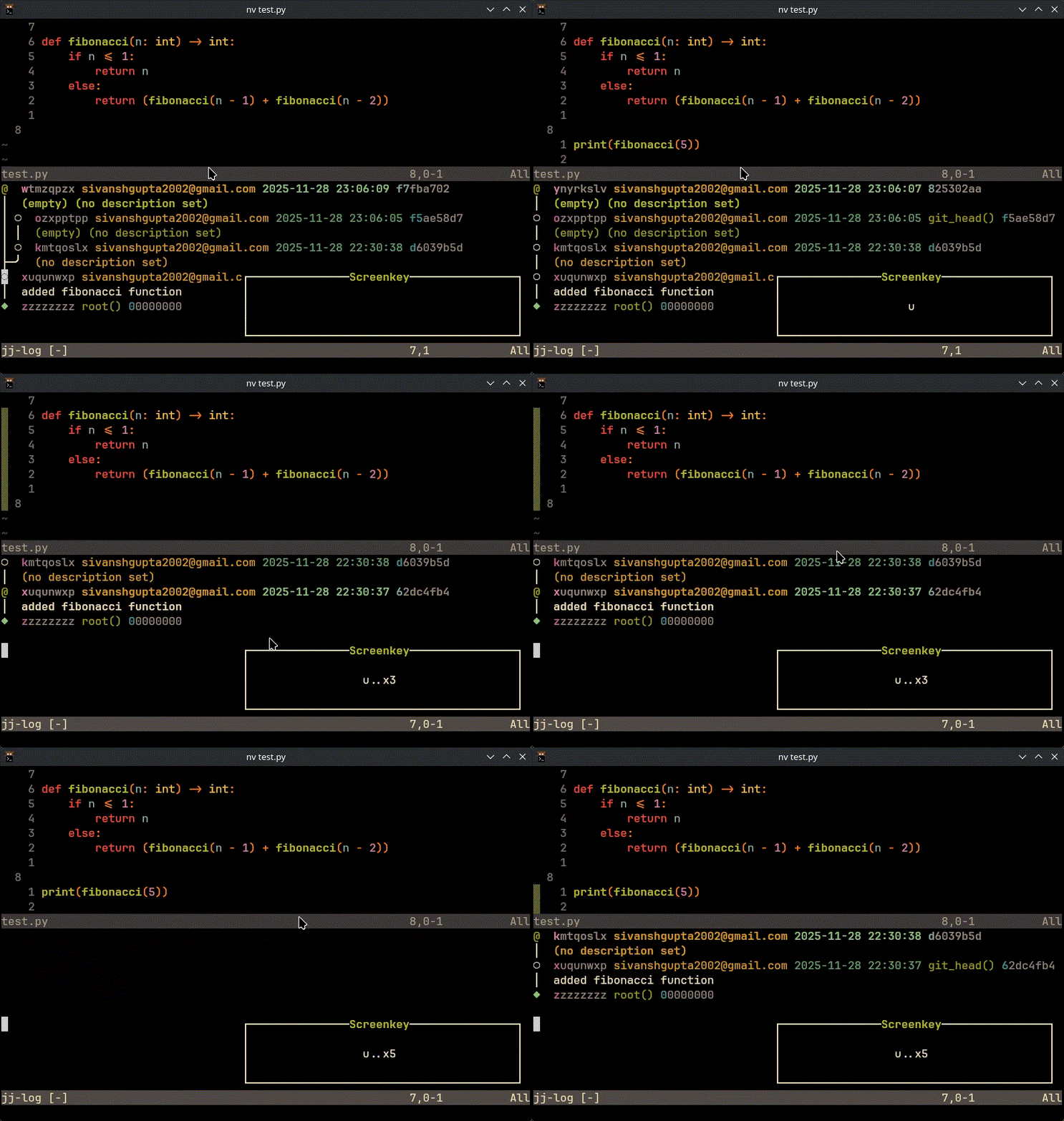
- u to undo last jj operation
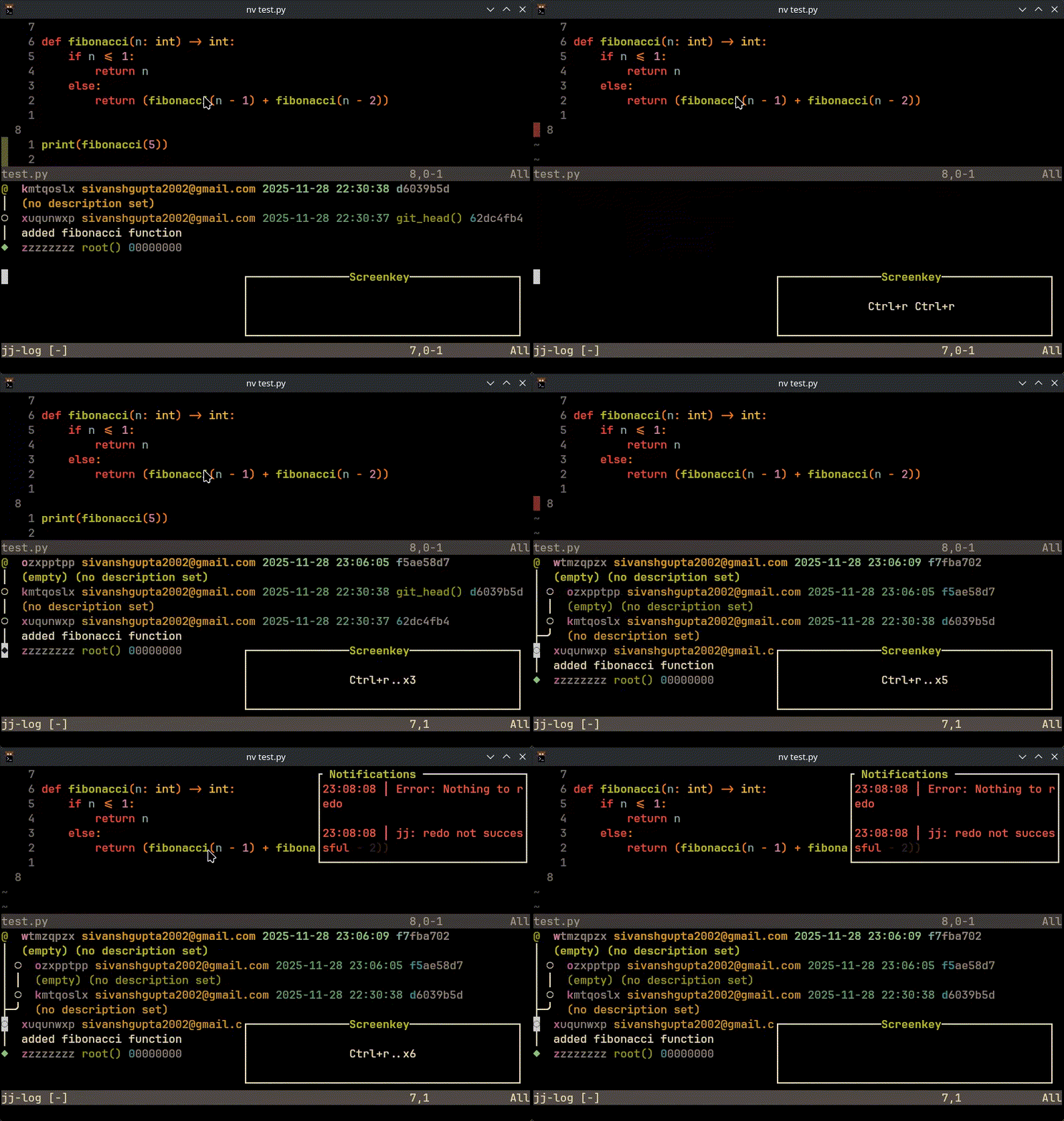
- ctrl-r to redo last jj operation
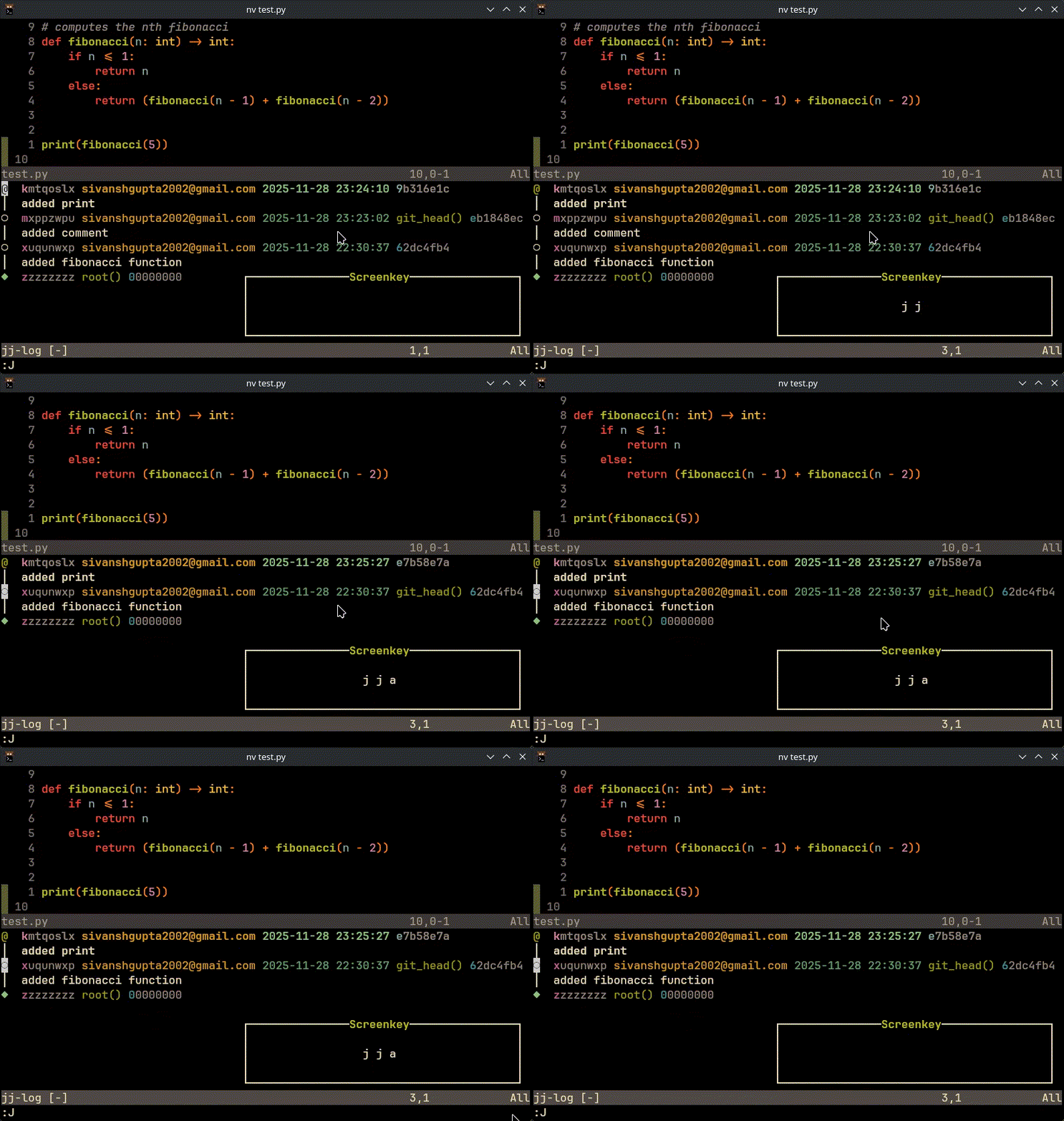
- a to abandon change
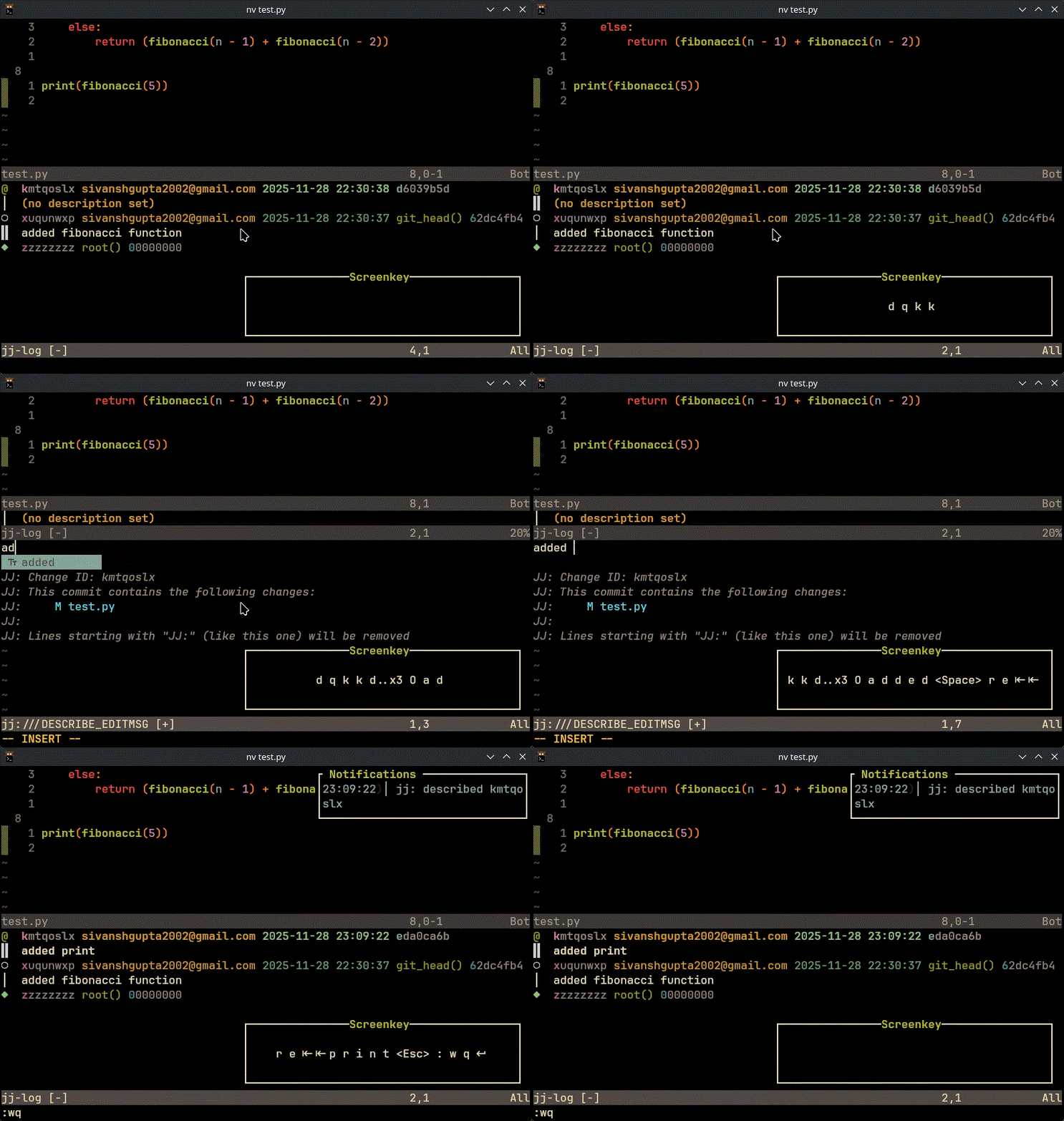
- d to describe change
- s to squash change
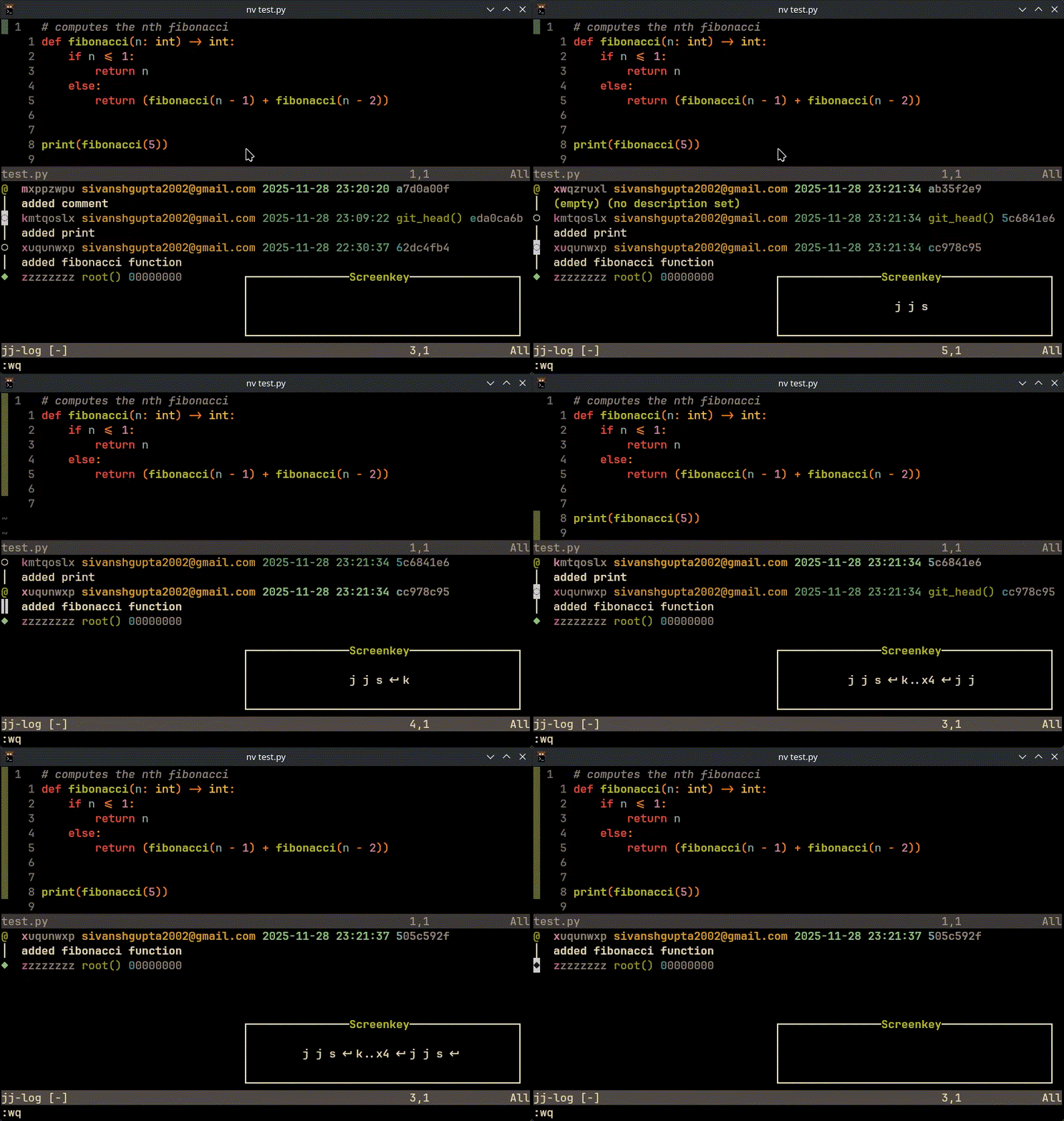
- m to rebase change
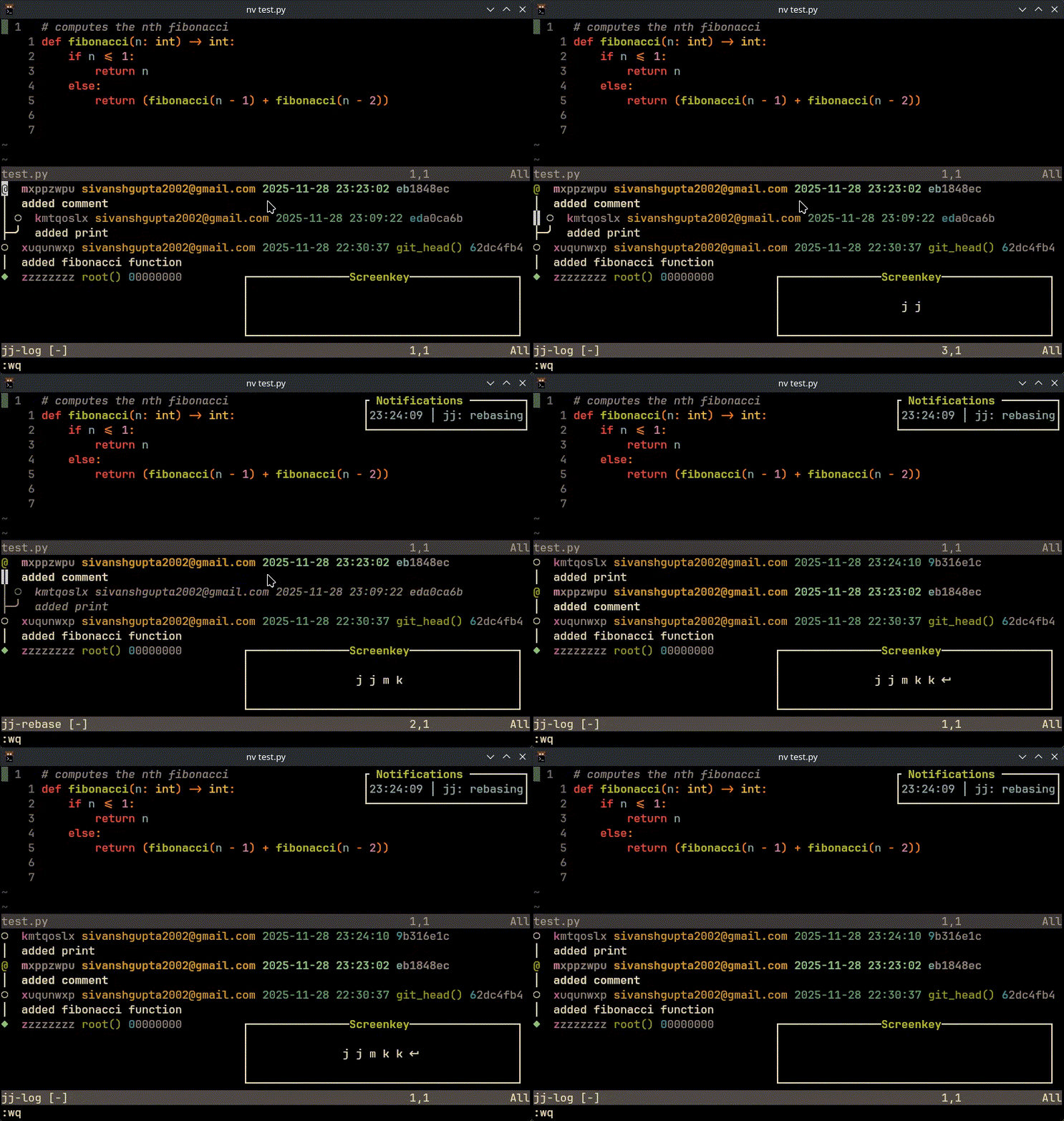
- b to set/create bookmark
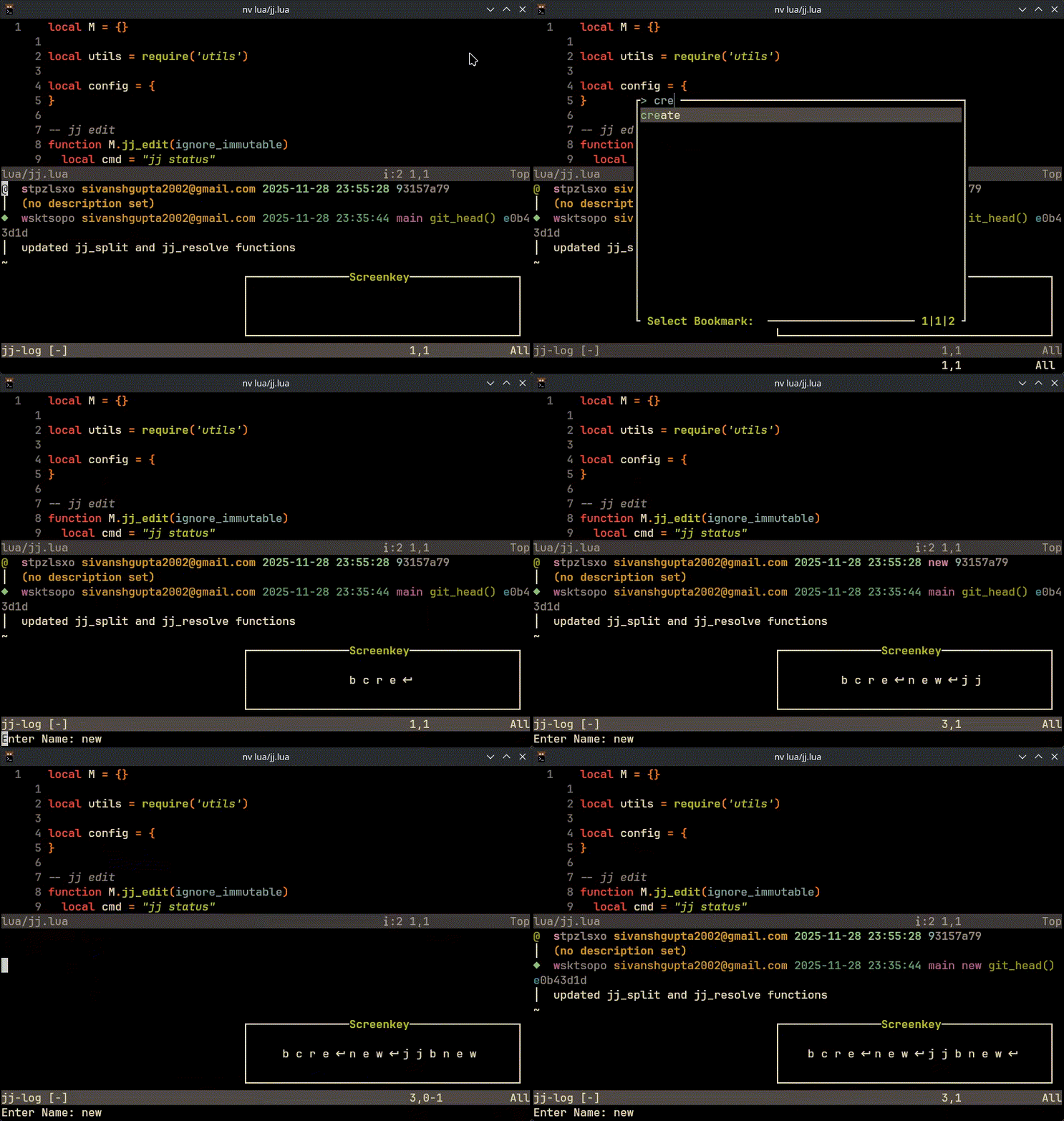
- r to set working revset
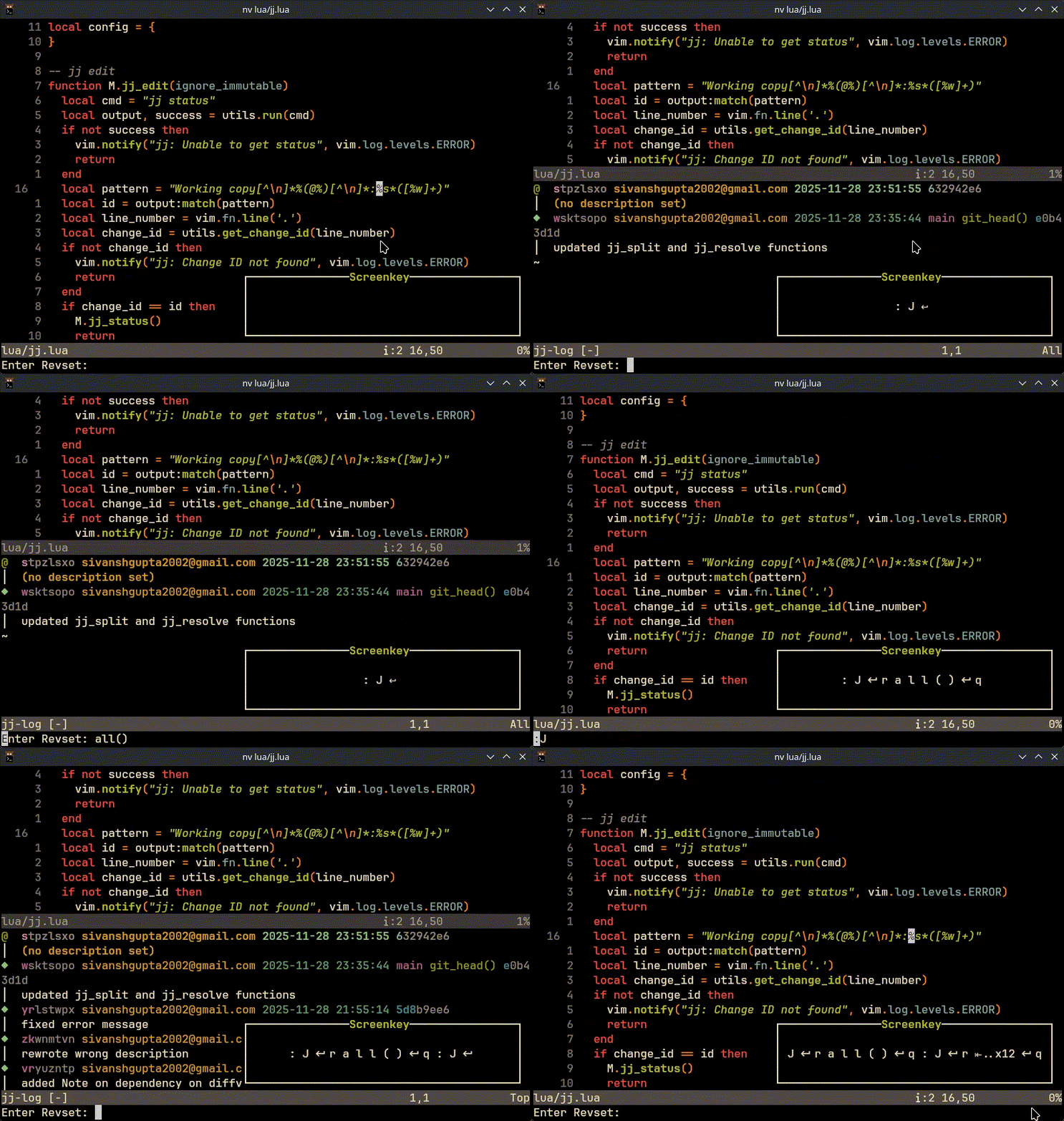
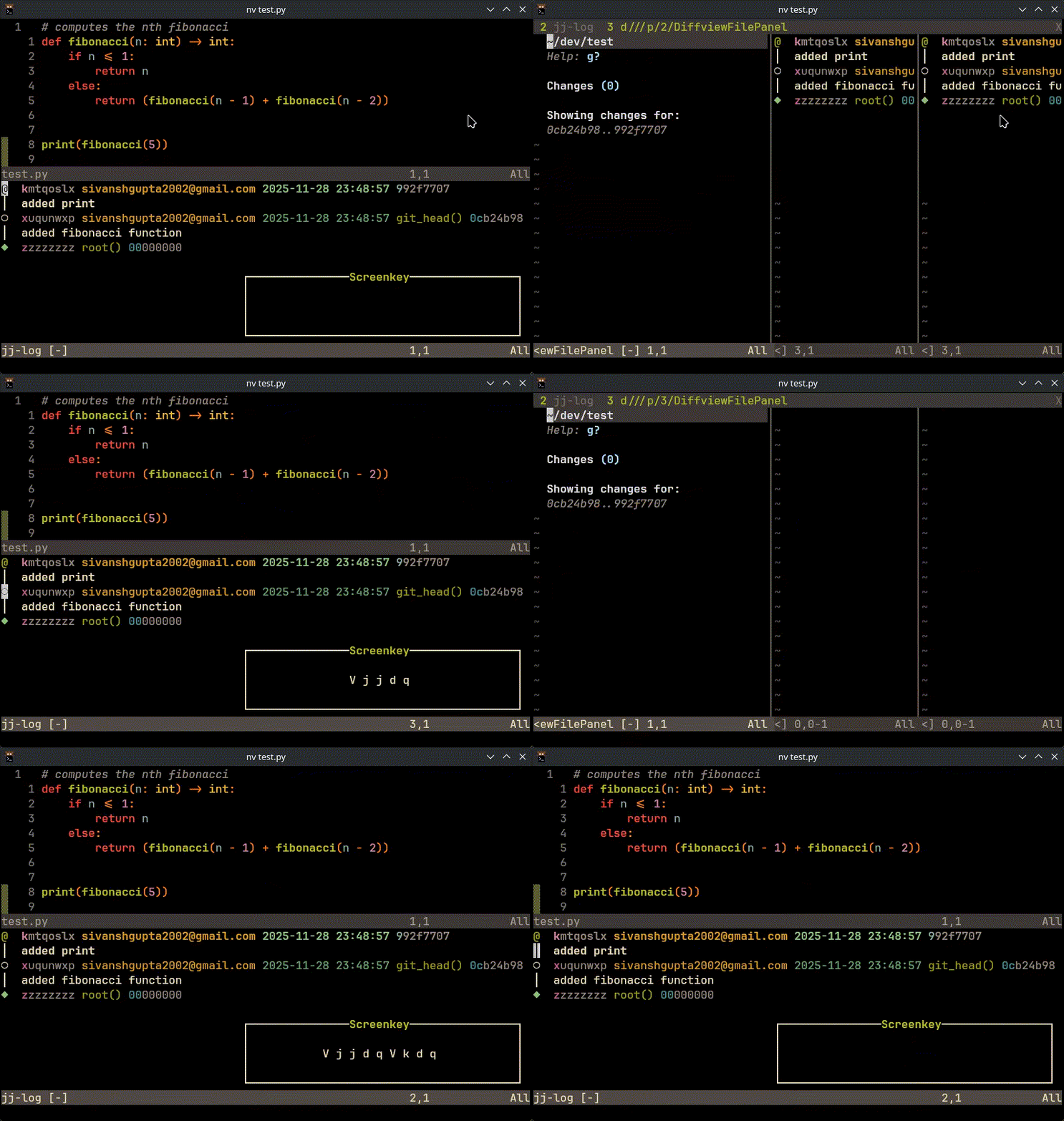
- d in visual mode to diff changes
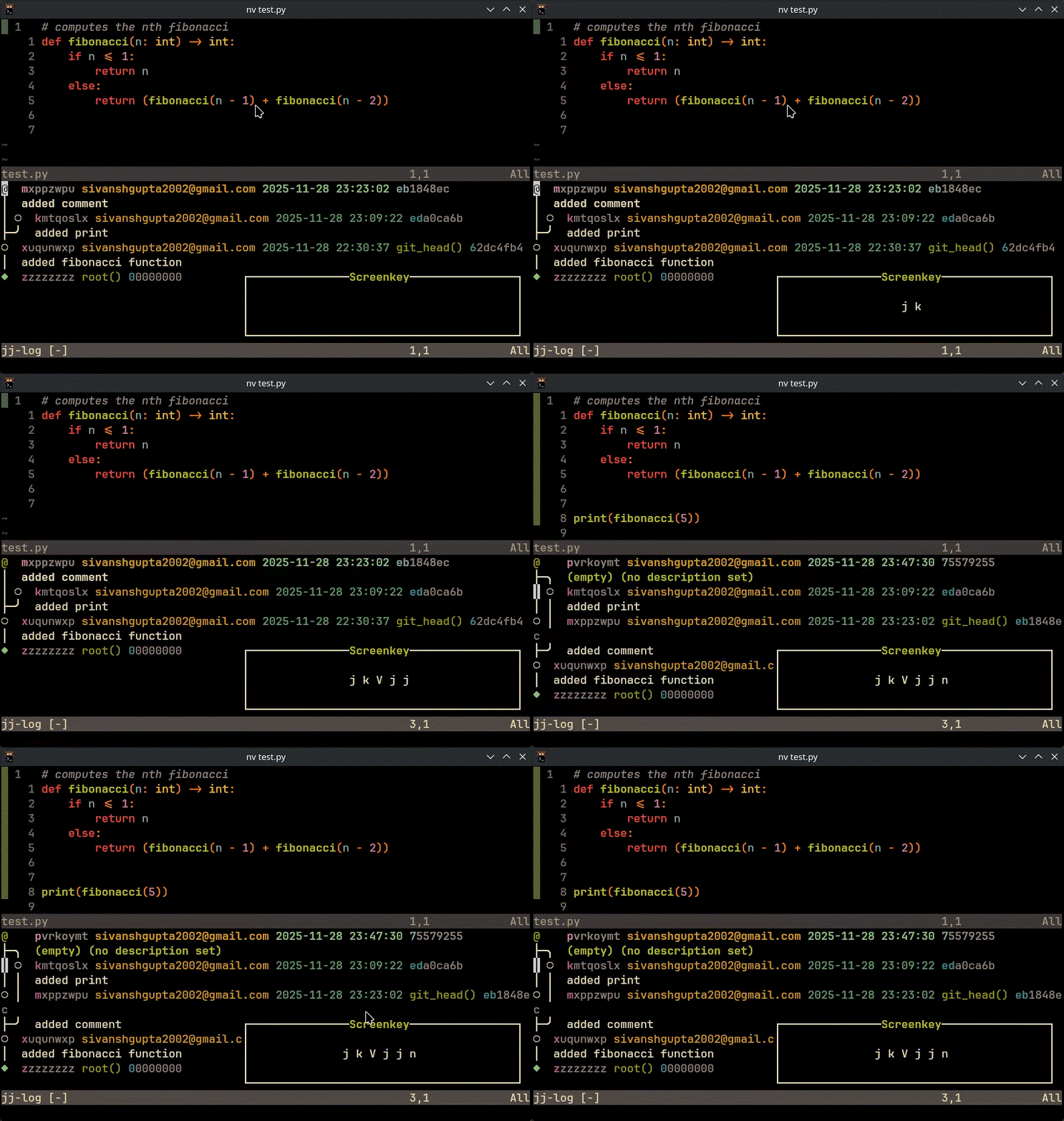
- n in visual mode to merge changes
- ctrl-s to split change