Home
- Logging turned on in EQ
- Location logging if you want the map to show your location.
- Download and unzip from the latest EQTool.zip
- Run EQtool.exe
- EQTool will search for your EQ directory automatically and find it most of the time.
- EQTool will add a few files to the folder it is located and will look similar to this
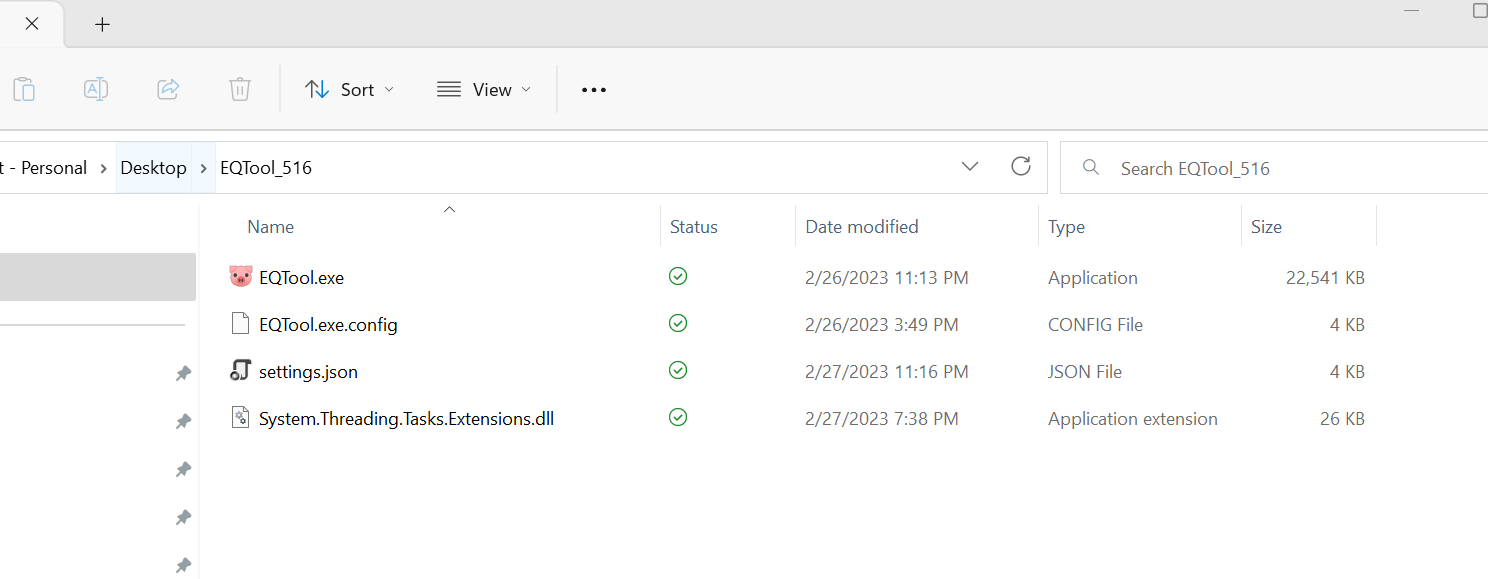
- The tool will check for updates every time it is started and will update automatically. You can also force the check for updates by going to the system tray and using the 'Check for updates'
- When the program starts it runs in your system tray, go there to open the windows: dps; mob info; triggers; and Dps.
- The top of each window contains shortcuts to open the other windows!
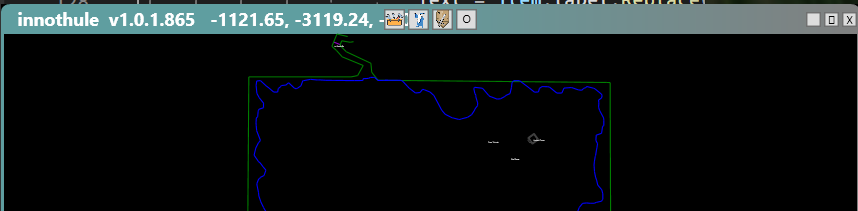
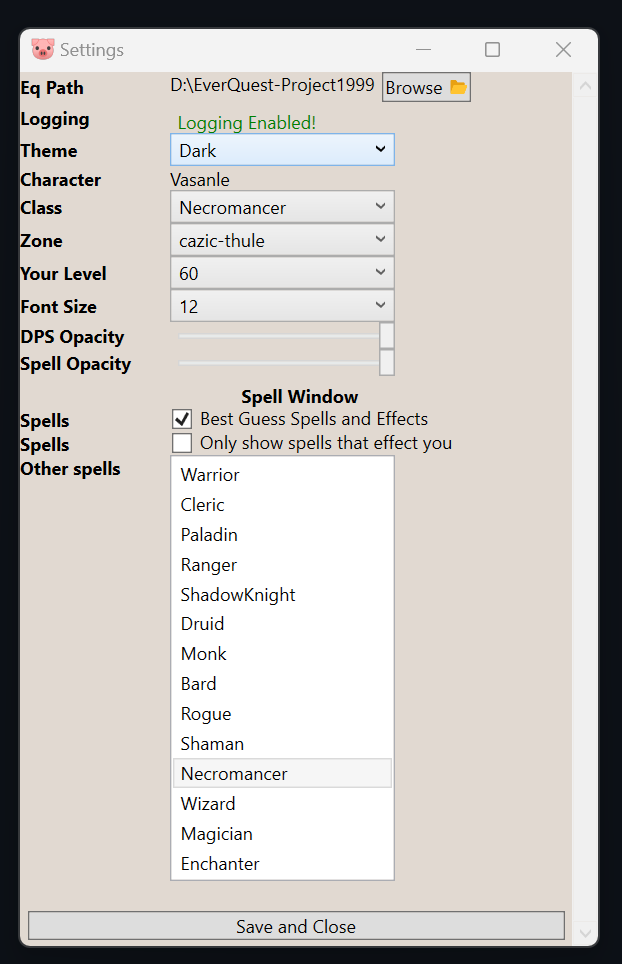
- Most information can/will be automatically detected.
- It is helpful if you add your characters information there: class; and level. If you are a caster these can and will be auto detected. Non casting classes are more difficult so please enter your characters information. This will help with the spell effect durations!
- "Best Guess Spells and Effects" will attempt to derive the correct spell from the log file. For example, when regrowth is cast on you, the message is the same for Cloroplast! I use your characters level to guess at which spell it should be and use this for duration calculations as well. The same goes for the Tash spell line.
- "Only show spells that effect you" will NOT show any other PC spells effects. NPC spell effects will always show up! So, you will see slows/tash on NPCs, but never other PC buffs. If you are a Melee class, typically this is what you want.