| layout | title |
|---|---|
page |
Tools Setup |
In order to work on the programming assignments, you need to have the following tools installed on your machine:
- JDK, the Java Development Kit, version 1.6 or 1.7
- Sbt, a build tool for Scala, version 0.12.2
- The Scala IDE for Eclipse
Please follow the instructions on this page carefully. You can also watch one of the following videos that explain how to set up your machine:
| Setup Video for Linux | Setup Video for Mac OS X | Setup Video for Windows |
-
Ubuntu, Debian: To install the JDK using apt-get, execute the following command in a terminal
sudo apt-get install openjdk-7-jdk -
Fedora, Oracle, Red Hat: To install the JDK using yum, execute the following command in a terminal
su -c "yum install java-1.7.0-openjdk-devel" -
Manual Installation: To install the JDK manually on a Linux system, follow these steps:
- Download the
.tar.gzarchive from http://www.oracle.com/technetwork/java/javase/downloads/jdk7-downloads-1880260.html - Unpack the downloaded archive to a directory of your choice
- Add the
bin/directory of the extracted JDK to thePATHenvironment variable. Open the file~/.bashrcin an editor (create it if it doesn't exist) and add the following lineexport PATH=/PATH/TO/YOUR/jdk1.7.0-VERSION/bin:$PATH
- Download the
Verify your setup: Open a new terminal (to apply the changed .bashrc in case you did the manual installation) and type java -version. If you have problems installing the JDK, ask for help on the forums.
Mac OS X either comes with a pre-installed JDK, or installs it automatically.
To verify your JDK installation, open the Terminal application in /Applications/Utilities/ and type java -version. If the JDK is not yet installed, the system will ask you if you would like to download and install it.
- Download the JDK installer for Windows from http://www.oracle.com/technetwork/java/javase/downloads/jdk7-downloads-1880260.html
- Run the installer
- Add the
bin\directory of the installed JDK to thePATHenvironment variable, as described here: http://www.java.com/en/download/help/path.xml
To verify the JDK installation, open the Command Prompt and type java -version. If you have problems installing the JDK, ask for help on the forums.
- Download sbt from here: http://scalasbt.artifactoryonline.com/scalasbt/sbt-native-packages/org/scala-sbt/sbt/0.12.2/sbt.tgz
- Unpack the archive to a directory of your choice
- Add the
bin/directory to thePATHenvironment variable. Open the file~/.bashrcin an editor (create it if it doesn't exist) and add the following lineexport PATH=/PATH/TO/YOUR/sbt/bin:$PATH
Verify that sbt is installed correctly: Open a new terminal (to apply the changed .bashrc) and type sbt -h, you should see a help message from sbt. If you have problems installing sbt, ask for help on the forums.
If you use the homebrew package manager, simply type brew update and then brew install sbt in a Terminal prompt.
Otherwise, install sbt by following these steps:
- Download sbt from here: http://scalasbt.artifactoryonline.com/scalasbt/sbt-native-packages/org/scala-sbt/sbt/0.12.2/sbt.tgz
- Unpack the archive to a directory of your choice
- Add the
bin/directory to thePATHenvironment variable. Open the file~/.bash_profilein an editor (create it if it doesn't exist) and add the following lineexport PATH=/PATH/TO/YOUR/sbt/bin:$PATH
Verify that sbt is installed correctly: Open a new terminal (to apply the changed .bash_profile) using the Terminal application in /Applications/Utilities/ and type sbt -h, you should see a help message from sbt. If you have problems installing sbt, ask for help on the forums.
- Download the sbt installer from here: http://scalasbt.artifactoryonline.com/scalasbt/sbt-native-packages/org/scala-sbt/sbt/0.12.2/sbt.msi
- Run the installer
Verify that sbt is installed correctly: open the Command Prompt and type sbt sbt-version, you should see the version number of sbt (the first time you run it, sbt will download libraries from the internet). If you have problems installing sbt, ask for help on the forums.
You can download the Scala IDE for eclipse with the Scala Worksheet pre-installed from the following URL:
http://typesafe.com/stack/scala_ide_download (Make sure to download the IDE for Scala version 2.10.1!)
After downloading the archive for your operating system, simply unpack it and start eclipse. Eclipse requires you to select a workspace on startup. We recommend you create one workspace directory for this class and use it for all assignments.
To familiarize yourself with the Scala IDE, create a small "Hello World" project in eclipse:
- Go to "File" - "New" - "Other..." and select "Scala Project" from the folder "Scala Wizards"
- Chose a project name and select "Finish"
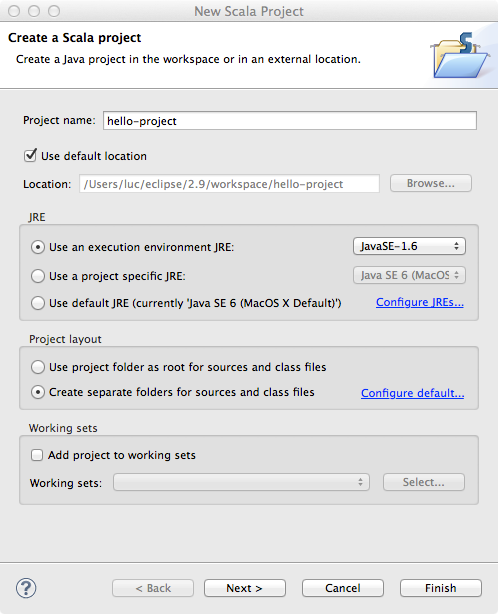
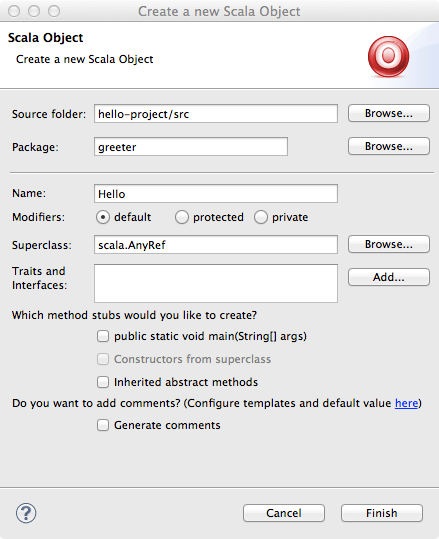
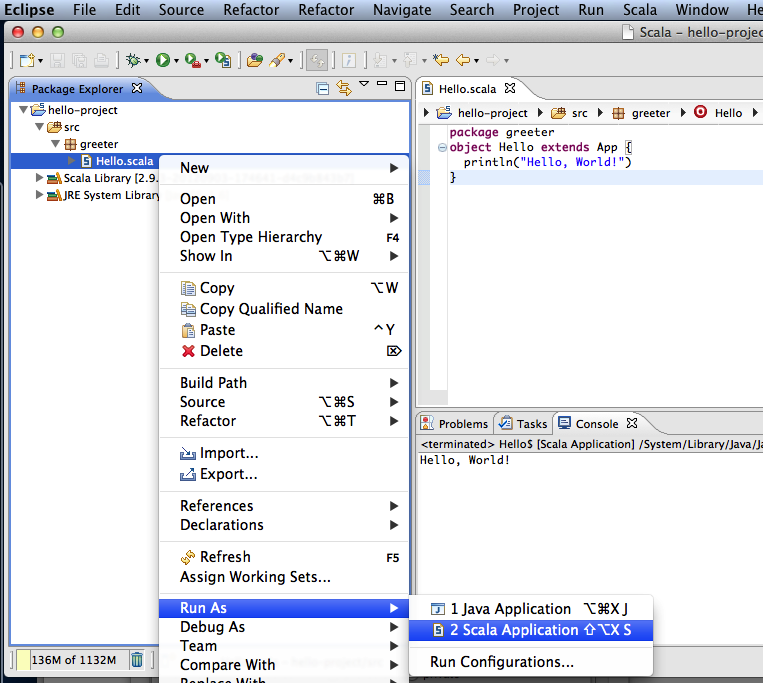
You should see a the hello world output in the Eclipse console.
[1] Source code
package greeter
object Hello extends App {
  println("Hello, World!")
}
Creating a Scala Worksheet is very easy:
- Right-click on the package
greeterin the hello world project that you just created - Select "New" - "Scala Worksheet"
- Choose a name for your worksheet (different than
Helloor the name you chose for the "Scala Object" before)
Now you can type some Scala code into the worksheet. Every time you save the file, the content of the worksheet will be evaluated. Copy the following code into the object of your worksheet:
  val x = 1                                       //> x  : Int = 1
  def increase(i: Int) = i + 1                    //> increase: (i: Int)Int
  increase(x)                                     //> res0: Int = 2