FlutterFlow Integration
This page provides you all necessary information about freeRASP integration for FlutterFlow. Please read it carefully. If you have question, don't hesitate to open an issue.
In this section, you will implement the imported freeRASP action.
- Navigate to the UI Builder.
- On the right panel, click on Actions.
- In the Action Flow Editor box, click Open.
- In the newly opened window, click on On Page Load at the top.
- Click Add Action (or + and then Add Action, if you already have an action).
- On the left panel, search for the runRASP action.
- Select the runRASP action.
ℹ️ In the Set Function Arguments section, you will find the configuration and several "onX" arguments. We will discuss these in the upcoming subsections.
- Once you have provided the necessary configuration and callbacks, you can close the Action Flow Editor.
freeRASP action requires several arguments to be filled to function. Some data are related to specific platform.
💡 If you are developing the application exclusively for one platform, you can omit the configuration part related to the other platform.
If you don't want to provide configuration to unrelated platform, provide empty string:
- Click orange button next to Value label
- Scroll down to Constants
- Click Constant to expand dropdown menu
- Select Empty String
watcherMail is an email address designated for receiving security reports. Ensure that the email address follows the strict [email protected] format.
isProd is a boolean flag that determines whether the freeRASP is in dev or release version.
packageName is a unique identifier for your Android application.
You can find packageName value for your application in FlutterFlow settings:
- Navigate to Settings and Integrations.
- Locate and select App Details.
- In the textbox labeled Package Name, you will find the package name associated with your application.
❗️ Do NOT use solutions such as package_info_plus to provide value of package name! Package name has to be hardcoded.
signingCertHash is a hash of the certificate of the key which was used to sign the application.
More about signing hash and how to obtain it: GitHub Wiki Page | Getting Signing Certificate Hash.
supportedStore is a third-party app store to which your application is uploaded. By including this store, freeRASP considers it as trusted source.
To add store, you add package name of store to the list.
💡 Google Play store and Huawei AppGallery are supported out of the box. You don't need to add them.
bundleId is a unique identifier for your iOS application.
More about bundle ID and how to obtain one: FlutterFlow Documentation | App Deployment
teamId is a unique identifier assigned to a development team enrolled in the Apple Developer Program.
You can find your teamId on Apple Developer portal:
- Go to the website: https://developer.apple.com/account.
- Log in using the account that is used to sign and release your app.
- Scroll down to the Membership details section.
- Look for the line labeled "Team ID" - the value of your teamId will be displayed there.
The freeRASP action offers multiple callbacks. A callback is an Action that gets triggered when a threat is detected.
To implement callback:
- Open Action Flow Editor with runRASP action.
- Open one of dropdown menus labeled "onX" on the right panel (X for given type of reaction, for example onAppIntegrity)
- In the Action Flow Editor box, click on Open.
- Implement your reaction.
The Dev version of freeRASP is utilized during the development phase. It serves the purpose of segregating development and production data, as well as disabling certain checks that are not applicable during the development process. These checks include:
- Emulator usage (onSimulator)
- Debugging (onDebug)
- Signing (onAppIntegrity)
- Unofficial store (onUnofficialStore)
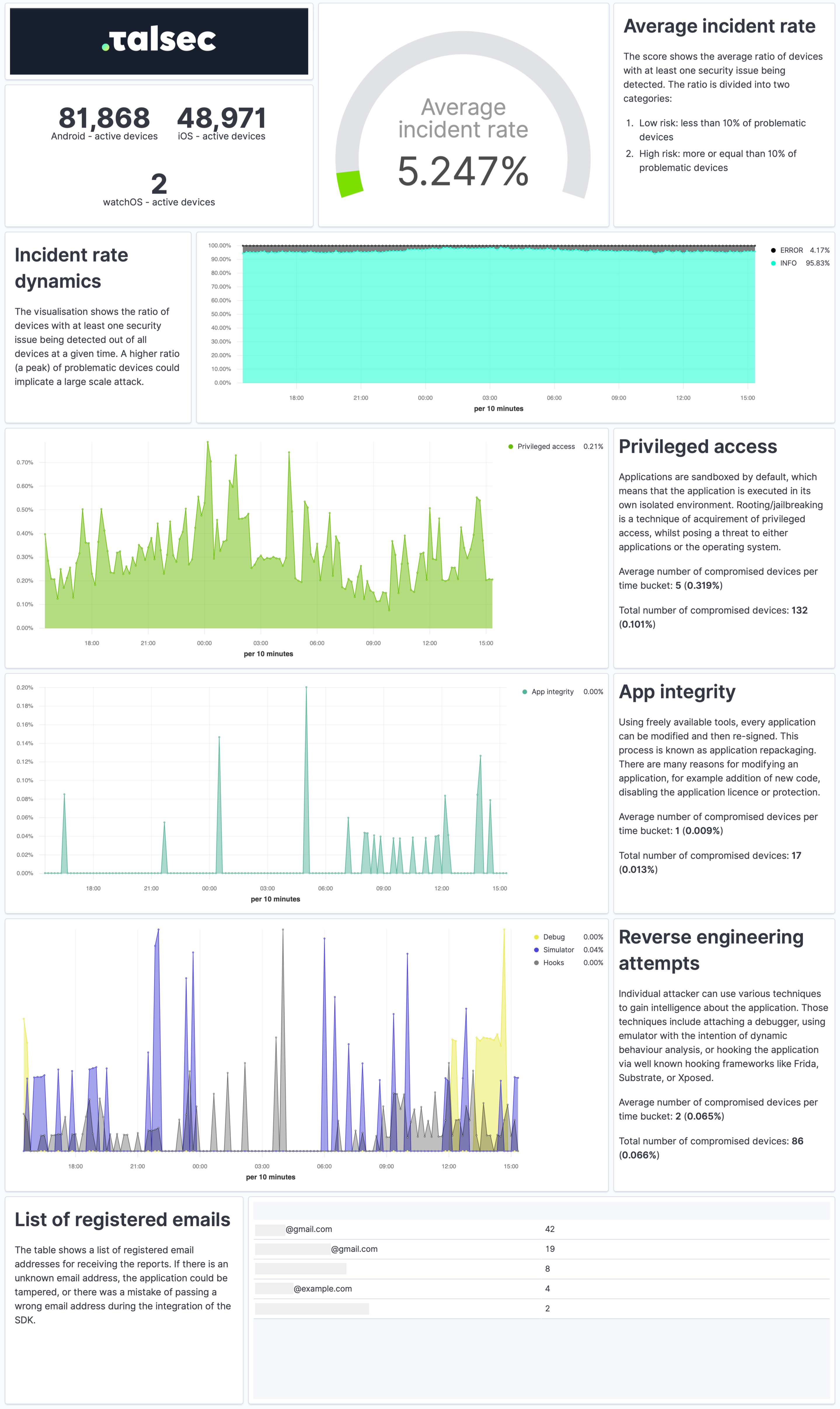
The Security Report is a weekly summary describing the application's security state and characteristics of the devices it runs on in a practical and easy-to-understand way.
The report provides a quick overview of the security incidents, their dynamics, app integrity, and reverse engineering attempts. It contains info about the security of devices, such as OS version or the ratio of devices with screen locks and biometrics. Each visualization also comes with a concise explanation.
freeRASP for Flutter allows you to define multiple values for:
- Signing certificate hash
- Supported app store
- Bundle ID
Due to FlutterFlow's limitations, the current implementation of freeRASP for FlutterFlow only allows you to specify a single value for each of these attributes.
Currently, freeRASP supports only Android and iOS. When running the application in the FlutterFlow web client, freeRASP won't start.
The minimum required Android SDK level for freeRASP is 23. FlutterFlow applications have a minimum SDK level of 21 by default.
This creates some restrictions:
- Deploying the application from the FlutterFlow web client is not possible.
- Downloading the APK from the FlutterFlow web client is not supported.
To overcome these limitations, we recommend following these steps:
- Download the code.
- Manually raise the SDK level in the
build.gradlefile to 23. - Deploy application using Google Play Console.
For instructions on how to raise the minimal SDK level, refer to the freeRASP README.md | Android Setup