-
Notifications
You must be signed in to change notification settings - Fork 0
Expand file tree
/
Copy pathinstructions.Rmd
More file actions
115 lines (64 loc) · 6.12 KB
/
instructions.Rmd
File metadata and controls
115 lines (64 loc) · 6.12 KB
1
2
3
4
5
6
7
8
9
10
11
12
13
14
15
16
17
18
19
20
21
22
23
24
25
26
27
28
29
30
31
32
33
34
35
36
37
38
39
40
41
42
43
44
45
46
47
48
49
50
51
52
53
54
55
56
57
58
59
60
61
62
63
64
65
66
67
68
69
70
71
72
73
74
75
76
77
78
79
80
81
82
83
84
85
86
87
88
89
90
91
92
93
94
95
96
97
98
99
100
101
102
103
104
105
106
107
108
109
110
111
112
113
114
---
title: "Instructions for Using the Equity Center Dockerfile"
author: Samantha Toet
output:
html_document:
toc: true
toc_float: true
---
*Note: Please do not merge your downloaded data back into this repository.*
**Jump to [Quickstart](#quickstart)**
# What is Docker?
[Docker](https://docs.docker.com/desktop/) is an open-source tool for building, sharing, and running software. It's a great way to manage environment and package dependences in a lightweight manner without having to download everything to your local machine.
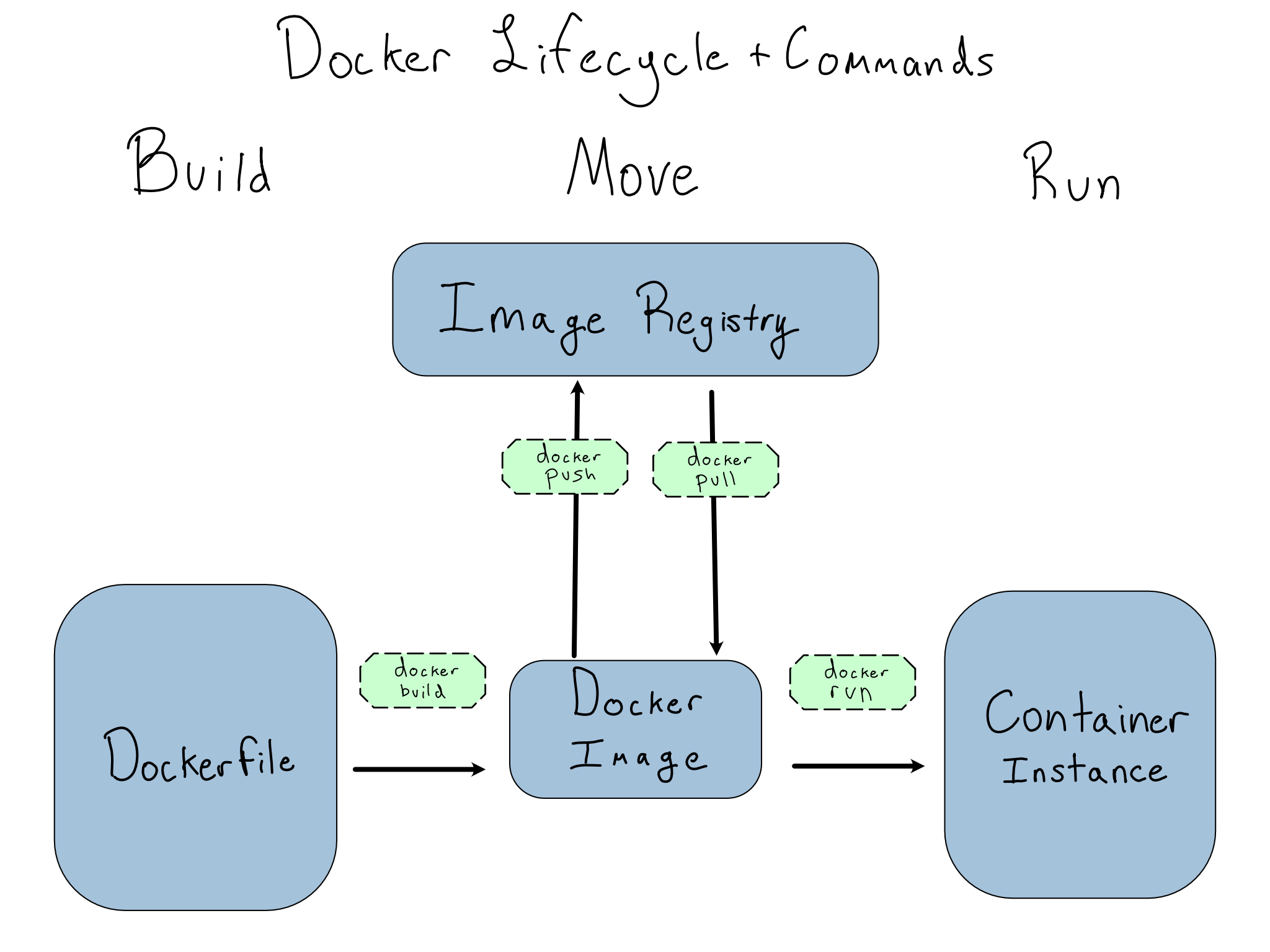
Docker uses images to create isolated containers. **Images** contain the source code, libraries, dependencies, tools and other files that an application or script needs to run. Think of an image as a read-only template with instructions for opening and running a Docker container.
A **container** is a runnable instance of an image that you interact with. A Docker container can be seen as a smaller computer inside your computer. A helpful metaphor is to think of a container as a cake, while an image is the recipe to bake the cake. If the cake is good, you generally don't want to change the recipe, and you want to reuse it to make multiple cakes in the future. You also might want to share that recipe with your friends to use in their own kitchens. Docker helps us manage the multiple cakes (containers) we're baking (computers we're running code in) and in different kitchens (operating systems).
The image below shows a concept map of the Docker lifecycle:
<center>
{width="500"}
</center>
# Why do we need it?
Some of the data we use at the Equity Center is stored in PDFs. To extract data out of PDFs and get it into RStudio to clean and analyze, we use the [`tabulapdf`](https://docs.ropensci.org/tabulapdf/ "tabulapdf") package. Developed by the folks at ROpenSci, `tabulapdf` provides R bindings to the Tabula java library, which can be used to computationaly extract tables from PDF documents. The package requires Java to function, and unfortunately Java does not play nicely with the new Mac M1 chips which many of us use.
As a workaround to installing Java locally, we'll use a Docker container with R and rJava installed to extract the table data. From there, we can export the raw data back into RStudio for cleaning and analysis.
# Quickstart: the Dockerfile {#quickstart}
Docker builds images by reading the instructions from a Dockerfile. A Dockerfile is a text file containing instructions for building your source code. You'll need to navigate using the terminal, and general bash instructions are listed below.
## Step 0: Install Docker
Before using the Equity Center Dockerfile, you need to have Docker installed on your computer. Download Docker Desktop here: <https://docs.docker.com/get-started/get-docker/>
## Step 1: Clone the Git Repo
In your terminal, change the current working directory to the location where you want the cloned directory. For this example, I'm using my Desktop so that I can find it easily.
Then type or copy/paste the below:
`git clone https://github.com/virginiaequitycenter/docker`
And jump into this new directory.
## Step 2: Build the Image
Still in the terminal, type:
`docker build --tag "ec" .`
(Make sure you remember the . at the end)
## Step 3: Run the Image as a Container & Link a Volume
Because Docker containers are ephemeral, any data inside of the container will be lost when you close it. As a result we need to link a volume to the container so that you can save things locally from inside of it.
To run the container, type:
`docker run --rm -ti -p 8787:8787 -v /Users/sct2td/Desktop/docker/data:/home/rstudio/data ec`
But replace `/Users/sct2td/Desktop/` with the location where you cloned this repo.
## Step 4: Open the RStudio Image in a Browser
After you run the command above, you will see a temporary password printed in the terminal. This is your one-time login password for using RStudio in the browser. Each time you launch a new RStudio window you'll need a new password.
Open up a browser, and in the URL field type:
`localhost:8787`
You will be sent to a login screen. The username is rstudio (all lowercase) and the password is the password you retrieved in Step 3.
Once you type in the user name and password, the familar RStudio IDE will be available in your browser.
## Step 5: Load the R Libraries
In the browser-based RStudio IDE load the `rJava` and `tabulapdf` libraries by typing the code below. Note this will take a few minutes to download.
```{r, eval=FALSE}
library(rJava)
install.packages("tabulapdf")
library(tabulapdf)
```
## Step 6: Extract Data
Still in the browser-based RStudio IDE, use the instructions from the [`tabulapdf` documentation](https://docs.ropensci.org/tabulapdf/articles/tabulapdf.html) or another PDF scraper, to extract the data you need. Don't worry about tidying it too much, you'll be able to do this step in your local RStudio instance. The goal here is to get the data out of the PDF and stored locally, not to tidy, analyze, or model it.
## Step 7: Save It
Now that you have a data object, still in the browser-based IDE, save that in the `docker/data` folder. This is a temporary location that you will then access from your local RStudio instance. *Please do not merge this data back into the original Equity Center docker repository.*
## Step 8: Access Locally
Navigate back to your local RStudio instance. You should now see your saved data object in the `docker/data/` folder. Since this is still a temporary location, move this data to the directory you would like to save it in. For example, if I'm looking at eviction data from court records, and I extract a file called `filings.csv` I would then move that file out of the `docker/data/` directory and into my `evictions/data/` directory or RStudio Project.
Now that your data is extracted and saved locally, it's ready to be tidied and analyzed.
Happy Dockering!
# Resources
- [DevOps for Data Science](https://do4ds.com/)
- [The Rocker Project](https://rocker-project.org/)
- [tabulapdf](https://docs.ropensci.org/tabulapdf/)