Installation
In CommandBox, ensure you've got the latest version of the cfwheels CLI - this is useful for installing plugins and running unit tests from the commandline.
$ install cfwheels-cli
Then simply create a directory, and run the install command:
$ mkdir myApp
$ cd myApp
$ install cfwheels-example-app
Download/Clone the repo. Unzip to a directory of your choice.
Navigate to the root of the app and in commandbox, start the server by running start. Lucee 5 will be started by default. If you require Adobe Coldfusion 2016, you can use start exampleappACF which will load an alternative json file in the site root. Note: ACF will run on 127.0.0.1:60051, where as the lucee version will run on 127.0.0.1:60050 so you can run them concurrently if you want. The following instructions are for the Lucee version.
Note: CFWheels tends to prefer mySQL Driver Version 5.1.40 - (See https://github.com/cfwheels/cfwheels/issues/920) so that's definitely recommended. Later versions are currently very unpredictable.
You will get an error when the site initially loads, that's expected. We need to create a database and setup the datasource.
Setup a local mySQL database called exampleapp and ensure you've got a valid user account for it. Locally that's probably root. The example app is currently only tested with MySQL. To create a new schema using the MySQL command line, run the following command:
-
mysql> CREATE DATABASE exampleapp;
You could also use a GUI, e.g. MySQL Workbench
Login to the Lucee Administrator at /lucee/admin/server.cfm. As this is your first login, you will need to create a password for the administrator. Note, if you're logging into /CFIDE/administrator, the default password for the admin is commandbox.

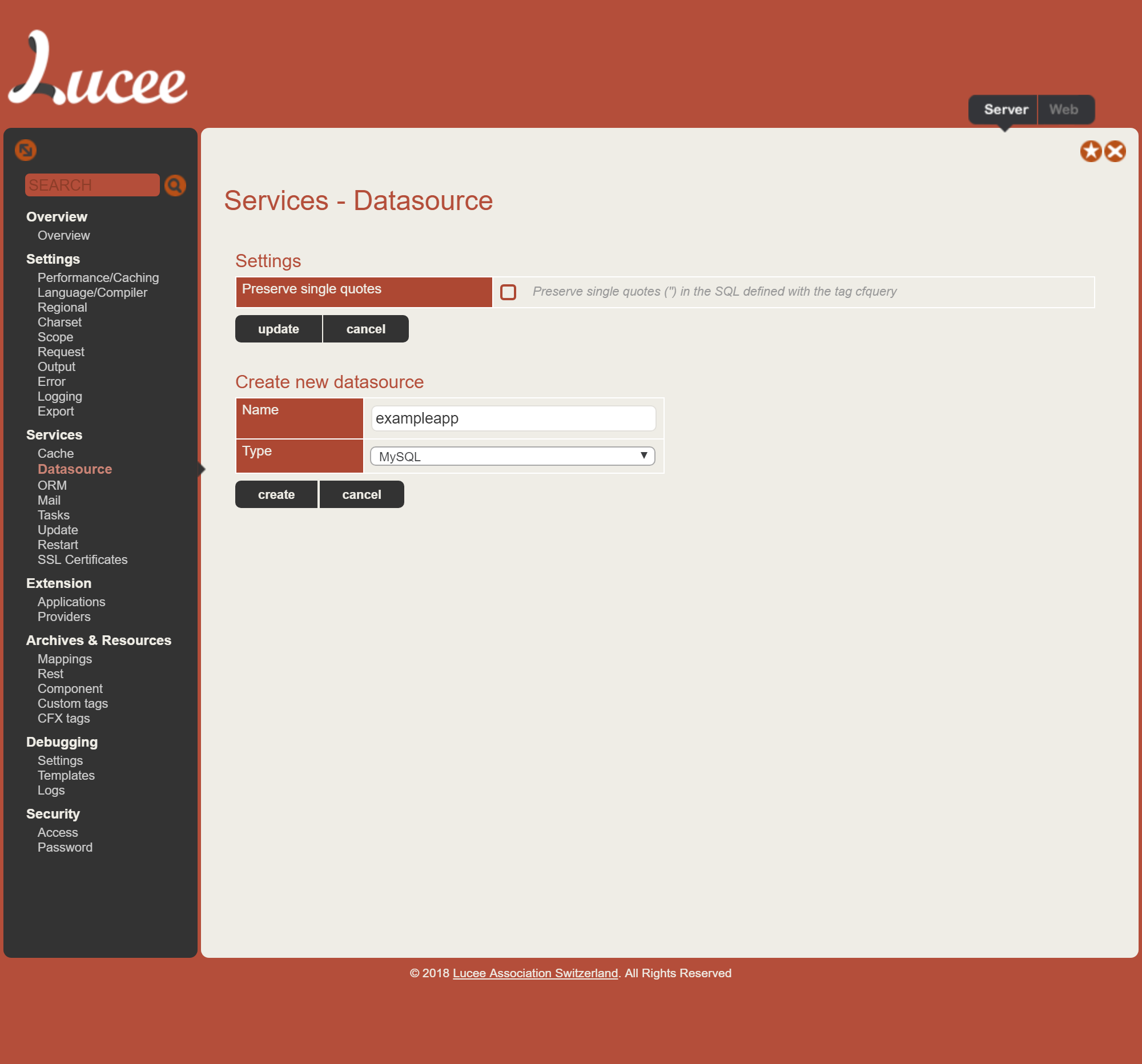
Select Services > Datasource from the left hand column

Create a new mySQL datasource called exampleapp
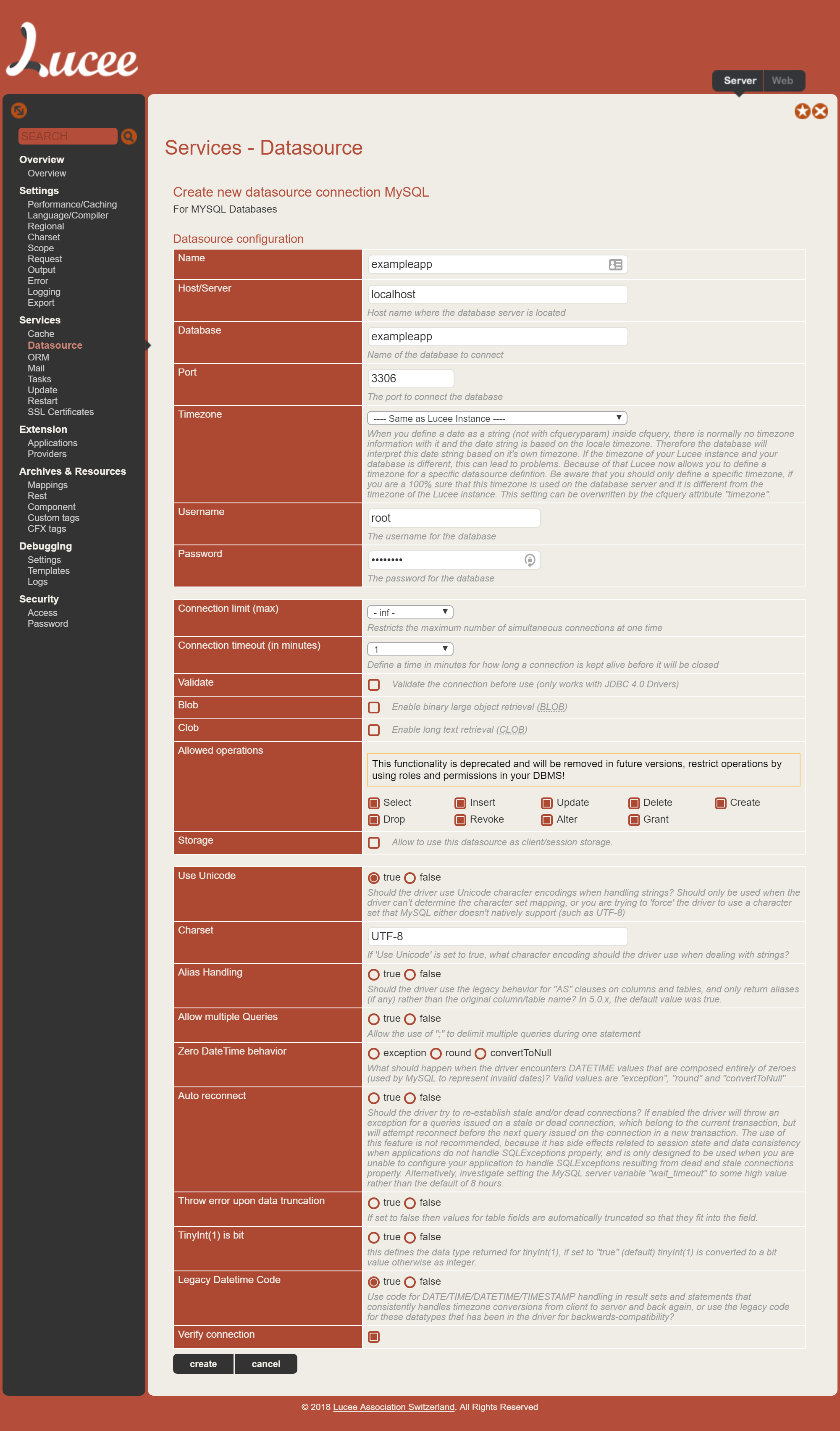
Fill in the database credentials
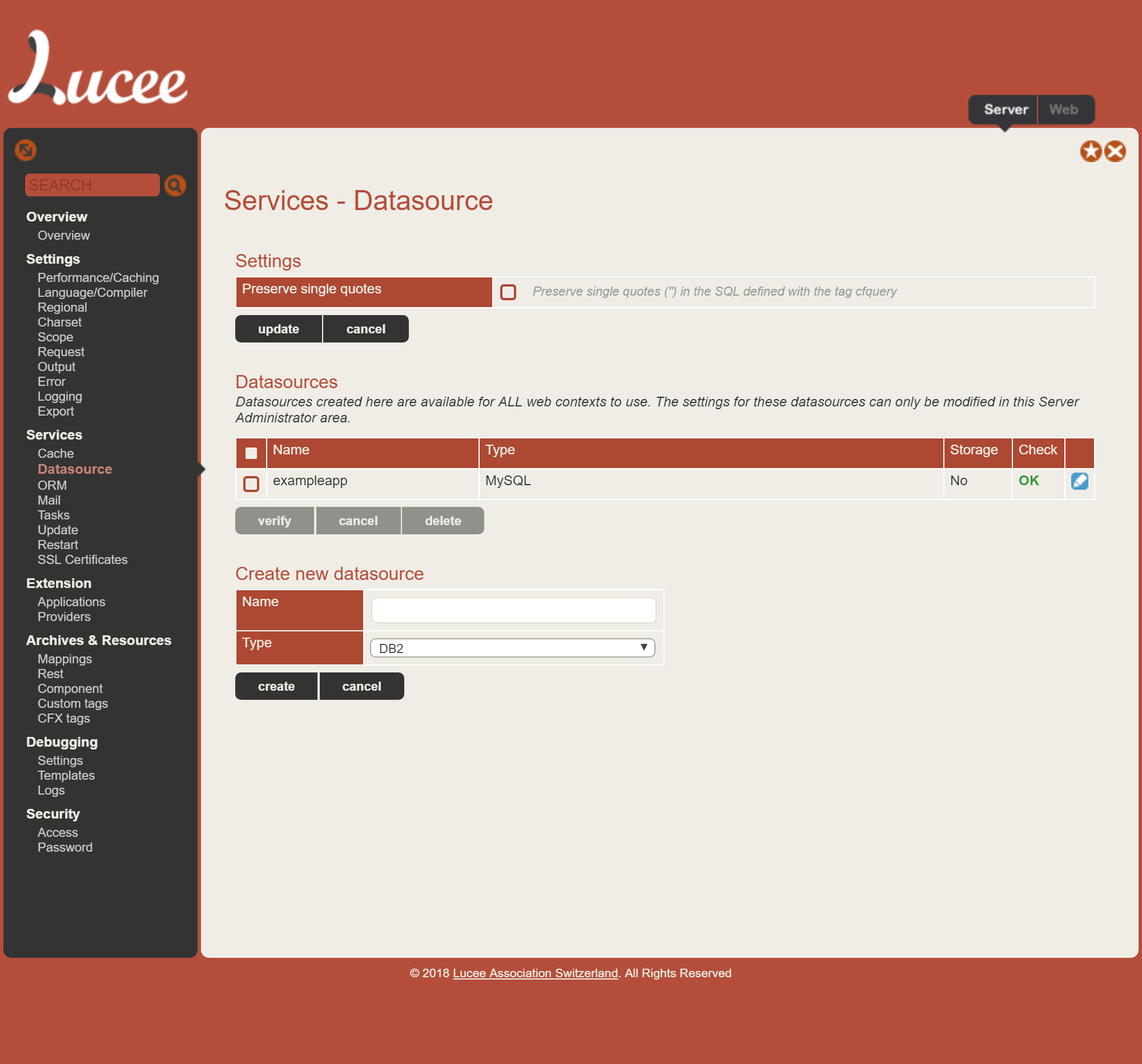
On saving you should see a green check "OK"
Return to the site root. You'll get another error; again, that's cool. We need to run the database migrations.
Navigate to http://127.0.0.1:60050/rewrite.cfm?controller=wheels&action=wheels&view=migrate
Select the Migrations Tab
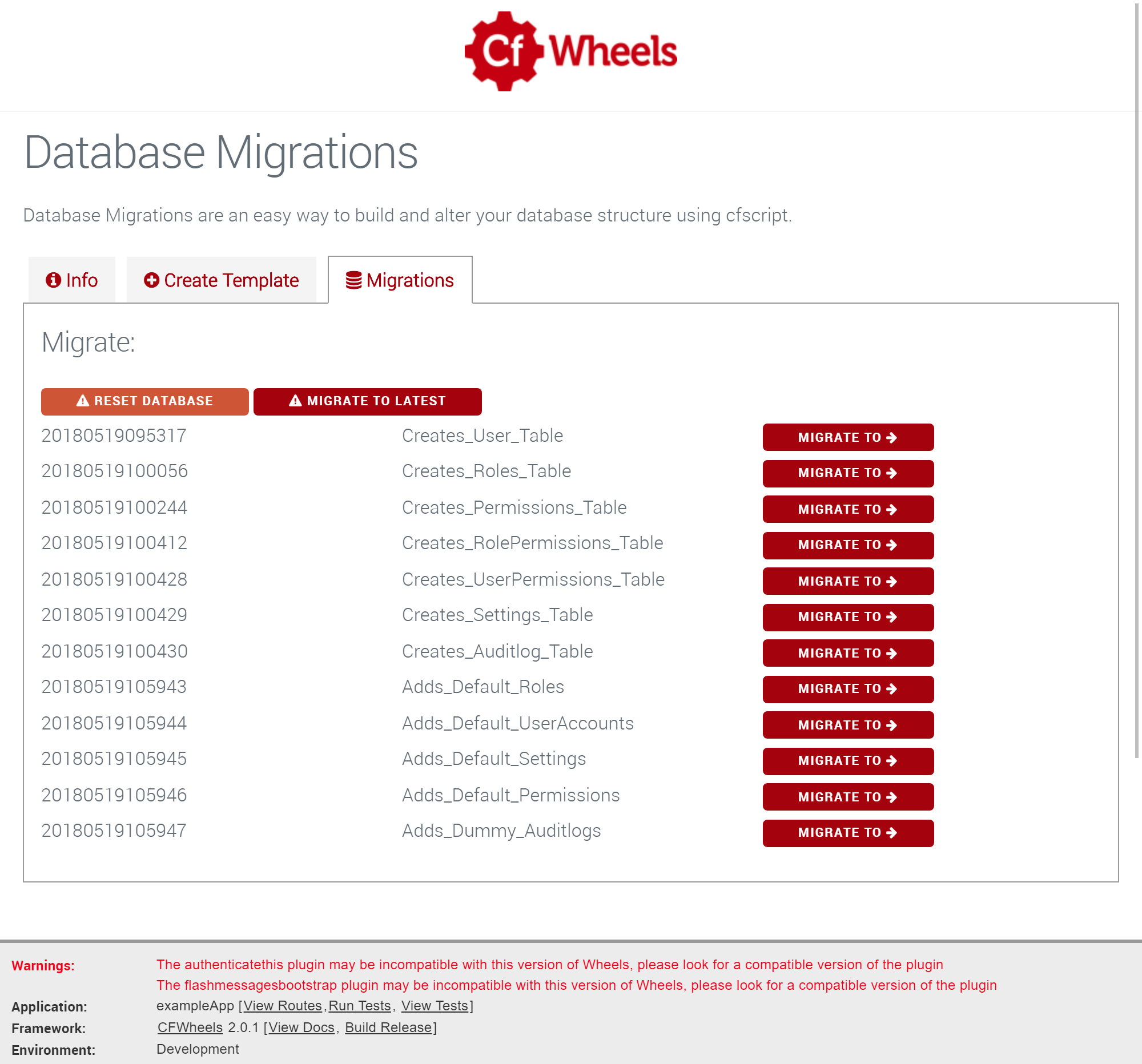
Click Migrate to Latest
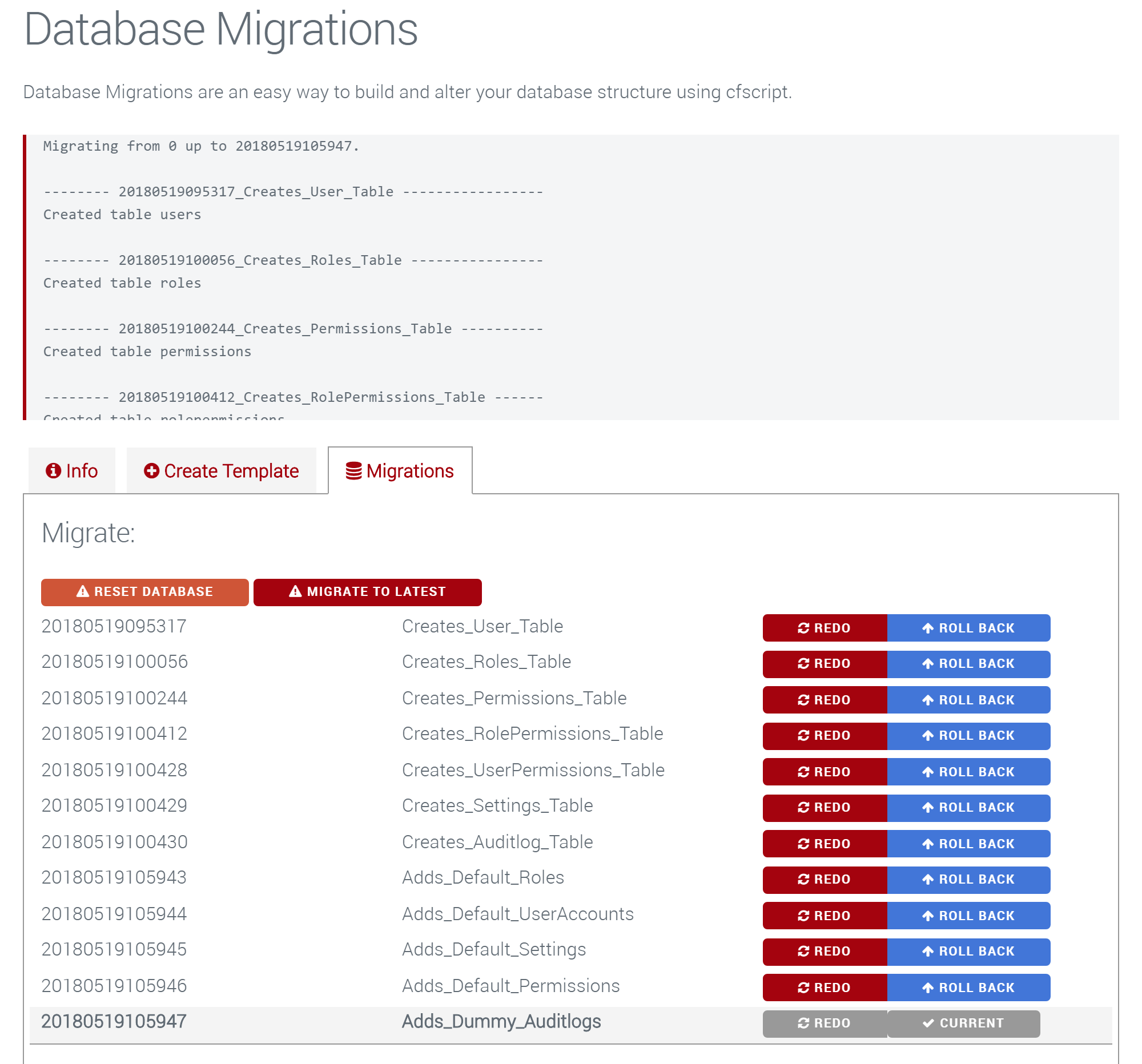
Reload the application by visiting http://127.0.0.1:60050/?reload=true&password=changeme
- In
config/app.cfm- Change
this.nameto something more unique - If using HTTPS change
this.sessioncookie.securetotrue - Either remove or change the SMTP configuration at the bottom; set to port 25 localhost if running locally.
- Change
- In
config/settings.cfm- Change
reloadPasswordto something unique (anddatasourcename if required)
- Change
- In
events/onapplicationstart.cfm- Change
application.encryptionKeyto a new one (generate viagenerateSecretKey("AES"))
- Change