


Flightradar24 integration allows one to track overhead flights in a given region or particular planes. It will also fire Home Assistant events when flights enter/exit/landed/took off. Or monitor departures and arrivals at an airport
IMPORTANT: No need FlightRadar24 subscription!
It allows you:
- Know how many flights in your area right now, or just have entered or exited it. And get list of flights with full information by every relevant flight for the sensor
- Track a particular plane or planes no matter where it currently is, even if it is a scheduled flight
- Monitor daily statistics (like on time/delayed/canceled flights) of the selected airport
- Get top 10 most tracked flights on FlightRadar24
- Create notifications (example - Get a notification when a flight enters or exits your area, Get a notification when a tracked scheduled flight takes off)
- Create automations (example - Automatically track a flight by your needs)
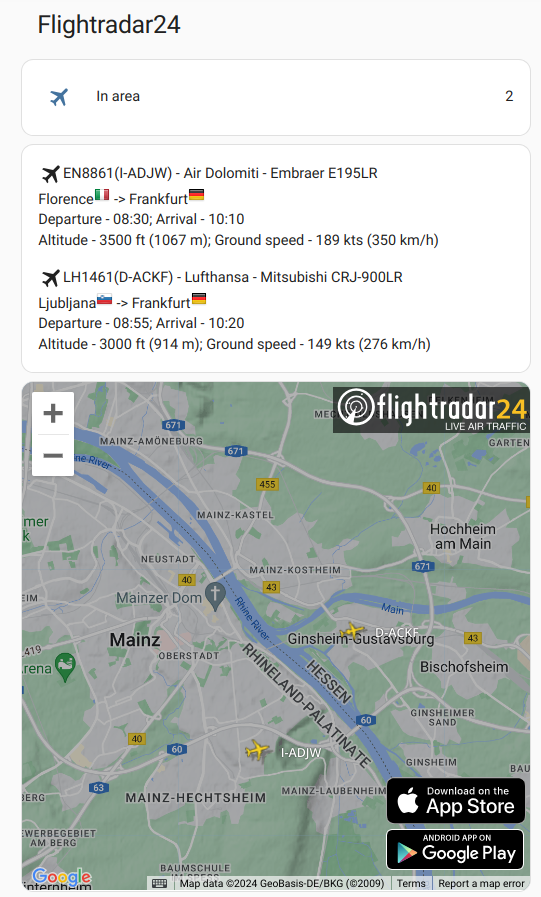
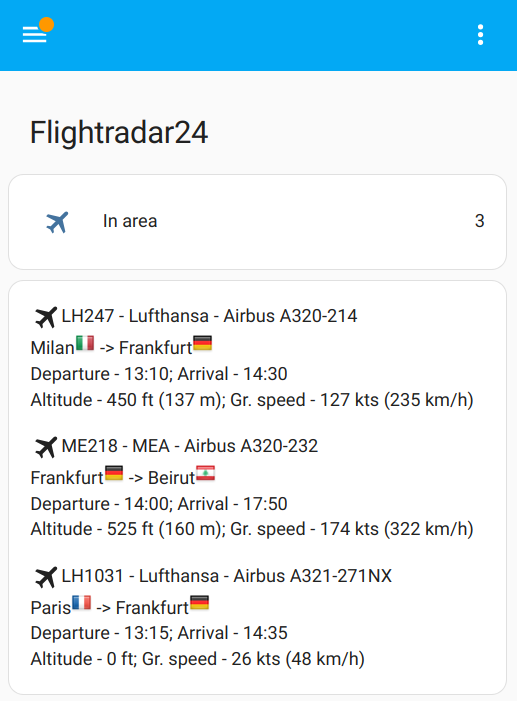
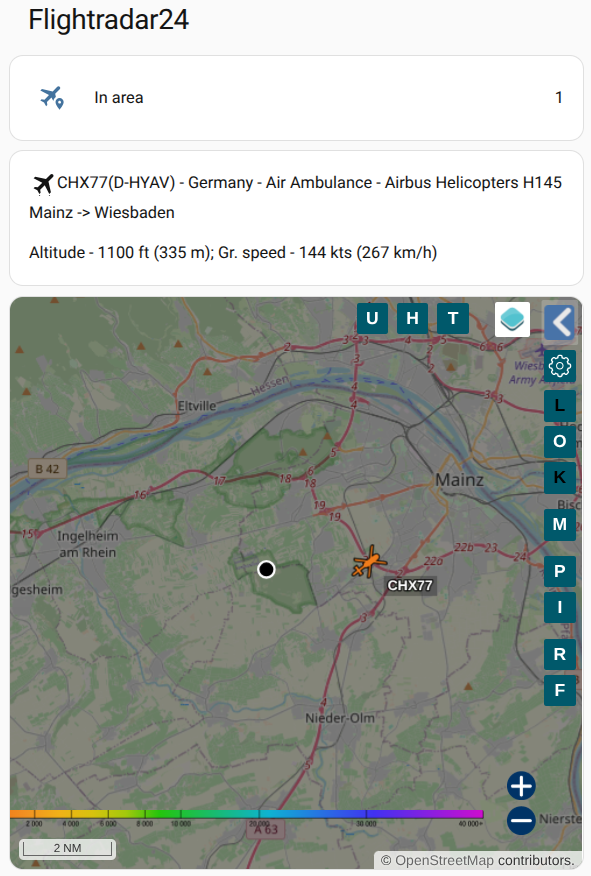
- Add flights table for your area to your Home Assistant dashboard by Lovelace Card)
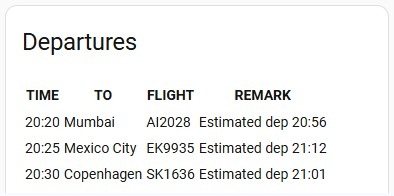
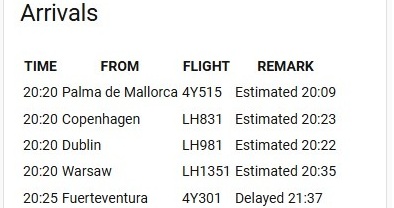
- Add departures/arrivals boards of the selected airport to your Home Assistant dashboard by Lovelace Airport Card)
- Track your flight as Device Tracker
- Get info for last flights which were in your area or get info about latest exited flight by creating Last Flights History Sensor
- flightradar24_entry: Fired when a flight enters the region.
- flightradar24_exit: Fired when a flight exits the region.
- flightradar24_most_tracked_new: Fired when a new flight appears in top 10 most tracked flights on FlightRadar24
- flightradar24_area_landed: Fired when a flight lands in your area.
- flightradar24_area_took_off: Fired when a flight takes off in your area.
- flightradar24_tracked_landed: Fired when a tracked flight lands.
- flightradar24_tracked_took_off: Fired when a tracked flight takes off.
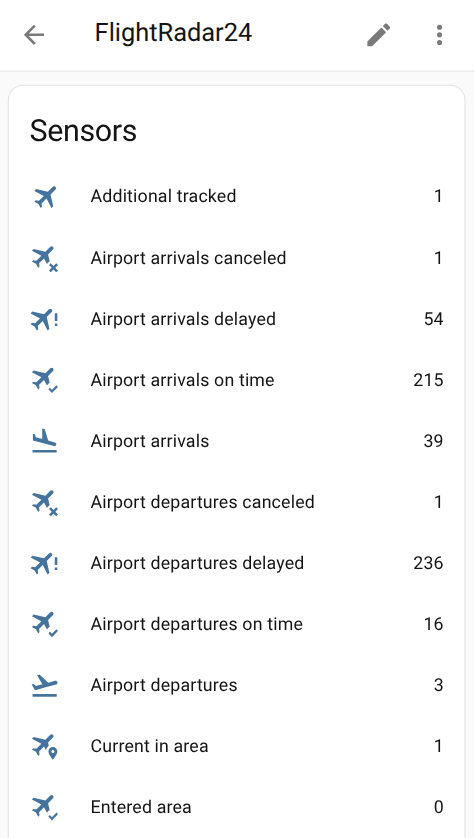
- Current in area - Current flights in your area
- Entered area - Flights that just have exited your area
- Exited area - Flights that just have entered your area
- Additional tracked - Your additional tracked outside your area
- Most tracked - Most tracked flights on FlightRadar24. You may disable it via configuration
- Airport arrivals - List of current arrival flights for the selected airport
- Airport departures - List of current departure flights for the selected airport
- Airport arrivals on time - Amount of arrivals on time for the selected airport today
- Airport arrivals delayed - Amount of delayed arrivals for the selected airport today
- Airport arrivals canceled - Amount of canceled arrivals for the selected airport today
- Airport departures on time - Amount of departures on time for the selected airport today
- Airport departures delayed - Amount of delayed departures for the selected airport today
- Airport departures canceled - Amount of canceled departures for the selected airport today
You may be interested to add a live flight as device_tracker with the flight information to a person in HA.
To use it - you need to activate this feature in Edit Configuration.
When it is enabled - this integration creates device_tracker with static name device_tracker.flightradar24 and
this device_tracker updates when there is a live flight in the additional tracked list.
It works ONLY with one live flight from the additional tracked list at a time!
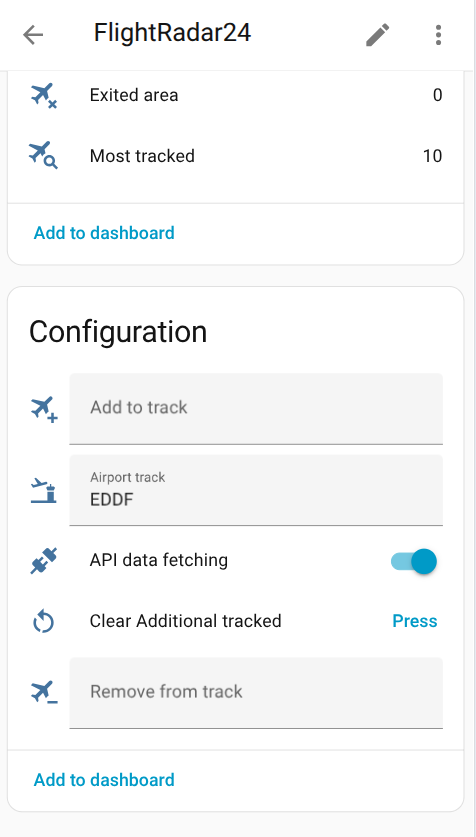
- Add to track - Pass flight number or call sign or aircraft registration number to track flight outside your area. It adds flight to Additional tracked sensor
- Remove from track - Pass flight number or call sign or aircraft registration number to remove a flight from Additional tracked sensor
- Airport track - Pass IATA or ICAO airport code to start receiving data in Airport sensors. To stop receiving airport data just pass an empty string
- API data fetching - you may disable FlightRadar API calls when not needed to prevent unnecessary API calls and save bandwidth and server load.
- Clear Additional tracked - Clear all flights in Additional tracked sensor
Sensors (Current in area, Entered area, Exited area, Additional tracked) shows how many flights in the given area, additional tracked, just have entered or exited it. All these sensors have attribute flights with list of flight object contained a full information by every relevant flight for the sensor
Sensor Most tracked has attribute flights with list of most tracked object
Sensors Airport arrivals and Airport departures have attribute flights with list of the next 50 airport flights
Have HACS installed, this will allow you to update easily.

or go to Hacs and search for Flightradar24.
- Locate the
custom_componentsdirectory in your Home Assistant configuration directory. It may need to be created. - Copy the
custom_components/flightradar24directory into thecustom_componentsdirectory. - Restart Home Assistant.
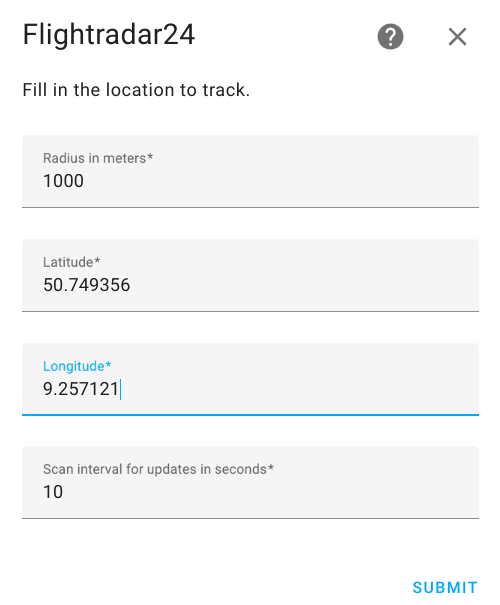
Flightradar24 is configured via the GUI. See the HA docs for more details.
The default data is preset already
- Go to the Settings->Devices & services.
- Click on
+ ADD INTEGRATION, search forFlightradar24. - You may change the default values for Radius, Latitude and Longitude
- Click
SUBMIT
You may edit configuration data like:
- Latitude and longitude of your point
- Radius of your zone
- Scan interval for updates in seconds
- The minimum and maximum altitudes in foots between which the aircraft will be tracked
- Enable/Disable top 10 most tracked flights on FlightRadar24
- Enable/Disable device_tracker for flights
- Username and password if you have FlightRadar24 subscription
To do that:
- Go to the Settings->Devices & services.
- Search for
Flightradar24, and click on it. - Click on
CONFIGURE - Edit the options you need and click
SUBMIT
To receive notifications of the entering flights add following lines to your configuration.yaml file:
automation:
  - alias: "Flight entry notification"
    trigger:
      platform: event
      event_type: flightradar24_entry
    action:
      service: notify.mobile_app_<device_name>
      data:
        message: >-
          Flight entry of {{ trigger.event.data.callsign }} to {{ trigger.event.data.airport_destination_city }}
          [Open FlightRadar](https://www.flightradar24.com/{{ trigger.event.data.callsign }})
        data:
          url: >-
            https://fr24.com/{{ trigger.event.data.callsign }}/{{
            trigger.event.data.id }}
          clickAction: >-
            https://fr24.com/{{ trigger.event.data.callsign }}/{{
            trigger.event.data.id }}
          image: "{{ trigger.event.data.aircraft_photo_medium }}"
All available fields in trigger.event.data you can check here
If you have defined more than one device of FlightRadar24 for more places to observe - you may be interested to know what device has fired the event It is stored in
To change name in tracked_by_device
- Go to the Settings->Devices & services.
- Search for
Flightradar24, and click on it. - Click on three-dot near of device you wanted
- Click on
Renamein the opened sub-menu - Enter new name and click
OK
To receive notification of taking off tracked scheduled flight add following lines to your configuration.yaml file:
automation:
  - alias: "Scheduled flight takes off"
    trigger:
      platform: event
      event_type: flightradar24_tracked_took_off
    action:
      service: notify.mobile_app_<device_name>
      data:
        message: >-
          Flight takes off {{ trigger.event.data.callsign }} to {{ trigger.event.data.airport_destination_city }}
          [Open FlightRadar](https://www.flightradar24.com/{{ trigger.event.data.callsign }})
        data:
          url: >-
            https://fr24.com/{{ trigger.event.data.callsign }}/{{
            trigger.event.data.id }}
          clickAction: >-
            https://fr24.com/{{ trigger.event.data.callsign }}/{{
            trigger.event.data.id }}
image: "{{ trigger.event.data.aircraft_photo_medium }}"To automatically add a flight to additional tracking add following lines to your configuration.yaml file:
automation:
  - alias: "Track flights"
    trigger:
      platform: event
      event_type: flightradar24_exit
    condition:
      - condition: template
        value_template: "{{ 'Frankfurt' == trigger.event.data.airport_origin_city }}"
    action:
      - service: text.set_value
        data:
          value: "{{ trigger.event.data.aircraft_registration }}"
        target:
          entity_id: text.flightradar24_add_to_track
This is an example to filter flights to track, change the conditions for your needs
You may get info for last flights which were in your area. Or get info about latest exited flight.
Here is an example for recording history for the last 5 flights.
The sensor has the same structure as sensor.flighradar24_current_in_area and so you can use the same markdown code.
Only the sensor state is different - it shows the latest exited flight.
You may change it for your needs.
Add following lines to your configuration.yaml file:
template:
  - trigger:
      - platform: event
        event_type: flightradar24_exit

    sensor:
      - unique_id: flightradar24_last_5_flights
        name: "FlightRadar24 Last 5 Flights"
        state: >-
          {% set flight = trigger.event.data %}
          {{ flight.flight_number }} - {{ flight.airline_short }} - {{ flight.aircraft_model }} ({{ flight.aircraft_registration }})
          {{ flight.airport_origin_city }} > {{ flight.airport_destination_city }}
        attributes:
          flights: >-
            {% set n = 5 %}
            {% set m = this.attributes.flights | count | default(0) %}
            {{ [ trigger.event.data ] +
               ( [] if m == 0 else
                 this.attributes.flights[0:n-1] )
            }}
icon: mdi:airplaneYou can add flight table to your Home Assistant dashboard
- Go to your Home Assistant dashboard
- In the top right corner, select the three-dot menu, then select Edit dashboard
- Click on
+ ADD CARD, search forManual, click onManual. - Add following code to the input window and click
SAVE
type: vertical-stack
title: Flightradar24
cards:
  - type: entities
    entities:
      - entity: sensor.flightradar24_current_in_area
        name: In area
  - type: conditional
    conditions:
      - condition: numeric_state
        entity: sensor.flightradar24_current_in_area
        above: 0
    card:
      type: markdown
      content: >-
        {% set data = state_attr('sensor.flightradar24_current_in_area',
        'flights') | default([], true) %} {% for flight in data %}{% if (flight.tracked_type | default('live')) == 'live' %}
          <ha-icon icon="mdi:airplane"></ha-icon>{{ flight.flight_number }} - {{ flight.airline_short }} - {{ flight.aircraft_model }}
          {{ flight.airport_origin_city }}{%if flight.airport_origin_city %}<img src="https://flagsapi.com/{{ flight.airport_origin_country_code }}/shiny/16.png" title='{{ flight.airport_origin_country_name }}'/>{% endif %} -> {{ flight.airport_destination_city }}{%
          if flight.airport_destination_country_code %}<img src="https://flagsapi.com/{{ flight.airport_destination_country_code }}/shiny/16.png" title='{{ flight.airport_destination_country_name }}'/>{% endif %}
          {%if flight.time_scheduled_departure %}Departure - {{ flight.time_scheduled_departure | timestamp_custom('%H:%M') }}; {% endif %}{%if flight.time_scheduled_arrival%}Arrival - {{ flight.time_scheduled_arrival | timestamp_custom('%H:%M') }}{% endif %}
          Altitude - {{ flight.altitude }} ft{%if flight.altitude > 0 %} ({{(flight.altitude * 0.3048)| round(0)}} m){% endif%}; Gr. speed - {{ flight.ground_speed }} kts{%if flight.ground_speed > 0 %} ({{(flight.ground_speed * 1.852)| round(0)}} km/h){% endif%}
          {% else%}
          <ha-icon icon="mdi:airplane"></ha-icon>{{ flight.flight_number }} - {{ flight.callsign }} - {{ flight.tracked_type }}
          {% endif%}{% endfor %}
This example for sensor.flightradar24_current_in_area which shows flights in your area, to show additional tracked flights replace sensor name to sensor.flightradar24_additional_tracked
All available fields for flight you can check here
- Go to your Home Assistant dashboard
- In the top right corner, select the three-dot menu, then select Edit dashboard
- Click on
+ ADD CARD, search forManual, click onManual. - Add following code to the input window. Replace LATITUDE, LONGITUDE with your coordinates. URL example: https://globe.adsb.fi/?enableLabels&trackLabels&zoom=12&hideSideBar&lat=50.984944839678334&lon=11.311357147743463
- Click
SAVE
type: vertical-stack
title: Flightradar24
cards:
  - type: entities
    entities:
      - entity: sensor.flightradar24_current_in_area
        name: In area
  - type: conditional
    conditions:
      - condition: numeric_state
        entity: sensor.flightradar24_current_in_area
        above: 0
    card:
      type: markdown
      content: >-
        {% set data = state_attr('sensor.flightradar24_current_in_area',
        'flights') | default([], true) %} {% for flight in data %}
          <ha-icon icon="mdi:airplane"></ha-icon>{{ flight.flight_number }}({{ flight.aircraft_registration }}) - {{ flight.airline_short }} - {{ flight.aircraft_model }}
          {{ flight.airport_origin_city }}{%if flight.airport_origin_city %}<img src="https://flagsapi.com/{{ flight.airport_origin_country_code }}/shiny/16.png" title='{{ flight.airport_origin_country_name }}'/>{% endif %} -> {{ flight.airport_destination_city }}{%
          if flight.airport_destination_country_code %}<img src="https://flagsapi.com/{{ flight.airport_destination_country_code }}/shiny/16.png" title='{{ flight.airport_destination_country_name }}'/>{% endif %}
          {%if flight.time_scheduled_departure %}Departure - {{ flight.time_scheduled_departure | timestamp_custom('%H:%M') }}; {% endif %}{%if flight.time_scheduled_arrival%}Arrival - {{ flight.time_scheduled_arrival | timestamp_custom('%H:%M') }}{% endif %}
          Altitude - {{ flight.altitude }} ft{%if flight.altitude > 0 %} ({{(flight.altitude * 0.3048)| round(0)}} m){% endif%}; Gr. speed - {{ flight.ground_speed }} kts{%if flight.ground_speed > 0 %} ({{(flight.ground_speed * 1.852)| round(0)}} km/h){% endif%}
          {% endfor %}
  - type: iframe
    url: >-
      https://globe.adsb.fi/?enableLabels&trackLabels&zoom=12&hideSideBar&lat=LATITUDE&lon=LONGITUDE
aspect_ratio: 100%To decrease data stored by Recorder in database add following lines to your configuration.yaml file:
recorder:
  exclude:
    entity_globs:
- sensor.flightradar24*| Field | Description |
|---|---|
| tracked_by_device | If you have defined more than one device of FlightRadar24 for more places to observe - you may be interested to know what device has fired the event. To rename the device check this |
| tracked_type | Only for tracked flights. It shows is flight live or scheduled |
| flight_number | Flight Number |
| latitude | Current latitude of the aircraft |
| longitude | Current longitude of the aircraft |
| altitude | Altitude (measurement: foot) |
| on_ground | Is the aircraft on ground (measurement: 0 - in the air; 1 - on ground) |
| distance | Distance between the aircraft and your point (measurement: kilometers) |
| closest_distance | Closest distance the aircraft reached to your point while tracking (measurement: kilometers) |
| ground_speed | Ground speed (measurement: knots) |
| squawk | Squawk code are what air traffic control (ATC) use to identify aircraft when they are flying (for subscription only) |
| vertical_speed | Vertical speed |
| heading | The compass direction in which the craft's bow or nose is pointed (measurement: degrees) |
| callsign | Callsign of the flight |
| aircraft_registration | Aircraft registration number |
| aircraft_photo_small | Aircraft small size photo url |
| aircraft_photo_medium | Aircraft medium size photo url |
| aircraft_photo_large | Aircraft large size photo url |
| aircraft_model | Aircraft model |
| aircraft_code | Aircraft code |
| airline | Airline full name |
| airline_short | Airline short name |
| airline_iata | Airline IATA code |
| airline_icao | Airline ICAO code |
| airport_origin_name | Origin airport name |
| airport_origin_code_iata | Origin airport IATA code |
| airport_origin_code_icao | Origin airport ICAO code |
| airport_origin_country_name | Origin airport country name |
| airport_origin_country_code | Origin airport country code |
| airport_origin_city | Origin airport city name |
| airport_origin_timezone_offset | Origin airport timezone offset (in seconds) |
| airport_origin_timezone_abbr | Origin airport timezone abbreviation |
| airport_origin_terminal | Origin airport terminal |
| airport_origin_latitude | Origin airport latitude |
| airport_origin_longitude | Origin airport longitude |
| airport_destination_name | Destination airport name |
| airport_destination_code_iata | Destination airport IATA code |
| airport_destination_code_icao | Destination airport ICAO code |
| airport_destination_country_name | Destination airport country name |
| airport_destination_country_code | Destination airport country code |
| airport_destination_city | Destination airport city name |
| airport_destination_timezone_offset | Destination airport timezone offset (in seconds) |
| airport_destination_timezone_abbr | Destination airport timezone abbreviation |
| airport_destination_terminal | Destination airport terminal |
| airport_destination_latitude | Destination airport latitude |
| airport_destination_longitude | Destination airport longitude |
| time_scheduled_departure | Scheduled departure time |
| time_scheduled_arrival | Scheduled arrival time |
| time_real_departure | Real departure time |
| time_real_arrival | Real arrival time |
| time_estimated_departure | Estimated departure time |
| time_estimated_arrival | Estimated arrival time |
Sensor Most tracked shows top 10 most tracked flights on FlightRadar24 with next flight fields
| Field | Description |
|---|---|
| flight_number | Flight Number |
| callsign | Callsign of the flight |
| squawk | Squawk code are what air traffic control (ATC) use to identify aircraft when they are flying |
| aircraft_model | Aircraft model |
| aircraft_code | Aircraft code |
| clicks | How many people track this flight |
| airport_origin_code_iata | Origin airport IATA code |
| airport_origin_city | Origin airport city name |
| airport_destination_code_iata | Destination airport IATA code |
| airport_destination_city | Destination airport city name |
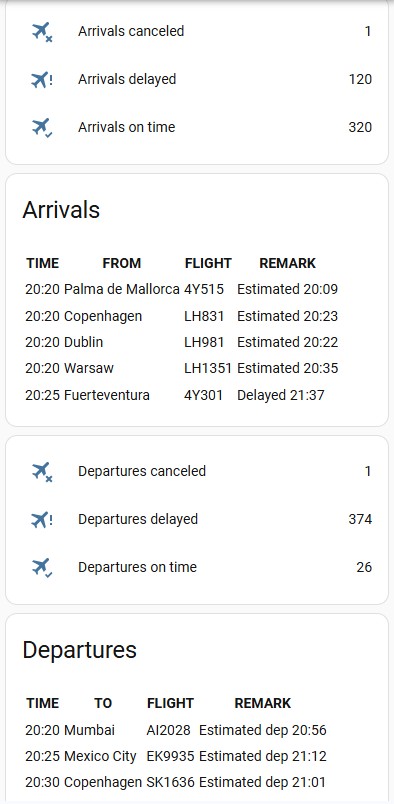
You can add departures/arrivals boards of the selected airport to your Home Assistant dashboard
- Go to your Home Assistant dashboard
- In the top right corner, select the three-dot menu, then select Edit dashboard
- Click on
+ ADD CARD, search forManual, click onManual. - Add following code to the input window and click
SAVE
type: vertical-stack
title: Flightradar24
cards:
  - type: entities
    entities:
      - entity: sensor.flightradar24_airport_arrivals_canceled
        name: Arrivals canceled
      - entity: sensor.flightradar24_airport_arrivals_delayed
        name: Arrivals delayed
      - entity: sensor.flightradar24_airport_arrivals_on_time
        name: Arrivals on time
  - type: markdown
    title: Arrivals
    content: >
      {% set flights =
      state_attr('sensor.flightradar24_airport_arrivals','flights') |
      default([], true) %}
        | TIME | FROM | FLIGHT | REMARK |
        | ---- | ---- | ------ | ------ | {% for f in flights %}
        | {{ f.time_scheduled_arrival | timestamp_custom('%H:%M') if f.time_scheduled_departure else '--:--' }} | {{ f.airport_city |  default('---', true) }} | {{ f.flight_number |  default('---', true) }} | {{ f.status_text |  default('---', true) }} | {% endfor %}
  - type: entities
    entities:
      - entity: sensor.flightradar24_airport_departures_canceled
        name: Departures canceled
      - entity: sensor.flightradar24_airport_departures_delayed
        name: Departures delayed
      - entity: sensor.flightradar24_airport_departures_on_time
        name: Departures on time
  - type: markdown
    title: Departures
    content: >
      {% set flights = state_attr('sensor.flightradar24_airport_departures',
      'flights') |  default([], true) %}
        | TIME | TO | FLIGHT | REMARK |
        | ---- | ---- | ------ | ------ | {% for f in flights %}
        | {{ f.time_scheduled_departure | timestamp_custom('%H:%M') if f.time_scheduled_departure else '--:--' }} | {{ f.airport_city |  default('---', true) }} | {{ f.flight_number |  default('---', true) }} | {{ f.status_text |  default('---', true) }} |{% endfor %}
All available fields for flight you can check here
To start receiving data for an airport - Pass IATA or ICAO airport code to text.flightradar24_airport_track. To stop receiving airport data just pass an empty string
Sensor sensor.flightradar24_airport_arrivals and sensor.flightradar24_airport_departures shows flights with next flight fields
| Field | Description |
|---|---|
| status_text | Flight status test (example: Delayed 17:02) |
| status | Flight status (example: delayed) |
| flight_id | Flight id on FlightRadar24 |
| flight_number | Flight Number |
| callsign | Callsign of the flight |
| aircraft_model | Aircraft model |
| aircraft_code | Aircraft code |
| aircraft_registration | Aircraft registration number |
| airline | Airline full name |
| airline_short | Airline short name |
| airline_iata | Airline IATA code |
| airline_icao | Airline ICAO code |
| airport_name | Airport name |
| airport_code_iata | Airport IATA code |
| airport_code_icao | Airport ICAO code |
| airport_country_name | Airport country name |
| airport_country_code | Airport country code |
| airport_city | Airport city |
| time_scheduled_departure | Scheduled departure time |
| time_scheduled_arrival | Scheduled arrival time |
| time_real_departure | Real departure time |
| time_real_arrival | Real arrival time |
| time_estimated_departure | Estimated departure time |
| time_estimated_arrival | Estimated arrival time |
This integration should only be used for your own educational purposes. If you are interested in accessing Flightradar24 data commercially, please contact business@fr24.com. See more information at Flightradar24's terms and conditions.


