 English
 العربية
 Español
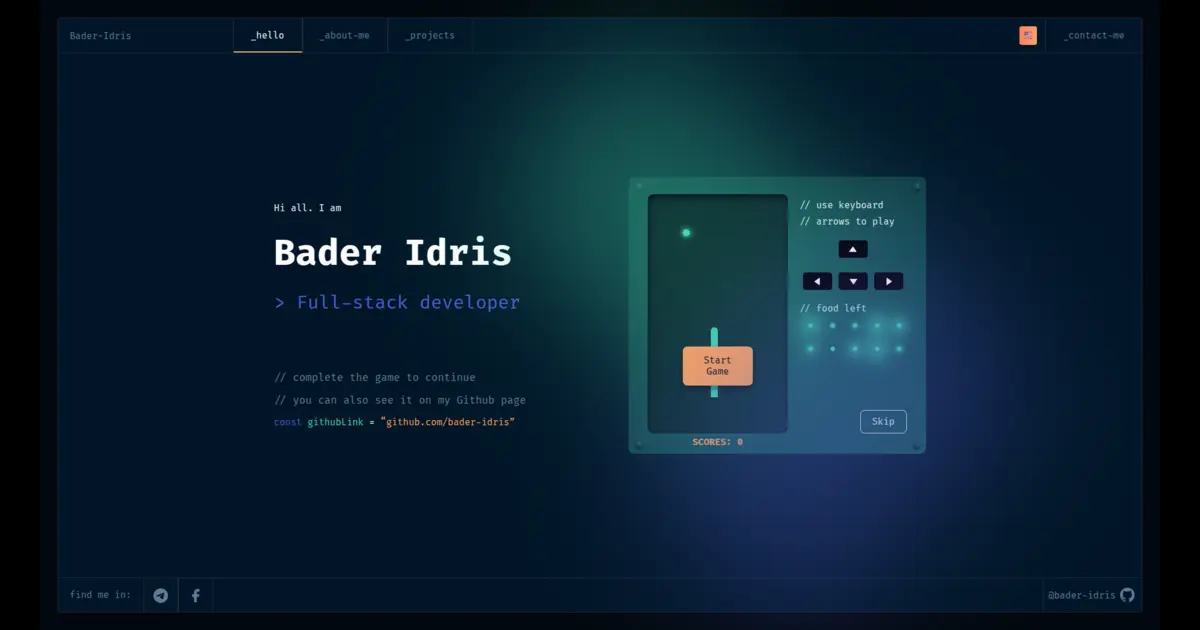
A comprehensive full-stack portfolio application built with Nuxt 4, featuring real-time communication, authentication, and multi-platform support. For more detailed information, refer to the Nuxt documentation.
- Prerequisites
- Getting Started
- Development
- Environment Configuration
- Docker Setup
- Building for Production
- Mobile Application
- Electron Application
- Production Deployment
- Security
- Troubleshooting
Before starting with this project, ensure you have the following tools installed on your system:
Docker Installation:
# Download and run the official Docker installation script
curl -fsSL https://get.docker.com -o get-docker.sh
sh get-docker.sh

# Add current user to docker group (Linux only)
sudo usermod -aG docker $USER
Important
After installing Docker, it's recommended to follow the Docker post-installation steps for enhanced security and performance, including running Docker as a non-root user and configuring additional security options.
Bun Installation:
# Using the official Bun installer
curl -fsSL https://bun.sh/install | bash

# Or using npm
npm install -g bun
Git Installation:
# For Ubuntu/Debian
sudo apt install git
# For macOS
xcode-select --install
# For Windows, download from https://git-scm.com/
Important
After running usermod -aG docker $USER, you must log out and log back in or reboot to apply the Docker group changes. For additional post-installation configurations, refer to the Docker post-installation steps.
git clone https://github.com/Bader-Idris/nuxt4-fullstack-portfolio.git ./portfolio

# It's recommended to rename the project directory to 'portfolio' if you didn't use the previous command
sudo mv nuxt4-fullstack-portfolio portfolio
cd portfolioImportant
Ensure you have Bun installed before running these commands.
bun installImportant
Database migration is critical for the first build! It's intentionally separated from the main build process to give you control.
Before running the application, ensure your database schema is up-to-date by running the Prisma migrations:
bunx prisma migrate deploy
bunx prisma generateTo start the development server, navigate to http://localhost:3000:
bun run devTip
For the complete development experience with all backend services, use the Docker setup as described below.
Create your environment configuration from the example file:
cp .env.example .envCaution
Modify the values in the .env file to reflect your specific configuration.
Caution
If you are using Windows, ensure that you install Git and use Git Bash for an improved development experience.
The project includes environment configuration for different platforms:
.env.example- Main application environment variables.env.electron.example- Electron application environment variables.env.capacitor.example- Mobile application environment variables
show dbs
// your MONGO_DB_NAME
use MONGO_DB_NAME
show collections
// for instance users collection
db.getCollection("users").find()
// to find in collections:
db.users.find({ field: "value" }) // such as
db.users.find({ "email": "contact@baderidris.com" })

// to modify the role based on email do:
db.users.updateOne(
  { "email": "contact@baderidris.com" },
  { $set: { "role": "admin" } }
)
// to delete do:
db.users.deleteOne({ "email": "contact@baderidris.com" })# after you've done the backup command with:
docker exec mongo sh -c 'mongodump --archive --gzip -u <Mongo_user> -p <Mongo_password> --authenticationDatabase admin' > /path/to/your/backup-4.4.gz
# some data will be lose, I've seen that the chats were lost! but not the admin messages!
# Then do this command to restore data: (the best approach is to do sequential versioning as 4 -> 5 -> 6 etc...)
docker exec -i mongo mongorestore \
--archive --gzip \
-u <Mongo_user> \
-p <Mongo_password> \
--authenticationDatabase admin \
< /path/to/your/backup-4.4.gz
# and do this for compatibility
docker exec -it mongo mongosh -u <Mongo_user> -p <Mongo_password> --authenticationDatabase admin --eval '
db.adminCommand({ setFeatureCompatibilityVersion: "8.2", confirm: true });
db.adminCommand({ getParameter: 1, featureCompatibilityVersion: 1 });
'
The project uses Docker Compose for a complete development environment that includes all necessary backend services.
-
Configure Environment Variables
cp .env.example .env # Edit .env with your configuration -
Start Docker Services
docker compose -f b.dev.yml up -d --build
-
Access the Application
- Frontend:
http://localhost:3000 - Backend services will be automatically configured
- Frontend:
Warning
The application uses intensive backend services and runs best with Docker for a consistent experience.
Important
Ensure Docker is installed on your production machine.
To deploy in production with SSL certificates:
docker compose -f ./a.prod-certbot.yml up -d --buildImportant
CRITICAL: The project directory MUST be named portfolio for production deployment. The Nginx configuration is hardcoded to look for containers in the portfolio directory. If you cloned the repository with a different name, you must either rename the directory to portfolio or update the Nginx configuration files accordingly.
To build the application for production:
# make it yours
cp ./compose.prod.test.yaml.example ./compose.prod.test.yaml
# then stop dev if running, and start building!
docker compose -f b.dev.yml down; docker compose -f compose.prod.test.yaml up -d redis postgres mongo ; docker compose -f compose.prod.test.yaml build --progress=plain app; docker compose -f compose.prod.test.yaml up -d
Caution
Building the application on a server with limited resources is considered a bad practice. For optimal performance and reliability, we strongly recommend using the pre-built Docker image available at Docker Hub instead of building from source on your server. If you must build on a weak server, please follow the instructions in the weak_servers.md file to ensure a successful build process.
To locally preview the production build:
bun run previewTip
A pre-built Docker image is available on Docker Hub. You can find instructions on how to pull the image and run it with Docker Compose in the repository's documentation.
To add Android and iOS support:
bunx cap add android iosCreate the mobile environment file:
cp .env.capacitor.example .env.capacitor
# Configure the environment variablesTo customize your app icons, modify the icons in the /assets folder as desired, then run:
bunx capacitor-assets generate --assetPath "./assets" --ios --androidYou can review the configuration requirements in the
assets/requirements.mdfile.
Warning
Required to prevent app crashes with push notifications.
To run properly and prevent the mobile app from crashing, you must have the file android/app/google-services.json. Check the Capacitor documentation and Firebase documentation.
To build the Android app, ensure you have Android Studio installed and set these environment variables:
ANDROID_HOMECAPACITOR_ANDROID_STUDIO_PATH
Caution
Restart your shell session after adding the environment variables.
Caution
For Android 15+ compatibility, after creating the Android project, you need to add the following line to every style section with Theme.AppCompat.* in the file android/app/src/main/res/values/styles.xml to fix the overlay=true bug in Capacitor:
<item name="android:windowOptOutEdgeToEdgeEnforcement">true</item>This ensures proper display behavior on Android 15+ devices when using Capacitor with overlay=true settings.
You can check out the issue here
To create a production build for Electron:
-
Create the Electron environment file:
cp .env.electron.example .env.electron # Configure the environment variables -
Use the following commands to build the Electron application:
bun run build:electron: Build for the current platformbun run build:electron:all: Build for Windows, macOS, and Linuxbun run build:electron:win: Build for Windows onlybun run build:electron:mac: Build for macOS onlybun run build:electron:linux: Build for Linux onlybun run build:electron:dir: Build in an unpackaged directory for testing
Make sure to update the domain name baderidris.com in the b.dev.yml file and associated configuration files with your own domain name.
To automate certificate renewals, create a cron job by modifying the paths in the /server/config/nginx/ssl_renew.sh file, then add this to your crontab:
# To edit your crontab, run:
crontab -e

# Add the following line to schedule the renewal script:
0 12 * * * /home/bader/portfolio/server/config/nginx/ssl_renew.sh >> /var/log/cron.log 2>&1
Tip
Review the ssl_renew.sh file for additional useful tips and configurations.
After the initial deployment, you will need to force Certbot to renew the certificates to remove the --staging flag. It is recommended to create a separate compose file for this purpose and for future renewals.
To enhance the security of your application and prevent common attacks such as DDoS, Fail2Ban has been implemented.
The following files are included in the security configuration:
ls server/config/fail2ban/
# Contains:
# - filter.d directory
# - my_custom_jail.local file
Custom jails and filters have been created to allow users to add their configurations after installing the tool. This flexibility helps you tailor the security settings to your specific needs.
- Weak Server Builds: Refer to weak_servers.md for guidance on optimizing builds for limited resources
- Docker Issues: Ensure Docker and Docker Compose are properly installed and running
- Environment Variables: Make sure all required environment variables are properly configured
Join our community discussions! Feel free to communicate with the maintainer and other community members on GitHub Discussions.
Thank you for using the Portfolio Full-Stack Application! If you have any questions or need further assistance, feel free to reach out.
