
- Getting started with the website (Mac)
- Getting started without write-access
- Add a new event
- Modify event page template
- Add a new blog post
- Add a new series
- Add a new newsletter
- Modify Newsletter template
- Add a video to the meetings archive
- Add a team member
- Adding a Resource
- Adding a Community
- Adding and Editing Committees
- Update the banner
- Image Organization
- Install homebrew :
/bin/bash -c "$(curl -fsSL https://raw.githubusercontent.com/Homebrew/install/HEAD/install.sh)"
- Add homebrew to path
echo >> /Users/yaseswini/.zprofile
echo 'eval "$(/opt/homebrew/bin/brew shellenv)"' >> /Users/yaseswini/.zprofile
eval "$(/opt/homebrew/bin/brew shellenv)"
- Install
npm
brew install npm
- Install
astro
npm install astro
-
On github, fork the repository to create a copy of it on GitHub under your account.
-
Clone your forked repository
git clone https://github.com/{your-username}/webpage.git
-
Be in main branch if not already
git checkout main -
Pull any updated to the main branch
git pull -
Create a new branch with a descriptive name:
git checkout -b {new-branch}
Here are the steps to add a new event with git:
See Getting started without write-access. Give branch name the format add-event-{date} (e.g., add-event-2024-03-15).
The markdown file should follow a specific format. In between the top two --- you must fill out the event parameters. Everything below the second --- can be in markdown format. Look at the other markdown files for reference. The metadata should include fields like title, dateTime, location, url, image, tags, and imgpos. The imgpos parameter is for the css on the main events page. See https://tailwindcss.com/docs/object-position for options. tags are not currently in use, but may be in the future.
Note that for the dateTime field, the time zone should be specified as either -05:00 for Eastern Standard Time (EST) or -04:00 for Eastern Daylight Time (EDT), depending on the date of the event. If the event is in December (EST) use -05:00, but if an event is during Daylight Saving Time (roughly March-November), you should use -04:00 for EDT.
Upload image to the public/photos directory of your cloned repository (see Image Organization). The image should be referenced in the markdown file using the image field in the metadata.
After creating the markdown file and uploading the image, you can run the following commands to format the files and commit your changes:
# Run 'npx --prettier' to fix any astro specific formatting issues
npx prettier --write src/content/meetups/{newevent}.md
# Stage the changes to commit :
git add /public/photos/<your_image_name>
git add src/content/meetups/{newevent}.md
#  Commit new changes
git push -u origin add-event-{date}
To modify the event page template, go to src/layouts/EventLayout.astro.
If you want to add parameters to the newsletter markdown files, such as "data-luma-event-id", you will need to also do the following:
- add the new parameter to
eventCollectioninsrc/content/config.ts - add the new parameter to the
EventLayoutobject insrc/pages/events/[...slug].astro
See Getting started without write-access. Give branch name the format add-blog-{slug} where slug matches the unique identifier you'll use for the blog post URL.
After you enter a new branch, you need to create a markdown file in the src/content/post directory.
The markdown file should follow a specific format. In between the top two --- you must fill out the parameters for the blog post. Everything below the second --- can be in markdown format. Look at the other markdown files for reference. The parameters include:
publishDate: date when the blog post was published, in ISO format (YYYY-MM -DDTHH:mm:ssZ)title: name of the blog postslug: a unique identifier for the blog post, used in the URLexcerpt: appears on the website front page to describe the postimage: path to the image that will be displayed on the blog post pageimageAlt: alt-text to show when images are not rendered or when user is using a screen reader. This text should describe the image's purpose in under 125 charactersimagePosition: set totop,center(default), orbottomto set where the content of the image is most important.- author information:
author: name of the SINGLE author of the blog postauthorUrl: URL to the author's LinkedIn profileauthors: list of authors if there are multiple authors, each with their name and LinkedIn URL
category: category of the blog post, e.g., "Podcast", "Deep Dive", "Quick Take"tags: list of tags associated with the blog post, e.g., "bioinformatics", "career-advice", "software-engineering"metadata: additional metadata for SEO, includingtitle,description, andcanonicalURLlisteningTime: length of time of podcast written out (optional, only for podcast posts)
Starting a new series? If this post is the first in a new series, also follow the steps in Add a new series to create the series metadata file.
Upload image to the public/blog_images directory of your cloned repository (see Image Organization). The image should be referenced in the markdown file using the image field in the metadata.
Run the following commands to format the files and commit your changes:
# Run 'npx --prettier' to fix any astro specific formatting issues
npx prettier --write src/content/post/{newblog}.md
# Stage the changes to commit :
git add /public/photos/<your_image_name>
git add src/content/post/{newblog}.md
#  Commit new changes
git push -u origin add-blog-{slug}
A series groups multiple related blog posts under a shared card on category pages. Individual posts still appear separately on the main blog page and in search results.
See Getting started without write-access. Give branch name the format add-series-{slug} (e.g., add-series-biobank-intro).
Create a markdown file in src/content/series/ named with the series slug (e.g., biobank-intro-series.md). This file holds the series title, description, and cover image shown on the series card.
---
title: 'Your Series Title'
description: 'A short description of what the series covers.'
image: '/blog_images/your-series-image.png'
imageAlt: 'Alt text describing the series image'
imageFit: cover # Use 'contain' if your image is an infographic that should not be cropped
---
The imageFit field is optional and defaults to cover. Use contain when the image is an infographic or diagram that should not be cropped.
In each post's frontmatter, add a series field referencing the series slug:
series: 'Your Series Title'The series slug is derived from the title automatically (lowercase, hyphens for spaces). Posts tagged with a series will be collapsed into a single series card on category pages.
Upload the cover image to public/blog_images/ (see Image Organization) and reference it in the series metadata file.
5. Note on hiddenFromFeed
The hiddenFromFeed: true flag is reserved for posts that are too short to stand on their own in the main feed (e.g., Tuesday Tactics micro-posts). Do not use it simply because a post belongs to a series — series posts appear individually on the main blog and in search results.
# Format the new series file
npx prettier --write src/content/series/{newseries}.md
# Stage and commit
git add src/content/series/{newseries}.md
git add public/blog_images/<your_image_name>
git push -u origin add-series-{slug}
See Getting started without write-access. Give branch name the format add-newsletter-{issue} (e.g., add-newsletter-15).
After you enter a new branch, you need to create a markdown file in the src/content/newsletter directory.
The markdown file should follow a specific format. In between the top two --- you must fill out the parameters for the blog post. Everything below the second --- can be in markdown format. Look at the other markdown files for reference. The parameters include:
publishDate: date when the blog post was published, in ISO format (YYYY-MM -DDTHH:mm:ssZ)title: name of the blog postexcerpt: appears on the website front page to describe the postimage: path to the image that will be displayed on the blog post pageauthors: list of authors if there are multiple authors, each with their name and LinkedIn URLmetadata: additional metadata for SEO, includingtitle,description, andcanonicalURL
Upload image to the public/photos directory of your cloned repository (see Image Organization). The image should be referenced in the markdown file using the image field in the metadata.
After creating the markdown file and uploading the image, you can run the following commands to format the files and commit your changes:
# Run 'npx --prettier' to fix any astro specific formatting issues
npx prettier --write src/content/post/{newblog}.md
# Stage the changes to commit :
git add /public/photos/<your_image_name>
git add src/content/post/{newblog}.md
#  Commit new changes
git push -u origin add-newsletter-{issue}
To modify the newsletter template, go to src/components/newsletter/SinglePost.astro.
If you want to add a header image that appears on every newsletter, you can add it in the SinglePost.astro file just below the author information section.
If you want to add parameters to the newsletter markdown files, such as "issue number", you will need to also do the following:
- add the new parameter to
newsLetterCollectioninsrc/content/config.ts - add the new parameter to the
Newslettertype insrc/types.d.ts - modify
getNormalizedNewsletterfunction insrc/utils/newsletter.tsto handle the new parameter.
See Getting started without write-access. Give branch name the format add-video-{date} (e.g., add-video-2024-03-15).
Edit the archive_meetings.js file at src/config/components/archive_meetings.js. For the URL use the URL for embedding the video.
# Run 'npx --prettier' to fix any astro specific formatting issues
npx prettier --write src/config/components/archive_meetings.js
# Stage the changes to commit (Assuming you are in the git folder)
git add ./src/config/components/archive_meetings.js
#  Commit new changes
git commit -m "<Add committ message>"
git push -u origin add-video-{date}
See Getting started without write-access. Give branch name the format add-team-{member_name}.
Add a headshot of team member image in this location of your cloned repo /public/team/ (you may want to crop it to match the rest of the photos).
Important: After adding the image, run the resize script to optimize it for the web. This prevents pixelation issues and reduces file sizes:
./scripts/resize-team-images.shThis script automatically resizes any images larger than 500px to a maximum of 500x500 while preserving aspect ratio. Images already 500px or smaller are left unchanged.
Edit the team.js file (src/config/components/team.js) to populate your information
- There are two different dictionary objects in this file. Fill in your information in the correct dictionary by using either ctrl+f for
const execorconst teamexec= execuctive team (co-chairs and chairs of committees)team= committee members
Validate or add team member name to the correct committee markdown file in the src/content/committees/ directory.
# Run 'npx --prettier' to fix any astro specific formatting issues
npx prettier --write src/config/components/team.js
npx prettier --write src/pages/about/committees.astro
# Stage the changes to commit (Assuming you are in the git folder)
git add ./public/team/<your_image_name>
git add ./src/config/components/team.js
git add ./src/pages/about/committees.astro
#  Commit new changes
git commit -m "<Add committ message>"
git push -u origin add-team-{member_name}
Resources include courses, tutorials, tools, documentation, and other learning materials relevant to bioinformatics and computational biology.
See Getting started without write-access. Give branch name the format add-resource-{new_resource}.
Navigate to src/content/resources/ and create a new markdown file. Name it based on the resource name or descriptively.
Copy this template and fill in the details:
---
title: 'Name of the Resource'
description: 'A concise description of what this resource offers (1-2 sentences)'
url: 'https://example.com'
category: 'courses' # Options: courses, tutorials, tools, documentation
tags:
  - 'Python'
  - 'genomics'
  - 'visualization'
featured: false # Set to true only for exceptional resources
---- Commit your changes:
git commit -m "Add {new_resource}" - Push to your fork:
git push -u origin add-resource-{new_resource} - Open a Pull Request with a clear description
Communities include organizations, networks, local chapters, and online groups in bioinformatics and related fields.
See Getting started without write-access. Give branch name the format add-community-{new_community}.
Navigate to src/content/communities/ and create a new markdown file:
r-ladies.md
women-in-data.md
pyladies.md
Copy this template:
---
name: 'Organization Name'
description: "A clear description of the organization's mission and activities"
website: 'https://example.org'
focus: # same as tags
  - networking
  - computational-biology
  - bioinformatics
  - biotech
category: 'bioinformatics' # Options: bioinformatics, biotech, data-science
location: 'Boston, MA' # Use "Global" if worldwide, or specify region
female: false # Set to true if organization is women-focused
boston: false # Set to true if organization meets in Boston
---- Commit your changes:
git commit -m "Add {new_community}" - Push to your fork:
git push -u origin add-community-{new_community} - Open a Pull Request with a clear description
To edit committee information:
- Add or edit the markdown files in
src/content/committees/directory. - Update the frontmatter for metadata (chairs, members, description)
- Edit the markdown content below the frontmatter for detailed information
- Format the new committee file and stage changes for git
# Run 'npx --prettier' to fix any astro specific formatting issues
npx prettier --write src/content/committees/{newcommittee}.md
# Stage the changes to commit :
git add src/content/committees/{newcommittee}.md
#  Commit new changes
git commit -m "<Add committ message>"
git push -u origin <new-branch-name>
To add a new committee:
- Create a new .md file in
src/content/committees/directory. - Add frontmatter with required fields (id, title, description, chairs)
- Add markdown content
- Format the new committee file and stage changes for git
# Run 'npx --prettier' to fix any astro specific formatting issues
npx prettier --write src/content/committees/{newcommittee}.md
# Stage the changes to commit :
git add src/content/committees/{newcommittee}.md
#  Commit new changes
git commit -m "<Add committ message>"
git push -u origin <new-branch-name>
To add or remove the banner, go to src/layouts/PageLayout.astro and add or remove the following lines respectively:
<slot name="banner">
  <Banner client:load />
</slot>
To edit the banner, go to src/components/Banner.jsx and edit the text inside the <p> tag. You can also change the text and link in the <a> tag to point to a different page.
Store images in the public/ directory following these conventions:
- General photos →
public/photos/(organize event photos by date, e.g.,photos/2024-03-15-workshop/) - Team member headshots →
public/team/ - Sponsor logos →
public/sponsors/ - Blog post images →
public/blog_images/
When organizing event photos, create dated subdirectories within public/photos/ using the format YYYY-MM-DD-event-name (e.g., public/photos/2024-06-20-summer-meetup/). This keeps our photo archive organized chronologically and makes it easy to find images from specific events.
Logos are found in the src/assets/favicons directory.
Icon images are found in the src/assets/images directory.

🌟 Most starred & forked Astro theme in 2022 & 2023. 🌟
AstroWind is a free and open-source template to make your website using Astro 4.0 + Tailwind CSS. Ready to start a new project and designed taking into account web best practices.
- ✅ Production-ready scores in PageSpeed Insights reports.
- ✅ Integration with Tailwind CSS supporting Dark mode and RTL.
- ✅ Fast and SEO friendly blog with automatic RSS feed, MDX support, Categories & Tags, Social Share, ...
- ✅ Image Optimization (using new Astro Assets and Unpic for Universal image CDN).
- ✅ Generation of project sitemap based on your routes.
- ✅ Open Graph tags for social media sharing.
- ✅ Analytics built-in Google Analytics, and Splitbee integration.
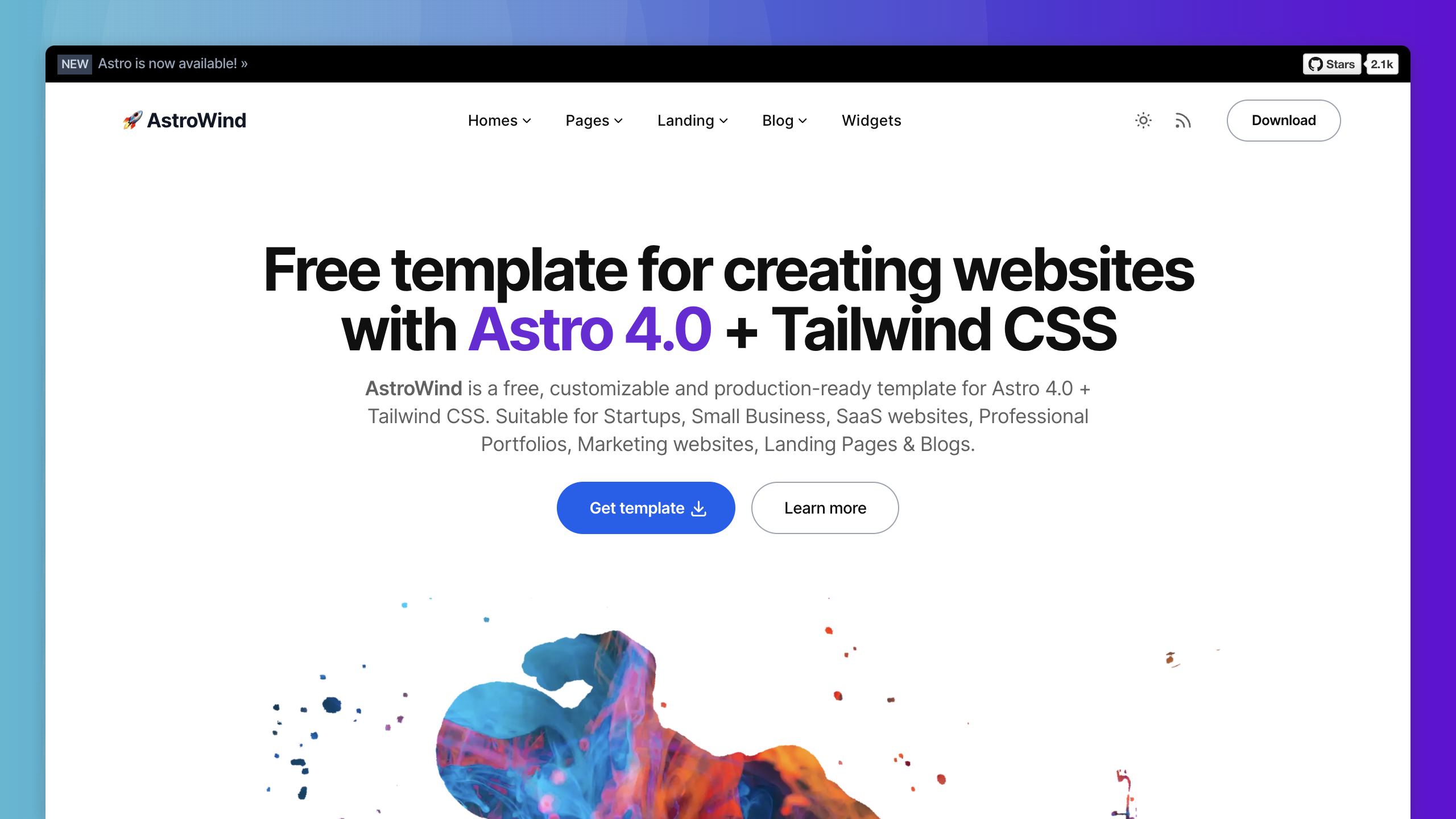






Table of Contents
📌 https://astrowind.vercel.app/
We're embarking on an exciting journey with AstroWind 2.0, and we want you to be a part of it! We're currently taking the first steps in developing this new version and your insights are invaluable. Join the discussion and share your feedback, ideas, and suggestions to help shape the future of AstroWind. Let's make AstroWind 2.0 even better, together!
Share Your Feedback in Our Discussion!
AstroWind tries to give you quick access to creating a website using Astro 4.0 + Tailwind CSS. It's a free theme which focuses on simplicity, good practices and high performance.
Very little vanilla javascript is used only to provide basic functionality so that each developer decides which framework (React, Vue, Svelte, Solid JS...) to use and how to approach their goals.
In this version the template supports all the options in the output configuration, static, hybrid and server, but the blog only works with prerender = true. We are working on the next version and aim to make it fully compatible with SSR.



🧑🚀 Seasoned astronaut? Delete/edit this file
README.md. Updatesrc/config.yamland contents. Have fun!
All commands are run from the root of the project, from a terminal:
| Command | Action |
|---|---|
npm install |
Installs dependencies |
npm run dev |
Starts local dev server at localhost:3000 |
npm run build |
Build your production site to ./dist/ |
npm run preview |
Preview your build locally, before deploying |
npm run check |
Check your project for errors |
npm run fix |
Run Eslint and format codes with Prettier |
npm run astro ... |
Run CLI commands like astro add, astro preview |
Basic configuration file: ./src/config.yaml
site:
  name: 'Example'
  site: 'https://example.com'
  base: '/' # Change this if you need to deploy to Github Pages, for example
  trailingSlash: false # Generate permalinks with or without "/" at the end

  googleSiteVerificationId: false # Or some value,

# Default SEO metadata
metadata:
  title:
    default: 'Example'
    template: '%s — Example'
  description: 'This is the default meta description of Example website'
  robots:
    index: true
    follow: true
  openGraph:
    site_name: 'Example'
    images:
      - url: '~/assets/images/default.png'
        width: 1200
        height: 628
    type: website
  twitter:
    handle: '@twitter_user'
    site: '@twitter_user'
    cardType: summary_large_image

i18n:
  language: en
  textDirection: ltr

apps:
  blog:
    isEnabled: true # If the blog will be enabled
    postsPerPage: 6 # Number of posts per page

    post:
      isEnabled: true
      permalink: '/blog/%slug%' # Variables: %slug%, %year%, %month%, %day%, %hour%, %minute%, %second%, %category%
      robots:
        index: true

    list:
      isEnabled: true
      pathname: 'blog' # Blog main path, you can change this to "articles" (/articles)
      robots:
        index: true

    category:
      isEnabled: true
      pathname: 'category' # Category main path /category/some-category, you can change this to "group" (/group/some-category)
      robots:
        index: true

    tag:
      isEnabled: true
      pathname: 'tag' # Tag main path /tag/some-tag, you can change this to "topics" (/topics/some-category)
      robots:
        index: false

    isRelatedPostsEnabled: true # If a widget with related posts is to be displayed below each post
    relatedPostsCount: 4 # Number of related posts to display

analytics:
  vendors:
    googleAnalytics:
      id: null # or "G-XXXXXXXXXX"

ui:
theme: 'system' # Values: "system" | "light" | "dark" | "light:only" | "dark:only"To customize Font families, Colors or more Elements refer to the following files:
src/components/CustomStyles.astrosrc/assets/styles/tailwind.css
You can create an optimized production build with:
npm run buildNow, your website is ready to be deployed. All generated files are located at
dist folder, which you can deploy the folder to any hosting service you
prefer.
Clone this repository on your own GitHub account and deploy it to Netlify:

Clone this repository on your own GitHub account and deploy to Vercel:
- TailNext - Free template using Next.js 14 and Tailwind CSS with the new App Router.
- Qwind - Free template to make your website using Qwik + Tailwind CSS.
If you have any ideas, suggestions or find any bugs, feel free to open a discussion, an issue or create a pull request. That would be very useful for all of us and we would be happy to listen and take action.
Initially created by onWidget and maintained by a community of contributors.
AstroWind is licensed under the MIT license — see the LICENSE file for details.