This MicroHack scenario walks through a complete migration and modernization journey using Azure Migrate and GitHub Copilot. The experience covers discovery, assessment, business case development, and application modernization for both .NET and Java workloads.
This MicroHack provides hands-on experience with the entire migration lifecycle - from initial discovery of on-premises infrastructure through to deploying modernized applications on Azure. You'll work with a simulated datacenter environment and use AI-powered tools to accelerate modernization.
Key Technologies:
- Azure Migrate for discovery and assessment
- GitHub Copilot for AI-powered code modernization
- Azure Container Apps for hosting modernized applications
Students: Please skip this part, the environment is already prepared for you.
Install Azure PowerShell and authenticated to your Azure subscription:
Install-Module Az
Connect-AzAccount
Please note:
- You need Administrator rights to install Azure PowerShell. If it's not an option for you, install it for the current user using
Install-Module Az -Scope CurrentUser - It takes some time (around 10 minutes) to install. Please, complete this task in advance.
- If you have multiple Azure subscriptions avaialble for your account, use
Connect-AzAccount -TenantId YOUR-TENANT-IDto authenticate against specific one.
Once you are authenticated to Azure via PowerShell, run the following script to create the lab environment:
# Download and execute the environment creation script directly from GitHub
Invoke-WebRequest -Uri "https://raw.githubusercontent.com/CZSK-MicroHacks/MicroHack-MigrateModernize/refs/heads/main/lab-creation/New-MicroHackEnvironment.ps1" -OutFile "$env:TEMP\New-MicroHackEnvironment.ps1"
& "$env:TEMP\New-MicroHackEnvironment.ps1"Business Scenario: You're working with an organization that has on-premises infrastructure running .NET and Java applications. Your goal is to assess the environment, build a business case for migration, and modernize applications using best practices and AI assistance.
After completing this MicroHack you will:
- Understand how to deploy and configure Azure Migrate for infrastructure discovery
- Know how to build compelling business cases using Azure Migrate data
- Analyze migration readiness across servers, databases, and applications
- Use GitHub Copilot to modernize .NET Framework applications to modern .NET
- Leverage AI to migrate Java applications from AWS dependencies to Azure services
- Deploy modernized applications to Azure Container Apps
This MicroHack has specific prerequisites to ensure optimal learning experience.
Required Access:
- Azure Subscription with Contributor permissions
- GitHub account with GitHub Copilot access
Required Software:
- Visual Studio 2022 (for .NET modernization)
- Visual Studio Code (for Java modernization)
- Docker Desktop
- Java Development Kit (JDK 8 and JDK 21)
- Maven
Alternative: Use GitHub Codespaces (recommended if you don't have required software installed locally)
If you don't have the required software installed locally, you can use GitHub Codespaces for application modernization. Codespaces provides a cloud-based development environment with VS Code and common development tools pre-configured.
Benefits of Using Codespaces:
- No local software installation required
- Pre-configured development environment
- Access from any device with a web browser
- Consistent development environment across team members
How to Use Codespaces for Modernization:
-
Fork the Repository: Navigate to the repository on GitHub and click the "Fork" button to create your own copy.
-
Create a Codespace:
- In your forked repository, click the green Code button
- Select the Codespaces tab
- Click Create codespace on main
- Wait for the environment to initialize (this may take a few minutes)
-
Install GitHub Copilot App Modernization Extension:
Once your Codespace is running, install the GitHub Copilot App Modernization extension:
- Open the Extensions view (Ctrl+Shift+X or Cmd+Shift+X on macOS)
- Search for "GitHub Copilot App Modernization"
- Click Install
- Restart the Codespace if prompted
- Sign in to GitHub Copilot when prompted
Note: You need a GitHub Copilot Pro, Pro+, Business, or Enterprise subscription to use this extension.
-
Use GitHub Copilot for Autonomous Modernization:
The GitHub Copilot App Modernization extension can autonomously find and modernize applications. Here's how:
For .NET Applications (like ContosoUniversity):
- Navigate to the ContosoUniversity project in the Explorer
- Open the GitHub Copilot App Modernization extension from the Activity Bar
- Use the following example prompt in the Copilot Chat:
Find the ASP.NET application in this repository and modernize it to .NET 10. Upgrade the framework, migrate authentication from Windows AD to Microsoft Entra ID, and prepare it for Azure Container Apps deployment. - The agent will analyze the application, create a migration plan, and execute the modernization autonomously
For Java Applications (like AssetManager):
- Navigate to the AssetManager project in the Explorer
- Open the GitHub Copilot App Modernization extension from the Activity Bar
- Click Migrate to Azure to trigger the assessment
- Use example prompts like:
Assess this Java application and identify all modernization opportunities. Migrate from AWS S3 to Azure Blob Storage, upgrade from Java 8 to Java 21, and migrate from Spring Boot 2.x to 3.x autonomously. - The agent will perform the assessment and execute the guided migration tasks
Alternative Prompt for Complete Modernization:
Find all applications in this repository (both .NET and Java) and create a comprehensive modernization plan. Execute the modernization autonomously, including framework upgrades, cloud migration, and Azure service integration. -
Monitor the Modernization Process:
- Watch the Copilot Chat for real-time status updates and progress
- Review Generated Files: Check
plan.md,progress.md, ordotnet-upgrade-report.mdfor detailed logs - Allow Operations: Click "Allow" when prompted for operations during the migration
- Review Code Changes: The extension will show you the proposed changes in the editor
- Track Validation: Monitor automated validation steps (CVE scanning, build validation, tests)
-
Review and Apply Changes:
- Review the Migration Plan: Before execution starts, carefully review the generated migration plan
- Examine Code Diffs: Use the Source Control view (Ctrl+Shift+G) to see all changes
- Test Incrementally: After each major migration step completes, review and test the changes
- Click "Keep": When satisfied with the changes, click "Keep" to apply them
- Resolve Issues: If validation fails, the agent will attempt to fix issues automatically
- Commit Changes: Once all changes are validated, commit them to your branch
-
Deploy to Azure:
- After modernization completes successfully, the agent can help you deploy to Azure
- Follow the deployment prompts in the Copilot Chat
- The agent will provision necessary Azure resources and deploy your application
Important Notes:
- The modernization process is autonomous but requires your supervision and approval
- Always monitor the chat for questions or confirmations from the agent
- Review all code changes before accepting them to ensure they meet your requirements
- The agent will create a new branch for changes, allowing you to review before merging
- Validate the application runs correctly after each major migration step
- Keep an eye on the validation results (CVE scans, build status, test results)
Azure Resources: The lab environment provides:
- Resource Group:
on-prem - Hyper-V host VM with nested virtualization
- Pre-configured virtual machines simulating datacenter workloads
- Azure Migrate project with sample data
Estimated Time:
- Challenge 1: 45-60 minutes
- Challenge 2: 30-45 minutes
- Challenge 3: 45-60 minutes
- Challenge 4: 60-75 minutes
- Challenge 5: 45-60 minutes
- Challenge 6: 45-60 minutes
- Challenge 7: 60-90 minutes
- Total: 5.25-7.5 hours
Set up Azure Migrate to discover and assess your on-premises infrastructure. You'll install and configure an appliance that collects data about your servers, applications, and dependencies.
Understand Your Environment:
- Access the Azure Portal using the provided credentials
- Navigate to the
onpremXXX-rgresource group - Connect to the Hyper-V host VM
onpremXXX-vm(login:adminuser, password:demo!pass123)- User RDP or Azure Bastion
- Explore the nested VMs running inside the host
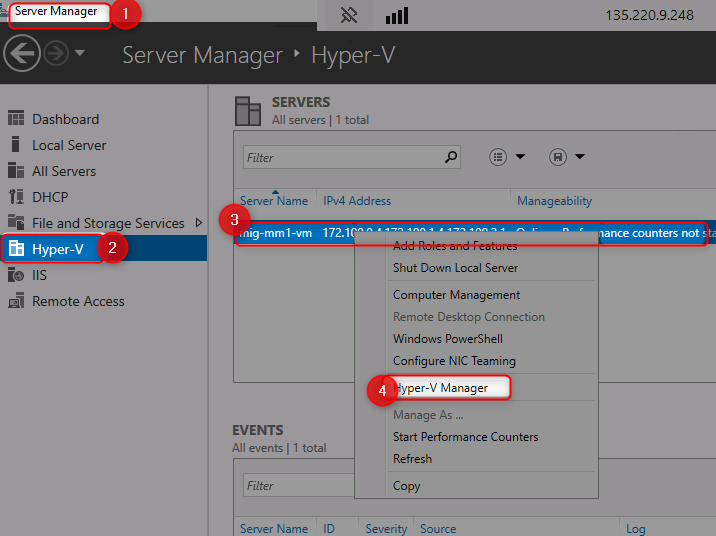
- Verify that applications are running (e.g., http://172.100.2.110)
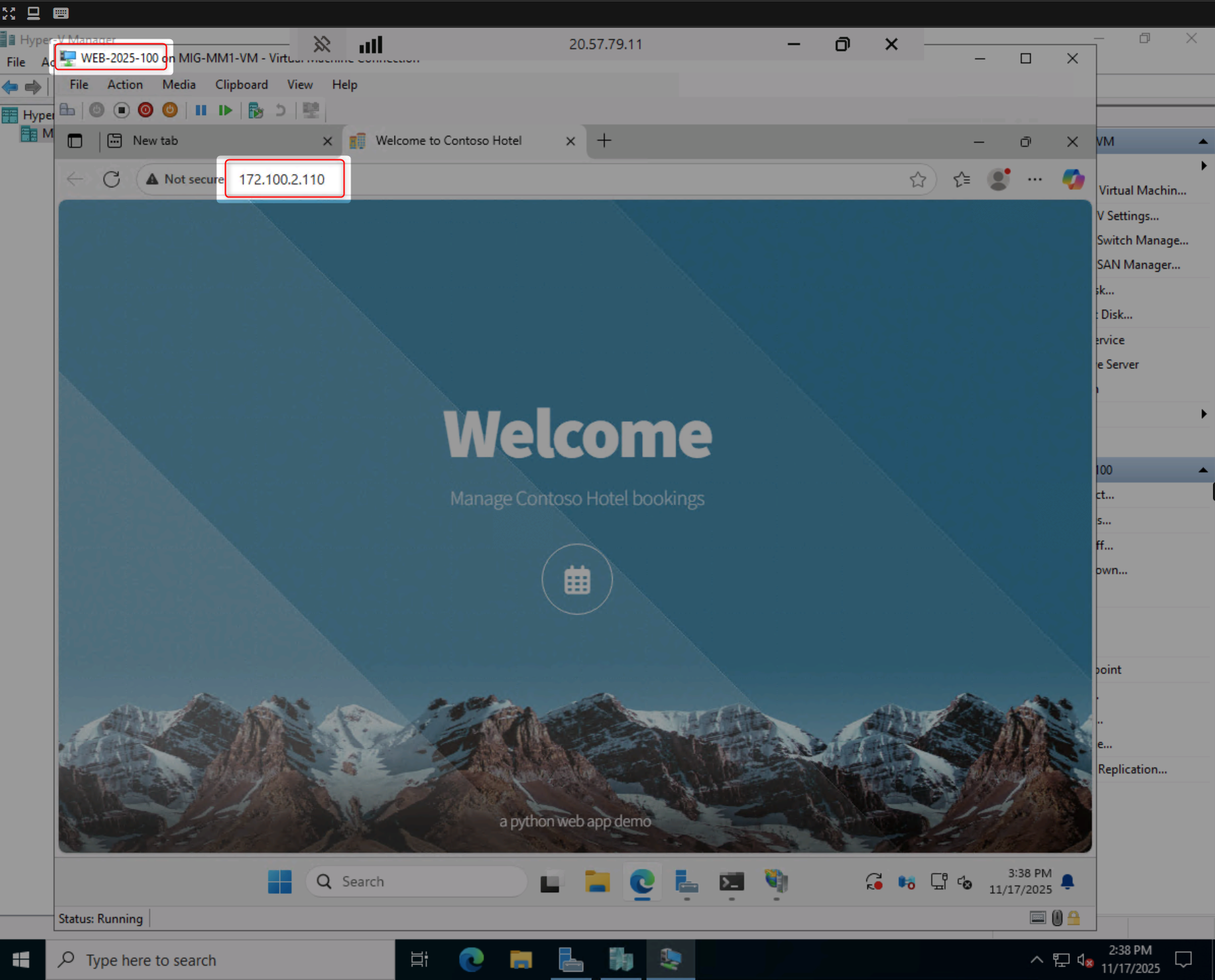
Create Azure Migrate Project:
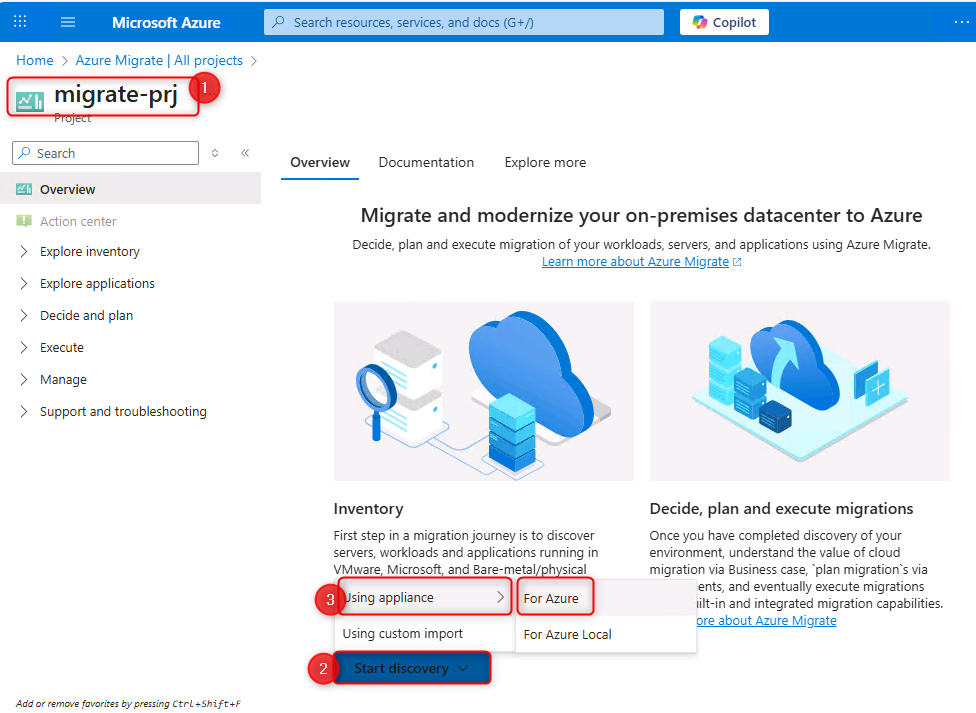
- Create a new Azure Migrate project in the Azure Portal
- Name your project (e.g.,
migrate-prjXXX) - Select an appropriate region (e.g., Europe)
Deploy the Azure Migrate Appliance:
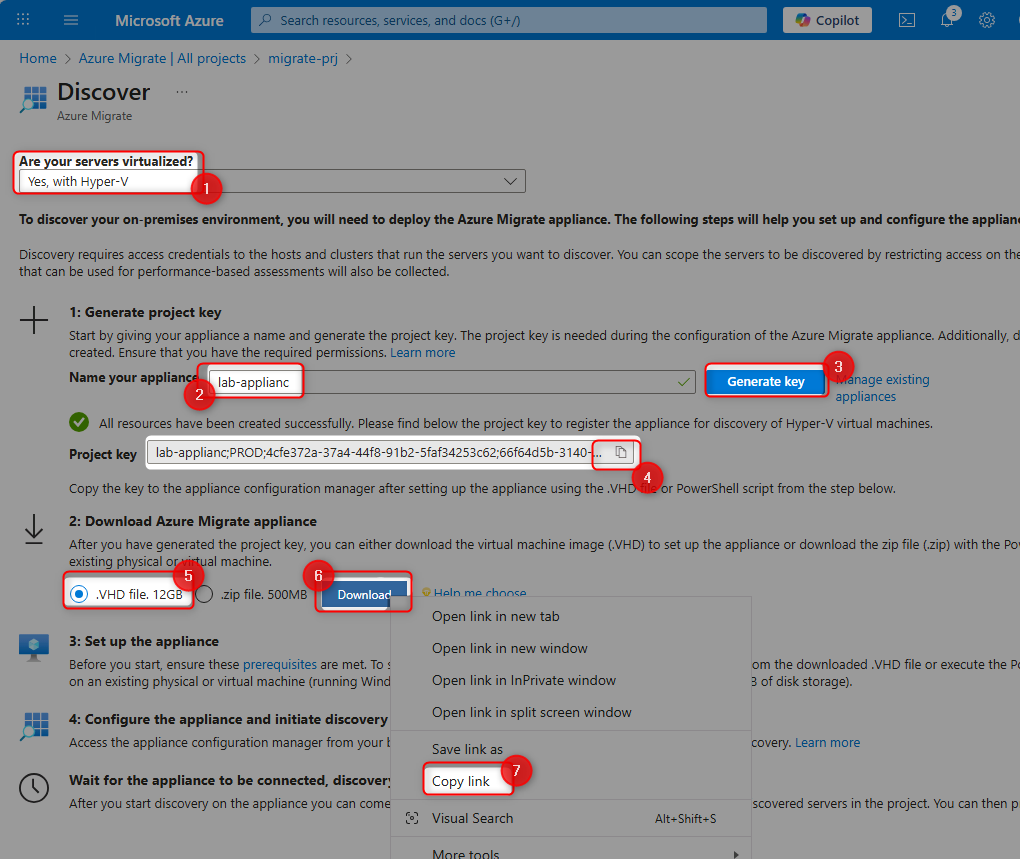
- Generate a project key for the appliance
- Download the Azure Migrate appliance VHD file
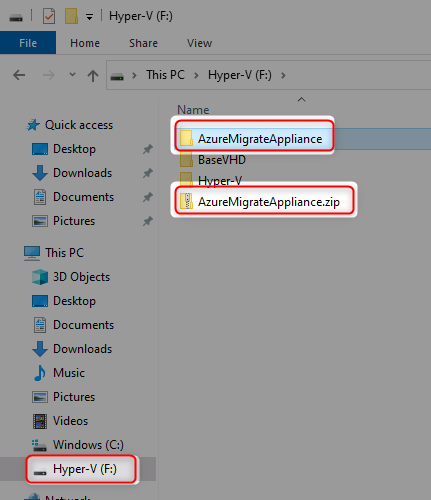
- Extract the VHD inside your Hyper-V host (F: drive recommended)
- Create a new Hyper-V VM using the extracted VHD:
- Name:
AZMApplianceXXX - Generation: 1
- RAM: 16384 MB
- Network: NestedSwitch
- Name:
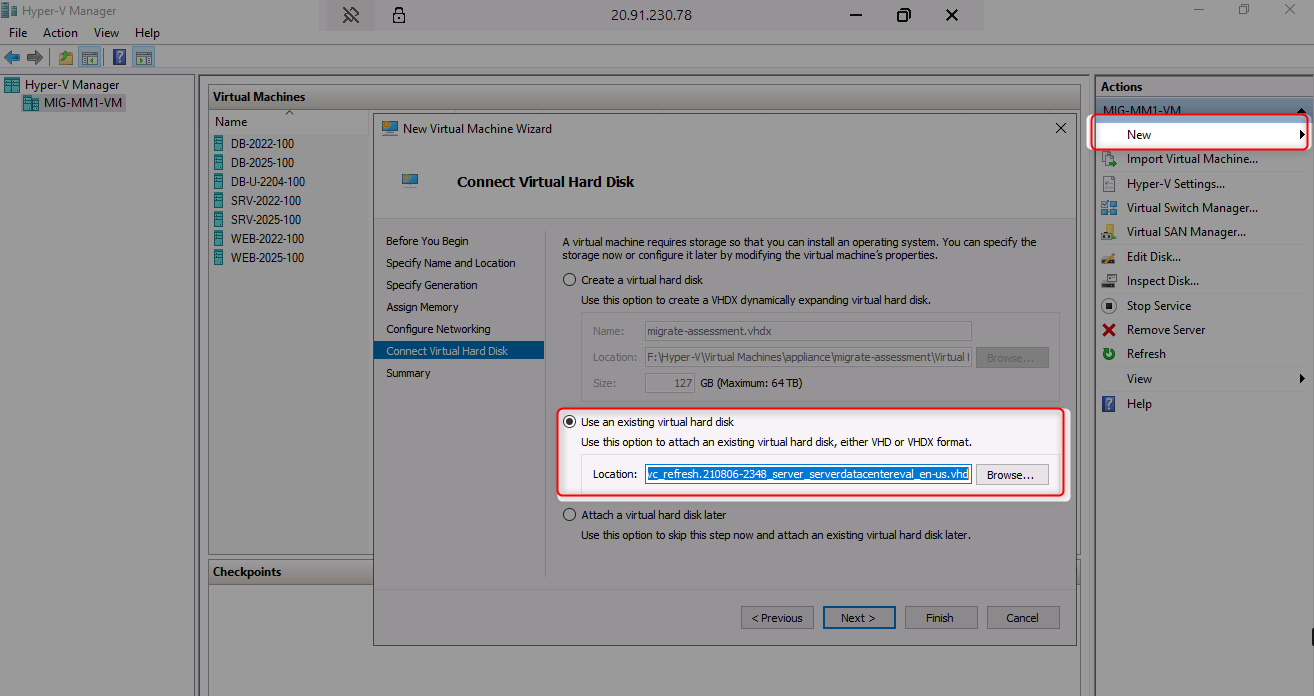
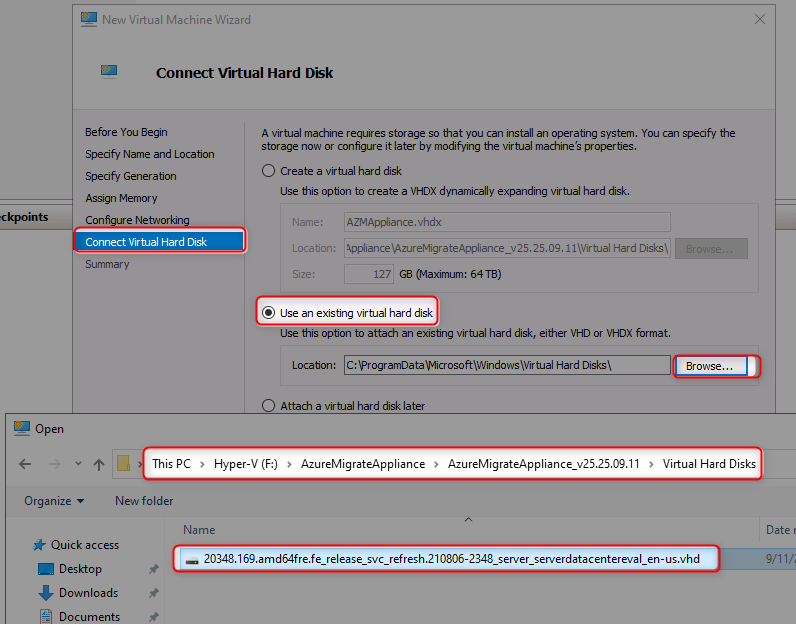
- Start the appliance VM
Configure the Appliance:
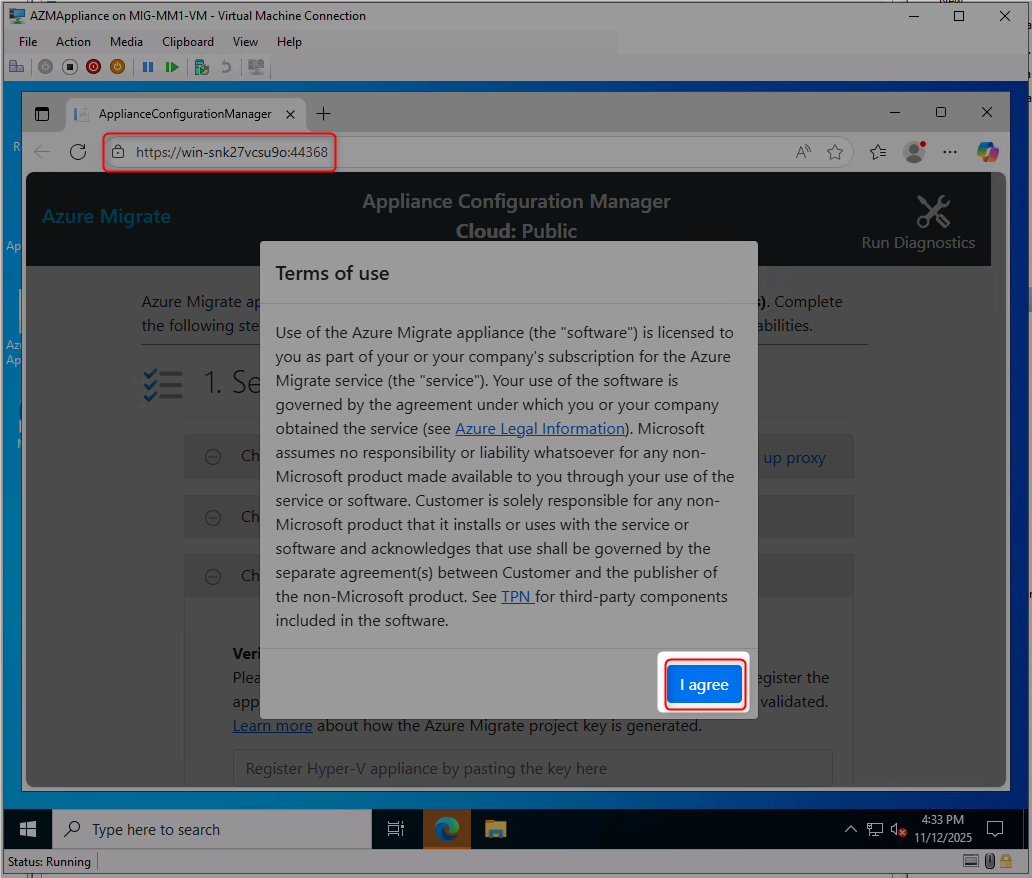
- Accept license terms and set appliance password:
Demo!pass123
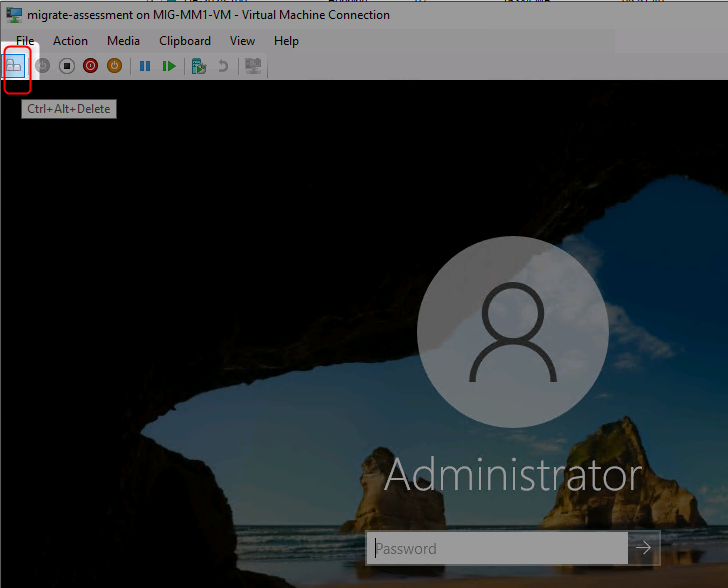
- Wait for Azure Migrate Appliance Configuration to load in browser
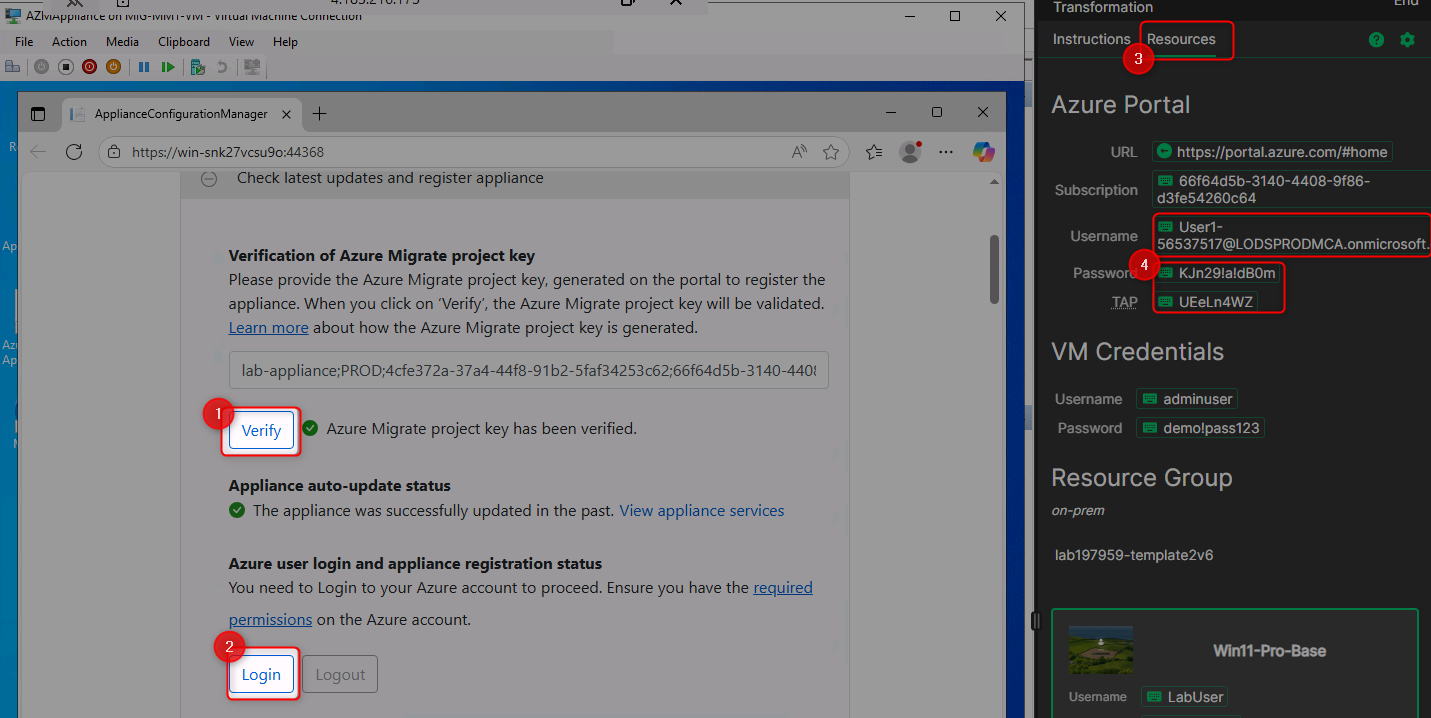
- Paste and verify your project key
- Login to Azure through the appliance interface
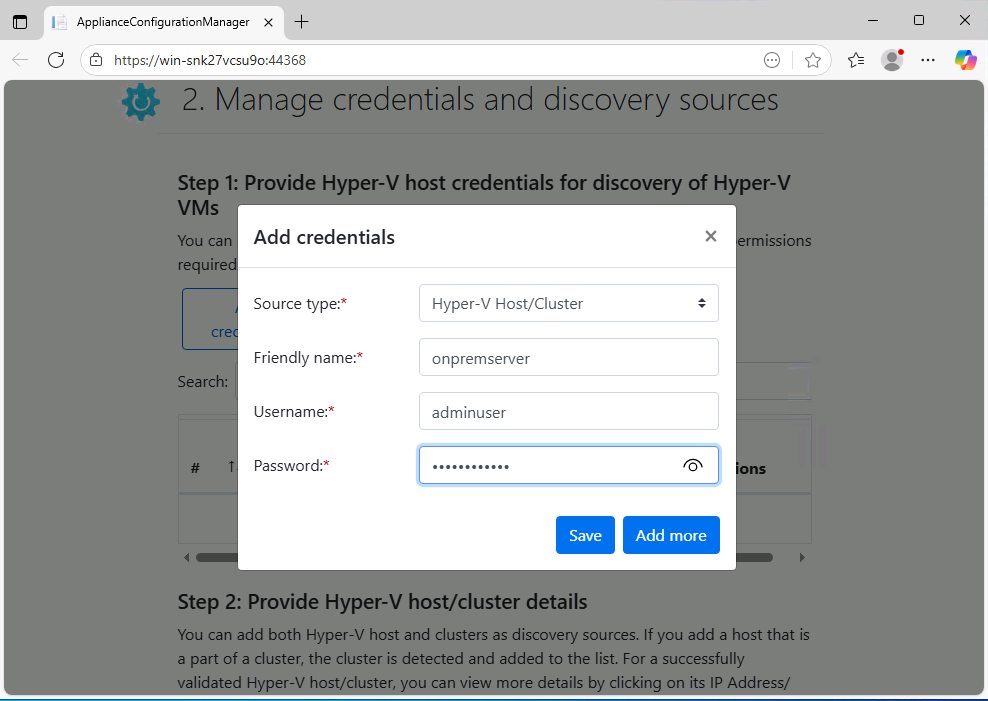
- Add Hyper-V host credentials (username:
adminuser, password:demo!pass123)
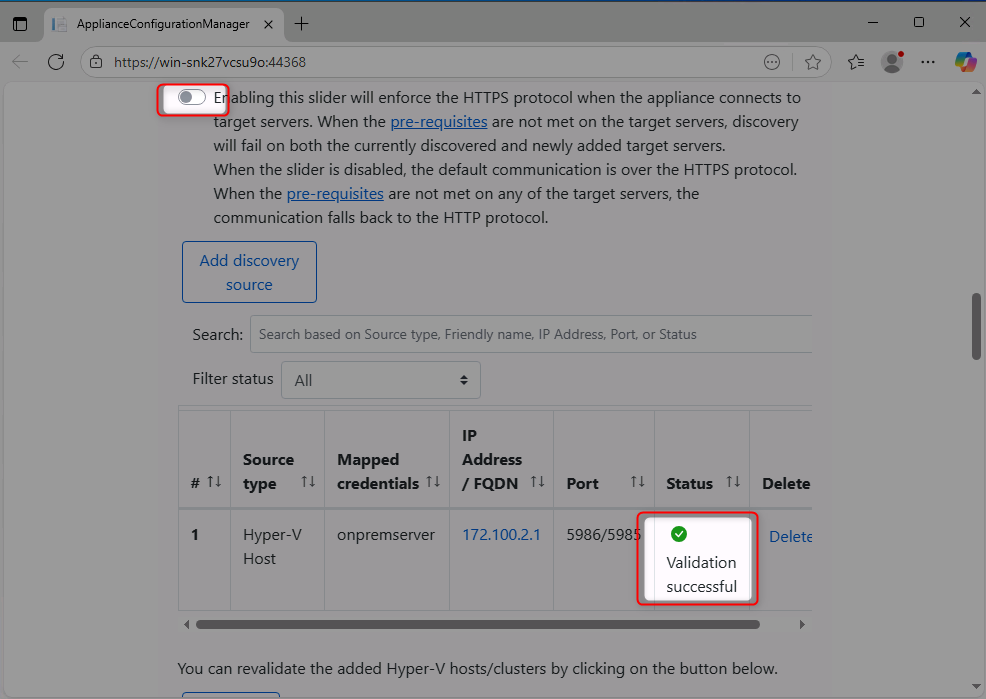
- Add discovery source with Hyper-V host IP:
172.100.2.1
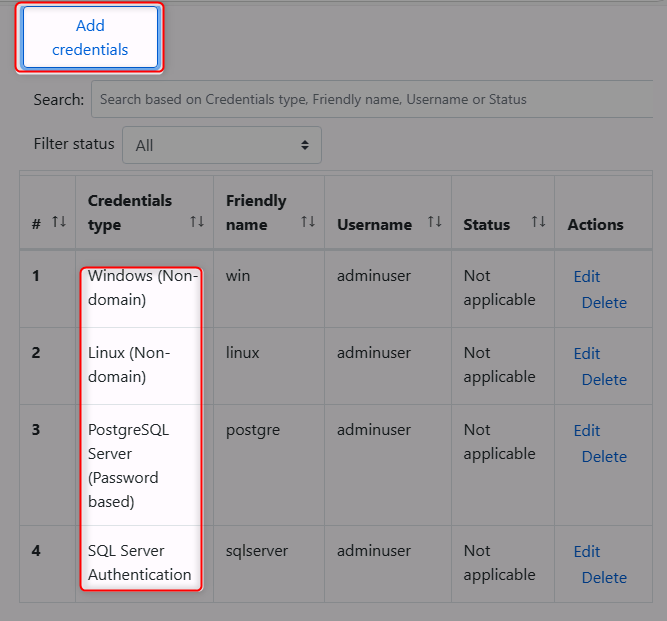
- Add credentials for Windows, Linux, SQL Server, and PostgreSQL workloads (password:
demo!pass123)- Windows username:
Administrator - Linux username:
demoadmin - SQL username:
sa
- Windows username:
- Start the discovery process
- ✅ You have successfully connected to the Hyper-V host VM
- ✅ You can access nested VMs and verify applications are running
- ✅ Azure Migrate project has been created
- ✅ Appliance is deployed and connected to Azure Migrate
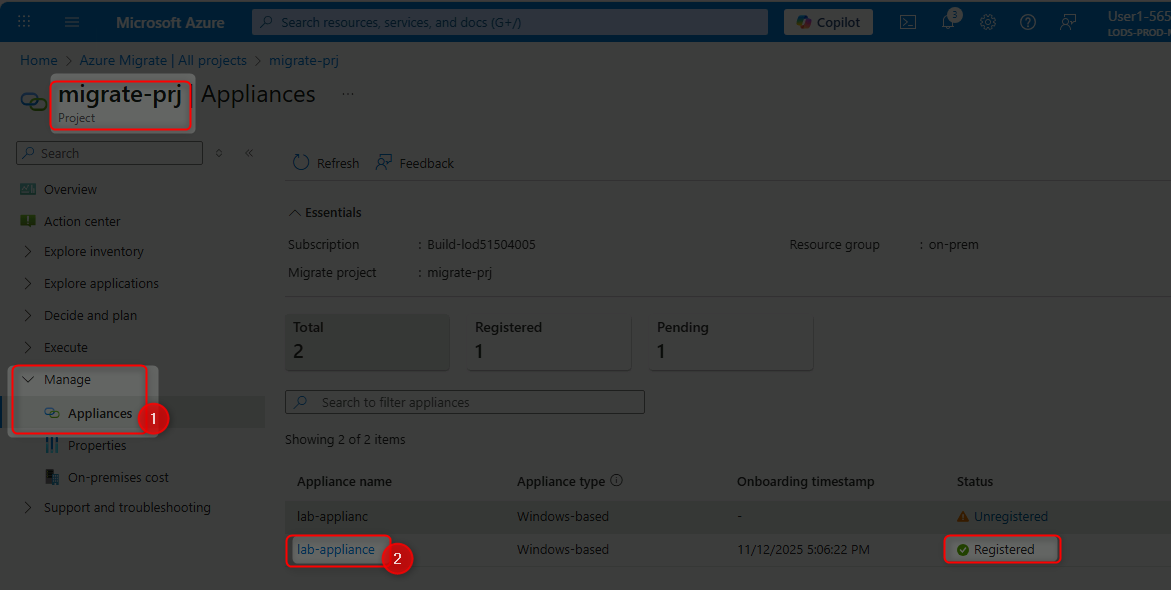
- ✅ All appliance services show as running in Azure Portal
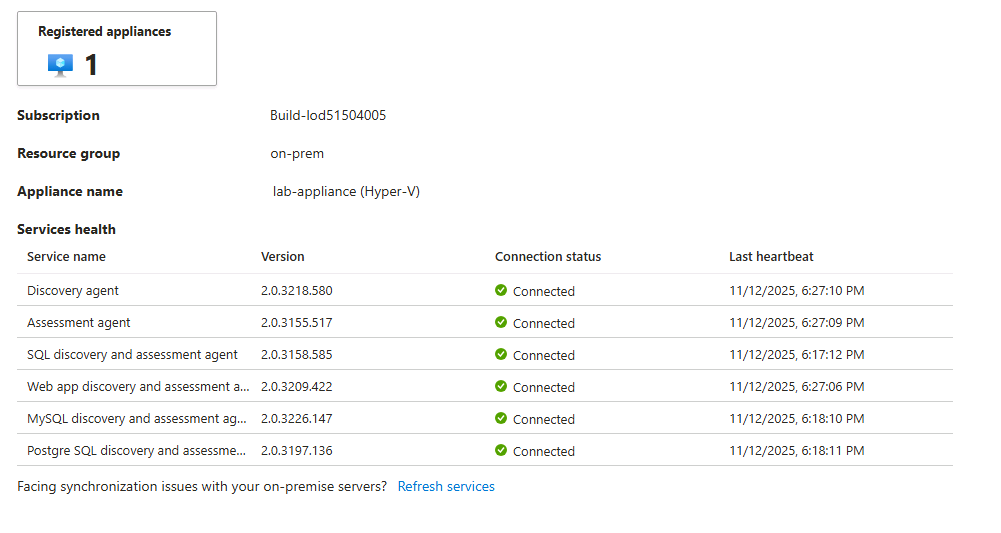
- ✅ Discovery process has started collecting data from your environment
- Azure Migrate Overview
- Azure Migrate Appliance Architecture
- Hyper-V Discovery with Azure Migrate
- Azure Migrate Discovery Best Practices
Transform raw discovery data into actionable insights by cleaning data, grouping workloads, creating business cases, and performing technical assessments to guide migration decisions.
Review Data Quality:
- Navigate to already prepared (with suffix
-azm) Azure Migrate project overview
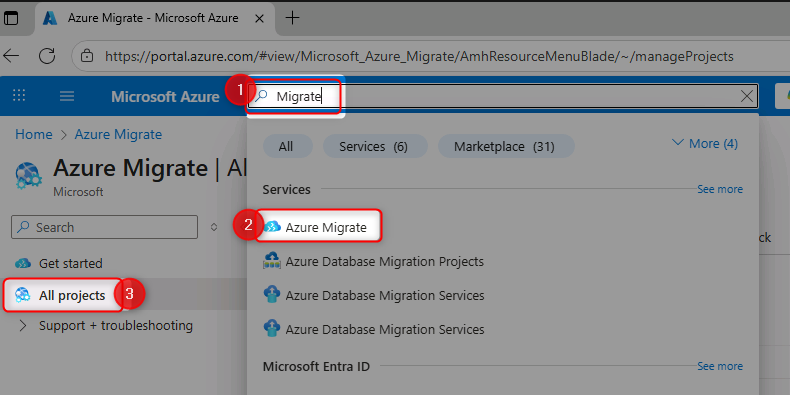
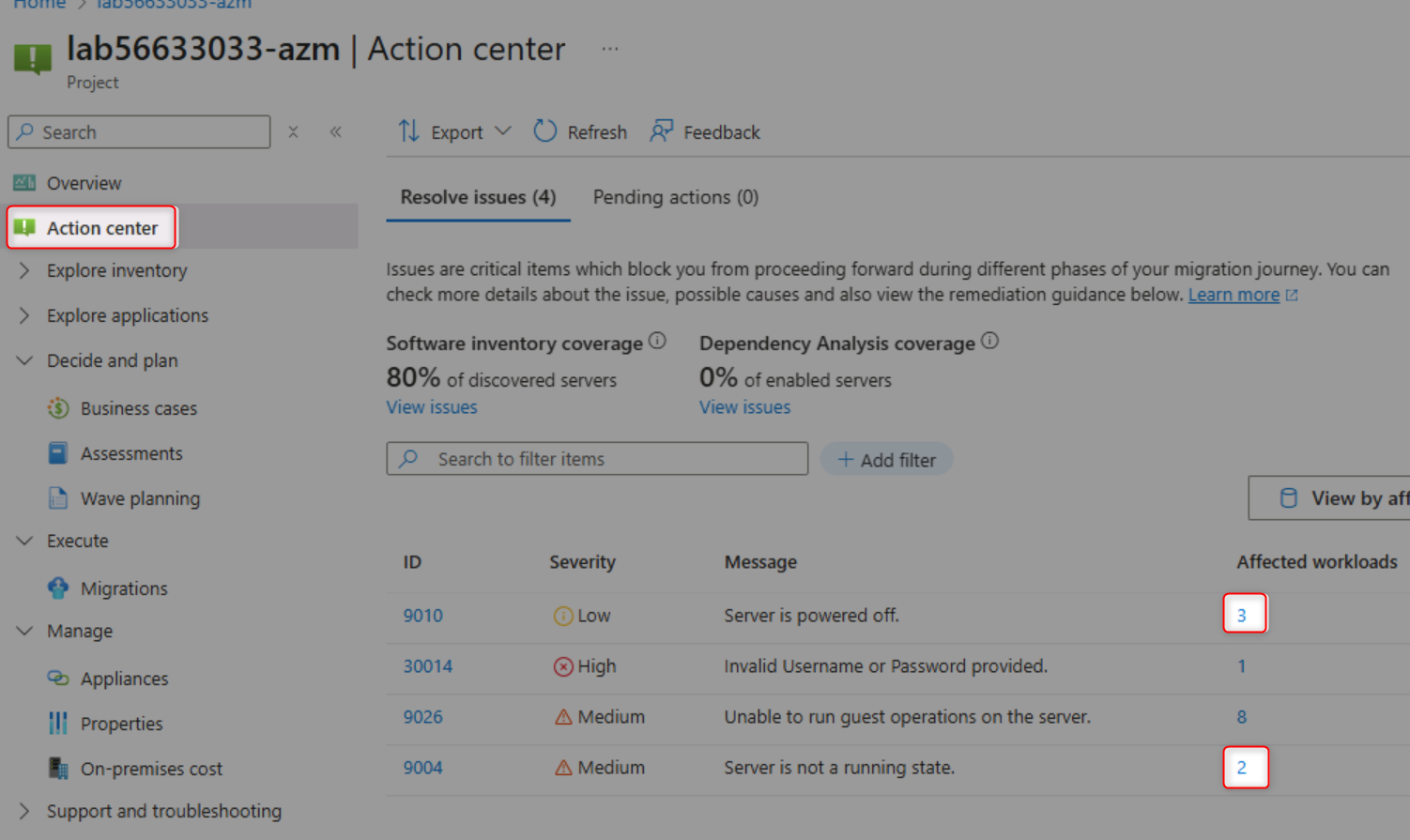
- Open the Action Center to identify data quality issues
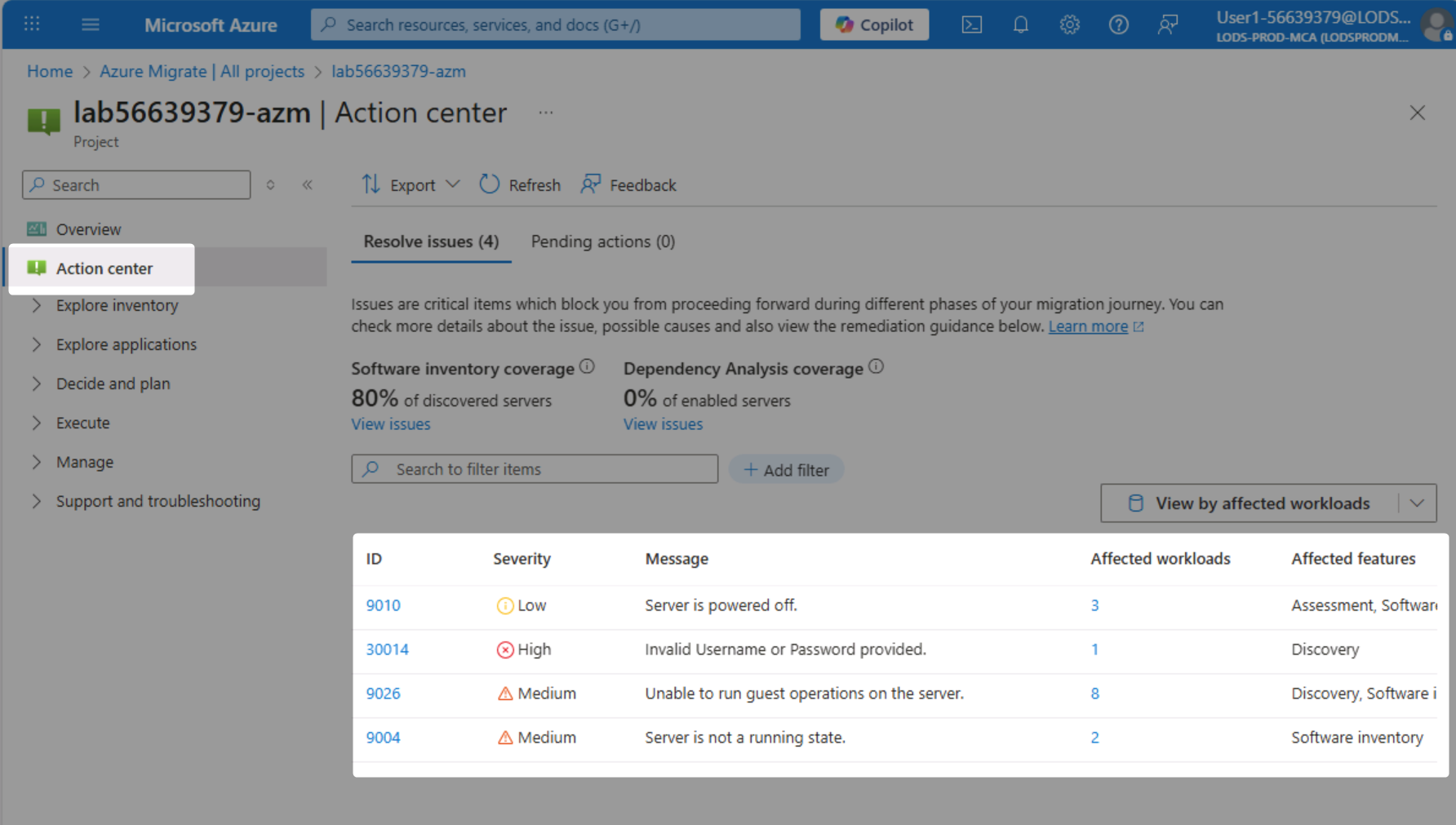
- Review common issues (powered-off VMs, connection failures, missing performance data)
- Understand the impact of data quality on assessment accuracy
Group Workloads into Applications:
- Navigate to Applications page under "Explore applications"
- Create a new application definition for "ContosoUniversity"
- Set application type as "Custom" (source code available)
- Link relevant workloads to the application
- Filter and select all ContosoUniversity-related workloads
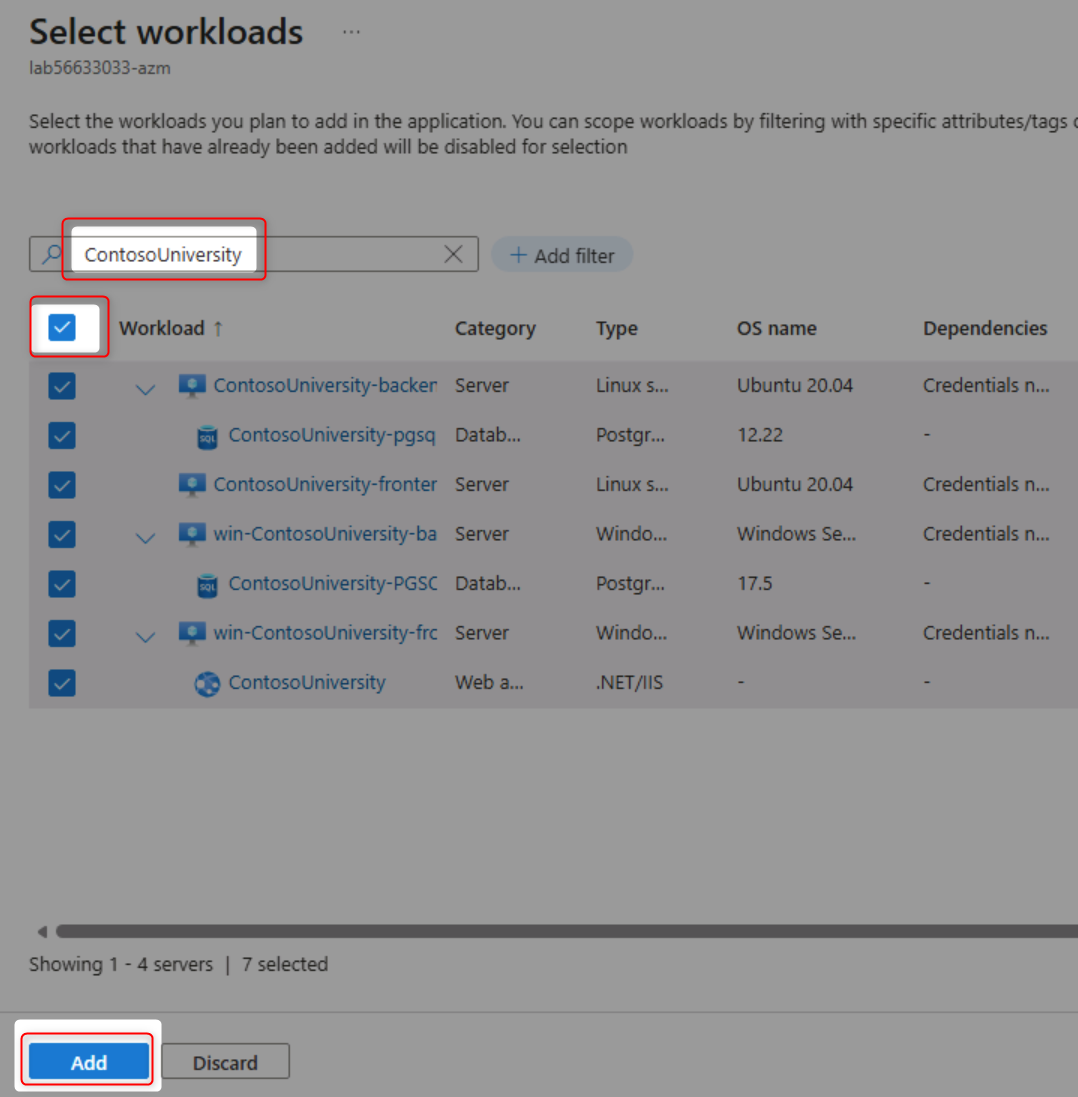
- Set criticality and complexity ratings
Build a Business Case:
- Navigate to Business Cases section
- Create a new business case named "contosouniversity"
- Select "Selected Scope" and add ContosoUniversity application
- Choose target region: West US 2
- Configure Azure discount: 15%
- Build the business case and wait for calculations
Analyze an Existing Business Case:
- Open the pre-built "businesscase-for-paas" business case
- Review annual cost savings and infrastructure scope
- Examine current on-premises vs future Azure costs
- Analyze CO₂ emissions reduction estimates
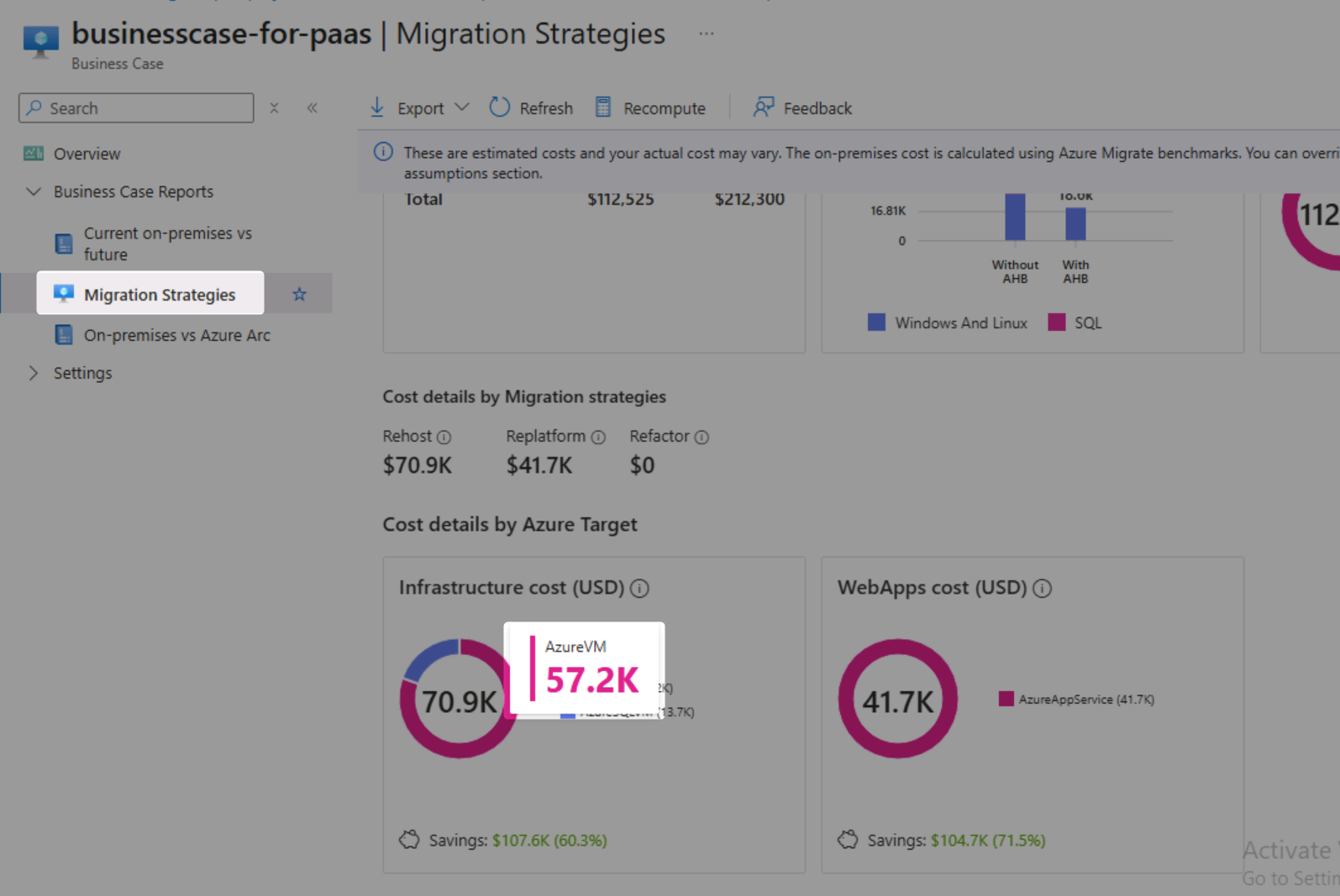
- Review migration strategy recommendations (Rehost, Replatform, Refactor)
- Examine Azure cost assumptions and settings
Perform Technical Assessments:
- Navigate to Assessments section
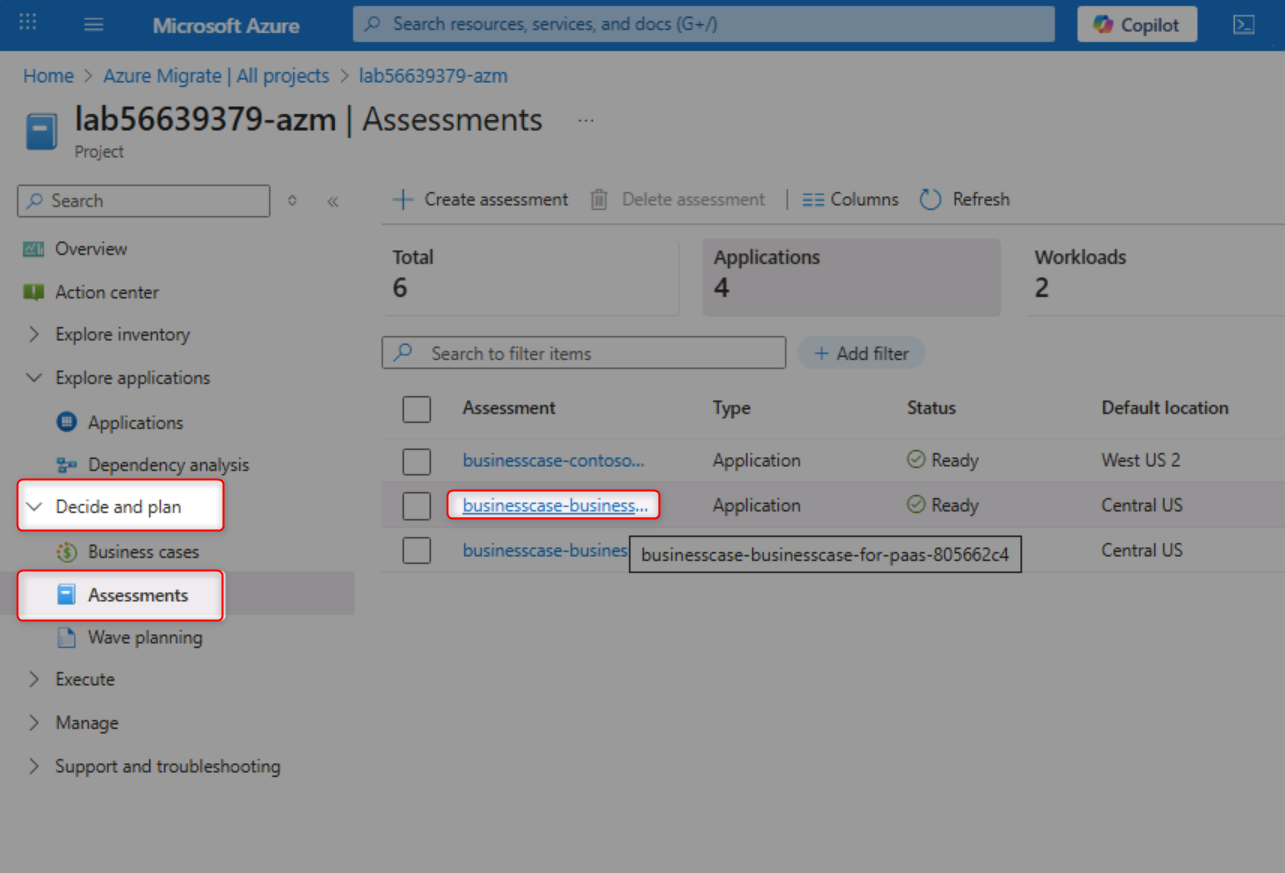
- Open the "businesscase-businesscase-for-paas" assessment
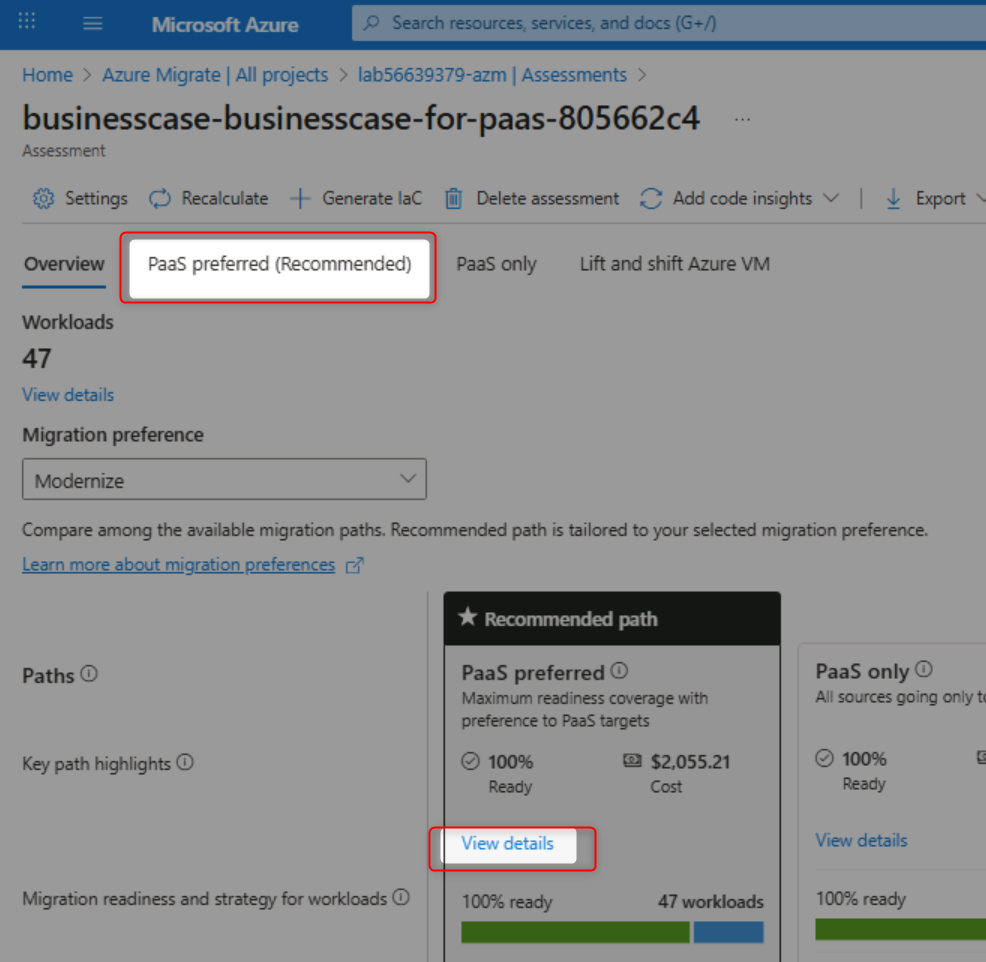
- Review recommended migration paths (PaaS preferred)
- Analyze monthly costs by migration approach
- Review Web Apps to Azure Container Apps assessment details
- Identify "Ready with conditions" applications
- Review ContosoUniversity application details
- Check server operating system support status
- Identify out-of-support and extended support components
- Review PostgreSQL database version information
- Examine software inventory on each server
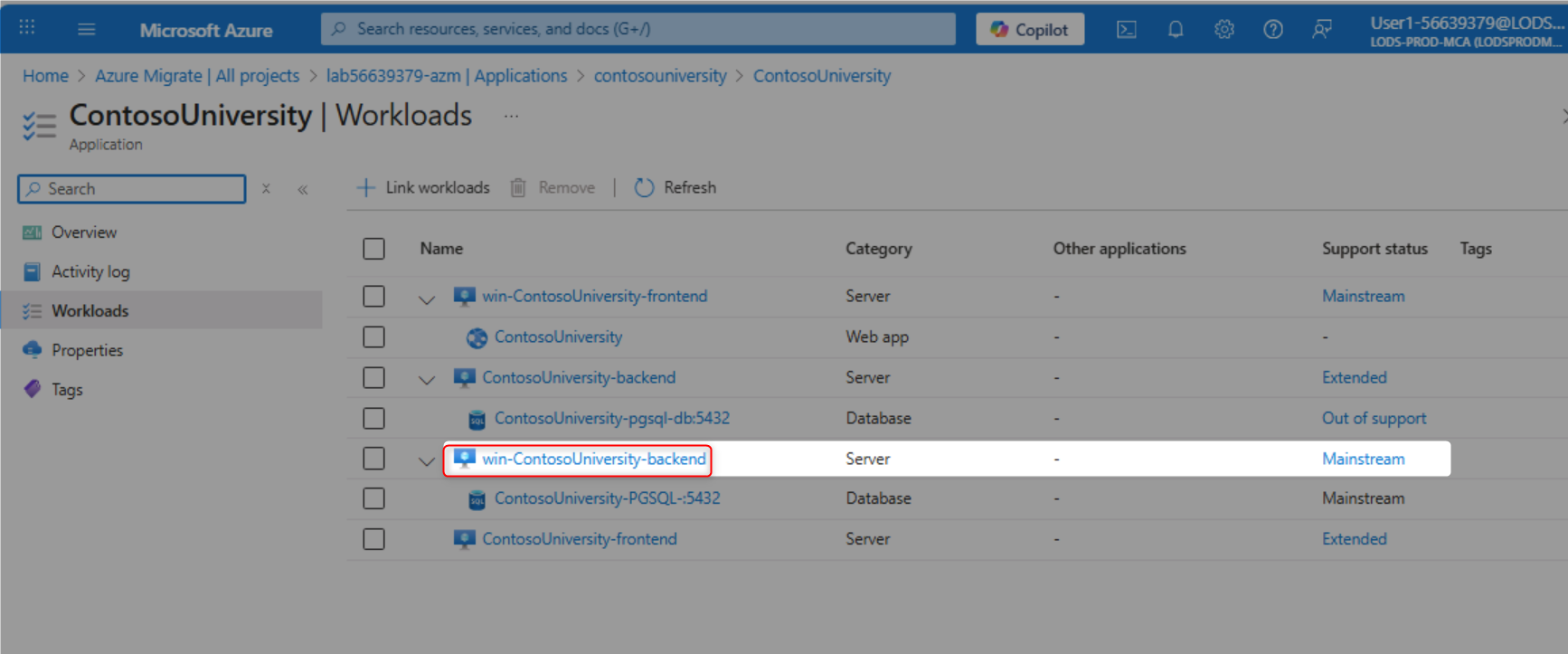
Complete Knowledge Checks:
- Find the count of powered-off Linux VMs
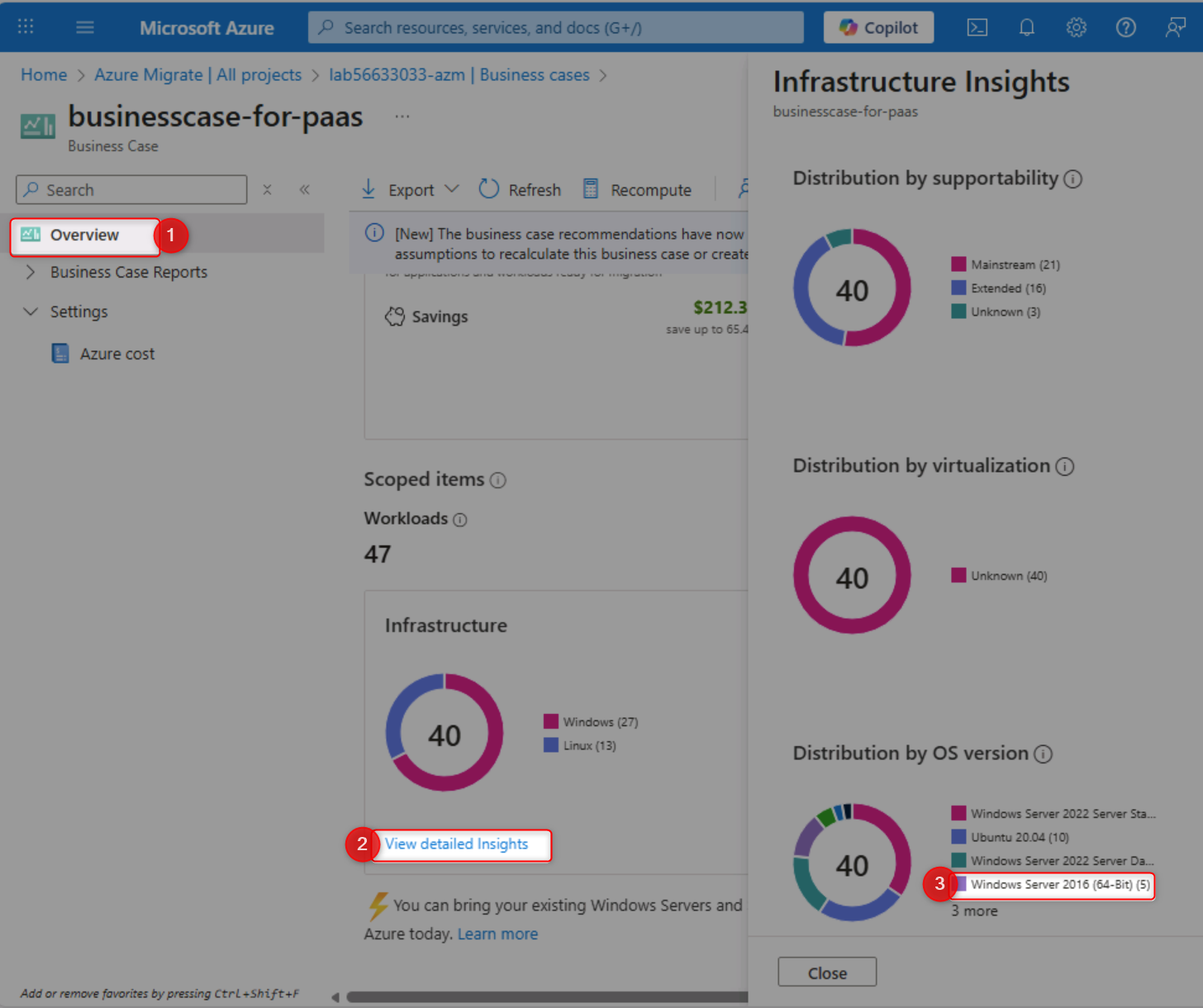
- Count Windows Server 2016 instances
- Calculate VM costs for the ContosoUniversity application
- Identify annual cost savings from the business case
- Determine security cost savings
- ✅ You understand data quality issues and their impact on assessments
- ✅ Applications are properly grouped with related workloads
- ✅ Business case successfully created showing cost analysis and ROI
- ✅ You can navigate between business cases and technical assessments
- ✅ Migration strategies (Rehost, Replatform, Refactor) are clearly understood
- ✅ Application readiness status is evaluated for cloud migration
- ✅ Out-of-support components are identified for remediation
- ✅ You can answer specific questions about your environment using Azure Migrate data
- Azure Migrate Business Case Overview
- Azure Assessment Best Practices
- Application Discovery and Grouping
- Migration Strategies: 6 Rs Explained
Modernize the Contoso University .NET Framework application to .NET 10 and deploy it to Azure Container Apps using GitHub Copilot's AI-powered code transformation capabilities.
💡 Tip: If you don't have Visual Studio 2022 installed locally, you can complete this challenge using GitHub Codespaces. See the Alternative: Use GitHub Codespaces section in the prerequisites for setup instructions.
Setup and Preparation:
- Navigate to
https://github.com/CZSK-MicroHacks/MicroHack-MigrateModernizeand click the "Fork" button in the top-right corner

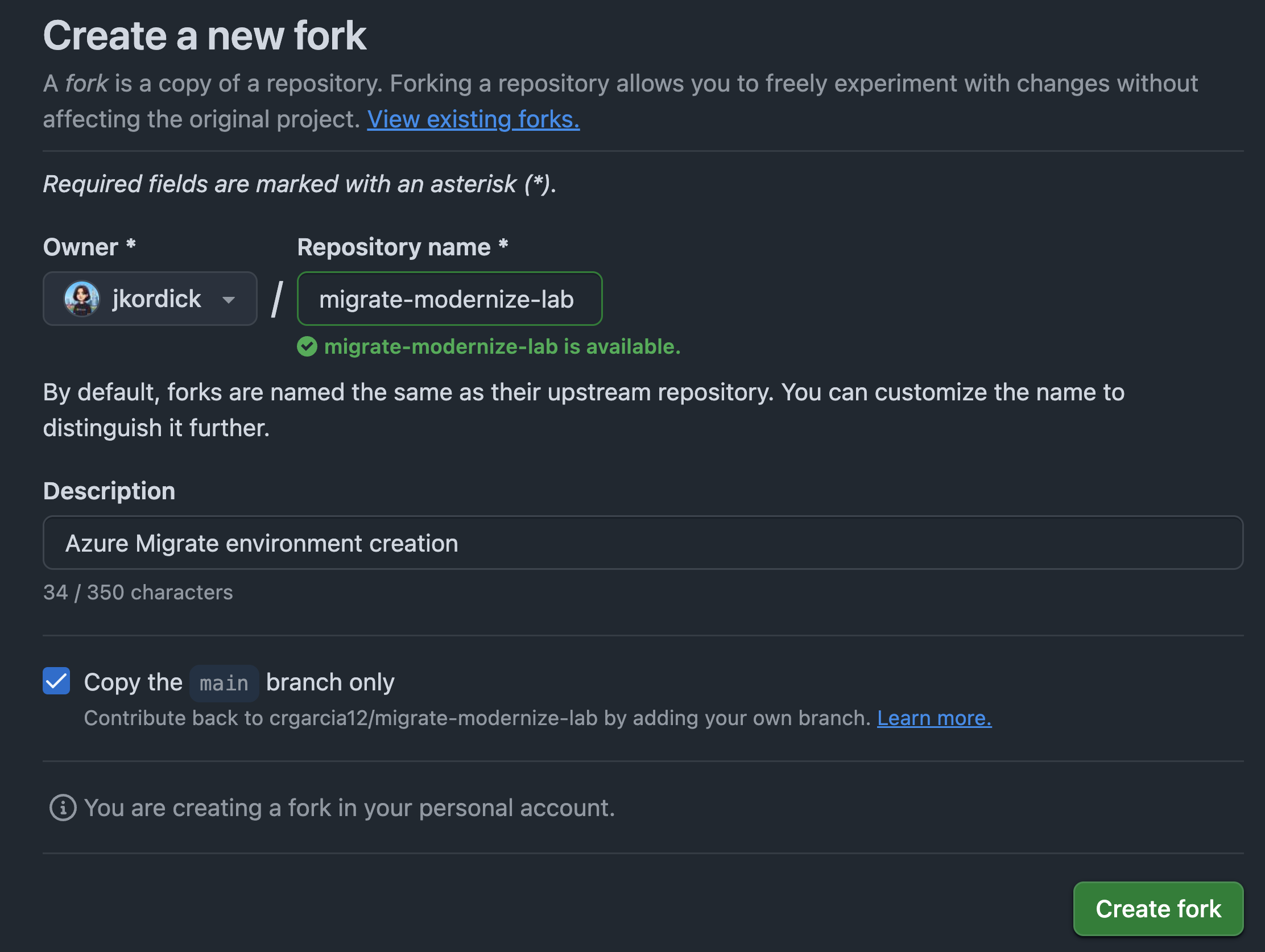
- Select your account as the owner and click "Create fork"
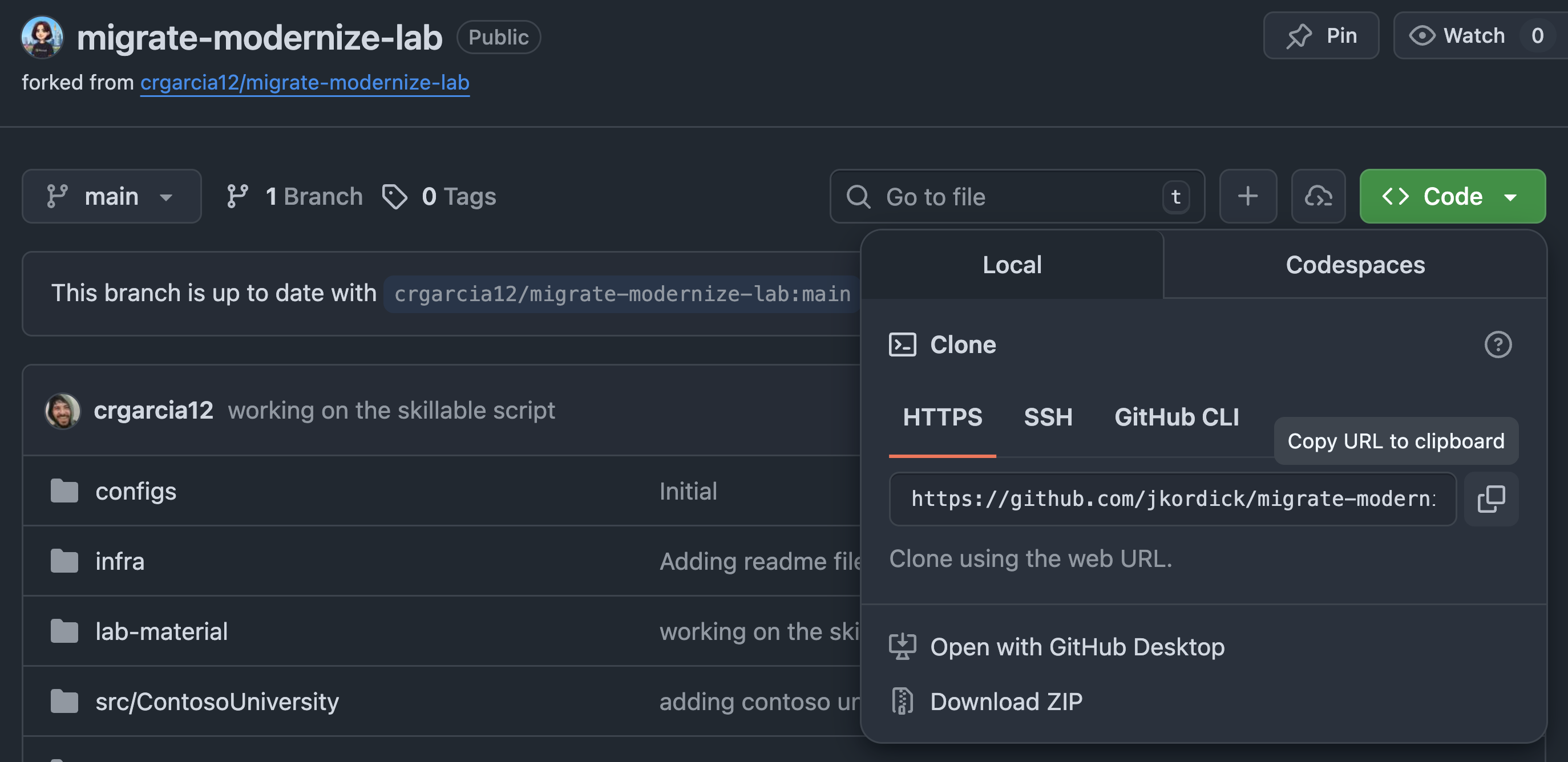
- Once the fork is created, click the "Code" button and copy your forked repository URL
- Open Visual Studio 2022
- Select "Clone a repository" and paste your forked repository URL
- Navigate to Solution Explorer and locate the ContosoUniversity project
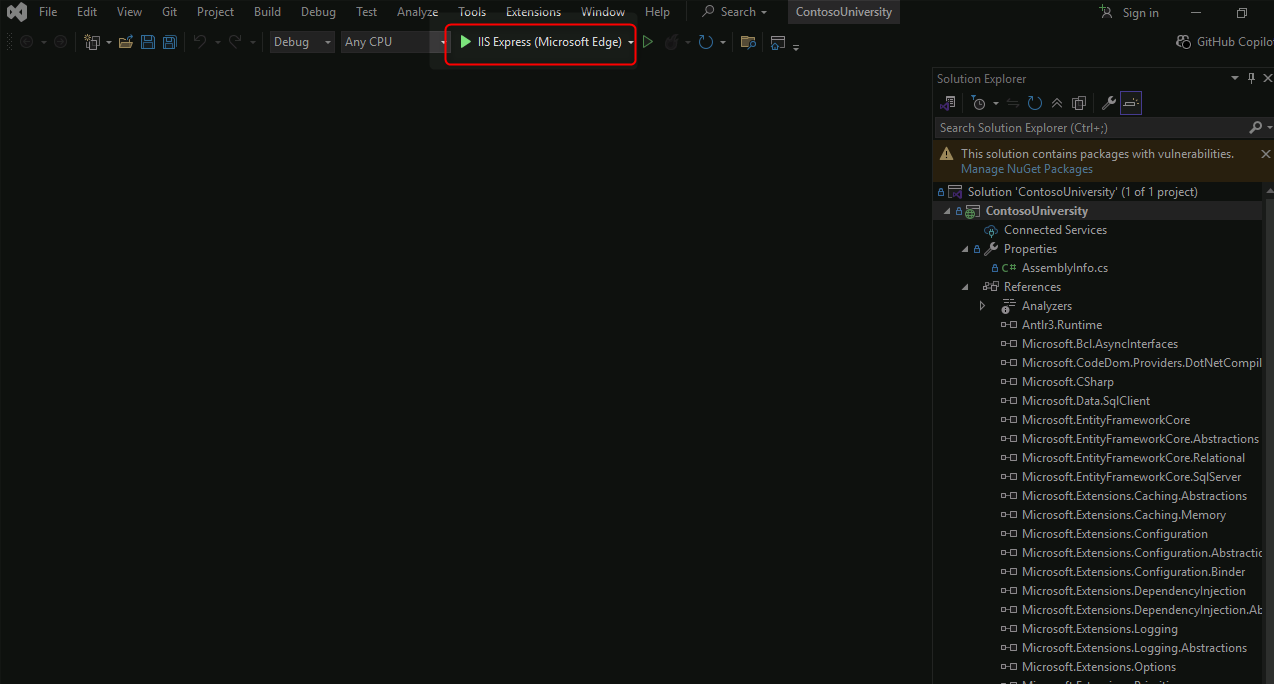
- Rebuild the project to verify it compiles successfully
Assess and Upgrade to .NET 10:
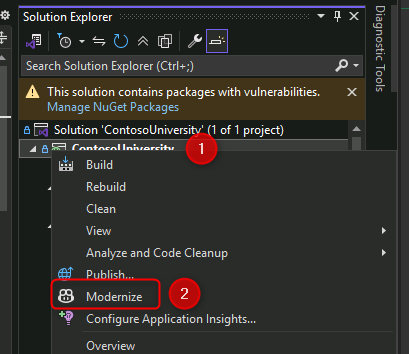
- Right-click the ContosoUniversity project and select "Modernize"
- Sign in to GitHub Copilot if prompted
- Select Claude Sonnet 4.5 as the model
- Click "Upgrade to a newer .NET version"
- Allow GitHub Copilot to analyze the codebase
- Review the upgrade plan when presented
- Allow operations when prompted during the upgrade process
- Wait for the upgrade to complete (marked by
dotnet-upgrade-report.mdappearing)
Migrate to Azure:
- Right-click the project again and select "Modernize"
- Click "Migrate to Azure" in the GitHub Copilot Chat window
- Wait for GitHub Copilot to assess cloud readiness
Resolve Cloud Readiness Issues:
19. Open the dotnet-upgrade-report.md file
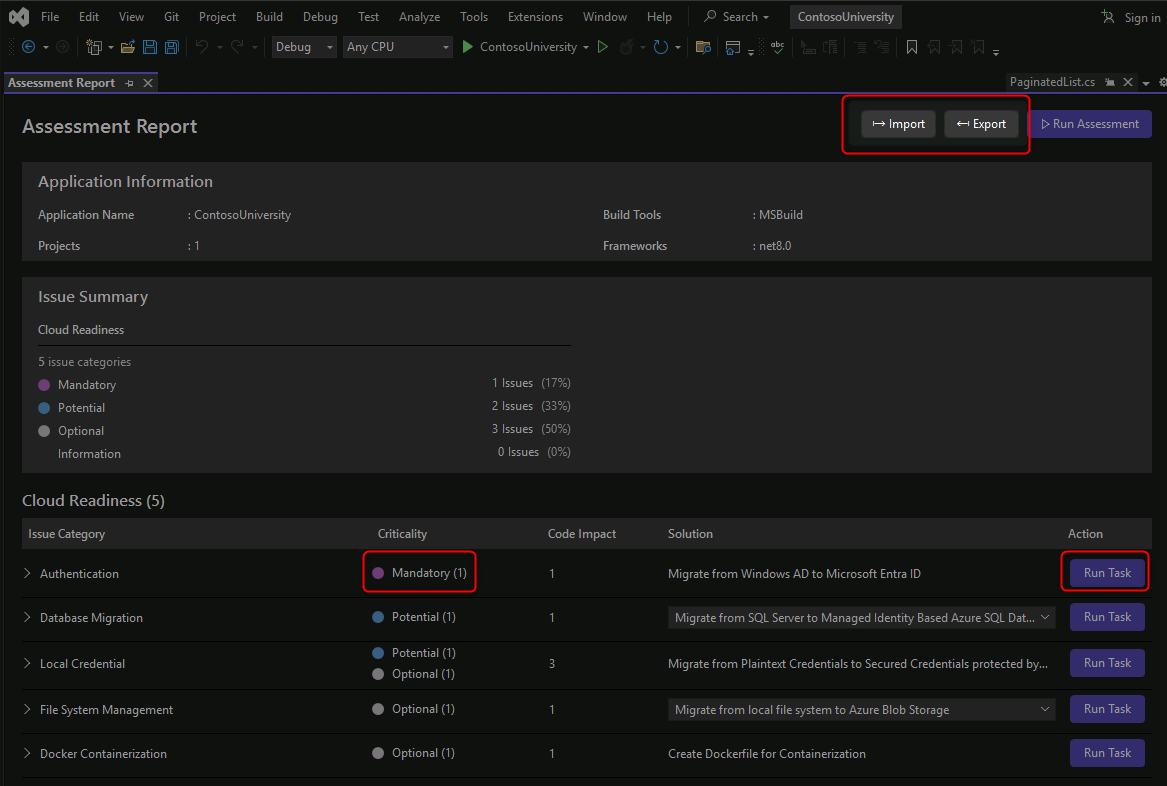
- Review the Cloud Readiness Issues section
- Click "Migrate from Windows AD to Microsoft Entra ID"
- Allow GitHub Copilot to implement the authentication changes
- Ensure all mandatory tasks are resolved
- Review the changes made to authentication configuration
Deploy to Azure:
- Allow GitHub Copilot to complete the Azure Container Apps deployment
- Verify the deployment succeeds
- Test the deployed application in Azure
- ✅ ContosoUniversity solution cloned and builds successfully
- ✅ Application upgraded from .NET Framework to .NET 10
- ✅ Upgrade report generated showing all changes and issues
- ✅ Authentication migrated from Windows AD to Microsoft Entra ID
- ✅ All mandatory cloud readiness issues resolved
- ✅ Application successfully deployed to Azure Container Apps
- ✅ Deployed application is accessible and functional
- GitHub Copilot for Visual Studio
- Modernize .NET Applications
- Migrate to .NET 10
- Azure Container Apps for .NET
- Microsoft Entra ID Authentication
Modernize the Asset Manager Java Spring Boot application for Azure deployment, migrating from AWS dependencies to Azure services using GitHub Copilot App Modernization in VS Code.
💡 Tip: If you don't have Docker Desktop, JDK, or Maven installed locally, you can complete this challenge using GitHub Codespaces. See the Alternative: Use GitHub Codespaces section in the prerequisites for setup instructions.
Environment Setup:
- Open Docker Desktop and ensure it's running
2 Open Terminal and run the setup commands:
mkdir C:\gitrepos\lab
cd C:\gitrepos\lab
git clone https://github.com/CZSK-MicroHacks/MicroHack-MigrateModernize.git
cd .\migrate-modernize-lab\src\AssetManager\
code .
- Login to GitHub from VS Code
- Install GitHub Copilot App Modernization extension if not present
Validate Application Locally:
- Open Terminal in VS Code (View → Terminal)
- Run
scripts\startapp.cmd - Wait for Docker containers (RabbitMQ, Postgres) to start
- Allow network permissions when prompted
- Verify application is accessible at http://localhost:8080
- Stop the application by closing console windows
Perform AppCAT Assessment:
- Open GitHub Copilot App Modernization extension in the Activity bar
- Ensure Claude Sonnet 4.5 is selected as the model
- Click "Migrate to Azure" to begin assessment
- Wait for AppCAT CLI installation to complete
- Review assessment progress in the VS Code terminal
- Wait for assessment results (9 cloud readiness issues, 4 Java upgrade opportunities)
Analyze Assessment Results:
- Review the assessment summary in GitHub Copilot chat
- Examine issue prioritization:
- Mandatory (Purple) - Critical blocking issues
- Potential (Blue) - Performance optimizations
- Optional (Gray) - Future improvements
- Click on individual issues to see detailed recommendations
- Focus on the AWS S3 to Azure Blob Storage migration finding
Execute Guided Migration:
- Expand the "Migrate from AWS S3 to Azure Blob Storage" task
- Read the explanation of why this migration is important
- Click the "Run Task" button to start the migration
- Review the generated migration plan in the chat window and
plan.mdfile - Type "Continue" in the chat to begin code refactoring
Monitor Migration Progress:
- Watch the GitHub Copilot chat for real-time status updates
- Check the
progress.mdfile for detailed change logs - Review file modifications as they occur:
pom.xmlandbuild.gradleupdates for Azure SDK dependenciesapplication.propertiesconfiguration changes- Spring Cloud Azure version properties
- Allow any prompted operations during the migration
Validate Migration:
- Wait for automated validation to complete:
- CVE scanning for security vulnerabilities
- Build validation
- Consistency checks
- Test execution
- Review validation results in the chat window
- Allow automated fixes if validation issues are detected
- Confirm all validation stages pass successfully
Test Modernized Application:
- Open Terminal in VS Code
- Run
scripts\startapp.cmdagain - Verify the application starts with Azure Blob Storage integration
- Test application functionality at http://localhost:8080
- Confirm no errors related to storage operations
Optional: Continue Modernization:
- Review other migration tasks in the assessment report
- Execute additional migrations as time permits
- Track progress through the
plan.mdandprogress.mdfiles
- ✅ Docker Desktop is running and containers are functional
- ✅ Asset Manager application cloned and runs locally
- ✅ AppCAT assessment completed successfully
- ✅ Assessment identifies 9 cloud readiness issues and 4 Java upgrade opportunities
- ✅ AWS S3 to Azure Blob Storage migration executed via guided task
- ✅ Maven/Gradle dependencies updated with Azure SDK
- ✅ Application configuration migrated to Azure Blob Storage
- ✅ All validation stages pass (CVE, build, consistency, tests)
- ✅ Modernized application runs successfully locally
- ✅ Migration changes tracked in dedicated branch for rollback capability
- GitHub Copilot for VS Code
- Azure SDK for Java
- Migrate from AWS to Azure
- Azure Blob Storage for Java
- Spring Cloud Azure
- AppCAT Assessment Tool
Build a repeatable Infrastructure as Code (IaC) deployment method that produces consistent results across multiple environments (dev/test/prod), reduces the risk of manual errors, and enables rapid adjustments to infrastructure and application configurations.
Use GitHub Copilot for IaC Development:
💡 Pro Tip: Use GitHub Copilot Chat to accelerate your Infrastructure as Code development throughout this challenge. Copilot can help generate Bicep/Terraform templates, deployment scripts, and configuration files.
Setup Infrastructure as Code Repository:
- Navigate to your forked repository in GitHub
- Create a new branch called
iac-deployment - Create a new directory structure for IaC:
infrastructure/biceporinfrastructure/terraform
Define Azure Infrastructure with GitHub Copilot:
- Open GitHub Copilot Chat in your IDE (VS Code or Visual Studio)
- Use the following prompt to generate infrastructure templates:
Generate a Bicep template for Azure Container Apps infrastructure including: - Log Analytics Workspace - Application Insights - Azure Container Registry - Container Apps Environment (depends on Log Analytics) - Azure SQL Database - Azure Storage Account - Container App for a .NET application Include parameters for environment name, location, and resource names. - Review and customize the generated template for your needs
- Ask Copilot to explain any sections you don't understand:
Explain the Container Apps Environment configuration and its dependencies
Parameterize for Multiple Environments:
- Create environment-specific parameter files using GitHub Copilot:
Create parameter files for dev, test, and prod environments with appropriate SKU sizes: - Dev: Basic/Free tiers where possible - Test: Standard tiers - Prod: Premium tiers with high availability Include parameters for: - Database sizing (DTU or vCores) - Container Apps scaling configuration - Storage redundancy levels - Review the generated parameter files and adjust values as needed
- Use GitHub Copilot to generate deployment scripts:
Create a PowerShell script that deploys Bicep templates with parameter files.
Include error handling, resource validation, and rollback capabilities.
Add Database Schema Deployment:
- Use GitHub Copilot to generate database migration scripts:
Create SQL migration scripts for the ContosoUniversity database schema. Include scripts for: - Creating tables (Students, Courses, Enrollments) - Adding indexes and constraints - Seeding initial data - Generate a deployment order script:
Create a PowerShell script that runs SQL migrations in the correct order
with transaction support and rollback capabilities.
Create Deployment Scripts with GitHub Copilot:
- Ask GitHub Copilot to create deployment automation:
Create a comprehensive PowerShell deployment script (deploy.ps1) that: - Validates Azure CLI installation and authentication - Accepts parameters for environment (dev/test/prod), subscription, and location - Deploys Bicep templates with appropriate parameter files - Waits for deployment completion with progress feedback - Validates all resources were created successfully - Includes detailed error handling and logging - Review and test the generated script
- Ask Copilot to create a cross-platform Bash version:
Convert the deploy.ps1 script to a Bash script (deploy.sh) for Linux/macOS users
Implement Application Configuration Management:
- Use GitHub Copilot to set up configuration management:
Show me how to configure Azure Key Vault for storing application secrets and how to reference these secrets in Azure Container Apps using managed identities. Include Bicep code for: - Creating Key Vault - Storing connection strings as secrets - Configuring Container App to access secrets via managed identity - Review and implement the generated configuration code
Test IaC Deployment:
- Deploy to a test environment using your generated scripts:
./deploy.ps1 -Environment dev -Location eastus
- Verify all resources are created correctly
- Check resource tags and naming conventions
- Validate application connectivity to database and storage
Deploy Application Code:
- Use GitHub Copilot to create container deployment scripts:
Create a script that: 1. Builds a Docker image from the .NET application 2. Pushes the image to Azure Container Registry 3. Deploys the image to Azure Container Apps 4. Runs database migrations 5. Verifies the application is running - Execute the deployment and verify the application starts successfully
Create Deployment Documentation:
- Ask GitHub Copilot to generate comprehensive documentation:
Create a detailed README.md for the infrastructure deployment that includes: - Prerequisites and required tools - Step-by-step deployment instructions - Environment-specific configurations - Troubleshooting guide for common issues - Architecture diagram description - Review and enhance the generated documentation
- ✅ Infrastructure as Code templates created (Bicep or Terraform)
- ✅ Environment-specific parameter files for dev, test, and prod
- ✅ All Azure resources defined as code (Container Apps, Container Registry, SQL, Storage, etc.)
- ✅ Database schema deployment scripts created
- ✅ Deployment automation scripts (PowerShell/Bash) functional
- ✅ Successful deployment to at least one environment
- ✅ Application configuration managed through Azure services (App Configuration/Key Vault)
- ✅ Container images built and pushed to Azure Container Registry
- ✅ Application deploys successfully to Container Apps from ACR
- ✅ All deployments are idempotent (can be run multiple times safely)
- ✅ Comprehensive deployment documentation created
- Azure Bicep Documentation
- Terraform on Azure
- Infrastructure as Code Best Practices
- Azure Container Apps
- Azure Container Registry
- Azure App Configuration
- Azure Key Vault
- Entity Framework Migrations
- Deploy to Container Apps
Establish comprehensive monitoring and observability for your applications and platform. Learn how to measure application "health", identify issues before users are impacted, evaluate the impact of changes, and quickly diagnose root causes. Configure automated alerts and set up Site Reliability Engineering (SRE) practices.
Use GitHub Copilot for Monitoring Setup:
💡 Pro Tip: GitHub Copilot can help you configure monitoring, generate KQL queries, create alert rules, and build monitoring dashboards throughout this challenge.
Enable Application Insights with GitHub Copilot:
- Open GitHub Copilot Chat and ask:
How do I configure Application Insights in a .NET 10 application deployed to Azure Container Apps? Show me the code for appsettings.json and the necessary NuGet packages. - Review and implement the Application Insights configuration
- For Java applications, ask:
Configure Application Insights Java agent for a Spring Boot application. Show me the application.properties configuration. - Deploy the updated applications with monitoring enabled
Configure Custom Telemetry with Copilot:
- Ask GitHub Copilot to generate custom telemetry code:
Create custom Application Insights tracking for: - User registration events with user properties - Course enrollment actions with course and user data - Asset upload operations with file metadata Show me the C# code using Application Insights SDK. - Implement the generated telemetry code in your applications
- For custom metrics, ask:
Show me how to track custom metrics in Application Insights:
- Page load times
- API response times
- Database query durations
Set Up Availability Monitoring:
- Configure availability tests through Azure Portal or ask Copilot:
Create an availability test configuration for Azure Container Apps monitoring.
Include multi-region testing and alert configuration.
Create Monitoring Dashboards with GitHub Copilot:
- Ask GitHub Copilot to generate KQL queries for your dashboards:
Create KQL queries for Application Insights that show: 1. Application response times (p50, p95, p99) over the last 24 hours 2. Request rates and failure rates by endpoint 3. Top 10 slowest requests 4. Error rate trends with annotations 5. Custom event tracking for business metrics (enrollments, uploads) - Copy the generated queries and create dashboard tiles in Azure Portal
- Ask for more complex queries:
Create a KQL query that correlates failed requests with their dependencies
(database, storage) to identify root causes of failures.
Set Up Alerts with GitHub Copilot:
- Generate alert rule configurations:
Create Azure Monitor alert rules in Bicep/Terraform for: - HTTP 5xx errors exceeding 5% of requests - Response time p95 > 2 seconds for 5 minutes - Application availability < 99% - Container App replica failures - Database DTU/CPU usage > 80% Include action groups with email and Teams notifications. - Deploy the alert configurations
- Integration with Microsoft Teams or Slack
- Set up smart detection for anomalies:
- Failure rate anomalies
- Performance degradation
- Memory leak detection
Create Runbooks with GitHub Copilot:
- Ask GitHub Copilot to generate automated remediation scripts:
Create a PowerShell runbook for Azure Automation that: 1. Monitors Container App health status 2. Automatically restarts the Container App if it fails health checks 3. Scales out replicas if CPU/memory usage exceeds thresholds 4. Sends notifications to Teams channel 5. Logs all actions for audit trail - Review and deploy the runbook to Azure Automation
Configure SRE Practices with Copilot:
- Generate SLO/SLI tracking queries:
Create KQL queries to track Service Level Indicators: - Availability SLI: percentage of successful requests (non-5xx) - Latency SLI: p95 response time - Error budget calculation and burn rate Include queries for alerting when error budget is at risk. - Create dashboards to visualize SLOs and error budgets
- Set up proactive alerts based on burn rate
Test Monitoring System:
- Use GitHub Copilot to create test scripts:
Create a load testing script using k6 or Apache JMeter that: - Simulates normal user traffic - Gradually increases load to trigger performance alerts - Introduces errors to test failure detection - Validates alert notifications are sent - Execute tests and verify monitoring and alerting work as expected
- ✅ Application Insights enabled and collecting telemetry
- ✅ Custom events and metrics implemented in applications
- ✅ Availability tests configured from multiple locations
- ✅ Log Analytics workspace connected and collecting logs
- ✅ Operational dashboards created showing key metrics
- ✅ Alert rules configured for critical conditions
- ✅ Action groups set up with appropriate notification channels
- ✅ Distributed tracing enabled across services
- ✅ Incident response runbooks documented
- ✅ SLOs and SLIs defined and tracked
- ✅ Monitoring system tested and validated through simulated failures
- Application Insights Overview
- Azure Monitor Documentation
- KQL Query Language
- Azure Alerts
- Distributed Tracing
- Site Reliability Engineering (SRE)
- SLOs and Error Budgets
- Azure Automation Runbooks
Create a complete end-to-end deployment pipeline that connects all previous challenges into an automated, repeatable workflow. Implement continuous integration and continuous deployment (CI/CD) practices that enable teams to release changes safely, consistently, and with confidence—from code commit to production deployment.
Use GitHub Copilot for CI/CD Pipeline Development:
💡 Pro Tip: GitHub Copilot can generate complete GitHub Actions workflows, deployment scripts, and help you implement advanced CI/CD patterns throughout this challenge.
Set Up GitHub Actions Workflow with Copilot:
- Navigate to your forked repository
- Create
.github/workflowsdirectory if it doesn't exist - Open GitHub Copilot Chat and ask:
Create a GitHub Actions workflow for deploying a .NET 10 application to Azure Container Apps. Include: - Triggers for push to main/develop branches and pull requests - Build and test jobs for .NET application - Docker image build and push to Azure Container Registry - Deployment to Container Apps with environment separation (dev/test/prod) - Manual approval gate for production - Review and save the generated workflow as
azure-deployment.yml
Implement Build Pipeline with Copilot:
- Ask GitHub Copilot to enhance the build pipeline:
Add to the GitHub Actions workflow: - Dependency caching for faster builds - Code quality checks (linting with dotnet format) - Security scanning (Dependabot, CodeQL) - Code coverage reporting with threshold enforcement - Artifact upload for build outputs - For Java applications, ask:
Create a GitHub Actions job for building a Java Spring Boot application:
- Maven build with dependency caching
- Unit test execution with JaCoCo coverage
- Security scanning with OWASP dependency check
- JAR artifact creation and upload
Configure Infrastructure Deployment with Copilot:
- Ask GitHub Copilot to create infrastructure deployment jobs:
Add a GitHub Actions job that: - Deploys Bicep templates from Challenge 5 - Uses environment-specific parameter files - Implements environment-based deployment: * Dev: Auto-deploy on develop branch * Test: Auto-deploy on main branch * Prod: Requires manual approval - Validates deployment using Azure CLI - Includes rollback on failure - Set up GitHub Environments with protection rules
- Configure environment secrets for Azure credentials
Implement Database Migration Pipeline:
- Generate database migration automation:
Create a GitHub Actions job for database migrations that:
- Validates SQL script syntax
- Checks for breaking schema changes
- Runs migrations with Entity Framework or SQL scripts
- Implements automatic rollback on failures
- Logs all migration activities
Configure Application Deployment with Copilot:
- Ask GitHub Copilot to create container deployment automation:
Create a GitHub Actions job that: - Builds Docker image for .NET 10 application - Pushes image to Azure Container Registry with version tags - Deploys new revision to Azure Container Apps - Implements blue-green deployment with traffic splitting - Runs smoke tests on new revision before full rollout - Configures environment variables from Key Vault - Includes automatic rollback on health check failures - Review and implement the generated deployment workflow
Add Automated Testing with Copilot:
- Generate comprehensive test automation:
Create GitHub Actions jobs for post-deployment testing:
- Health check validation (HTTP 200 responses)
- Integration tests for key user flows
- Performance tests using k6 or Azure Load Testing
- Automated rollback trigger on test failures
- Test result reporting and notifications
Implement Progressive Deployment:
- Ask Copilot for canary deployment strategy:
Create a GitHub Actions workflow that implements canary deployment:
- Deploy new revision with 10% traffic split
- Monitor Application Insights metrics for 10 minutes
- Automatically promote to 50% if metrics are healthy
- Gradually increase to 100% if no issues detected
- Automatic rollback if error rate > threshold
Set Up Pipeline Monitoring:
- Generate DORA metrics tracking:
Create a script that tracks DORA metrics from GitHub Actions:
- Deployment frequency (commits to production per day)
- Lead time (commit to deployment time)
- Mean time to recovery (incident to resolution time)
- Change failure rate (deployments causing incidents)

Export metrics to Azure Monitor or create GitHub Actions dashboard.
Implement Security and Compliance:
- Use GitHub Copilot to add security scanning:
Add to the GitHub Actions workflow:
- CodeQL analysis for static application security testing
- Trivy or Grype for container image vulnerability scanning
- Dependabot alerts integration
- Secret scanning to prevent credential leaks
- Azure Policy compliance validation
Create Pipeline Documentation:
- Ask GitHub Copilot to generate comprehensive documentation:
Create a complete CI/CD pipeline documentation that includes:
- Architecture diagram in Mermaid format
- Step-by-step workflow explanation
- Environment configuration guide
- Rollback procedures
- Troubleshooting guide for common pipeline failures
- Team responsibilities and approval processes
- ✅ GitHub Actions workflows created for all applications
- ✅ Build pipelines execute successfully with tests and quality checks
- ✅ Infrastructure deployment automated via IaC templates
- ✅ Database migrations integrated into deployment pipeline
- ✅ Application deployment to Azure Container Apps automated
- ✅ Multiple environments configured (Dev, Test, Prod) with appropriate gates
- ✅ Blue-green or canary deployment strategy implemented
- ✅ Automated testing stages validate deployments
- ✅ Progressive deployment with traffic splitting configured
- ✅ Pipeline monitoring and notifications active
- ✅ Security scanning integrated into pipeline
- ✅ Automated and manual rollback capabilities functional
- ✅ Complete end-to-end deployment succeeds from commit to production
- ✅ DORA metrics tracking implemented
- ✅ Comprehensive pipeline documentation created
- GitHub Actions Documentation
- GitHub Actions for Azure
- Azure DevOps vs GitHub Actions
- Azure Container Apps Revisions
- Blue-Green Deployments with Container Apps
- Canary Deployments
- GitHub Environments
- Azure Load Testing
- DORA Metrics
- CI/CD Best Practices
Congratulations! You've completed the Azure Migration & Modernization MicroHack.
What You've Accomplished:
Throughout this MicroHack, you've gained hands-on experience with the complete migration lifecycle:
- Explored a simulated datacenter environment with nested Hyper-V VMs
- Created and configured an Azure Migrate project for discovery
- Downloaded, installed, and configured the Azure Migrate appliance
- Connected the appliance to on-premises infrastructure with proper credentials
- Initiated continuous discovery for performance and dependency data collection
- Reviewed and cleaned migration data using Azure Migrate's Action Center
- Grouped related VMs into logical applications (ContosoUniversity)
- Built business cases showing financial justification with cost savings and ROI analysis
- Analyzed technical assessments for cloud readiness and migration strategies
- Evaluated workload readiness across VMs, databases, and web applications
- Navigated migration data to identify issues, costs, and modernization opportunities
- Cloned and configured the Contoso University .NET application repository
- Used GitHub Copilot App Modernization extension in Visual Studio
- Performed comprehensive code assessment for cloud readiness
- Upgraded application from legacy .NET Framework to .NET 10
- Migrated from Windows AD to Microsoft Entra ID authentication
- Resolved cloud readiness issues identified in the upgrade report
- Deployed the modernized application to Azure Container Apps
- Set up local Java development environment with Docker and Maven
- Ran the Asset Manager application locally to validate functionality
- Used GitHub Copilot App Modernization extension in VS Code
- Performed AppCAT assessment for Azure migration readiness (9 cloud readiness issues, 4 Java upgrade opportunities)
- Executed guided migration tasks to modernize the application
- Migrated from AWS S3 to Azure Blob Storage with automated code refactoring
- Validated migration success through automated CVE, build, consistency, and test validation
- Tested the modernized application locally
- Created Infrastructure as Code templates (Bicep or Terraform)
- Defined Azure resources as code (Container Apps, Container Registry, SQL Database, Storage Account, Application Insights)
- Parameterized infrastructure for multiple environments (dev, test, prod)
- Implemented database schema deployment scripts
- Created automated deployment scripts (PowerShell and Bash)
- Built and pushed container images to Azure Container Registry
- Configured Azure App Configuration or Key Vault for application settings
- Successfully deployed infrastructure and applications to Azure
- Established repeatable, consistent deployment process
- Enabled Application Insights for comprehensive telemetry collection
- Implemented custom events, metrics, and distributed tracing
- Configured availability tests from multiple geographic locations
- Set up Log Analytics workspace and connected logging
- Created operational dashboards with KQL queries
- Configured alert rules and action groups for critical conditions
- Documented incident response runbooks
- Defined Service Level Objectives (SLOs) and Service Level Indicators (SLIs)
- Tested monitoring system through simulated failures
- Established SRE practices for operational excellence
- Created GitHub Actions workflows for CI/CD pipeline
- Implemented build pipelines with automated testing and quality checks
- Automated infrastructure deployment with environment-specific gates
- Integrated database migrations into deployment pipeline
- Configured blue-green or canary deployment strategies
- Set up multiple environments (Dev, Test, Production) with approval workflows
- Implemented progressive deployment with traffic splitting
- Added security scanning and compliance checks
- Configured automated rollback capabilities
- Established DORA metrics tracking for continuous improvement
- Created end-to-end automated deployment from code commit to production
Skills Acquired:
- Azure Migrate configuration and management
- Business case development and financial analysis
- AI-powered code modernization with GitHub Copilot
- Migration strategy selection (Rehost, Replatform, Refactor)
- Cloud readiness assessment and remediation
- Azure Container Apps deployment
- AppCAT assessment for Java applications
- Automated validation and testing workflows
- Infrastructure as Code (IaC) with Bicep/Terraform
- Multi-environment deployment strategies
- Azure monitoring and observability
- Application Insights and Log Analytics
- Alert configuration and incident response
- SRE practices and SLO/SLI implementation
- CI/CD pipeline development with GitHub Actions
- Blue-green and canary deployment patterns
- Automated testing and security scanning
- DORA metrics and DevOps performance tracking
Key Takeaways:
This workshop demonstrated the complete migration lifecycle from discovery to deployment:
- Assessment First: Azure Migrate provides comprehensive discovery and financial justification before migration
- AI-Powered Modernization: GitHub Copilot dramatically accelerates code modernization while maintaining quality
- Platform Migration: Successfully migrated dependencies (S3 to Blob Storage, Windows AD to Entra ID) alongside application code
- Validation at Every Step: Automated testing ensures functionality is preserved throughout modernization
- Multiple Technology Stacks: Experience with both .NET and Java modernization approaches
- Infrastructure as Code: Repeatable, consistent deployments across environments reduce errors and enable rapid adjustments
- Operational Excellence: Comprehensive monitoring and SRE practices ensure application health and quick incident response
- Automation Pipeline: End-to-end CI/CD enables fast, safe, and confident releases with automated quality gates
Continue Your Azure Journey:
- Azure Migrate Documentation - Deep dive into migration tools and strategies
- Azure Well-Architected Framework - Learn enterprise architecture best practices
- GitHub Copilot for Azure - Explore AI-powered development tools
Hands-On Labs:
- Azure Migration Center - Additional migration resources and tools
- Azure Architecture Center - Reference architectures and patterns
- Microsoft Learn - Azure Migration Path - Structured learning modules
Continue Modernization:
- Explore additional migration scenarios in your own environments
- Practice with other workload types (containers, databases, etc.)
- Experiment with GitHub Copilot for other modernization tasks
- Continue with other migration tasks identified in the assessment reports
- Explore containerization options for deploying to AKS or Azure Container Apps
- Implement additional Azure services like Azure Service Bus (replacing RabbitMQ)
- Apply Java runtime upgrades using the identified opportunities
- Configure managed identities for passwordless authentication
If you want to give feedback, please don't hesitate to open an issue on the repository or get in touch with one of us directly.
Thank you for investing the time and see you next time!