This project is a simple implementation of the Berkeley algorithm in JavaScript. The Berkeley algorithm is a time synchronisation algorithm that allows a group of computers to synchronise their clocks with a central server. This project demonstrates how the algorithm works and how it can be implemented in a real-world scenario. You can read more about the Berkeley algorithm here.
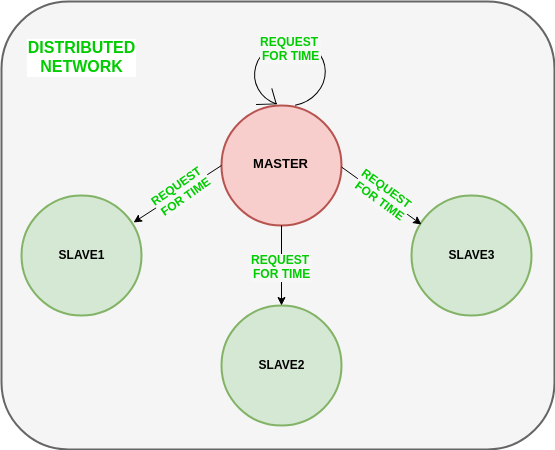
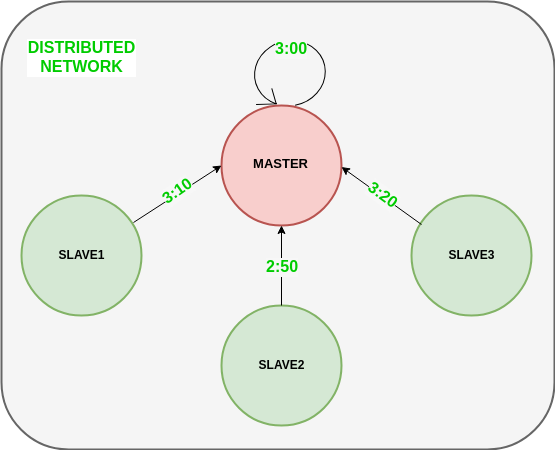

The website uses some animations created with rive.app. The animations can be found in the src/images folder. The animations are exported as .riv files. You can find out more about Rive.app here.
Before you begin, you'll need to have the following tools installed on your computer:
- Visual Studio Code (VS Code)
- Git - To clone the repository from GitHub.
Follow the steps below to set up the project on your computer:
Open your terminal and run the following command to clone this repository:
git clone https://github.com/Capitaozila/berkeleyAlgorithmWeb.gitAfter cloning, the project files will be in a new folder on your system. In order to work with these files, you will need to "enter" this folder in the terminal. Here's a step-by-step guide:
When you clone a repository, it's downloaded into a folder with the same name as the repository on GitHub. In this case the repository name is berkeleyAlgorithmWeb, so a new folder named berkeleyAlgorithmWeb will be created.
In the Terminal, use the cd command to access this new folder. The basic format of the command is
cd folder nameHere the folder is called berkeleyAlgorithmWeb, so
cd berkeleyAlgorithmWebAfter this command, the terminal will be "inside" the project folder and you can execute commands specific to this project.
Note: If you have cloned the repository to a different location, specify the full path to the folder. For example:
cd /path/to/your/folder/berkeleyAlgorithmWebIn the terminal, inside the project directory, run the following command
code .Explanation
code: Opens VS Code from the terminal..: Represents the current directory, so this command opens the project directory directly in VS Code. If thecodecommand doesn't work, you may need to add it to your PATH:
- Open VS Code.
- Press Ctrl + Shift + P (or Cmd + Shift + P on MacOS) to open the command palette.
- Type and select 'Shell Command: Install 'code' command in PATH'.
- Press Enter to install.
VS Code will then open with your project loaded.
You can use BeerCSS either via CDN or NPM, here we use NPM.
We'll use NPM to manage the project's dependencies. Run the following commands to install BeerCSS and Material Dynamic Colours
npm installOnce the dependencies are installed, you can run the project locally using parcel. Follow the steps below:
-
Start the local server:
- With the project open in VS Code, open the terminal and type
npm start
Then, to build:
npm run build
Now you can see changes to the code in real time in your browser, without having to manually reload the page.
Feel free to edit the files in the src directory to customise the portfolio to your needs. The main sections of the site can be found and modified within this directory.
- Web Kit: A collection of technologies that allow web developers to create websites and web applications.
- BeerCSS: A lightweight and intuitive CSS framework.
- Vite: A web application bundler that simplifies the development, packaging and optimisation of code files.
- Rive.app: A design tool that allows you to create animations and export them as code.
Contributions are welcome! Feel free to submit a pull request or open an issue to suggest improvements.