A Model Context Protocol (MCP) server for image generation using multiple AI providers including Tencent Hunyuan, OpenAI DALL-E 3, and Doubao APIs.
Version: 0.2.0
- Tencent Hunyuan: 18 artistic styles with Chinese optimization
- OpenAI DALL-E 3: High-quality image generation with English optimization
- Doubao (ByteDance): Balanced quality and speed with 12 styles
- Generate images from text descriptions
- Support for multiple image styles across different providers
- Support for different image resolutions
- Negative prompts for excluding unwanted elements
- Intelligent provider selection and management
- Unified parameter format with provider-specific options
- stdio Transport: Local IDE integration (Cursor, Windsurf)
- HTTP Transport: Remote access and enterprise deployment
- Multi-client concurrent connections
- Bearer Token authentication
- Session management
- RESTful API endpoints
- Suitable for cloud deployment and remote access
Why HTTP Transport? Version 0.2.0 adds Streamable HTTP support (MCP's official standard as of 2024-11-05) to enable:
- Remote Access: Claude remote MCP requires public HTTP endpoints (stdio only works locally)
- Enterprise Deployment: Centralized service deployment with multiple concurrent clients
- Cloud Native: Compatible with containers, Kubernetes, and load balancers
Note: This uses Streamable HTTP (POST/GET/DELETE), not the deprecated SSE-only approach. SSE is retained for compatibility but Streamable HTTP is the recommended standard.
- Automatic detection of available API providers
- Support for specifying particular providers or automatic selection
- Unified error handling and retry mechanisms
- Flexible parameter formats:
provider:styleandprovider:resolution
UV is a fast, modern Python package manager. Recommended usage:
# Install UV (Windows)
curl -sSf https://astral.sh/uv/install.ps1 | powershell

# Install UV (macOS/Linux)
curl -sSf https://astral.sh/uv/install.sh | bash

# Clone the project and enter the directory
cd path/to/image-gen-mcp-server

# Create a UV virtual environment
uv venv
# Or specify an environment name
# uv venv my-env-name

# Activate the virtual environment (Windows)
.venv\Scripts\activate
# Activate the virtual environment (macOS/Linux)
source .venv/bin/activate

# Install dependencies (recommended)
uv pip install -e .

# Or use the lock file for exact versions
uv pip install -r requirements.lock.txtIf you prefer traditional pip:
# Create a virtual environment
python -m venv venv
# Activate the virtual environment (Windows)
venv\Scripts\activate
# Activate the virtual environment (macOS/Linux)
source venv/bin/activate

# Install dependencies
pip install -e .
# Or use the lock file
pip install -r requirements.lock.txtCreate a .env file in the project root. See .env.example for all available options.
# Image save directory
MCP_IMAGE_SAVE_DIR=./generated_images

# API Provider Credentials (configure at least one)
TENCENT_SECRET_ID=your_tencent_secret_id
TENCENT_SECRET_KEY=your_tencent_secret_key
OPENAI_API_KEY=your_openai_api_key
DOUBAO_ACCESS_KEY=your_doubao_access_key
DOUBAO_SECRET_KEY=your_doubao_secret_key# Transport mode: stdio (default, for local IDE) or http (for remote access)
MCP_TRANSPORT=stdio
# HTTP transport settings (only needed for HTTP mode)
MCP_HOST=127.0.0.1
MCP_PORT=8000
# Authentication (recommended for HTTP mode)
MCP_AUTH_TOKEN=your-secure-random-tokenThis server supports two transport modes:
| Feature | stdio Transport | HTTP Transport |
|---|---|---|
| Use Case | Local IDE integration | Remote access, enterprise deployment |
| Connection | Subprocess communication | HTTP/HTTPS network |
| Multi-client | ❌ Single client | ✅ Multiple concurrent clients |
| Remote Access | ❌ Not supported | ✅ Supported |
| Authentication | Not needed | Bearer Token |
| Deployment | Simple | Cloud-ready |
# Method 1: Run as module (recommended)
python -m mcp_image_server

# Method 2: Use entry script
./mcp-server

# Method 3: After pip install
mcp-image-server
The unified server will automatically use the transport mode specified in your .env file:
MCP_TRANSPORT=stdio→ Local stdio mode for IDE integrationMCP_TRANSPORT=http→ HTTP server mode for remote access
# Legacy examples moved to examples/ directory
python examples/legacy_single_api_server.pyFor remote access and enterprise deployment, use HTTP transport:
# Set in .env file
MCP_TRANSPORT=http
MCP_HOST=127.0.0.1
MCP_PORT=8000
MCP_AUTH_TOKEN=your-secure-token # Optional but recommendedpython -m mcp_image_serverServer will start on http://127.0.0.1:8000 with endpoints:
GET /health- Health checkPOST /mcp/v1/messages- Send JSON-RPC messagesGET /mcp/v1/messages- Subscribe to SSE eventsDELETE /mcp/v1/messages- Close session
# Check server health
curl http://127.0.0.1:8000/health

# Run comprehensive tests
python test_mcp_server.py

# Test with API key for actual image generation
python test_mcp_server.py --with-api# Run example client
python example_http_client.py basic # Explore server capabilities
python example_http_client.py generate # Generate images (requires API key)For detailed HTTP transport documentation, see HTTP_TRANSPORT_GUIDE.md
Screenshot of MCP server running successfully:
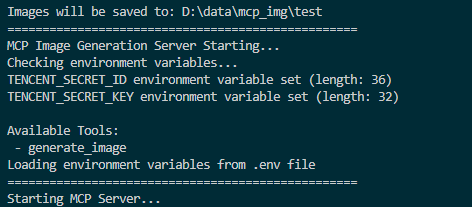
You can connect from MCP-compatible client(recommand cursor now). The server provides the following features:
styles://list- List all available image stylesresolutions://list- List all available image resolutions
generate_image- Generate images based on prompt, style, and resolution
image_generation_prompt- Create image generation prompt templates
# Auto-select best available provider
generate_image(prompt="A cute cat in a garden")

# Specify a particular provider
generate_image(prompt="A cute cat", provider="openai")
generate_image(prompt="一只可爱的小猫", provider="hunyuan")
generate_image(prompt="Cute kitten", provider="doubao")# Use provider-specific styles and resolutions
generate_image(
prompt="Cyberpunk city skyline",
style="hunyuan:saibopengke",
resolution="hunyuan:1024:768"
)
# Mix provider selection with standard parameters
generate_image(
prompt="Fantasy magical forest",
provider="doubao",
style="fantasy",
resolution="1024x768",
negative_prompt="low quality, blurry"
)
# OpenAI with high-resolution output
generate_image(
prompt="Artistic portrait of a musician",
provider="openai",
style="artistic",
resolution="1792x1024"
)- Styles: 18 options including
riman,xieshi,shuimo,saibopengke,youhua - Resolutions: 8 options from
768:768to1280:720 - Specialty: Chinese-optimized, rich artistic styles
- Styles: 12 options including
natural,vivid,realistic,artistic,anime - Resolutions: 7 options including ultra-high resolution
1792x1024 - Specialty: High-quality output, English optimization
- Styles: 12 options including
general,anime,chinese_painting,cyberpunk - Resolutions: 9 options from
512x512to1024x576 - Specialty: Balanced quality and speed
To add this MCP server in Cursor:
- Open Cursor
- Go to Settings > Features > MCP
- Click "+ Add New MCP Server"
- Fill in the configuration:
- Name:
Multi-API Image Generator(or any descriptive name) - Type:
stdio - Command: Full command, must include the absolute path to Python and the script
- Name:
{
  "mcpServers": {
    "image-generation": {
      "name": "Multi-API Image Generation Service",
      "description": "Multi-provider image generation using Hunyuan, OpenAI, and Doubao APIs",
      "type": "stdio",
      "command": "D:\\your_path\\image-gen-mcp-server\\.venv\\Scripts\\python.exe",
      "args": ["-m", "mcp_image_server"],
      "environment": ["TENCENT_SECRET_ID", "TENCENT_SECRET_KEY", "OPENAI_API_KEY", "DOUBAO_API_KEY", "MCP_IMAGE_SAVE_DIR"],
      "autoRestart": true,
      "startupTimeoutMs": 30000
    }
  }
}
📝 Note: For detailed VS Code integration guide, see docs/VSCODE_INTEGRATION.md
When configuring the MCP server in Cursor, set the following environment variables:
For Single API (Hunyuan only):
TENCENT_SECRET_ID: Your Tencent Cloud API Secret IDTENCENT_SECRET_KEY: Your Tencent Cloud API Secret KeyMCP_IMAGE_SAVE_DIR: Your save image dir, e.g.: D:\data\mcp_img
For Multi-API (All providers):
TENCENT_SECRET_ID: Your Tencent Cloud API Secret IDTENCENT_SECRET_KEY: Your Tencent Cloud API Secret KeyOPENAI_API_KEY: Your OpenAI API KeyDOUBAO_ACCESS_KEY: Your Doubao Access KeyDOUBAO_SECRET_KEY: Your Doubao Secret KeyMCP_IMAGE_SAVE_DIR: Your save image dir, e.g.: D:\data\mcp_imgOPENAI_BASE_URL: (Optional) Custom OpenAI endpointDOUBAO_ENDPOINT: (Optional) Custom Doubao endpoint
Note: You only need to configure the API keys for the providers you want to use. The system will automatically detect available providers.
With the multi-API server, you can use natural language in Cursor to specify different providers:
# Auto-select the best provider
"Generate a cyberpunk city image"

# Specify a particular provider
"Use OpenAI to generate a cartoon-style cat image"
"Please use Hunyuan to create a traditional Chinese painting"
"Generate with Doubao a fantasy-style forest scene"

# Use provider-specific styles
"Create an image with hunyuan:shuimo style showing mountains and rivers"
"Generate a doubao:chinese_painting style landscape"

# Mix parameters
"Use OpenAI to generate a 1792x1024 artistic portrait"
"Create a hunyuan:saibopengke style image at 1024:768 resolution"
- Save the configuration
- Restart Cursor
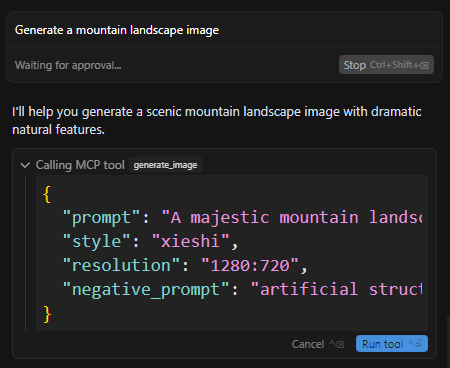
- Start a new chat and enter: "Generate a mountain landscape image"
- If everything is set up correctly, the AI will use your MCP server to generate the image
Note: The first time you use it, Cursor may ask for permission to use this MCP server.
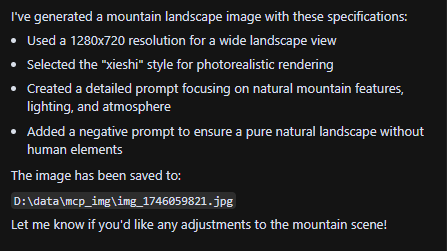
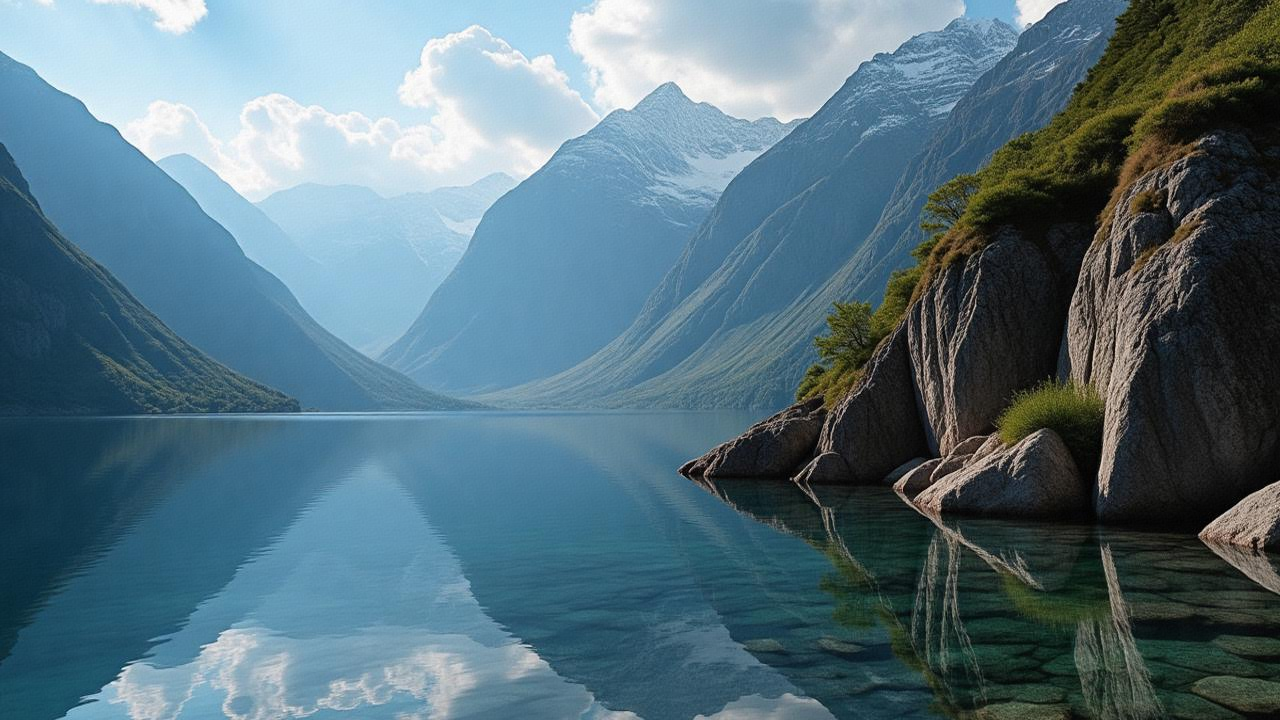
Let's look at the steps in Cursor:
-
step_1: types your generate command in cursor
-
step_2: after your approval it will call the mcp image-gen tool and save it
-
Step 3: View or use the image saved in the directory (MCP_IMAGE_SAVE_DIR) you have set in the .env file
You can also ask Cursor to design images for your website ✨. Cursor can use the MCP tool to generate images that match your specific layout requirements 🎨. Perfect for creating beautiful web designs!
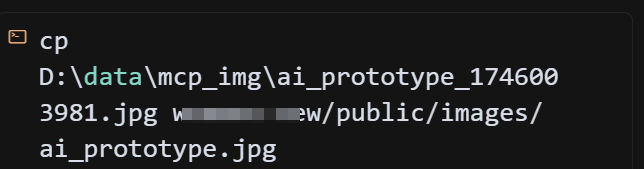
Tip: You don't need to manually move the generated images from the save directory to your project directory. Cursor will handle this automatically after your approval. This is one of the main advantages of using Cursor.
-
Planning the move
-
Executing the move
-
Example Performance
Original web design:
New design after generating and moving the image to the project using Cursor:

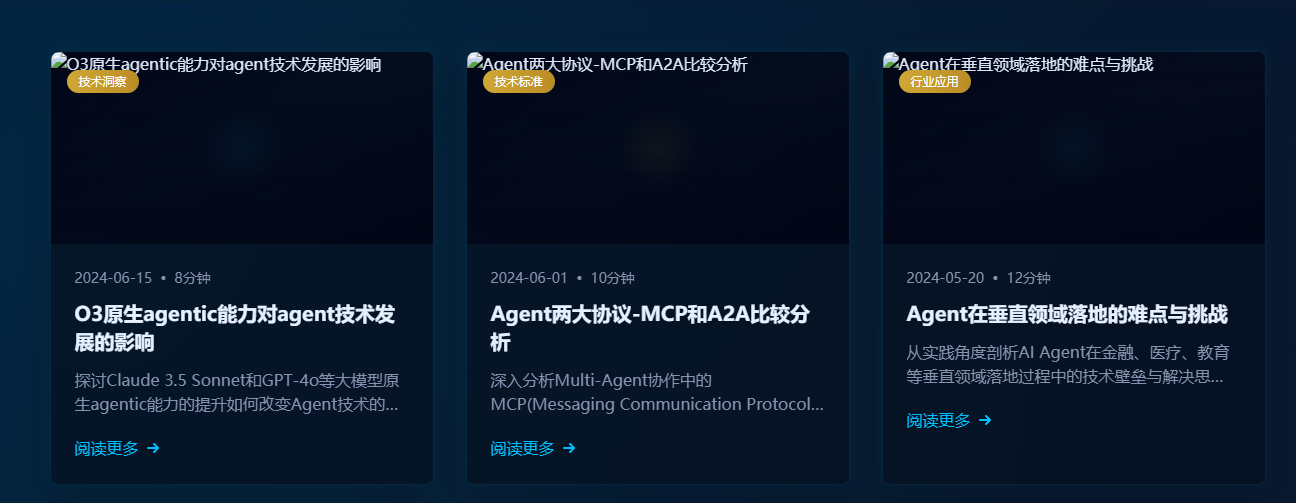
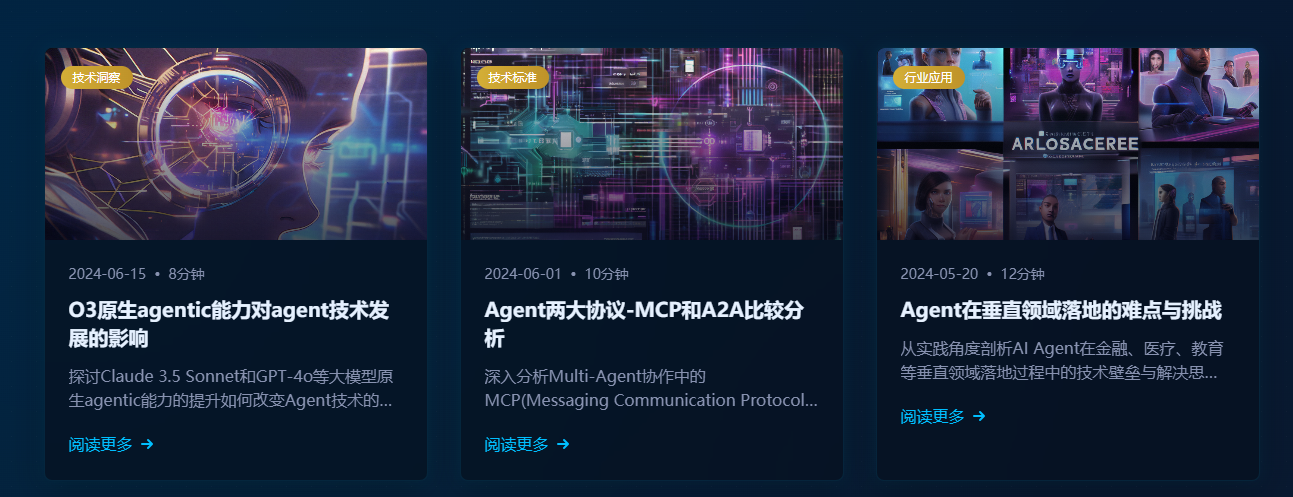
The project includes comprehensive testing tools:
# Test MCP protocol functionality without API keys
python test_mcp_server.py
This tests:
- ✅ Health check endpoint
- ✅ MCP initialization handshake
- ✅ Tools listing
- ✅ Resources listing and reading
- ✅ Prompts listing
- ✅ Session management
# Test actual image generation with configured providers
python test_mcp_server.py --with-api
This additionally tests:
- ✅ Real image generation with OpenAI
- ✅ Real image generation with Hunyuan
- ✅ Real image generation with Doubao
Note: At least one API key must be configured in .env to run functional tests.
- Ensure environment variables are set correctly
- Check for spaces in paths; use quotes if needed
- Ensure the virtual environment is activated (if using one)
- Try running the server script directly to check for errors
- Check UV environment with
uv --version
- Connection refused: Ensure server is running on correct host/port
- 401 Unauthorized: Check
MCP_AUTH_TOKENconfiguration - 404 Session not found: Re-initialize connection to get new session ID
- No provider available: Configure at least one API provider in
.env
For detailed troubleshooting, see HTTP_TRANSPORT_GUIDE.md
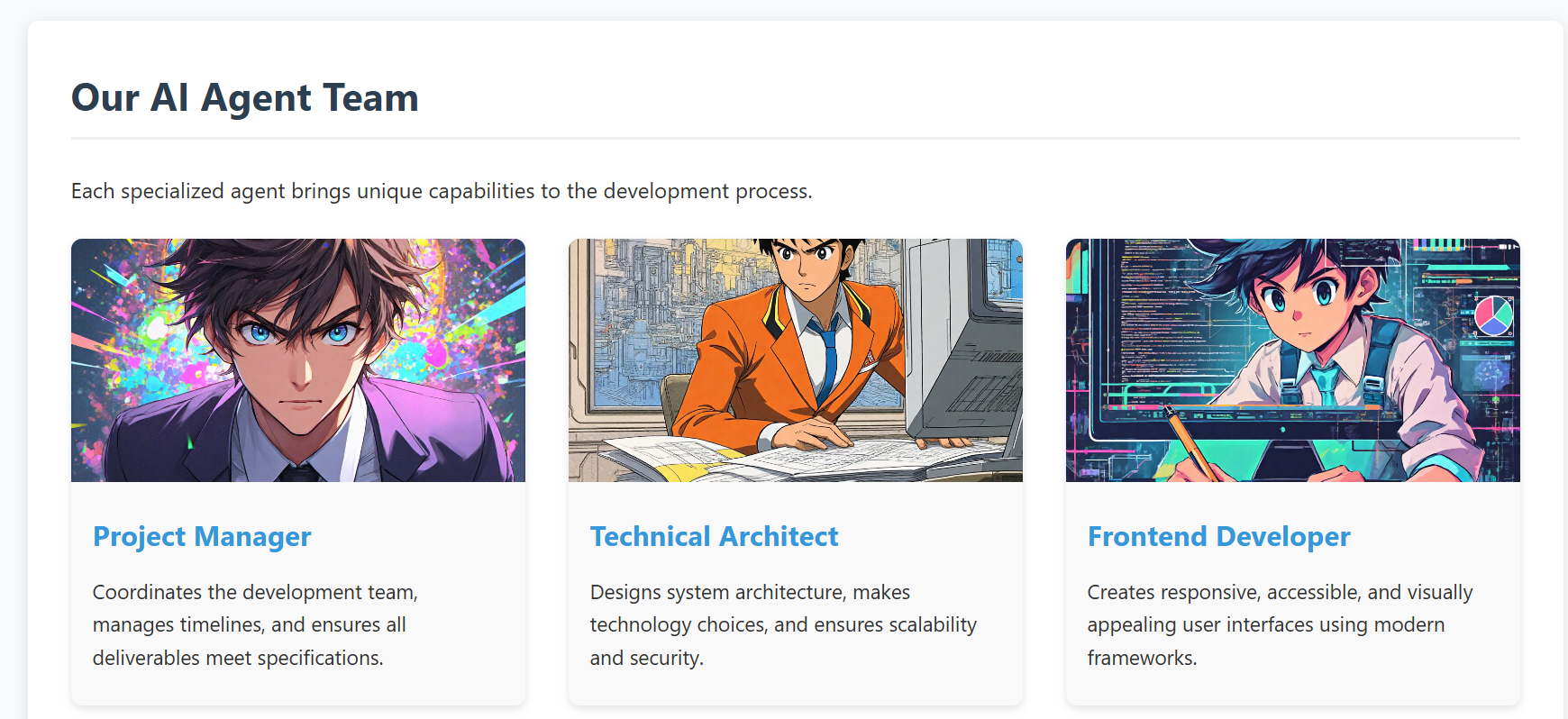
For a front-end integration example, see web-design-demo/.
This example demonstrates how to develop a real project using Cursor IDE, where you can generate and manage images directly within your development environment using our MCP tool 🛠️. No need to switch between different image generation tools or leave your IDE - everything can be done right in your development workflow ✨.
- screenshot of the demo web
The project now supports multiple image generation APIs through a unified interface:
- Tencent Hunyuan Image Generation API (Original)
- OpenAI DALL-E 3 API (New)
- Doubao Image Generation API (New)
providers://list- List all available providersstyles://list- List all styles from all providersresolutions://list- List all resolutions from all providersstyles://provider/{provider_name}- Get styles for specific providerresolutions://provider/{provider_name}- Get resolutions for specific provider
generate_image- Multi-provider image generation with intelligent routing
The project originally used and continues to support Tencent Hunyuan Image Generation API. Here are the key details:
- Domain:
hunyuan.tencentcloudapi.com - Region:
ap-guangzhou(Currently only supports Guangzhou region) - Default API Rate Limit: 20 requests/second
- Concurrent Tasks: Default 1 task at a time
- Submit Task: Submit an asynchronous image generation task with text description
- Query Task: Get task status and results using task ID
- Result URL: Generated image URLs are valid for 1 hour
For detailed API documentation and pricing, please refer to:
- High-quality image generation
- Automatic prompt optimization
- Multiple style options
- High-resolution output support
- ByteDance's proprietary image generation model
- Balanced quality and speed
- Chinese and English prompt support
- Multiple artistic styles
-
Version 0.2.0 (Current)
- ✅ Tencent Hunyuan image generation API
- ✅ OpenAI DALL-E 3 API integration
- ✅ Doubao API integration
- ✅ Multi-provider management system
- ✅ Intelligent provider selection
- ✅ Unified parameter interface
- ✅ HTTP transport with Streamable HTTP protocol
- ✅ Remote access support
- ✅ Multi-client concurrent connections
- ✅ Bearer Token authentication
- ✅ Session management
- ✅ Comprehensive testing suite
-
Future Plans
- Support more mainstream text-to-image model APIs, including:
- Alibaba Tongyi Wanxiang
- Baidu ERNIE-ViLG
- Stable Diffusion API
- Advanced features:
- Image editing and modification
- Batch image generation
- Style transfer capabilities
- Custom model fine-tuning support
- Enhanced MCP integration:
- Real-time generation progress
- Image history and management
- Advanced prompt templates
- Support more mainstream text-to-image model APIs, including:
Community contributions for more model integrations and new features are welcome!
-
Local IDE Integration (stdio): Verified to work with Cursor and Windsurf IDE
-
Remote Access (HTTP): Compatible with any MCP client supporting HTTP transport
-
Claude Remote MCP: HTTP transport enables connection to Claude with public HTTP endpoint
-
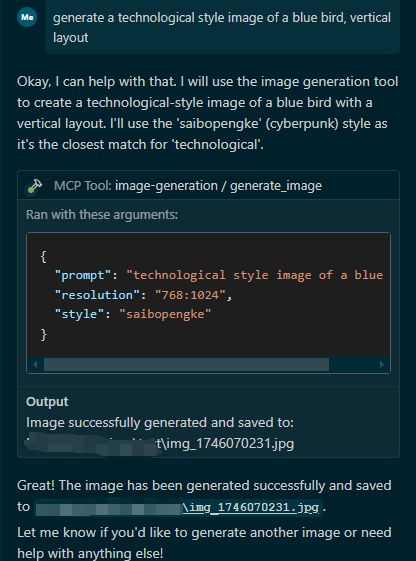
windsurf is also supported to integrated now
-
screenshot of mcp tool call in windsurf
-
-
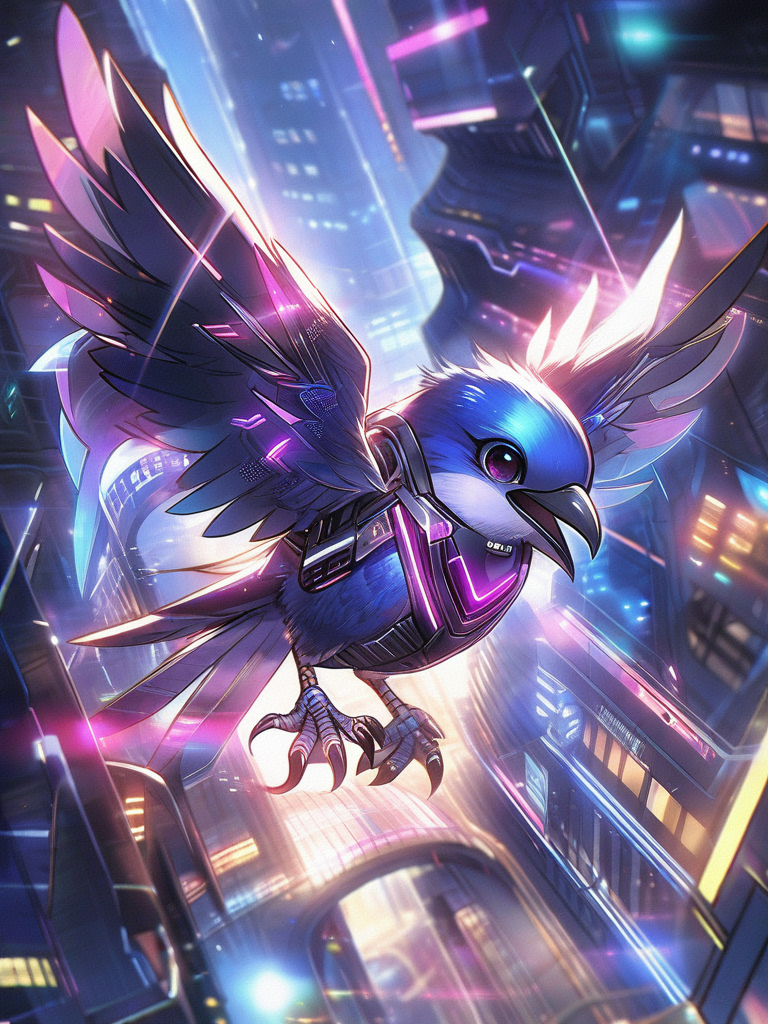
and the result as follows
-
-
-
-
Future plans include supporting more IDEs and development environments compatible with the Model Context Protocol (MCP).
This project is built with FastMCP as the core framework, a powerful implementation of the Model Context Protocol. The MCP integration is based on:
- FastMCP: A fast, Pythonic way to build MCP servers
- MCP Python SDK: The official Python SDK for Model Context Protocol
We also use these excellent open-source projects:
- UV: A fast Python package installer and resolver
- Python-dotenv: Reads key-value pairs from .env file
- Tencentcloud-sdk-python: Official Tencent Cloud SDK for Python
We welcome contributions of all kinds! Here are some ways you can help:
- 🐛 Report bugs and issues
- 💡 Suggest new features or improvements
- 🔧 Submit pull requests
- 🎨 Add support for more image generation models
- Fork the repository
- Create your feature branch (
git checkout -b feature/AmazingFeature) - Commit your changes (
git commit -m 'feat: add some AmazingFeature') - Push to the branch (
git push origin feature/AmazingFeature) - Open a Pull Request
Please make sure to update tests as appropriate and follow the existing coding style.
We appreciate your interest in making this project better!