-
smart .note is an application for saving notes. The application is designed to run on a local network or simply on a PC. With the smart .note app you can create, store and manage notes. In order to use the app, users have to create a new account. After the registration users are able to create their notes. These notes can have attached files and photos. In addition to saving notes, the users can send them by email or save them locally on their PC. Furthermore, they are able to add a reminder on a certain date and time. On that day they will receive an email with their note.
- I used C# and I created the app in Visual Studio 2019. Regarding the database, I used Microsoft SQL Server. I chose that tools because they are free and very popular. Also in many cases, they are used in combination.
- The main app is a Windows Form Application. Μainly consists of forms and some supporting classes which implement the connection with the database and some application operations (like sending email, downloading/uploading files, phone, and email validation).
- I used Canva to create the images on the forms and I found the icons on IconScout.
- For the function of the reminder, I used a windows service. This service runs in the background every minute and checks for notes that need to be sent. After collecting the notes it sends them using email to the users who created them.
I created that project to :
- Discover the features provided by windows forms and be familiar with them.
- Practice the managing of registration and login forms.
- Practice saving and retrieving files from a database.
- Create a windows service.
Microsoft SQL Server and Microsoft SQL Server Management Studio 18 are required to run the application.
- Open .sql file which you will find inside the CREATENOTEDB.zip with SSMS 18.
- Replace the file paths to match those on your PC. (mdf and log files of the database will be stored in the path you choose).
- Execute the query.
- Download the file smart .note.zip.
- Enter the details of the server on which the application will run in the file WriteNotesApplication.exe.config.
- The smart .note app is ready for use.
- Download the file smart .note Reminder.zip.
- Enter the details of the server on which the application will run in the file ReminderWinService.exe.config. Additionally, create a new email account that the app will use to send reminders. (Τhe email I used has been deleted.)
- Create a shortcut from ReminderWinService.exe. In the shortcut properties change the destination by adding /install to the end.
- Run the shortcut as administrator. Now you can find ReminderWinService to the services.
- Start the service. (Τo have the functionality of the reminders in the application, the service must be running).
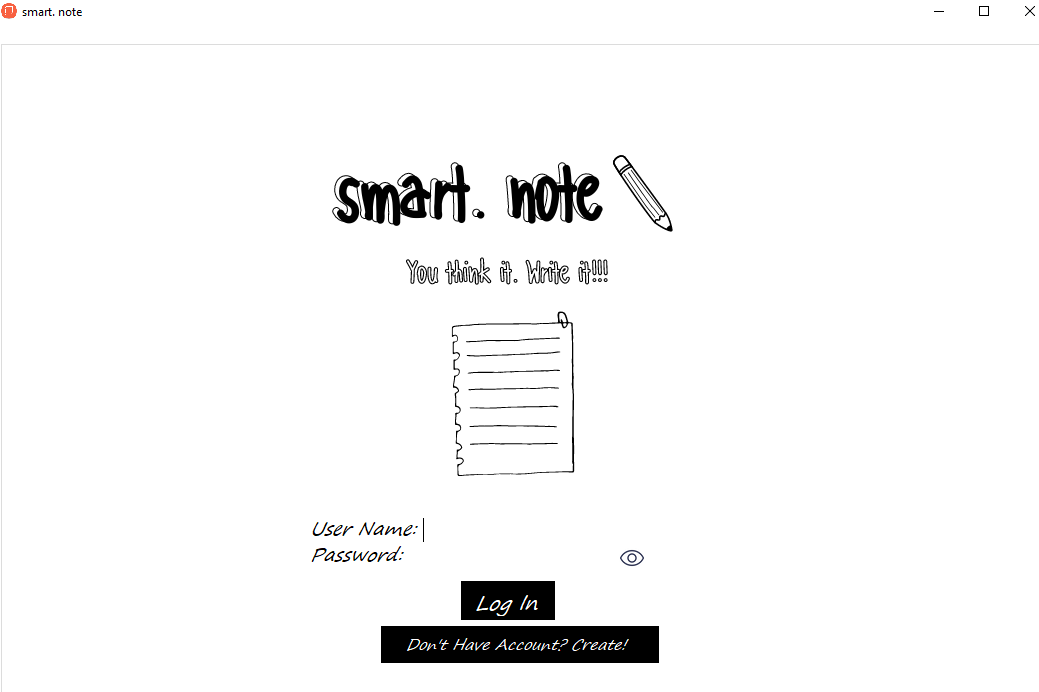
- Checks that all required fields are completed.
- Their email and phone validation.
- Check that the account doesn't exist and that passwords match.
- Saves users to the database. The passwords saved are encrypted.
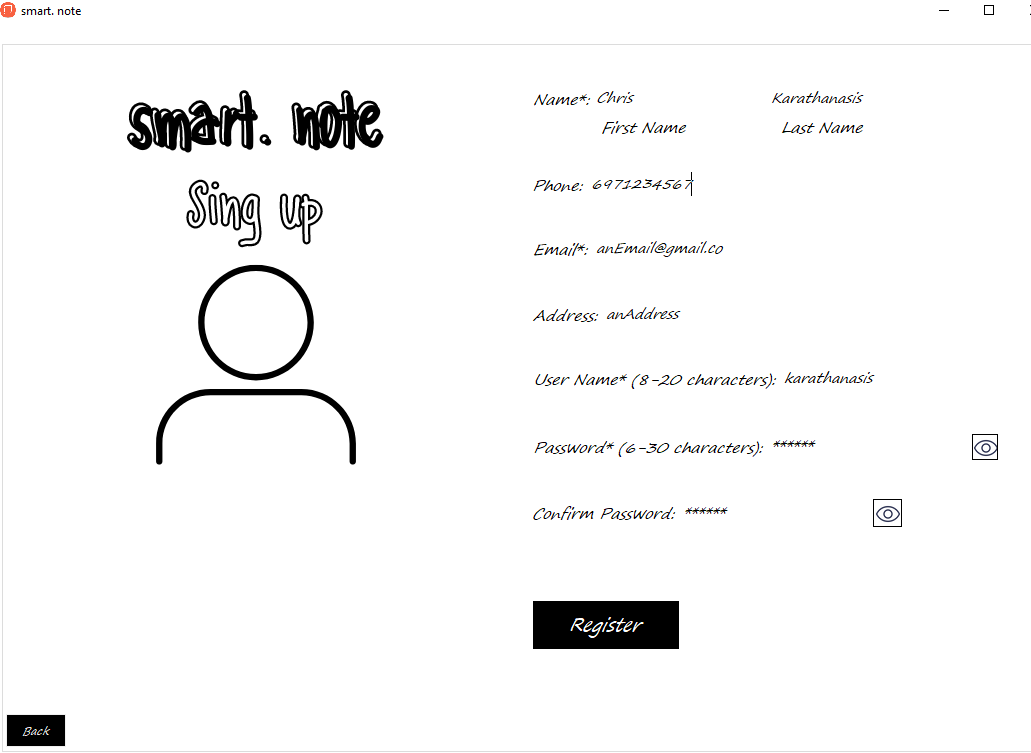
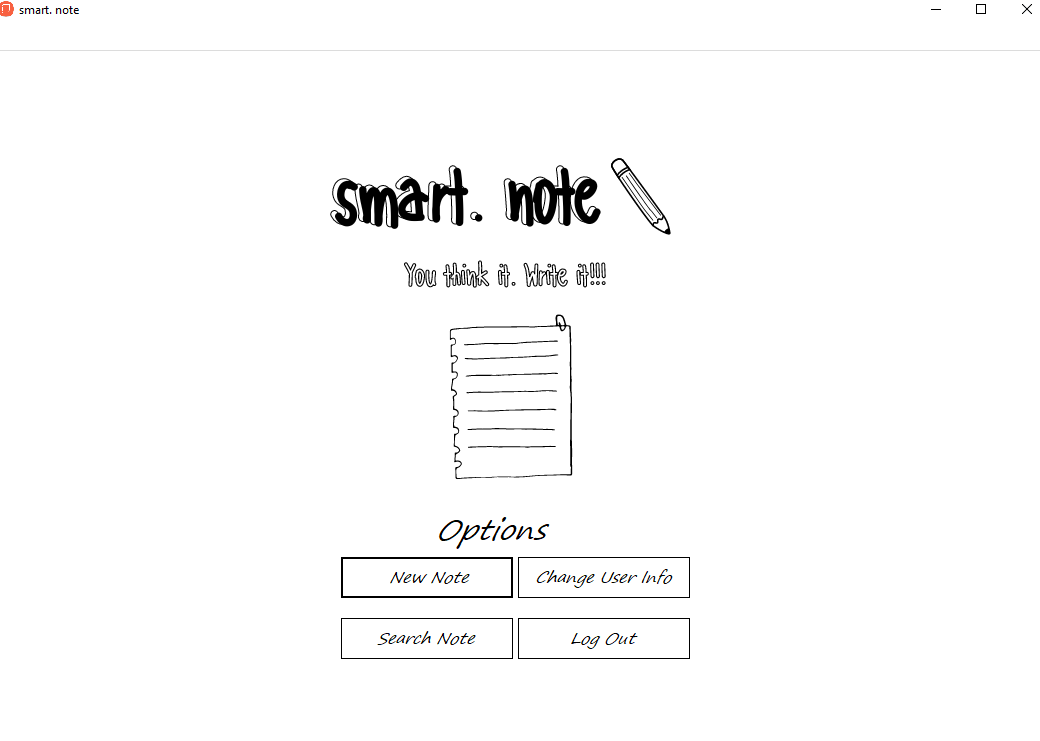
-
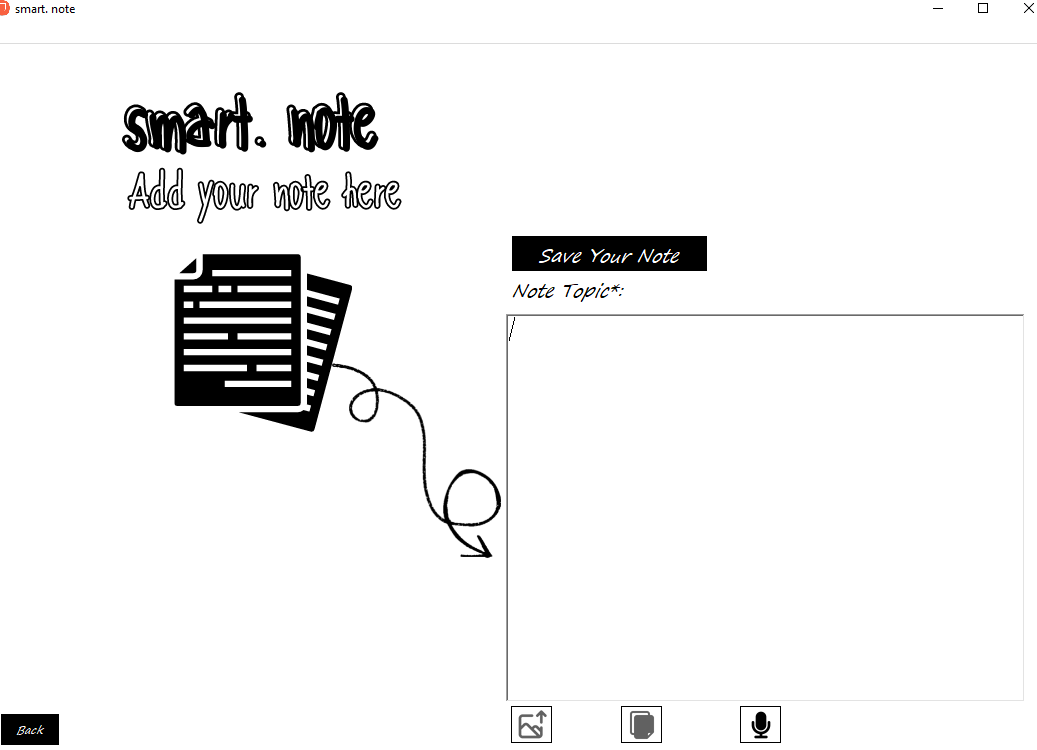
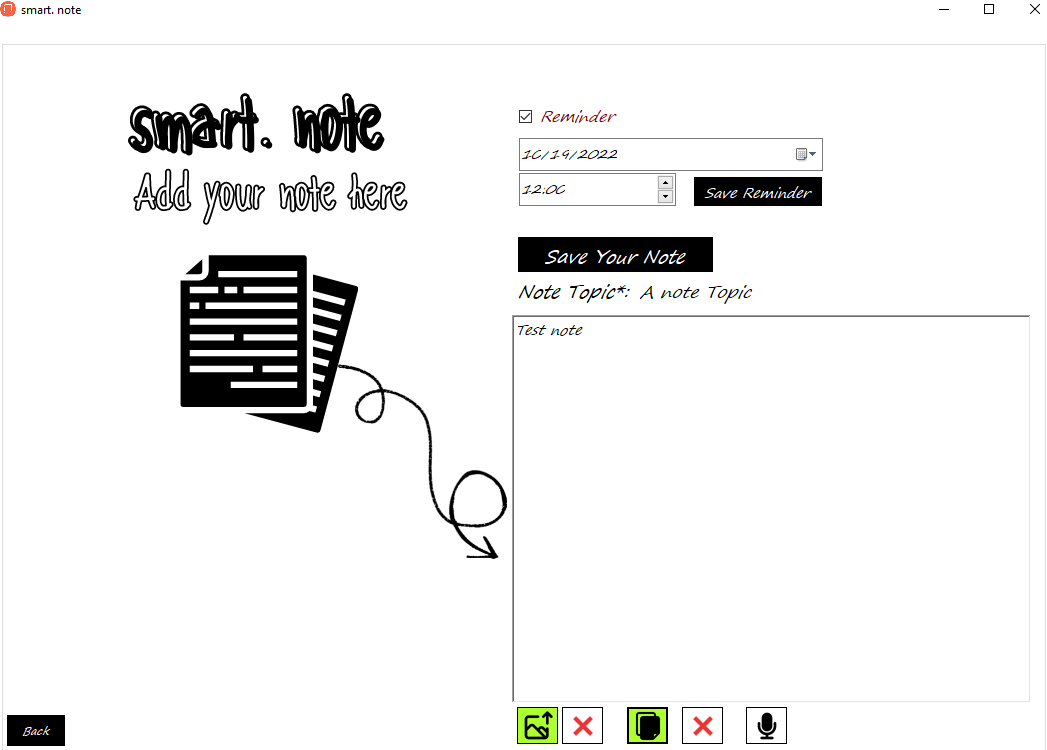
Create new note. They can either write their note or use the voice function.
-
Αttach a file (pdf, excel, wotd) to their note.
-
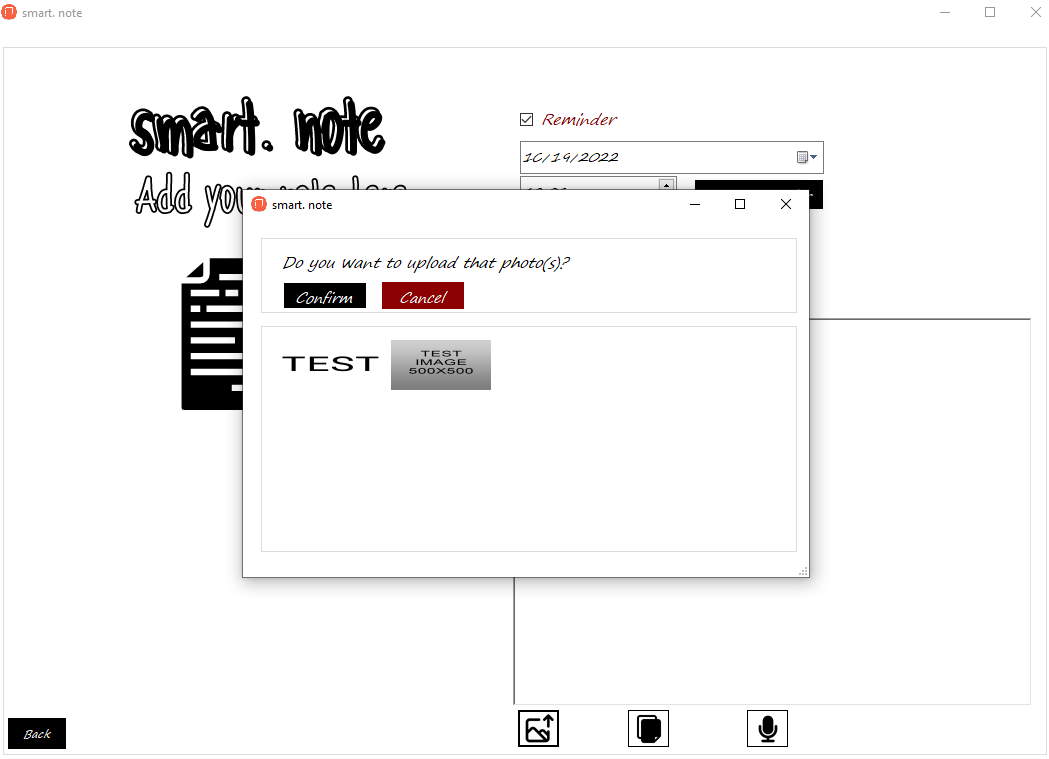
Αttach images to their note. (Images must have max size 600x600px. Bigger images are not accepted by the app)
-
Add reminder on a certain date. On that day the user will receive a message from the application. The message will include the note, the topic, the attached files, and the attached images.
- The creation date.
- The last modified date.
- Word(s).
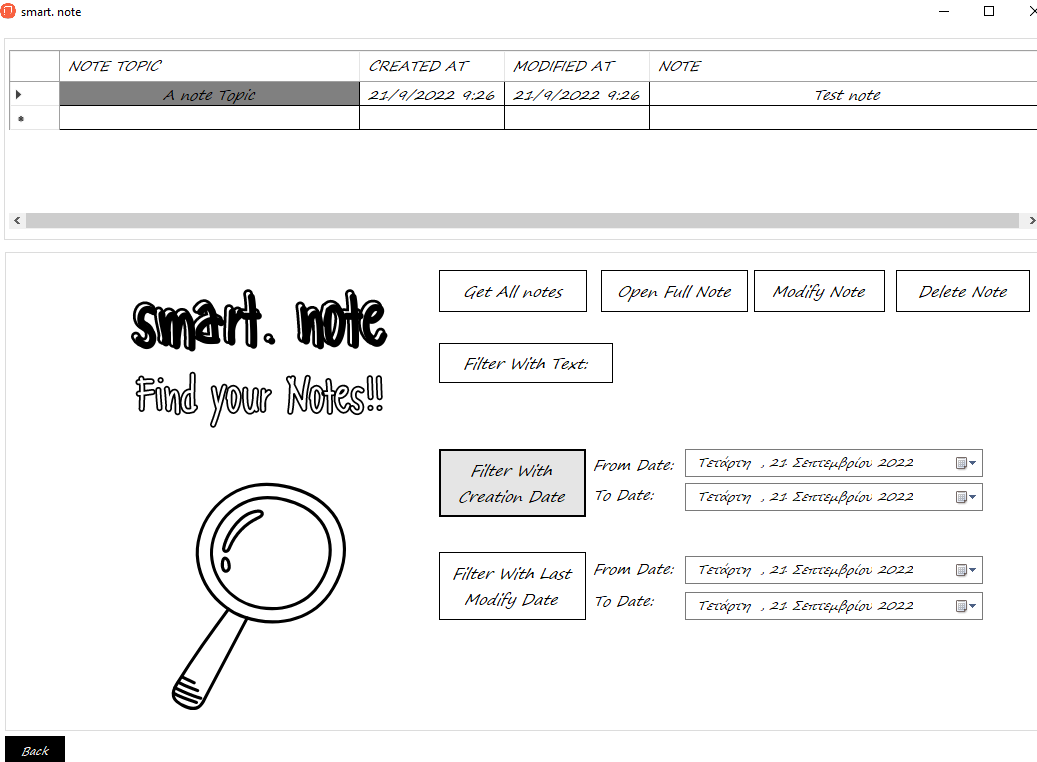
-
- Save their note and the attachments on their personal computer.
- Send their note and the attachments via email.
- Open the saved file.
- Open the saved images.
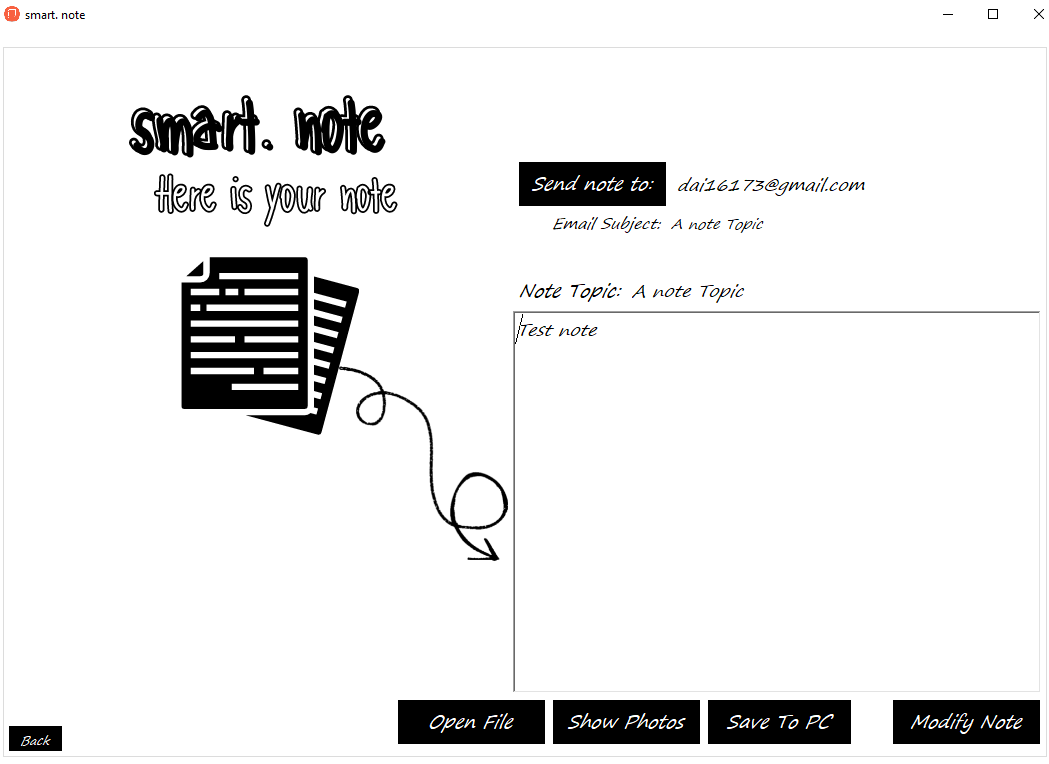
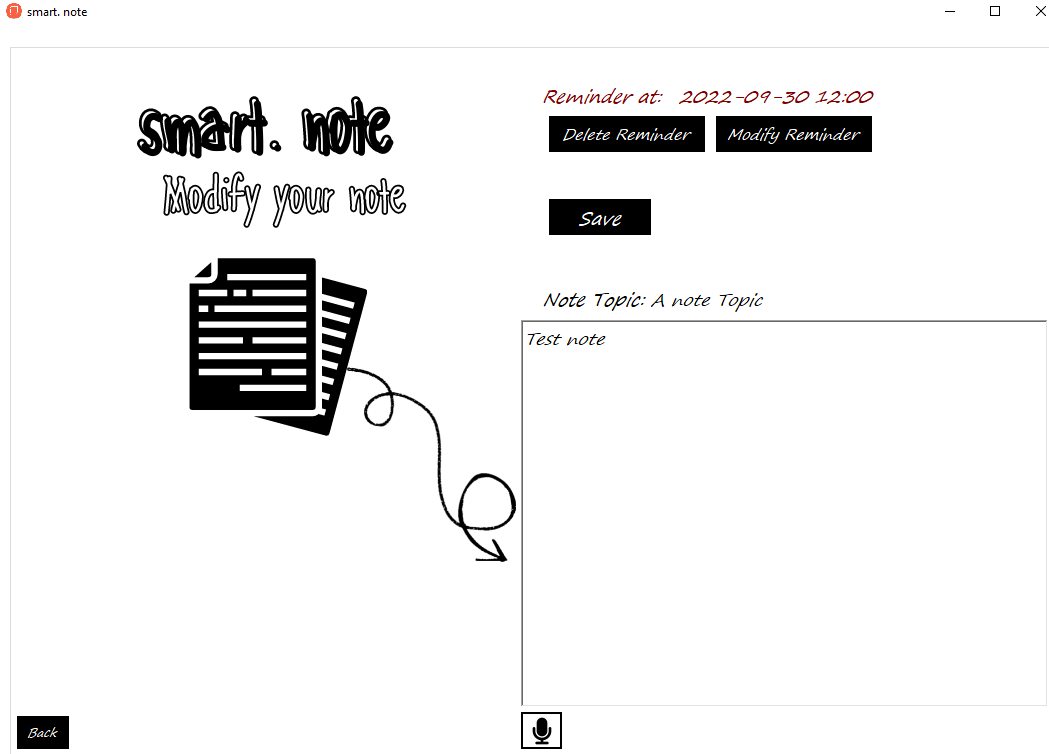
- Modify their note.
- Modify a reminder.
- Add a reminder.
- Delete a reminder.
ChristosKarathanasisac/CreateNotesApp
Folders and files
| Name | Name | Last commit date | ||
|---|---|---|---|---|