Extension Scans

The Extension Scans page in the Admin Dashboard allows admins to:
- Review historical automated extension scan results
- Take action on QUARANTINED extensions
- Manage the BLOCKED FILES and ALLOWED FILES lists

Each scan result is displayed in a Scan Card. The Scan Card contains:
- The
Extension Icon(or first character of the extension'sDisplay Name) - The extension's
Display Name - The extension's
Namespace.Name - Details of the extension/scan:
- Publisher
- Version
- Download Link (.vsix extension file)
- Scan Start
- Scan End
- Scan Duration
- The
Statusof the scan (displayed on the top-right of the Scan Card)
A Scan Card can also be expanded to view more details about the checks that ran and the results of the extension scan.
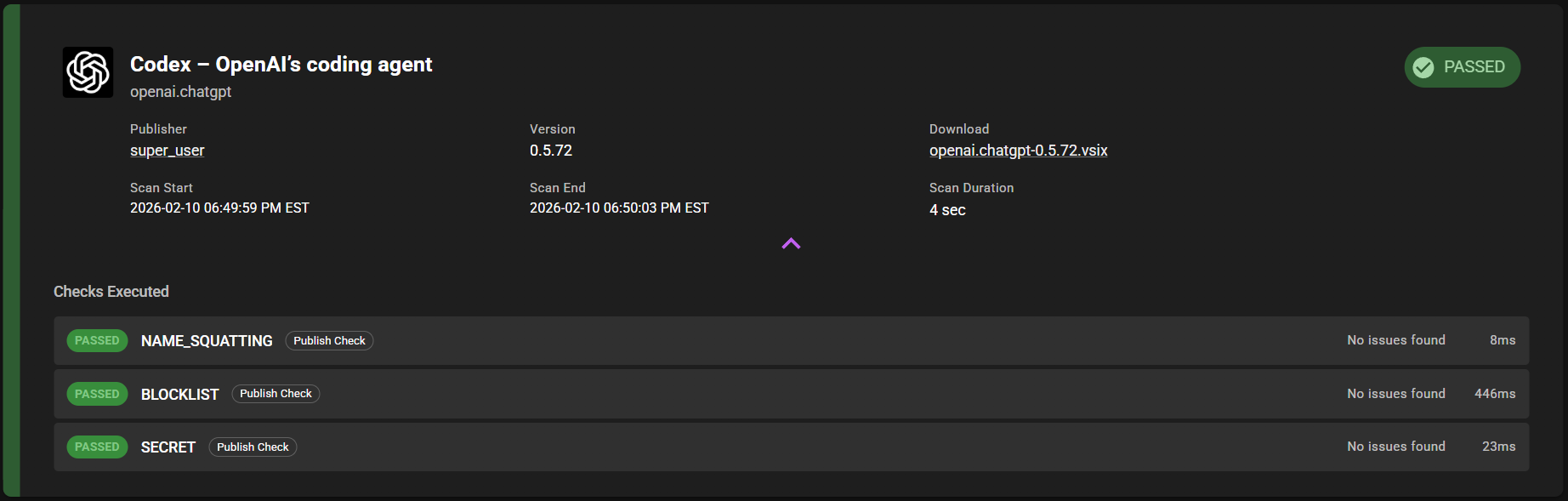
The expanded Scan Card section also contains information about whether specific publish checks or threat scanners were enforced or unenforced (solid or striped badge, respectively). When not expanded, smaller badges will appear on the bottom-right of the Scan Card for information at a glance.


This is an example of an enforced publish check detail card. The badge and left-hand border are solid, indicating that this is an enforced publish check.

This is an example of an unenforced publish check detail card. The badge and left-hand border are striped, and an info message is displayed, indicating that this is an unenforced publish check.

This is an example of an enforced threat detail card. The left-hand border is solid, indicating that this is an enforced threat.

This is an example of an unenforced threat detail card. The left-hand border is striped, and an info message is displayed, indicating that this is an unenforced threat.

This is an example of an error detail card, which includes details about the error that was encountered.
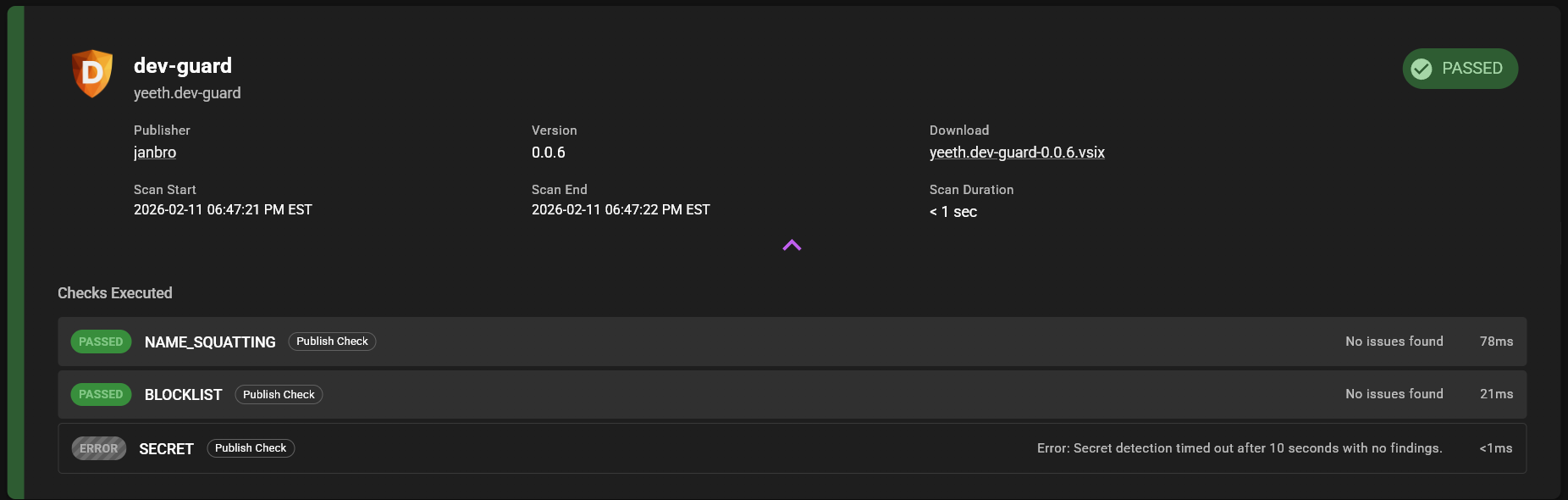
This is an example of a special case for errors: an error was allowed, as indicated by the striped ERROR badge. This allows publish and threat scans to continue even if an error is encountered (configurable in the backend).
The Status of a scan is displayed on the top-right of each Scan Card (with the exception of the special RUNNING status). Admins can filter by the following five values:
RUNNING is a short-hand value for the following Status values:
- STARTED
- Indicates that the extension scan has just started
- VALIDATING
- Indicates that an extension is going through short-running publish checks
- SCANNING
- Indicates that an extension is going through longer-running scans
An extension scan that is RUNNING will have a purple spinning-circle animation on the top-right of its Scan Card. The actual status it is in (STARTED, VALIDATING, or SCANNING) will be displayed under the "Scan End" section

The PASSED Status indicates that an extension has passed all enforced publish checks and threat scans.

An extension's Scan Card will display a solid green PASSED badge only if:
- The extension passed all publish checks (enforced or unenforced)
- AND the extension passed all threat scans (enforced or unenforced)

An extension's Scan Card will display a striped green PASSED badge only if:
- The extension failed at least one unenforced publish check
- OR the extension failed at least one unenforced threat scan
- AND the extension passed all enforced publish checks
- AND the extension passed all enforced threat scans
Striped PASSED Scan Cards will also display what Status an extension scan would have ended up in if its unenforced publish checks or threat scans were enforced.
The QUARANTINED Status indicates that an extension has at least one file that matched against an enforced threat scanner (e.g., Yara, ClamAV).

An extension's Scan Card will display a solid yellow QUARANTINED badge only if:
- The extension passed all publish checks (enforced or unenforced)
- AND the extension failed at least one enforced threat scan

An extension's Scan Card will display a striped yellow QUARANTINED badge only if:
- The extension failed at least one unenforced publish check
- AND the extension failed at least one enforced threat scan
Striped QUARANTINED Scan Cards will also display what Status an extension scan would have ended up in if its unenforced publish checks were enforced.
The AUTO REJECTED Status indicates that an extension failed at least one enforced publish check (e.g., NAME_SQUATTING, BLOCKLIST, SECRET).
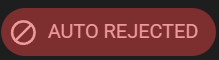
An extension's Scan Card will display a solid red AUTO REJECTED badge only if:
- The extension failed at least one enforced publish check
There is no striped version of the AUTO REJECTED Status. If a scan only fails unenforced publish checks, the extension will proceed to the longer-running threat scans.
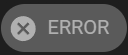
The ERROR Status indicates that an extension encountered an error during publish checks or threat scanning. Expand the Scan Card for more details.

The SCANS tab shows an overview of all extension scans results. It displays Scan Cards for currently-running extension scans as well as all historical extension scans.
The SCANS tab has three search bars and five Status checkboxes in its Search Toolbar.
These do not affect the counts displayed in the Counts Toolbar below it.
The search bars operate with AND logic, meaning that results will only be displayed if the Scan Card matches ALL THREE search bar inputs.
These do not affect the counts displayed in the Counts Toolbar below it.
Publisher: Allows searching by the extension's Publisher name.
Namespace: Allows searching by the extension's Namespace.
Name or Display Name: Allows searching by the extension's Name or Display Name.
The Status checkboxes operate with OR logic, meaning that results will be displayed if the Scan Card's Status matches ANY ONE of the selected checkboxes.
These do not affect the counts displayed in the Counts Toolbar below it.
The SCANS tab shows counts per Status (as well as the Total count) based on the selected Enforcement filter and Date Range.
Changing these filters does affect the counts displayed in the Counts Toolbar.
The Enforcement filters can be toggled between three values:
Enforced: These are extension scans that include at least one enforced publish check or scan result.
Not Enforced: These are extension scans that include at least one unenforced publish check or scan result.
All: These are all extension scans (no enforcement filtering).
Changing the Enforcement Filter does affect the counts displayed in the Counts Toolbar.
Allows filtering extension scans by:
- All
- Today
- Last 7 Days
- Last 30 Days
- Last 90 Days

The QUARANTINED tab displays all extension scans that have at least one enforced OR unenforced threat scan result, regardless of the final Status of the extension scan.
Admins can also take action on extension scans that are in a QUARANTINED Status (regardless of whether the QUARANTINED Status badge is striped or solid). See the QUARANTINED section for information on how extensions are assigned to the QUARANTINED Status.
Extension scans that are in a QUARANTINED Status will also display a decision indicator on the bottom-right of the Scan Card. This indicator only appears for QUARANTINED extension scans. It can be one of three values:
Indicates that a decision (ALLOW or BLOCK) for that specific extension scan has not yet been made.
Indicates that a decision has been made to ALLOW the files that matched with enforced threat scans for that specific extension scan. Also indicates that the extension was allowed to be activated at the time of the ALLOW decision.
Indicates that a decision has been made to BLOCK the files that matched with enforced threat scans for that specific extension scan. Also indicates that the extension was blocked from being activated at the time of the BLOCK decision.
Admins can use the checkboxes displayed on the center-right of a QUARANTINED extension scan with a NEEDS REVIEW indicator to select it and take action on it. The checkboxes will only appear in the QUARANTINED tab, and only for QUARANTINED extension scans with a NEEDS REVIEW indicator.
Multiple extension scans can be selected at once. There is also a "Select All" option displayed in the Search Toolbar (to the left of the ALLOW/BLOCK buttons). This button will select all QUARANTINED extension scans that have a NEEDS REVIEW indicator.
If at least one QUARANTINED extension scan is selected, the ALLOW and BLOCK buttons will be enabled, and text will appear below them to indicate the number of extension scans selected.

Clicking the ALLOW button will bring up a confirmation dialog. If confirmed, it will add the files (using its file hash) that matched with enforced threat scans for the selected extension scans to the ALLOWED FILES list (shown in the ALLOWED FILES tab). It will also activate the extension, allowing it to be viewed and downloaded by users.
No action will be taken on files that matched with unenforced threat scans.

Clicking the BLOCK button will bring up a confirmation dialog. If confirmed, it will add the files (using its file hash) that matched with enforced threat scans for the selected extension scans to the BLOCKED FILES list (shown in the BLOCKED FILES tab). It will also block the extension from being activated, preventing it from being viewed or downloaded by users. This will not remove the extension from extension storage, allowing it to be preserved for future review.
No action will be taken on files that matched with unenforced threat scans.
The ALLOWED FILES tab has three search bars, three decision-indicator checkboxes, a Select All button, an ALLOW button, and a BLOCK button in its Search Toolbar.
These do not affect the counts displayed in the Counts Toolbar below it.
The search bars operate with AND logic, meaning that results will only be displayed if the Scan Card matches ALL THREE search bar inputs.
These do not affect the counts displayed in the Counts Toolbar below it.
Publisher: Allows searching by the extension's Publisher name.
Namespace: Allows searching by the extension's Namespace.
Name or Display Name: Allows searching by the extension's Name or Display Name.
The decision-indicator checkboxes operate with OR logic, meaning that results will be displayed if the Scan Card's decision-indicator matches ANY ONE of the selected checkboxes.
These do not affect the counts displayed in the Counts Toolbar below it.
Used for taking action on QUARANTINED extension scans with a NEEDS REVIEW decision-indicator, as described above.
The QUARANTINED tab shows counts per decision-indicator (as well as the Total count) based on the selected Threat Scanner filters, Enforcement filter and Date Range.
Changing these filters does affect the counts displayed in the Counts Toolbar.

The Threat Scanner filter button opens dropdown menu that displays each threat scanner type (e.g., ClamAV, Yara). This allows admins to filter extension scans based on the threat scanners that had a match for files in the extension scan.
The Enforcement filters can be toggled between three values:
Enforced: These are extension scans that include at least one enforced threat scan result.
Not Enforced: These are extension scans that include at least one unenforced threat scan result.
All: These are all extension scans (no enforcement filtering).
Changing the Enforcement filter does affect the counts displayed in the Counts Toolbar.
Allows filtering extension scans by:
- All
- Today
- Last 7 Days
- Last 30 Days
- Last 90 Days
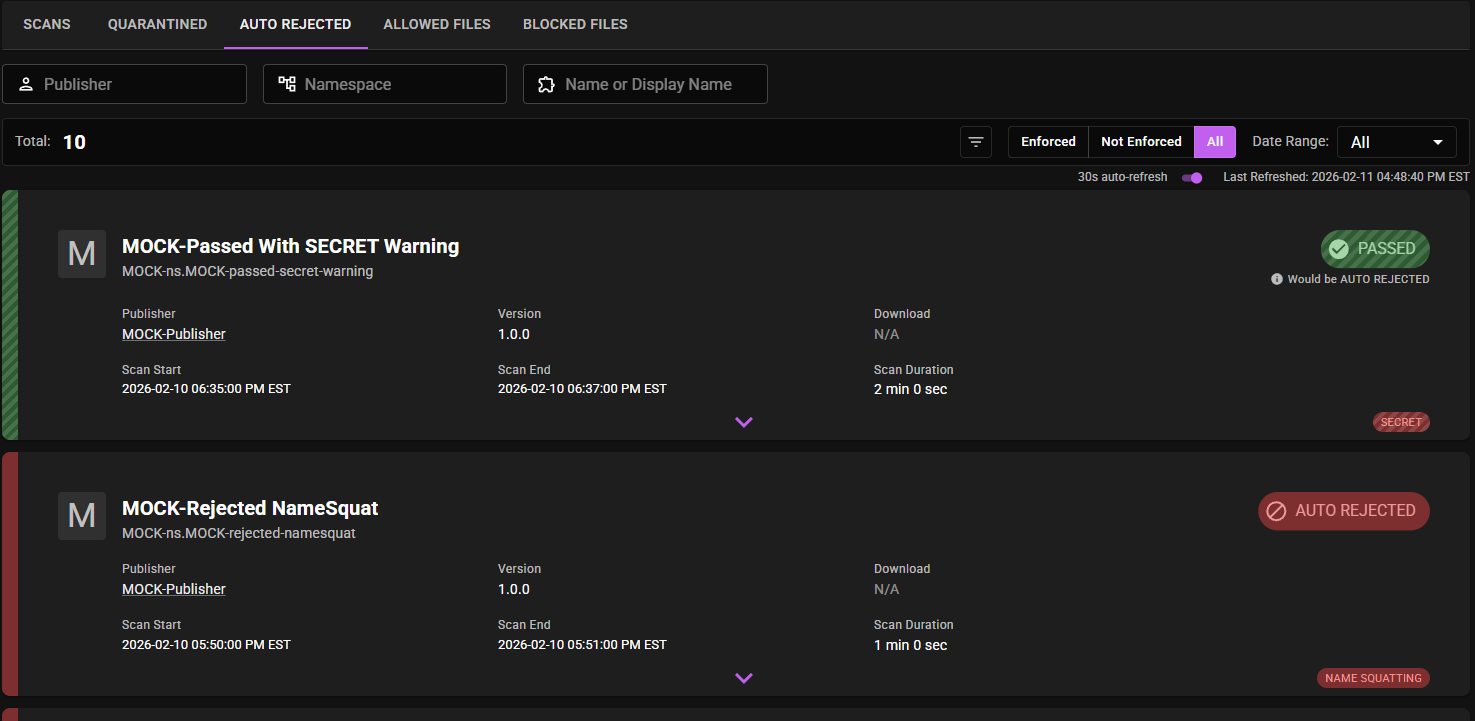
The AUTO REJECTED tab displays all extension scans that have at least one enforced OR unenforced publish check result, regardless of the final Status of the extension scan. This includes extension scans with a solid AUTO REJECTED Status badge as well as extension scans with a striped PASSED Status badge that indicate "Would be AUTO REJECTED" (i.e., extension scans that only failed unenforced publish checks).
See the AUTO REJECTED section for information on how extensions are assigned to the AUTO REJECTED Status.
The AUTO REJECTED tab has three search bars in its Search Toolbar.
These do not affect the count displayed in the Counts Toolbar below it.
The search bars operate with AND logic, meaning that results will only be displayed if the Scan Card matches ALL THREE search bar inputs.
These do not affect the count displayed in the Counts Toolbar below it.
Publisher: Allows searching by the extension's Publisher name.
Namespace: Allows searching by the extension's Namespace.
Name or Display Name: Allows searching by the extension's Name or Display Name.
The AUTO REJECTED tab shows the Total count based on the selected Enforcement filter and Date Range.
Changing these filters does affect the count displayed in the Counts Toolbar.
The Enforcement filters can be toggled between three values:
Enforced: These are extension scans that include at least one enforced publish check result.
Not Enforced: These are extension scans that include at least one unenforced publish check result.
All: These are all extension scans (no enforcement filtering).
Changing the Enforcement filter does affect the count displayed in the Counts Toolbar.
Allows filtering extension scans by:
- All
- Today
- Last 7 Days
- Last 30 Days
- Last 90 Days

The ALLOWED FILES tab displays all individual files that have been added to the ALLOWED FILES list as a result of an admin taking the ALLOW action on QUARANTINED extension scans (see the ALLOW Action section). Unlike the other tabs, the ALLOWED FILES tab displays a file-level table rather than Scan Cards.
Each row in the table contains the following columns:
- File: The file name and its file hash
-
Type: The file extension type (e.g.,
.js,.exe,.dll) - Date Allowed: The date and time the file was allowed
- Allowed By: The admin who made the ALLOW decision
-
Extension: The
Display NameandNamespace.Nameof the extension that the file belongs to - Publisher: The Publisher of the extension
- Version: The version of the extension
Admins can select individual files using the checkboxes on the left side of each row. There is also a "Select All" toggle displayed in the table header. When at least one file is selected, the BLOCK and DELETE buttons will be enabled, and text will appear below them to indicate the number of files selected.

Clicking the BLOCK button will bring up a confirmation dialog. If confirmed, it will move the selected files from the ALLOWED FILES list to the BLOCKED FILES list. The confirmation dialog displays the file name, file hash, extension name, extension namespace, and version for each file that will be blocked.

Clicking the DELETE button will bring up a confirmation dialog. If confirmed, it will remove the selected files from the ALLOWED FILES list entirely. The file will no longer appear in the ALLOWED FILES or BLOCKED FILES tabs. The confirmation dialog displays the file name, file hash, extension name, extension namespace, and version for each file that will be deleted.
The ALLOWED FILES tab has three search bars, a BLOCK button, and a DELETE button in its Search Toolbar.
These do not affect the count displayed in the Counts Toolbar below it.
The search bars operate with AND logic, meaning that results will only be displayed if the file row matches ALL THREE search bar inputs.
These do not affect the count displayed in the Counts Toolbar below it.
Publisher: Allows searching by the extension's Publisher name.
Namespace: Allows searching by the extension's Namespace.
Name or Display Name: Allows searching by the extension's Name or Display Name.
The ALLOWED FILES tab shows the Allowed Files count based on the selected Date Range.
Changing this filter does affect the count displayed in the Counts Toolbar.
Allows filtering allowed files by:
- All
- Today
- Last 7 Days
- Last 30 Days
- Last 90 Days

The BLOCKED FILES tab displays all individual files that have been added to the BLOCKED FILES list as a result of an admin taking the BLOCK action on QUARANTINED extension scans (see the BLOCK Action section) or from the ALLOWED FILES tab. Like the ALLOWED FILES tab, the BLOCKED FILES tab displays a file-level table rather than Scan Cards.
Each row in the table contains the following columns:
- File: The file name and its file hash
-
Type: The file extension type (e.g.,
.js,.exe,.dll) - Date Blocked: The date and time the file was blocked
- Blocked By: The admin who made the BLOCK decision
-
Extension: The
Display NameandNamespace.Nameof the extension that the file belongs to - Publisher: The Publisher of the extension
- Version: The version of the extension
Admins can select individual files using the checkboxes on the left side of each row. There is also a "Select All" toggle displayed in the table header. When at least one file is selected, the ALLOW and DELETE buttons will be enabled, and text will appear below them to indicate the number of files selected.

Clicking the ALLOW button will bring up a confirmation dialog. If confirmed, it will move the selected files from the BLOCKED FILES list to the ALLOWED FILES list. The confirmation dialog displays the file name, file hash, extension name, extension namespace, and version for each file that will be allowed.
Clicking the DELETE button will bring up a confirmation dialog. If confirmed, it will remove the selected files from the BLOCKED FILES list entirely. The file will no longer appear in the BLOCKED FILES or ALLOWED FILES tabs.
The BLOCKED FILES tab has three search bars, an ALLOW button, and a DELETE button in its Search Toolbar.
These do not affect the count displayed in the Counts Toolbar below it.
The search bars operate with AND logic, meaning that results will only be displayed if the file row matches ALL THREE search bar inputs.
These do not affect the count displayed in the Counts Toolbar below it.
Publisher: Allows searching by the extension's Publisher name.
Namespace: Allows searching by the extension's Namespace.
Name or Display Name: Allows searching by the extension's Name or Display Name.
The BLOCKED FILES tab shows the Blocked Files count based on the selected Date Range.
Changing this filter does affect the count displayed in the Counts Toolbar.
Allows filtering blocked files by:
- All
- Today
- Last 7 Days
- Last 30 Days
- Last 90 Days