This repository provides a few examples of AutoLISP routines that may enable AutoCAD users to draft more efficiently, neatly, and accurately. From finding and deleting block duplicates to aligning objects along a linear direction to instantly clouding AutoCAD objects, these may enhance your layout of detailing and work more productively.
The short video below shows a demonstration of the commands ATD and RC found in AlignToDirection.lsp and RevCloud.lsp respectively.
AutoLISP.Demonstration.mp4
Downloading the AutoLISP routines can be done by clicking on the green "Code" button at the top of this page and clicking the "Download Zip" button. Once downloaded, extract the files in it into a directory of your own choice.

In order for the custom commands to run in AutoCAD, the files must first be loaded into the drawings that are opened. Loading AutoLISP routines into AutoCAD does not mean that the commands will be loaded into the AutoCAD, but rather into the specific drawings that are opened. Therefore, you may choose to load in some drawings, and not on others.
AutoLISP files have the .lsp extension and can be loaded by means of the APPLOAD command in AutoCAD.
-
Start AutoCAD and call the APPLOAD command
-
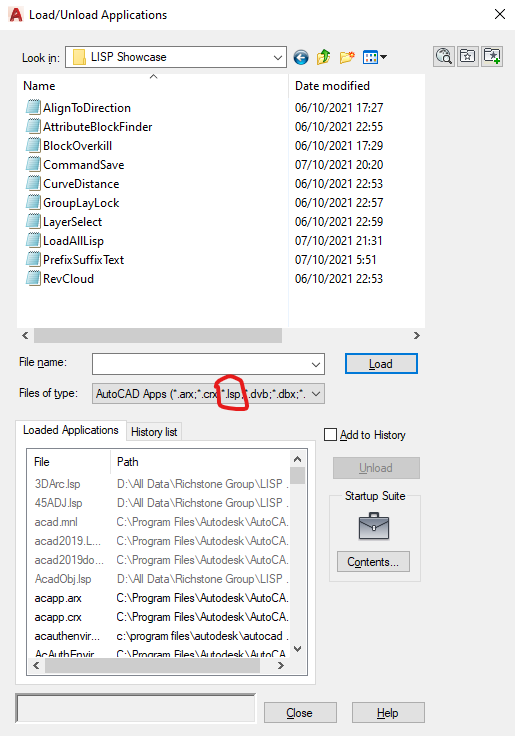
Ensure to include the file type "*.lsp" as shown in red in the image below.
-
Select the LISP routines you wish to run, and click Load
-
If you would want to load the AutoLISP routine automatically, go to the Contents under Startup Suite as shown on the image above, and include the files to load.
- By doing this, AutoCAD will load the AutoLISP routine for every drawing that you will open and create in the future.
-
If the AutoLISP routine is to be loaded for the first time, you may be prompted with this dialog box below:

-
This dialog box will be prompted if the system variable SECURELOAD is set to 1 or 2.
-
You can check this by running SECURELOAD in the command line of your AutoCAD
-
It is highly recommended that this value is NOT set to 0. It may potentially be harmful
-
The user may choose to load this routine once by clicking on the Load Once button, which would mean that AutoCAD will display this dialog box again the next time this routine is attempting to be loaded.
-
Alternatively, the user may also choose to Always Load the routine each time without having to make this prompt appear again the next time the AutoLISP routine is loaded.
-
-
Once loaded, the status will be displayed as shown, which indicates that the command has been successfully loaded into the current drawing:

-
-
Close the dialog box to exit.
AutoLISP routines will not appear on the ribbon of your AutoCAD and can only be invoked by calling its name from the command line. However, proficient AutoCAD users may create a new command calling the routines from the user interface to include it as a new icon on a new or existing ribbon.
The following files contains the corresponding commands that can be called from the command line once loaded:
- AlignToDirection.lsp - ATD
- AttributeBlockFinder.lsp - ABF
- BlockOverkill.lsp - BOVERKILL
- CommandSave.lsp - CMDSAVEON, CMDSAVEOFF
- CurveDistance.lsp - CRVDIS
- GroupLayLock.lsp - GRLAYLCK
- LayerSelect.lsp - LAYSEL
- PrefixSuffixText.lsp - PRESUF
- RevCloud.lsp - RC, RCM
Detailed instruction have been left on the files themselves, including the commands to call from the command line, and how it works. This can be viewed using one of the following three methods:
-
Clicking on the file itself on GitHub (above)
-
Opening the file using Notepad or any text editor once downloaded.
-
Using an Integrated Development Environment once downloaded.
-
In AutoCAD, invoke the VLIDE command.
For AutoCAD 2020 and earlier versions:
-
This will bring you to the Visual LISP Integrated Development Environment.
-
Go to the File Tab, and Select Open. Alternatively, press Ctrl O for a shortcut.
-
Select the file to open

For AutoCAD 2021 and later versions:
-
Visual LISP Integrated Development Environment is no longer supported in these versions. Instead, Visual Studio Code (VS Code) will be used.
-
If VS Code has not been installed, the user will be prompted to install VS Code and the AutoLISP extension that could be installed into VS Code for coding purposes. Follow the instructions to install VS Code.
-
Otherwise, invoking the VLIDE command will start VS Code.
-
-
Once VS Code is launched, go to the File Tab, select Open File and select the routine to open.
-
Alternatively, the user may choose to select Open Folder instead and select the folder of the extracted zip folder.
-
This will list all the files in the file explorer (shown in green). The user may click on each one to view the instructions (shown in red)

-
-
-